
Highlight
AppleSeed for IT allows enterprises and schools to use Managed Apple IDs to participate in pre-release system testing and collaborate on feedback through Feedback Assistant Teams. macOS Big Sur also integrates software update delay, scanning, status query and installation scheduling into the MDM management plane.
Core Content
Enterprise IT’s biggest fear is not discovering problems until system launch day. Internal networks, third-party MDMs, business-critical apps, VPNs, identity systems, and managed devices all come together, and compatibility issues at any one of them can stall upgrades. Apple begins by stating directly that it cannot replicate the real-world environment of every business and school, so pre-release testing must involve the organizations themselves. (00:39)
This is where AppleSeed for IT fits in. Public Beta is for general users, Developer Program is for app developers, and AppleSeed for IT is for enterprise and education IT. This program provides beta documentation, release notes, test plans, and surveys for IT management processes, allowing organizations to validate their infrastructure, critical apps, and services before official release. (02:11)
After problems are discovered during testing, feedback must also be accepted by the team. In the past, feedback often followed the submitter: a colleague left or took a leave of absence, and the context of the issue was lost. Feedback Assistant Teams for iOS 14, iPadOS 14, and macOS Big Sur allows team members to see each other’s submitted feedback, Apple’s responses, and reassign the owner if needed. (05:41)
The second half extends testing to release control. Organizations should ideally deploy Apple updates as quickly as possible because they contain stability, performance, and security fixes; in reality, IT often has a short timeline to certify the final version. The solution given by Managed Software Updates is to use MDM to control visible updates, scan update status, schedule downloads or installations, and then complete certification and phased promotion through the shortest possible delay window. (13:00)
Detailed Content
AppleSeed for IT participation process
(03:07) Joining AppleSeed for IT no longer requires a separate consumer account process. Participants log in with a Managed Apple ID, accept the program terms, and configure their test devices to receive pre-release updates.
1. Use a Managed Apple ID.
2. Sign in at appleseed.apple.com.
3. Accept the AppleSeed for IT program terms.
4. Configure test devices with the configuration profile or the macOS Customer Beta Access Utility.
5. File deployment blockers and regressions through Feedback Assistant.
Key points:
- Managed Apple ID is managed by Apple Business Manager or Apple School Manager, which is suitable for companies and schools to incorporate test identities into the organizational account system.
- Both the configuration files and the macOS Customer Beta Access Utility are from the AppleSeed download page, with the goal of allowing designated test devices to receive pre-release builds.
- Apple explicitly wants to receive deployment blockers and regressions, which are issues that prevent deployment and where pre-release versions are degraded from the last production version.
(04:43) When submitting feedback, time points, reproduction steps, screen recordings, screenshots and related logs are all critical. Apple also provides additional profiles for enterprise and education configurations to collect logs that are more relevant to the organizational environment.
Feedback Assistant Teams
(05:41) Teams is a collaborative update of Feedback Assistant in that year’s system version. Team spaces are configured for AppleSeed for IT with Apple Business Manager or Apple School Manager, and the Developer Program is configured with App Store Connect.
Create team feedback -> teammates can see it -> Apple can respond -> current assignee or admin can reassign -> team verifies fixes togetherKey points:
- Team members can see feedback created by teammates, Apple’s responses, and subsequent back-and-forth communication.
- Feedback can be moved from the personal space to the team space to avoid historical issues remaining only in the submitter’s account.
- After the person in charge leaves the team, the administrator can reassign the feedback; the administrator can also move the feedback out of the team or turn off feedback from teammates.
(06:26) Multi-device diagnostics solve another common problem: cross-device functions such as Continuity, AirDrop, and synchronization often require logs from multiple devices. The new Feedback Assistant can remotely collect diagnostics from other devices under the same iCloud account, and allows feedback to be submitted first, and then uploaded to Apple by the device after the diagnosis is completed.
Update delays for iOS, iPadOS, and tvOS
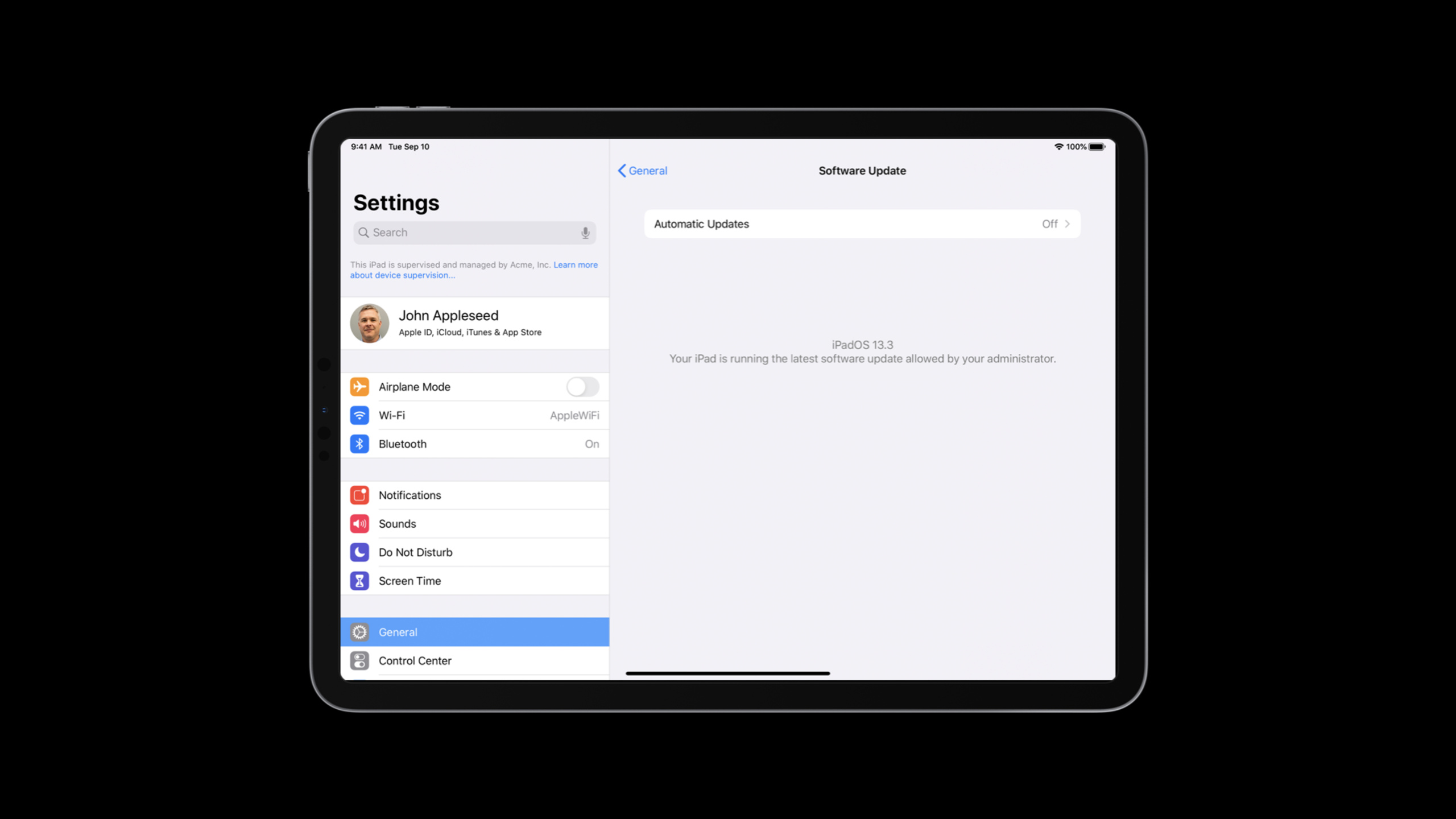
(14:51) On iOS, iPadOS, and tvOS, software update latency is controlled by MDM and can be deployed to supervised devices via profiles. The default delay window is 30 days after Apple releases an update, and administrators can change it to 1 to 90 days.
iOS / iPadOS / tvOS deferral
- target: supervised devices
- default: 30 days from Apple release
- configurable: 1-90 days
- basis: release date, not release version number
Key points:
- The delay window is calculated by date, not by version number; after the window expires, the system will re-evaluate whether the next update is displayed to the user.
- Once an update has been installed, Apple does not support rolling back to the old system without wiping the device.
- Devices can only install versions that are still signed by Apple to avoid downgrade attacks.
Managed update capabilities for macOS
(16:26) The Software Update management surface of macOS covers system updates, as well as out-of-band updates such as Safari. MDM can schedule scans, get a list of available updates, read update progress, and schedule installation.
macOS managed update workflow
1. Schedule a scan across the Mac fleet.
2. Fetch the list of available updates.
3. Read the status of updates in progress.
4. Schedule eligible updates for installation.
Key points:
- Remote management updates require supervised devices; however, when simply delaying software updates on macOS, you can configure profile control and do not require the device to be supervised.
- Administrators can leave Software Update preferences as a user choice or take over these settings entirely via MDM.
- The delay window of macOS is also up to 90 days. After the window is updated, it will be visible to the user in System Preferences again.
(19:30) macOS Big Sur adds support for deferring software updates during seeding. Starting with macOS Catalina 10.15.4, Apple has also included major releases in the same delay window. Apple’s advice is clear: complete validation during the beta phase and use only a short delay after the official release to certify the final build.
Big Sur Installation and Security Changes
(20:04) Big Sur’s installation technology is closer to iOS. The system will take a snapshot of the system volume and use authenticated APFS to seal the snapshot; when starting, it will verify whether the system matches the content delivered by Apple.
Big Sur update model
- unified installation technology across Apple platforms
- system volume snapshots
- authenticated APFS sealing
- server-driven OS update qualification
- Apple-managed installation catalog
Key points:
- Snapshot patching allows users to prepare for system snapshot updates when using Mac.
- Authenticated APFS will verify the hash along the file system link; when the root hash does not match, the seal is considered broken.
- Big Sur has removed third-party software update catalogs and stopped supporting indefinite deferral of updates; Apple encourages organizations to use a combination of limited-term deferred and pre-release testing to complete governance.
Core Takeaways
-
Pre-release System Validation Checklist: What to do: Build an IT validation sheet for each beta, covering MDM, logins, VPN, critical apps, printing, sync, and classroom devices. Why it’s worth it: The goal of AppleSeed for IT is to discover deployment blockers and regressions. How to get started: Join AppleSeed with a Managed Apple ID, install the profile on your first test devices, and submit each blocking issue to Feedback Assistant.
-
Team Feedback Workbench: What to do: Organize beta issues within your organization by team space, owner, Apple response, and pending status. Why it’s worth it: Teams makes feedback no longer exclusive to the submitter, and is great for handling cross-department issues and personnel changes. How to get started: Check AppleSeed for IT permissions in Apple Business Manager or Apple School Manager, move historical individual feedback to a team space, and agree on who is responsible for validating issues that Apple marks as fixed.
-
Update release calendar within 90 days: What to do: Establish a delay window for iOS, iPadOS, tvOS, and macOS starting from Apple’s release date. Why it’s worth doing: The session explicitly says that deferred takes effect by date, and the window range is 1 to 90 days. How to start: Divide key departments into test groups, early stage groups and full-scale groups, set the shortest possible delay in MDM, and cooperate with content caching to reduce network pressure.
-
Mac Update Status Dashboard: What it does: Shows available updates, installation progress, and whether the delay window has passed for each Mac in the fleet. Why it’s worth it: macOS’s MDM management plane supports scanning, getting available updates, reading progress, and scheduling installations. How to start: First use software update of existing MDM to report capability collection status, and then bucket the unscanned, pending and installed devices.
-
Big Sur Compatibility Acceptance Process: What to do: List Big Sur changes such as system volume sealing, removal of third-party update catalog, and indefinite ignoring of update failures as acceptance items. Why it’s worth doing: These changes directly impact Mac management, operational scripts, and historical update processes. How to get started: Select a set of managed Macs and enter seeding testing to verify launch, update, rollback expectations, and management strategies before deciding on the number of days to delay post-production.
Related Sessions
- What’s new in managing Apple devices — The annual update of device management capabilities belongs to the same set of MDM management practices as this site’s software updates, supervision mode, and configuration profiles.
- Deploy Apple devices using zero-touch — Talking about zero-touch deployment, security and remote management of Apple devices, which is the prerequisite for issuing AppleSeed test devices and update strategies.
- Leverage enterprise identity and authentication — Talk about Managed Apple ID, federated authentication, single sign-on extensions and enterprise identity management, and complete the account system participating in AppleSeed for IT.
- Custom app distribution with Apple Business Manager — Talks about the creation, distribution and deployment of enterprise custom apps, suitable for planning together with pre-release system compatibility testing.
Comments
GitHub Issues · utterances