
Highlight
Apple showed how to use location confirmation, 8-hour temporary notification permission, SKOverlay and secure app group to extend the transaction process of App Clips such as scanning QR codes and ordering from the initial call to the complete App.
Core Content
The value of App Clips comes from the sense of presence. When users scan NFC tags or QR codes in stores, they usually want to do only one thing: read the menu, pay, and pick up the goods. Putting the account center, settings page, and complex navigation in the complete app into this scenario will only slow down the completion of tasks.
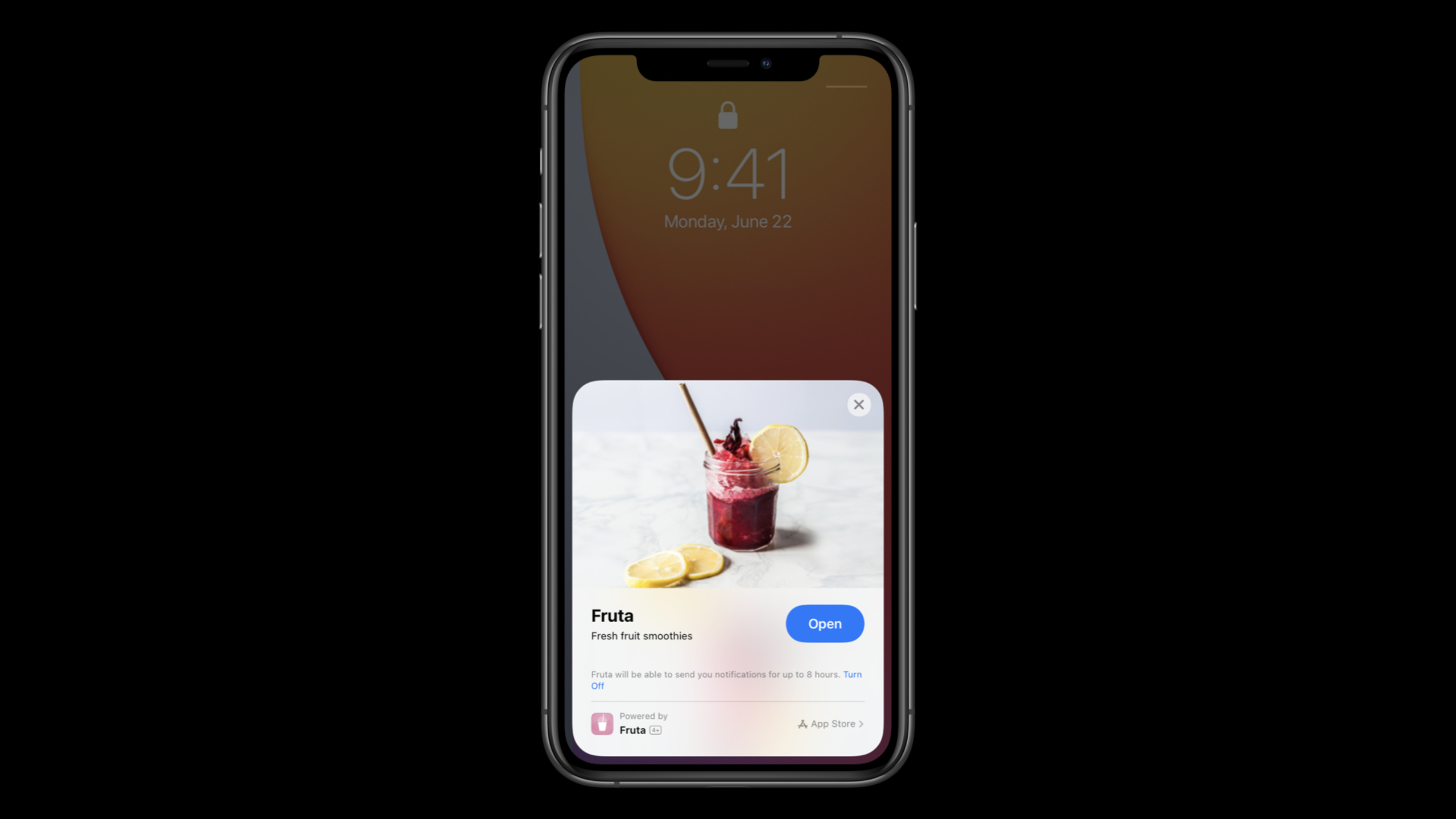
This session illustrates the problem using Fruta’s smoothie ordering process. Without optimization, after users scan the QR code to enter the App Clip, they still have to deal with positioning permissions, notification permissions, payment, registration or login. Every step is reasonable, but together they become friction.
The solution provided by Apple is to move the permission request to the App Clip Card and system capabilities. Location confirmation only returns whether the physical code was obtained within the specified area, and does not reveal the complete positioning. App Clip notification can provide temporary notification permission for up to 8 hours after each launch. Apple Pay is responsible for payment, and Sign in with Apple and secure app group are responsible for extending the identity to the full app.
This is also a trade-off in the way it is built. App Clips should only bring the resources needed to complete the current task and be available immediately upon launch. Shared assets can be placed in a shared asset catalog, and shared classes and localized strings can be reused between Apps and App Clips. Heavy tasks like creating an account are left until the transaction is completed, or until the user has installed the full app.
Detailed Content
Protect physical code transactions with location confirmation
(07:53) The physical code will take the user to an App Clip experience. The problem is that the code may be posted to the wrong store, or it may be maliciously replaced. App Clip’s location confirmation API allows the application to verify “whether this code is obtained in the expected area”, and the return result is a yes/no judgment.
import AppClip

guard let payload = userActivity.appClipActivationPayload else {
    return
}

let region = CLCircularRegion(center: CLLocationCoordinate2D(latitude: 37.3298193,
    longitude: -122.0071671), radius: 100, identifier: "apple_park")

payload.confirmAcquired(in: region) { (inRegion, error) in

}
Key points:
userActivity.appClipActivationPayloadRecall the context from the App Clip. -CLCircularRegionDescribes the location range where the physical code should appear; session mentions that the radius can be up to 500 meters. -confirmAcquired(in:)Only confirm whether the payload is obtained in this area. -inRegionWhen false, payment can be blocked or the user can be prompted to check the store.
Read the temporary notification authorization on the App Clip Card
(09:24) App Clip can request temporary notification permission on Card. After the user agrees, App Clip can provide notifications for up to 8 hours each time it is launched, which is suitable for short life cycle messages such as order completion, pickup reminders, and queuing status.
import UserNotifications

let center = UNUserNotificationCenter.current()

center.getNotificationSettings { (settings) in
   if settings.authorizationStatus == .ephemeral {
        // User has already granted ephemeral notification.
    }

}
Key points:
UNUserNotificationCenter.current()Read current notification settings. -.ephemeralIs the temporary notification authorization status of the App Clip.- When temporary authorization has been obtained, the application does not need to pop up a normal notification permission request.
- For longer-term notification relationships, general notification permissions can still be requested when appropriate.
Show SKOverlay after task completion
(10:49) After the user completes the payment, it is a good time to guide the installation of the complete App. StoreKitSKOverlay.AppClipConfigurationYou can embed the App Store entrance in the App Clip view. Session recommends placing it near the payment confirmation page.
import SwiftUI
import StoreKit

struct ContentView : View {
    @State private var finishedPaymentFlow = false

    var body: some View {
        NavigationView {
            CheckoutView($finishedPaymentFlow)
        }
        .appStoreOverlay(isPresented: $finishedPaymentFlow) {
            SKOverlay.AppClipConfiguration(position: .bottom)
        }
    }
}
Key points:
finishedPaymentFlowIndicates whether the user has completed the payment process. -.appStoreOverlay(isPresented:)Leave the overlay display timing to SwiftUI state control. -SKOverlay.AppClipConfiguration(position: .bottom)Use App Clip-specific configuration.- Overlay does not interrupt the ordering process and is suitable for prompting users to install the complete app on the confirmation page.
Migrate login status to full App
(11:32) When an App Clip is replaced by a full App, a small amount of user data can be passed through the secure app group. The method of session is to use Sign in with Apple in App Clip. After success,credential.userSave to shared group container.
// Automatically log in with Sign in with Apple
import AuthenticationServices

SignInWithAppleButton(.signUp, onRequest: { _ in
}, onCompletion: { result in
    switch result {
    case .success(let authorization):
        guard let secureAppGroupURL =
            FileManager.default.containerURL(forSecurityApplicationGroupIdentifier:
                "group.com.example.apple-samplecode.fruta")
            else { return };
        guard let credential = authorization.credential as? ASAuthorizationAppleIDCredential
            else { return }
        save(userID: credential.user, in: secureAppGroupURL)
    case .failure(let error):
        print(error)
   }
})
Key points:
SignInWithAppleButtonComplete registration or login within the App Clip. -containerURL(forSecurityApplicationGroupIdentifier:)Get app clips and full app shareable containers. -ASAuthorizationAppleIDCredentialprovide stableuserlogo.- Only the user ID is saved here, and the credential status needs to be verified again after the complete app is launched.
(11:55) After the complete App is started for the first time, read the user ID in the same group container, and then useASAuthorizationAppleIDProviderVerify that the credentials are still valid. After passing the verification, the application can restore the user’s collection, rewards or order history.
import AuthenticationServices

let provider = ASAuthorizationAppleIDProvider()
guard let secureAppGroupURL =
    FileManager.default.containerURL(forSecurityApplicationGroupIdentifier:
        "group.com.example.apple-samplecode.fruta")
    else { return };
let user = readUserID(in: secureAppGroupURL)
provider.getCredentialState(forUserID: user) { state, error in
    if state == .authorized {
       loadFavoriteSmoothies(userID: user)
   }
}
Key points:
- The full app reads the same secure app group that the App Clip writes to.
-
ASAuthorizationAppleIDProviderResponsible for checking the authorization status of the user ID. -state == .authorizedThen load user-related data. - This process allows users to directly return to the logged-in state after installing the complete app from the App Clip.
Core Takeaways
1. Add pre-payment verification to the store QR code
What to do: When ordering food, parking, renting equipment, etc. App Clip, confirm whether the transfer was obtained in a legal area before paying.
Why it’s worth doing: Session’s Fruta example shows that a misplaced or replaced QR code will take users to the wrong store, and location confirmation can intercept the risk without requesting full location permissions.
How to start: Enable location confirmation in the App Clip’s Info.plist, parse the activation payload, and generate it according to the store configuration.CLCircularRegion, then useconfirmAcquired(in:)Decide whether to release payment.
2. Change the short life cycle message to App Clip notification
What to do: Send 8-hour notifications for pickups, queues, walk-ins, and one-time appointments.
Why it’s worth doing: Users only need to know “the fruit shake is ready” or “the parking space is about to expire”, and ordinary notification permissions will be too heavy; temporary authorization can cover such immediate tasks.
How to start: Request ephemeral notification in App Clip Card and use it after startupgetNotificationSettingsexamine.ephemeral, and only request general notification permissions if you need a long-term relationship.
3. Install the complete app after the task is completed
What to do: After the user successfully pays, receives the voucher or completes the reservation, useSKOverlayPrompt to install the full app.
Why it’s worth doing: Session clearly recommends placing overlay after the user completes a task, such as next to the payment confirmation page. At this point the user has gained value and is more receptive to the full app.
How to get started: Bind transaction completion status toappStoreOverlay(isPresented:),useSKOverlay.AppClipConfiguration(position: .bottom), to avoid interrupting the process before the task begins.
4. Let the App Clip login naturally migrate to the full App
What it does: After a user signs in with Sign in with Apple in an App Clip, their identity is automatically restored when the full app is installed.
Why it’s worth doing: When an App Clip is replaced by a full App, the secure app group is transferred to the full App. Users do not need to log in again to see rewards, collections or historical orders.
How to start: After successfully logging in, App Clipcredential.userWrite to the group container; read this value when the complete app starts, usegetCredentialState(forUserID:)Load account data after verification.
Related Sessions
- Explore App Clips — An introductory session to App Clips, explaining the core tasks, triggering scenarios, and the relationship between App Clips and complete apps.
- Configure and link your App Clips — Explains App Clip Code, NFC, QR code, Universal Links, Associated Domains, and App Store Connect configuration.
- Design great App Clips — A breakdown of the fast, focused, low-friction App Clip process from a design perspective and a guide to downloading the full app.
- What’s new with in-app purchase — Supplements purchase and conversion capabilities such as StoreKit, SKOverlay, App Store server notifications, SKAdNetwork, etc.
- Get the most out of Sign in with Apple — An in-depth explanation of the authorization request, credential status verification and account migration of Sign in with Apple.
Comments
GitHub Issues · utterances