
Highlight
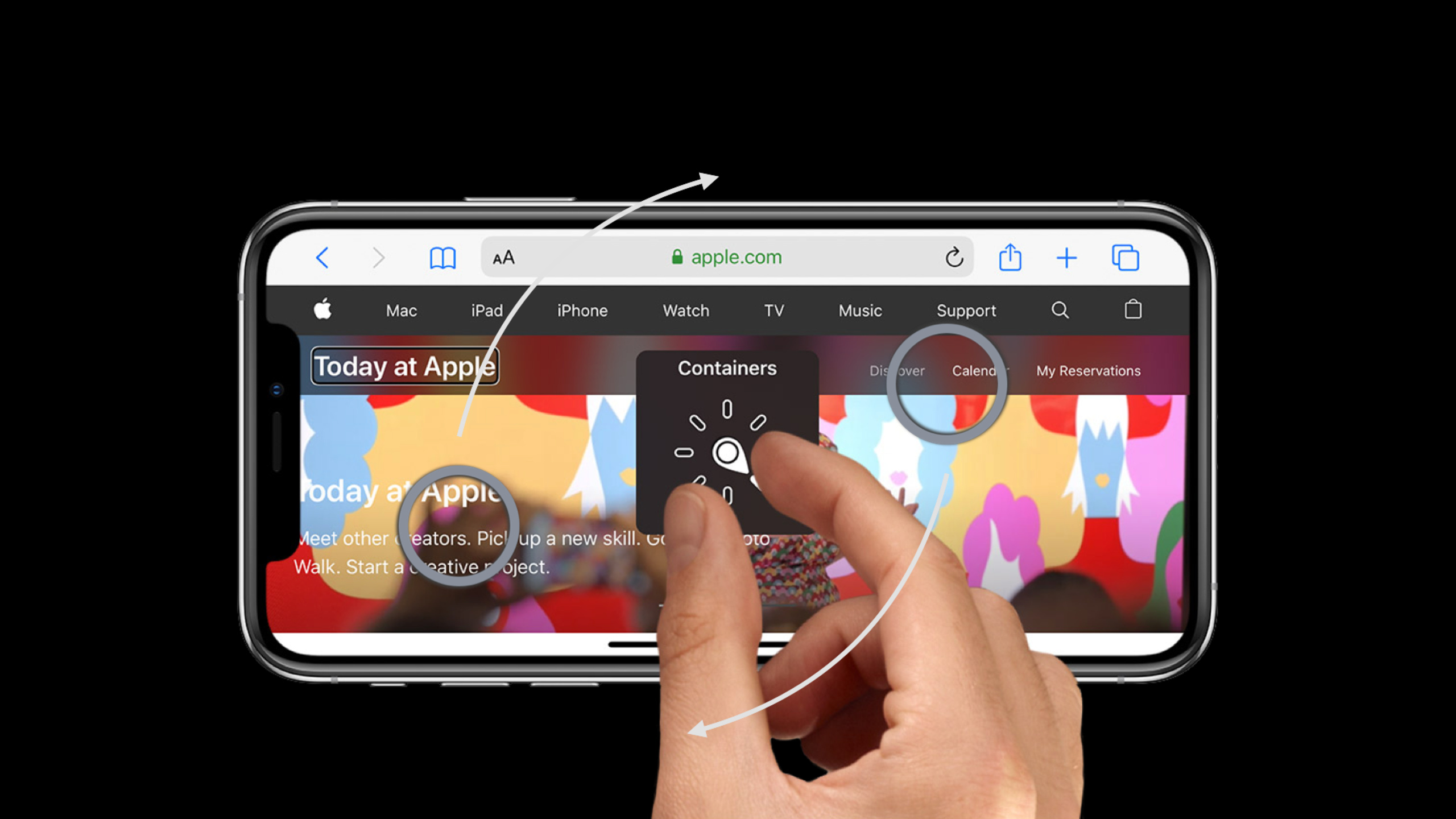
VoiceOver’s Rotor allows users to use up and down to jump within the selected dimension; custom Rotor allows the app to expose map annotations, text warnings and other content to screen reader users according to their own categories.
Core Content
When VoiceOver users can’t see the screen, they hear their current location through touch and use gestures to move between interface elements. Rotor is the efficient entry point in this process: the user uses two fingers to rotate to select a dimension, and then slides up or down to move to the previous or next item. The system already provides common dimensions such as characters, words, and lines, but complex apps often have their own content classifications. (00:29)
The first example of a Session is a map. The map also features an Apple Store, parks, bridges, and other points of interest. People watching the screen can focus on a certain type of place based on the icon color; VoiceOver users default to listening to all annotations one by one in the order of the interface. Apple’s approach is to find the most visually important categories, build a custom rotor for each Apple Store and parks, and sort them by user distance. (01:19)
The second example is a text brochure. The built-in Lines rotor can read line by line, but in order to find the park alert, the user must first listen to the previous ordinary content. Customize the Alerts rotor to extract the text range with the alert attribute, and the user will only move between these alerts when swiping up and down. This example shows that custom rotor is not only suitable for map annotations, but also for rich text, forms, timelines and other content-intensive interfaces. (06:13)
The focus of this session is to provide VoiceOver users with a browsing path equivalent to that of visual users, rather than just adding more labels to each element. Implementationally, developers only need to createUIAccessibilityCustomRotor, return the next one according to the direction in closureUIAccessibilityCustomRotorItemResult, and then put the rotor into the relevant viewaccessibilityCustomRotors。(09:13)
Detailed Content
Attach custom rotors to the target view
(04:04) When VoiceOver focuses on the map view, it will read this viewaccessibilityCustomRotors. The map example requires two rotors: one to browse the Apple Store and one to browse the parks. Both rotors reuse the same factory method and only take the POI type as input.
mapView.accessibilityCustomRotors = [customRotor(for: .stores), customRotor(for: .parks)]Key points:
accessibilityCustomRotorsBelongs to the view that hosts the content; the user doesn’t see these customization options until VoiceOver reaches that view.- Multiple rotors can be placed in the array, which is suitable for interfaces with multiple browsing dimensions such as maps, galleries, and documents.
-
customRotor(for:)The input is business classification, and the sessions are Apple Store and parks respectively.
Return the previous or next target in closure
(04:31)UIAccessibilityCustomRotorInitialized with a localized name and receiving a closure. The parameters of closure include the current rotor item and search direction. The map example first converts the current element intoMKAnnotationView, and then calculate the target subscript from the same label array.
// Custom map rotors

func customRotor(for poiType: POI) -> UIAccessibilityCustomRotor {
    UIAccessibilityCustomRotor(name: poiType.rotorName) { [unowned self] predicate in
        let currentElement = predicate.currentItem.targetElement as? MKAnnotationView
        let annotations = self.annotationViews(for: poiType)
        let currentIndex = annotations.firstIndex { $0 == currentElement }
        let targetIndex: Int
        switch predicate.searchDirection {
        case .previous:
            targetIndex = (currentIndex ?? 1) - 1
        case .next:
            targetIndex = (currentIndex ?? -1) + 1
        }
        guard 0..<annotations.count ~= targetIndex else { return nil } // Reached boundary
        return UIAccessibilityCustomRotorItemResult(targetElement: annotations[targetIndex],
                                                    targetRange: nil)
    }
}
Key points:
predicate.currentItem.targetElementis the element that VoiceOver is currently staying on, and the map expects it to beMKAnnotationView。annotationViews(for:)Returns the same type of labels corresponding to the current rotor, for example, only returns parks. -predicate.searchDirectionDistinguish whether the user slides up or down, and the code decrements or increments the index accordingly.- Return when out of bounds
nil, VoiceOver will stay at the current point of interest; return when hitting the targetUIAccessibilityCustomRotorItemResult. - The map element is not a text range, so
targetRangepassnil。
Use attributed text as Alerts rotor
(08:07) Text example marks all alert copy as customNSAttributedString.Key. Rotor closure works from the currentUITextRangeStart by sliding up or down to determine the search range and direction, and then find the next range with this attribute.
// Custom text rotor

func customRotor(for attribute: NSAttributedString.Key) -> UIAccessibilityCustomRotor {
    UIAccessibilityCustomRotor(name: attribute.rotorName) { [unowned self] predicate in
        var targetRange: UITextRange? // Goal: find the range of following `attribute`
        let beginningRange = self.textRange(from: self.beginningOfDocument,
                                            to: self.beginningOfDocument)
        guard let currentRange = predicate.currentItem.targetRange ?? beginningRange else {
            return nil
        }
        let searchRange: NSRange, searchOptions: NSAttributedString.EnumerationOptions
        switch predicate.searchDirection {
        case .previous:
            searchRange = self.rangeOfAttributedTextBefore(currentRange)
            searchOptions = [.reverse]
        case .next:
            searchRange = self.rangeOfAttributedTextAfter(currentRange)
            searchOptions = []
        }
        self.attributedText.enumerateAttribute(
            attribute, in: searchRange, options: searchOptions) { value, range, stop in
            guard value != nil else { return }
            targetRange = self.textRange(from: range)
            stop.pointee = true
        }
        return UIAccessibilityCustomRotorItemResult(targetElement: self,
                                                    targetRange: targetRange)
    }
}
Key points:
beginningRangeGive users who enter the rotor for the first time a starting point to avoid missing the current itemtargetRangeUnable to search. -targetRangeThe type must beUITextRange;transcript special reminder, text rotortargetElementMust also comply withUITextInput。.previousUse reverse enumeration,.nextUse forward enumeration so that the first hit is the previous or next alert that the user wants to go to. -enumerateAttributeAfter hitting the non-empty attribute, putNSRangeConvert toUITextRangeand stop continuing the search.- When there is no hit
targetRangeKeepnil, VoiceOver will treat it as reaching the boundary.
Core Takeaways
-
Add category Rotor to map and store search pages. What to do: Let VoiceOver users choose between categories such as “Store,” “Parking,” “Bathroom,” “Entrance,” and then browse only that category. Why it’s worth doing: The session map demo shows that visual users rely on icon color to filter, while VoiceOver users need an equivalent navigation dimension. How to start: Maintain a sorted accessibility element array for each POI category, and put the corresponding rotor into the map view
accessibilityCustomRotors。 -
Add warning or emphasis Rotor for long text. What to do: Mark warnings, deadlines, errors or action items in protocols, site descriptions, medical reports, and course materials. Why it’s worth doing: In the brochure demo, the Alerts rotor allows users to directly hear “Picnic area closed” and weather warnings. How to start: Use attributed string to attribute the target text, enumerate the attribute in rotor closure and return
targetRange。 -
Convert visual filters to VoiceOver browsing dimensions. What to do: Review the categories in the interface that rely on color, icons, position, or density expression, and make rotors the categories that really affect task completion. Why it’s worth doing: The transcript reminds developers to identify elements that “visually attract attention” and then group them into categories. How to get started: Let design and accessibility testing work together to list 2-3 high-value dimensions, implementing them on the most complex screens first.
-
Add Rotor path testing in QA. What to do: Turn on VoiceOver, start from the complex page entry, and use rotor to complete a core task. Why it’s worth doing: The end of the session requires developers to identify visually complex areas and confirm whether VoiceOver can reach the content just as easily. How to get started: Write a manual checklist for map, rich text, table, or schedule views, documenting each rotor’s name, order, and boundary behavior.
Related Sessions
- App accessibility for Switch Control — Explain how Switch Control reuses accessibility information and reduces operating costs with custom actions, grouping, and focus callbacks.
- Make your app visually accessible — Check whether the interface is suitable for users with more visual abilities from color, text, animation and visual settings.
- Create a seamless speech experience in your apps — Explain the boundaries between AVSpeechSynthesizer, VoiceOver announcement, and assistive technology voice settings.
- Accessibility design for Mac Catalyst — Complete accessibility details like keyboard, mouse, grouping, and inspection tools when bringing iPad apps to Mac Catalyst.
Comments
GitHub Issues · utterances