
Highlight
iOS 14 and macOS Big Sur extend AutoFill to address, contact, password, verification code and strong password input in apps, developers can
textContentTypeorcontentTypeMark the field semantics to get system suggestions.
Core Content
Many forms fail in the first half step of input. The navigation app wants the user to enter the destination, the payment app wants the user to enter the payee’s email address, and the login page wants the user to enter the account number, password, and verification code. Developers who make their own suggestion lists usually have to maintain data sources, request permissions, design selection interfaces, and bear the risk of saving personal information.
Apple’s path in this Session is very small: tell the system the semantics of each input box. UIKit usedUITextContentType, AppKit added in macOS Big SurNSTextContentType. Once the system knows that a field requires an address, email, phone number, username, password, or one-time verification code, it can suggest matches in the QuickType bar or AutoFill.
The focus of this design is the borders. Contact suggestions do not hand over the address book to the App first, and there is no content to be shared with the App before the user clicks on it. Address suggestions, password suggestions, and verification code suggestions also use the existing data sources in the system. Developers reduce self-built selectors and permission pop-ups, and users retain control over personal information.
Detailed Content
Address AutoFill: Use field semantics to replace system suggestions
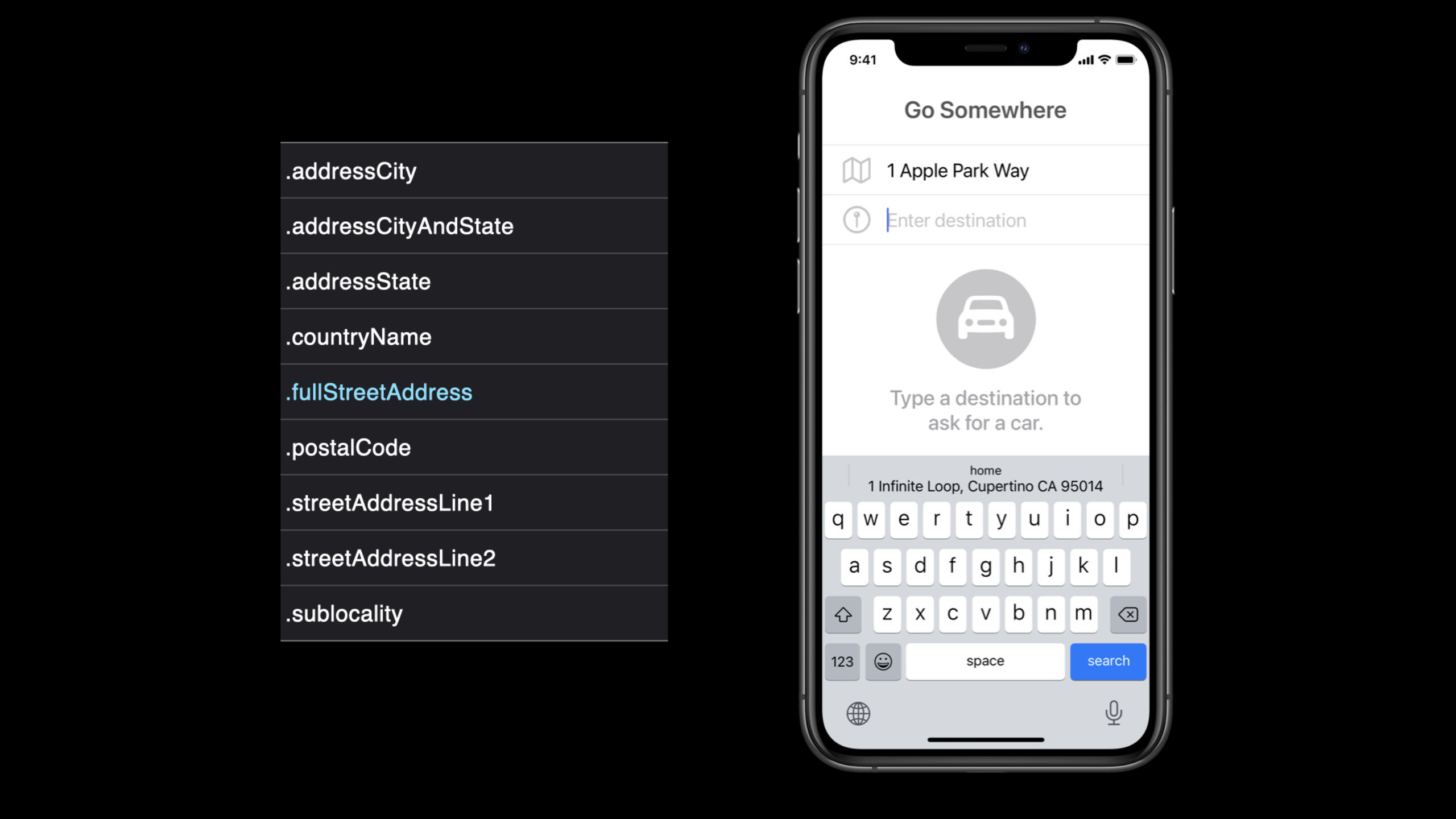
(02:06) The address input box of the navigation app only needs to be marked with a complete street address. When a user clicks into a field, the system can make suggestions in the QuickType bar based on recent locations, calendar event locations, or home addresses.
let streetAddressTextField = UITextField()
streetAddressTextField.textContentType = .fullStreetAddress

// Other address granularity:
// .addressCity, .addressCityAndState, .addressState, .countryName
// .postalCode, .streetAddressLine1, .streetAddressLine2, .sublocality
Key points:
UITextField()Create a normal text input box, and the access point of AutoFill is the input control itself. -.fullStreetAddressTells iOS that this field requires a full street address.- The address granularity should be selected according to the scenario. A navigation app will be fine with the full address, a weather app may only require the city.
- one
textContentTypeMultiple values cannot be combined. The more precise the field semantics, the more reliable the system recommendations.
Contacts AutoFill: Avoid prematurely requesting address book permissions
(05:18) If the payment app wants to find the payee, it can use the Contact Picker API to allow users to actively select specific information. iOS 14 further brings contact email, phone number, and address suggestions to the QuickType keyboard. Before the user clicks on the suggestion, the app cannot access the address book content.
// AutoFill contacts' email address
let emailTextField = UITextField()
emailTextField.textContentType = .emailAddress

// AutoFill contacts' phone number
let phoneTextField = UITextField()
phoneTextField.textContentType = .telephoneNumber

// AutoFill contacts' address
let streetAddressTextField = UITextField()
streetAddressTextField.textContentType = .fullStreetAddress
Key points:
.emailAddressLet the system use the contact’s email as an input suggestion. -.telephoneNumberLet the system use contact phone numbers as input suggestions. -.fullStreetAddressThe same applies to contact addresses.- App does not need to apply for Contacts permission first, nor does it need to maintain a custom contact suggestion UI.
Password and verification code: Each field must be clearly stated on the login page.
(07:35) Apps that have username and password login should mark the username field and password field respectively. Credentials are suggested from iCloud Keychain or a password manager. One-time verification code field usage.oneTimeCode。
let userTextField = UITextField()
userTextField.textContentType = .username

let passwordTextField = UITextField()
passwordTextField.textContentType = .password

let securityCodeTextField = UITextField()
securityCodeTextField.textContentType = .oneTimeCode
Key points:
.usernameMark the account field, which is the entrance to the password AutoFill recognition login form. -.passwordMark the existing password field and the system can give you the saved password. -.oneTimeCodeMark the verification code field, suitable for SMS verification code input.- These attributes only describe the meaning of the fields and do not require the App to read the user’s saved password library.
Strong password: Use newPassword on the registration page
(08:30) During the sign-up or new account setup process, Automatic Strong Passwords can suggest a unique, strong password and save it to iCloud Keychain. The speech emphasized that the final step is to associate the App with a domain name. For relevant details, please refer to WWDC 2018’s Automatic Strong Passwords and Security Code AutoFill.
let userTextField = UITextField()
userTextField.textContentType = .username

let newPasswordTextField = UITextField()
newPasswordTextField.textContentType = .newPassword
Key points:
.usernameStill mark the account field to let the system understand the account identity of the registration form. -.newPasswordIndicates that a new password is to be created here, and the system can suggest a strong password.- Strong passwords are recommended to reduce the probability of users reusing weak passwords. -Associating a domain name lets the system know that the app and website belong to the same credential scope.
macOS Big Sur: AppKit also gets password and verification code AutoFill
(08:56) macOS Big Sur extends AutoFill from Safari to Apps. Catalyst App gets verification code AutoFill; AppKit App can passNSTextContentTypeSupports username, password and one-time verification code.
let usernameTextField = NSTextField()
usernameTextField.contentType = .username

let passwordField = NSSecureTextField()
passwordField.contentType = .password

let securityCodeTextField = NSTextField()
securityCodeTextField.contentType = .oneTimeCode
Key points:
NSTextFieldusecontentType, semantically corresponding to UIKittextContentType。.usernameand.passwordLet AppKit login forms access password AutoFill. -NSSecureTextFieldFits the password field and still passescontentTypeAnnotation semantics. -.oneTimeCodeLet the macOS login process also gain verification code filling capabilities.
Core Takeaways
- Direct address filling for navigation and takeout apps
What to do: Mark the destination, shipping address, and store address input boxes as.fullStreetAddressor finer address type.
Why it’s worth it: Session shows recent locations, calendar event locations, and home addresses directly into the QuickType bar.
How to start: Start from the most commonly used address input page, set by field granularitytextContentType, and then check whether you really need to build a self-built historical address selector.
- Change payee input to privacy-friendly contact suggestions
What to do: In processes such as transfer, invitation, sharing, etc., set the email and phone fields separately..emailAddressand.telephoneNumber。
Why it’s worth doing: iOS 14’s Contacts AutoFill will not hand over the address book content to the app before the user clicks on it.
How to get started: Start by overriding the core paths with field semantics and the Contact Picker API, and only request Contacts permission when absolutely necessary.
- Recheck the username, password and verification code fields on the login page
What to do: Mark the account number, password, and SMS verification code fields on the login page as.username、.password、.oneTimeCode。
Why it’s worth it: These tags allow the system to suggest saved credentials and verification codes, reducing the need for users to switch between apps and text messages.
How to start: Conduct a form audit from the login portal with the highest conversion rate, and make corrections firsttextContentTypefield.
- Let the registration page enter the strong password process by default
What to do: Use the new account page.newPassword, and complete the configuration of the domain name associated with the App and the website.
Why it’s worth it: Automatic Strong Passwords suggests unique strong passwords and helps users save them to iCloud Keychain.
How to start: Clear the password field on the registration page: use the old password.password, use the new password.newPassword, then add associated domain.
- Incorporate the Mac login form into the same set of checks
What to do: Set in the AppKit login form in macOS Big SurNSTextContentType。
Why it’s worth it: AppKit now supports AutoFill for usernames, passwords, and one-time verification codes, so Mac apps no longer have to rely solely on Safari.
How to get started: CheckNSTextFieldandNSSecureTextField,BundlecontentTypeset to.username、.passwordor.oneTimeCode。
Related Sessions
- One-tap account security upgrades — Continue to talk about account security upgrades, covering Sign in with Apple, strong passwords, and iCloud Keychain password managers.
- Get the most out of Sign in with Apple — An in-depth look at login requests, credential status, server notifications, and existing account migration.
- Build trust through better privacy — This AutoFill Session explicitly recommends privacy extensions that complement the principles of permissions, transparency, and user trust.
Comments
GitHub Issues · utterances