
Highlight
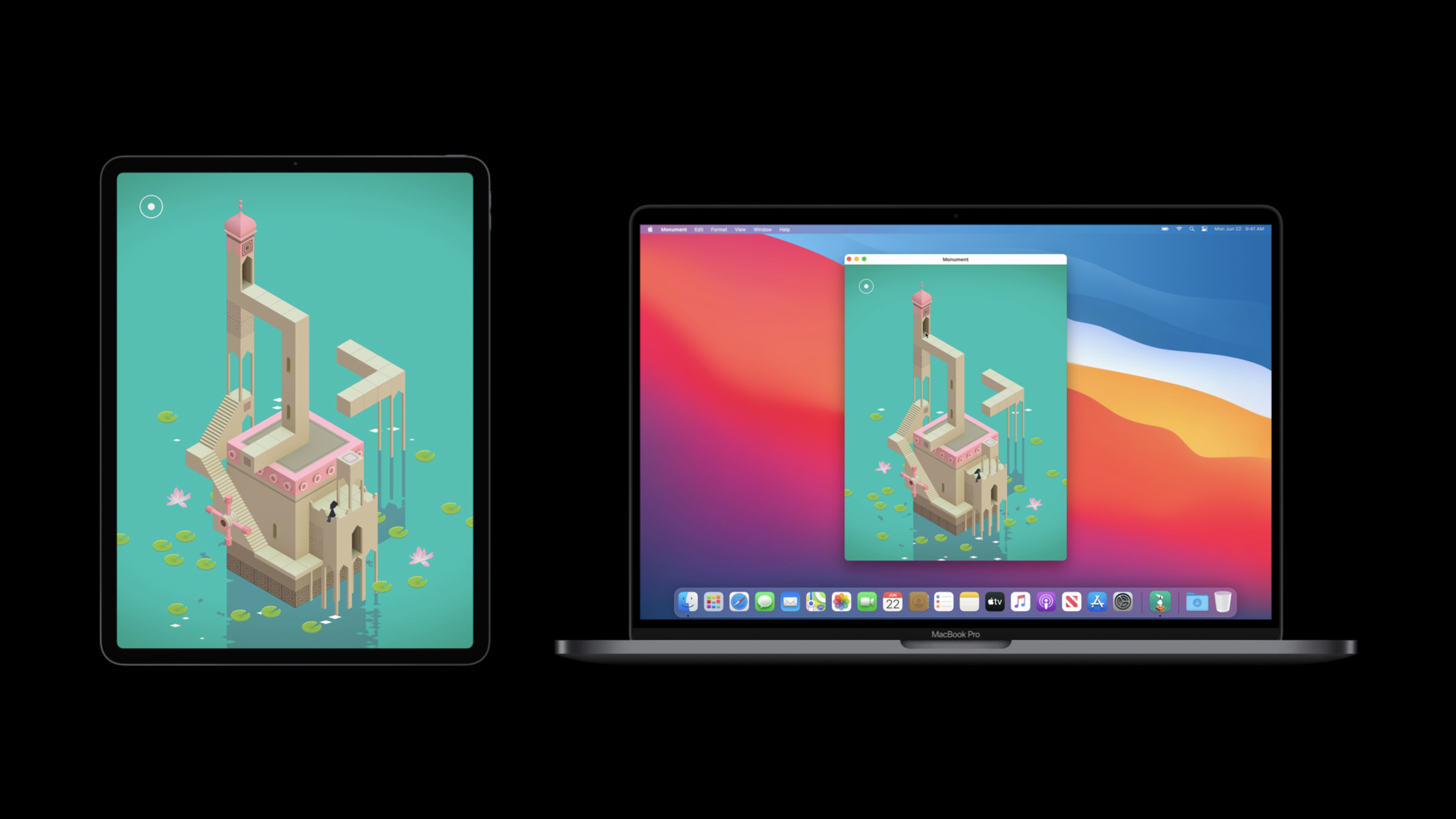
macOS Big Sur reuses the Mac Catalyst infrastructure on Apple Silicon Macs, allowing iPad and iPhone apps that are already on the iOS App Store to be provided in the Mac App Store in the same binary, and developers can control whether to put them on the shelves in App Store Connect.
Core Content
In the past, developers who wanted to bring iPad apps to Mac usually had to choose Mac Catalyst. This choice is valuable because it makes UIKit the first-class UI framework on the Mac and leaves a lot of room for Mac-specific optimizations for developers. But it still means building with the macOS SDK, turning on capabilities in Xcode, and specifically considering the behavior and distribution of the Mac version.
Apple Silicon Mac changes access. macOS Big Sur can run existing iPad and iPhone apps out of the box. The talk emphasized that the as-is here is literal: what a user purchases or downloads from the Mac App Store is the same binary that the developer has already put on the iOS App Store. Developers don’t need to recompile first, and users don’t need to wait for a separate Mac version.
The price of this ability is that the boundaries become clearer. The app can automatically obtain many Mac behaviors, but it is still in the running model of the iOS app and cannot access the full Mac app capabilities. The speech divided adaptation risks into three categories: hardware differences, UI differences, and system software differences. Touch, sensors, cameras, resizable windows, file paths, and device properties can all expose iPhone or iPad assumptions in old code.
The real deliverable of this session is a migration checklist: first determine whether the app can run on Mac as is, then run it with Xcode to test it, and finally decide on the distribution strategy. If the app is suitable for direct listing, enter it in the Mac App Store; if you need a complete Mac experience, change it to Mac Catalyst; if you already have a Mac app or product experience that is not suitable for the desktop, exit Mac distribution in App Store Connect.
Detailed Content
How the same binary came to Mac
(00:19) macOS Big Sur runs iOS apps on Apple Silicon Macs, and the underlying reuse is the Mac Catalyst infrastructure. The talk mentioned the same set of unified frameworks and iOS frameworks that are brought to the Mac and integrated so that iPad and iPhone apps automatically get a lot of Mac behavior.
Runs-as-is path
1. The developer submits the iPad or iPhone app to the iOS App Store.
2. Compatible apps automatically become available on the Mac App Store.
3. An Apple Silicon Mac downloads the same app binary.
4. The app runs on macOS Big Sur using Mac Catalyst infrastructure and iOS frameworks.
5. If fuller Mac capabilities are needed, the developer then creates a Mac Catalyst version.
Key points:
- The speech clearly states that Mac users download the exact same binary.
- Runs as-is only covers Apple Silicon Macs; Mac Catalyst version can be distributed to all Macs.
- Mac Catalyst remains the path to further optimizing behavior and expanding Mac capabilities.
- Compatibility is not a post-release add-on, system, hardware and UI assumptions are tested in advance.
Compatibility check starts with hardware assumptions
(03:18) Apple splits the operating environment differences into three groups: hardware, UI and system software. The first group is the most overlooked: iOS is designed around direct multi-touch, macOS is designed around the indirect cursor-based interaction model. Many multi-touch gestures are mapped, but custom touch handling still needs to be verified on the Mac.
// Hardware and framework checks called out in this session
// - custom touch handling: verify mouse and trackpad behavior on Mac
// - keyboard entry: provide an alternate path for custom touch operations
// - sensors: dynamically check whether accelerometer, gyroscope, magnetometer, depth camera, and GPS are present
// - Core Location: Mac can provide location, but accuracy may be lower than GPS
// - AVCaptureDeviceDiscoverySession: use a discovery session to choose the right camera
Key points:
- Don’t assume that every device running an iOS app has the sensor set of an iPhone or iPad.
- Custom touch logic would be best to have keyboard input as an alternative path.
- Macs don’t have a GPS receiver, but Core Location may still return location information, just with different accuracy.
- Your Mac may have a built-in camera, an external monitor camera, or a USB camera, which is recommended for presentations
AVCaptureDeviceDiscoverySession。
UI and system software differences amplify hard-coded assumptions
(05:28) iOS apps will automatically obtain many macOS system behaviors, but the presentation position and interaction form will change. alerts, pop-ups, Open panel, and Save panel may appear in different windows or locations on Mac. If the code hard-codes the location of the system UI, it will be error-prone when running on a Mac.
Mac runtime checklist
- iPad app supports multitasking: the window can fully resize on macOS.
- iPhone app or iPad app without multitasking support: runs in a fixed-size window.
- Auto Layout: use it to cover more window sizes.
- Foundation file-system APIs: use system APIs to find files and container paths.
- device properties: do not accept only fixed values like iPhone, iPod touch, and iPad.
Key points:
- Apps that support iPad multitasking will have more window sizes on macOS than on iPad.
- Live resize will continuously trigger layout updates, and layout performance will directly affect the Mac window dragging experience.
- macOS users can move the app, the data container location is also different, and the file path must be handed over to the Foundation API.
- Both the server and the client must be able to handle unknown device values, and cannot just enumerate the running device as an iPhone or iPad.
Real-world testing on Apple Silicon Mac with Xcode
(08:02) The test path for the lecture is to select a new run destination in Xcode:My Mac, Designed for iPad. The build is still based on the iOS SDK, and the app runs natively on Apple Silicon Macs and can be debugged just like an iPhone or iPad app.
Xcode testing path
1. Select My Mac, Designed for iPad in the run destination.
2. Build and run, confirming that the app still uses the iOS SDK.
3. Use debug gauges to observe CPU, memory, network, and disk I/O.
4. Set breakpoints, inspect variables, and evaluate expressions.
5. Use Memory debugger, View debugger, and Instruments.
6. Run XCTest unit tests and confirm that tests also run natively on Apple Silicon Macs.
Key points:
- This process is used to discover runtime behavior and UI glitches, not just to check whether it can be launched.
- Breakpoints, variable checking, and expression evaluation can all be used directly in this type of iOS app.
- Memory debugger, View debugger, Instruments are critical for locating UI and performance issues on Mac.
- The talk clearly states that XCTest unit tests can run natively on Apple Silicon Macs.
The distribution process follows iOS, but TestFlight and availability control are handled separately
(12:00) Distribution is the other half of this session. After Apple adds Mac to the device family supported by the app, the iOS distribution process that developers are familiar with will be extended to Mac. Compatible apps will come to the Mac App Store later that year after signing a new Developer Agreement.
Distribution-related capabilities
- App Store Connect: used to export, submit, and control Mac App Store availability.
- Xcode Organizer: can export to App Store Connect or create ad hoc, enterprise, and development distributions.
- StoreKit: iPad and iPhone apps still support in-app purchases and subscriptions on Mac.
- On-demand resources: the experience stays consistent on Mac.
- App thinning: adds a Mac virtual thinning destination.
- OTA installation: Mac selects the appropriate variant from the manifest.
- Managed devices: iPad and iPhone apps can be pushed to enrolled Macs.
Key points:
- TestFlight does not support Mac at the time, so pre-release testing requires the use of ad hoc or development distribution.
- Xcode will prompt for unavailable symbols or frameworks with hard dependencies, but the user experience still needs to be tested on Apple Silicon Mac hardware.
- The Mac App Store switch is available on the Pricing and Availability page of App Store Connect.
- After turning off Mac availability, Mac users cannot re-download existing versions until the developer turns it on again.
Core Takeaways
-
Make a Mac as-is operation acceptance form: Put
My Mac, Designed for iPadAdd manual testing process for each version. Why it’s worth doing: The risk of this session is concentrated on the assumption of the running environment. Successful startup does not mean that the experience is correct. How to get started: Start by covering window resize, custom touch, keyboard input, debug gauges, and XCTest. -
Add desktop entry for custom touch operations: Provide keyboard or pointer alternative paths for dragging, drawing, and complex gestures. Why it’s worth doing: macOS is an indirect cursor-based interaction model, and the system can only automatically map part of the multi-touch behavior. How to get started: List all custom touch handling, verifying mouse, trackpad, and keyboard paths on your Mac one by one.
-
Audit sensor and camera dependencies: Change the usage points of accelerometer, gyroscope, magnetometer, depth camera, GPS, and camera to runtime checks. Why it’s worth it: The Mac’s hardware mix is different from that of the iPhone and iPad, and missing capabilities can render functionality ineffective. How to start: Prepare low-precision results for location capabilities, switch to camera selection
AVCaptureDeviceDiscoverySession。 -
Prepare alternative paths to TestFlight for Mac pre-release distribution: Write ad hoc, development or enterprise distribution into the team test plan. Why it’s worth doing: The talk made it clear that TestFlight didn’t support Mac at the time. How to get started: Use Xcode Organizer to export a Mac test build and have team members run acceptance on Apple Silicon Macs.
-
Make whether to enter the Mac App Store a product decision: Not all iOS apps are suitable to appear directly in the desktop store. Why it’s worth doing: You may need to exit automatic listing if you already have a Mac app, are planning a Mac app, or are experiencing products that are not suitable for the desktop. How to get started: Check Mac availability on the Pricing and Availability page of App Store Connect and note the impact of redownloads after closing.
Related Sessions
- What’s new in Mac Catalyst — Learn about the new capabilities of Mac Catalyst in macOS Big Sur, and the optimization path for iPad apps to go to Mac.
- Optimize the interface of your Mac Catalyst app — Learn to use Mac Catalyst’s Mac optimization interface to make iPad apps closer to the native Mac experience.
- Port your Mac app to Apple silicon — For existing macOS apps, explain how to build, debug, and test Universal apps for Apple Silicon.
- Handle trackpad and mouse input — In-depth handling of trackpad, mouse, scrolling, and pointer input for iPad and Mac Catalyst apps.
- What’s new in App Store Connect — Learn about updates to App Store Connect’s upload, submission, in-app purchase, subscription, and management processes.
Comments
GitHub Issues · utterances