
Highlight
UIKit’s hardware keyboard support is built on the responder chain: Apps can use UIKeyCommand and UIResponderStandardEditActions to provide discoverable shortcut keys, use UITableView/UICollectionView’s multi-selection callbacks to respond to Shift/Command selections, and use UIGestureRecognizer.modifierFlags and pressesBegan/pressesEnded to handle modifier key gestures and key press/release events.
Core Content
iPad apps were originally designed around touch. Buttons appear on the screen and users can discover functions with a click. As external hardware keyboards entered daily use, another expectation emerged: users wanted to use Space to control playback, Command to discover shortcut keys, Shift or Command to expand list selections, and arrow keys to fine-tune canvas objects.
This session first explains where the event comes from. Keyboard events enter the responder chain. Currently the first responder receives the event first; if it cannot handle it, the event continues up the chain. UIKit will collect the exposed data of each responder along this chain.keyCommands, and then display them in the discoverability HUD that appears by pressing and holding the Command key.
Later, the speech split the keyboard support into four layers. The first level is custom shortcut keys, useUIKeyCommandConnect input and selector. The second level is standard editing actions.selectAll(_:)、copy(_:)、paste(_:)These methods do not require the creation of additional shortcut keys. The third level is multi-selection in list and collection views, and the system will expand the selection based on Shift or Command. The fourth layer is the lower-level input. The gesture recognizer can read the modifier keys.UIResponderCan directly respond to key down and key up.
This model set also takes care of Mac Catalyst.UIKeyCommandInherited fromUICommand, you can enter the command builder API and display it in the macOS menu bar. Developers no longer need to maintain two completely separate command portals for iPad and Mac.
Detailed Content
1. Use UIKeyCommand to expose custom shortcut keys
(01:17)UIKeyCommandRepresents the app’s own defined keyboard shortcuts. It contains a discoverability title, a trigger input, optional modifier flags, and an action to execute when called. UIKit PassUIResponder.keyCommandsCollect these commands from the responder chain.
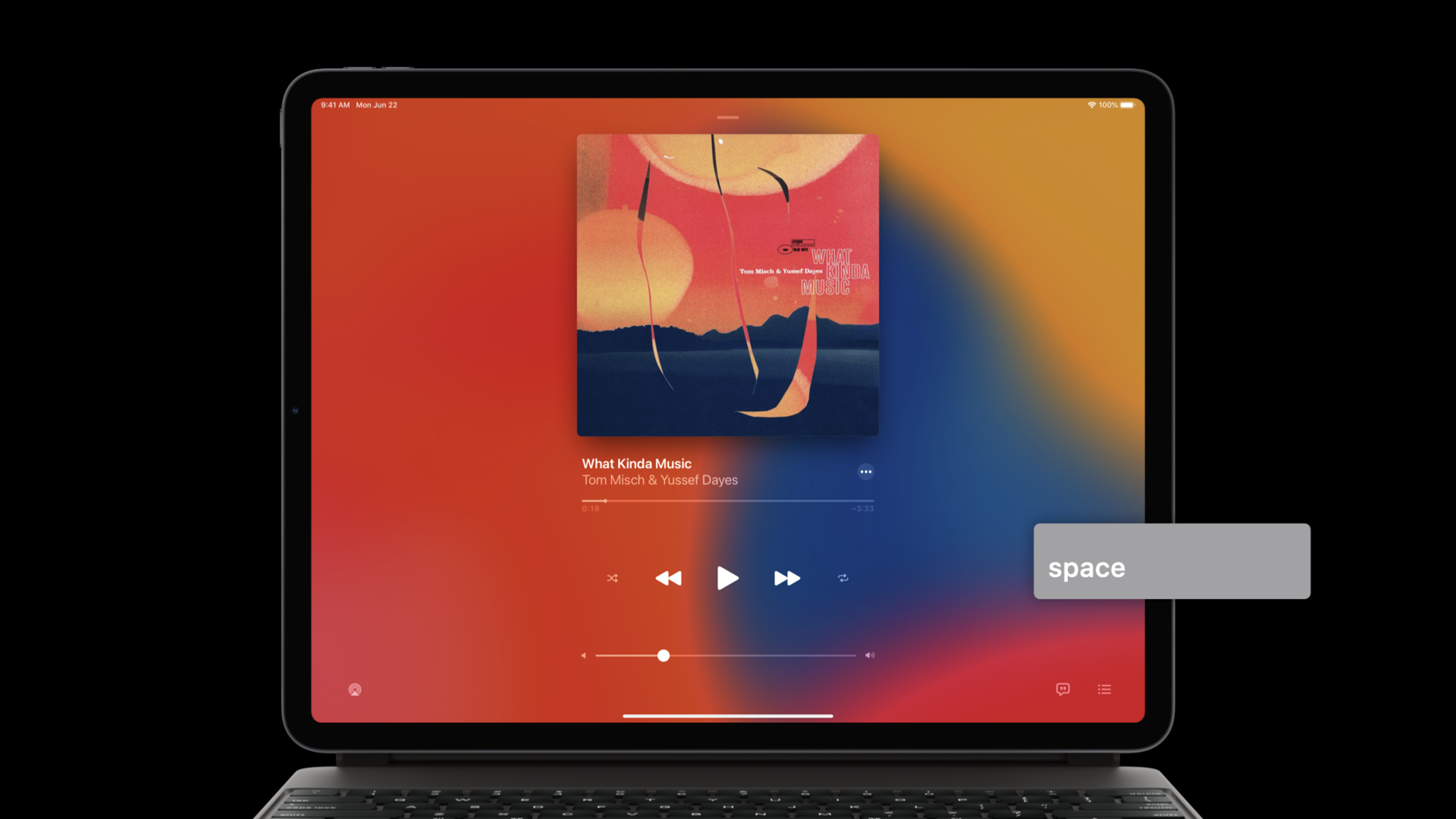
(03:14) The speech uses Music’s playback control as an example. After the player view controller becomes the first responder, the space key can triggerplayPause。
class PlayerViewController: UIViewController {

    override var canBecomeFirstResponder: Bool {
        return true
    }

    override func viewDidAppear(_ animated: Bool) {
        becomeFirstResponder()
    }

    override var keyCommands: [UIKeyCommand]? {
        return [
            UIKeyCommand(title: NSLocalizedString("PLAY_PAUSE", comment: "…"),
                        action: #selector(playPause),
                         input: " ")
        ]
    }
}
Key points:
canBecomeFirstResponderreturntrue, this view controller can become the keyboard event entry. -viewDidAppear(_:)callbecomeFirstResponder(), allowing the player interface to receive shortcut keys immediately after it appears. -keyCommandsReturns an array of commands available in the current interface. -input: " "Bind the spacebar toplayPauseselector。titleUse localized strings that the system will display to the user when the Command key is long pressed.
2. Standard editing actions do not require handwriting UIKeyCommand
(04:31) Many shortcut keys already have system conventions. Select all, copy, paste, which are common in music libraries or file lists, belong toUIResponderStandardEditActions. As long as you override the corresponding methods in the responder subclass, UIKit can connect common editing shortcut keys to these actions.
class SongListTableViewController: UITableViewController {

    override var canBecomeFirstResponder: Bool {
        return true
    }

    override func viewDidAppear(_ animated: Bool) {
        becomeFirstResponder()
    }

    /* UIResponderStandardEditActions */

    override func selectAll(_ sender: Any?) { … }

    override func copy(_ sender: Any?) { … }

    override func paste(_ sender: Any?) { … }

}
Key points:
UITableViewControllerTooUIResponder, can directly participate in the responder chain. -selectAll(_:)、copy(_:)、paste(_:)fromUIResponderStandardEditActions.- When using these standard actions, there is no need to create
UIKeyCommand. - This way of writing allows users to bring Command-A, Command-C, and Command-V from Mac to the iPad App as expected.
(05:52) When custom commands enter the Mac Catalyst menu bar, you canUIKeyCommandasUICommandPut in command builder.
class UIKeyCommand : UICommand {
    ...
}

override func buildMenu(with builder: UIMenuBuilder) {
    builder.replaceChildren(ofMenu: .file) { children in
        return [ UIKeyCommand() ] + children
    }
}
Key points:
UIKeyCommandyesUICommandsubcategory. -buildMenu(with:)It is the entry point into the menu structure for commands. -replaceChildren(ofMenu:)Can replace or supplement the sub-items of the specified menu.- For Mac Catalyst Apps, keyboard shortcuts and menu items should point to the same set of command models.
3. Let table view and collection view support keyboard-assisted multi-selection
(06:28) If the app has a file list, users will expect Shift click to select contiguous items and Command click to expand non-contiguous selections.UITableViewandUICollectionViewThe corresponding multi-selection callback has been provided.
optional func tableView(_ tableView: UITableView,
       shouldBeginMultipleSelectionInteractionAt indexPath: IndexPath) -> Bool

optional func tableView(_ tableView: UITableView,
       didBeginMultipleSelectionInteractionAt indexPath: IndexPath)
Key points:
shouldBeginMultipleSelectionInteractionAtreturntrueAfter that, the system starts processing the multi-select interaction.- The table view will enter editing mode, and the collection view will enter multiple selection mode.
- The system expands the current selection based on whether the user presses Shift or Command.
-
didBeginMultipleSelectionInteractionAtSuitable for updating surrounding UI, such as displaying a batch operation bar.
4. Read keyboard modifier keys in gesture recognizer
(07:47) iOS 13.4 addedUIGestureRecognizer.modifierFlags. It records which keyboard modifier keys the user held down when the gesture recognizer state changed. Examples of Numbers are: holding down Shift to maintain aspect ratio when resizing shapes, and holding down Command to select multiple objects.
func recognizedDragGesture(_ panGesture: UIPanGestureRecognizer) {

    if panGesture.modifierFlags.contains(.command) {
        snapToGrid = true
    } else if panGesture.modifierFlags.contains(.shift) {
        constrainAspectRatio = true
    }

    ...
}
Key points:
modifierFlagsFrom the current gesture recognizer, no need to listen to the keyboard separately. -.commandYou can switch to precise editing modes such as grid snapping. -.shiftYou can switch to a constraint mode that maintains aspect ratio.- This type of interaction is suitable for professional scenarios such as drawing, typesetting, tables, and map editing.
5. Use pressesBegan and pressesEnded to respond to original key events
(09:00)UIKeyCommandCalled only once when the shortcut key is triggered. Interactions such as moving canvas objects with the arrow keys need to distinguish between key down and key up: when pressed, the movement starts and when released, the movement stops. The new raw keyboard event entry isUIResponder.pressesBegan(_:with:)andUIResponder.pressesEnded(_:with:)。
class UIResponder: NSObject {
    func pressesBegan(_ presses: Set<UIPress>,
                     with event: UIPressesEvent)

    func pressesEnded(_ presses: Set<UIPress>,
                     with event: UIPressesEvent)
}
Key points:
pressesBeganCalled when a hardware keyboard key is pressed. -pressesEndedCalled when the key is released.- These two methods are suitable for continuous actions and are not suitable for menu commands that only trigger once.
- The original key event still goes through the responder chain, so it can be placed in the view or view controller.
(09:59) Canvas example atpressesBeganCheck the arrow keys inpressesEndedStop moving.
class CanvasViewController: UIViewController {

     override func pressesBegan(_ presses: Set<UIPress>, with event: UIPressesEvent?) {
         for press in presses {
             guard let key = press.key else { continue }
             switch key.keyCode {
             case .keyboardUpArrow: startMoveUp()
             case .keyboardDownArrow: startMoveDown()
                 …
             }
     }
     }

     override func pressesEnded(_ presses: Set<UIPress>, with event: UIPressesEvent?) {
         stopMoving()
     }

}
Key points:
press.keymay be empty, so use it firstguardSkip presses without key. -key.keyCodeCan distinguish specific buttons such as up and down. -startMoveUp()andstartMoveDown()Represents the continuous action after pressing the direction key. -stopMoving()put onpressesEnded, ensuring that the action stops after the user releases the button.
(10:29) Raw key events can also read modifier keys. The following example checks Shift when moving an object, which switches to “select while moving” behavior.
class CanvasViewController: UIViewController {

    override func pressesBegan(_ presses: Set<UIPress>, with event: UIPressesEvent?) {
        var selectWhileMoving = false
        for press in presses {
            guard let key = press.key else { continue }
            if key.modifierFlags.contains(.shift) {
                selectWhileMoving = true
            }

            switch key.keyCode {
            case .keyboardUpArrow: startMoveUp()

            }
        }
    }
}
Key points:
key.modifierFlags.contains(.shift)Directly read the modifier key status of the current key event. -selectWhileMovingIt is a business state, indicating that the selection is expanded at the same time when moving.- This is the same as gesture recognizer
modifierFlagsIt’s the same interactive idea: the hardware keyboard is responsible for switching modes, and touch, pointer or arrow keys are responsible for executing actions.
Core Takeaways
-
What: Add spacebar play/pause to media player. Why it’s worth doing: Session explicitly uses Music to indicate that the space bar is a common expectation for media playback apps. How to start: Make the view controller of the playback interface the first responder.
keyCommandsReturn one inUIKeyCommand,Bundleinput: " "Connect to the playback state switching method. -
What: Make a file, song or project list support Command-A, Command-C, Command-V. Why it’s worth doing:
UIResponderStandardEditActionsStandard editing shortcut keys familiar to users can be accessed to reduce the number of custom commands. How to start: Override in list controllerselectAll(_:)、copy(_:)、paste(_:), and confirm that the controller can become the first responder. -
What: Add Shift/Command assisted multi-selection to the list. Why it’s worth doing: Desktop users will naturally expect Shift to select consecutive items and Command to expand non-consecutive selections. UIKit already provides multi-selection entrances to table view and collection view. How to get started: Implementation
shouldBeginMultipleSelectionInteractionAtand returntrue, againdidBeginMultipleSelectionInteractionAtThe batch operation UI is displayed in . -
What: Add modifier key modes to drawing or typesetting tools. Why it’s worth doing: The Numbers example in the speech shows that Shift and Command can make the same drag gesture produce more precise editing behavior. How to start: In
UIPanGestureRecognizerRead from callbackmodifierFlags,according to.shift、.commandToggle between maintaining aspect ratio, snapping to grid, or multi-selection mode. -
What: Use the arrow keys to move the canvas object continuously. Why it’s worth doing:
UIKeyCommandIt is only triggered once, and continuous movement requires two phases: key down and key up. How to get started: Override in canvas view controllerpressesBeganandpressesEnded,according tokey.keyCodeStarts movement and stops it when the key is released.
Related Sessions
- Handle trackpad and mouse input — Handles trackpad, mouse, scroll, modifier key, and indirect input events in iPad and Mac Catalyst.
- Build for the iPadOS pointer — Design and implement iPadOS pointer interaction to give users of external keyboards, mice, and trackpads more natural control feedback.
- Designed for iPad — Design a more complete iPad App from the perspective of layout, navigation, drag and drop, keyboard and trackpad.
- Advances in UICollectionView — Learn the collection view’s list, outline, and modern cell configurations to provide a better foundation for keyboard multi-select lists.
- What’s new in Mac Catalyst — Learn about the Mac Catalyst lifecycle, extensions, macOS skins, and Optimized for Mac mode.
Comments
GitHub Issues · utterances