
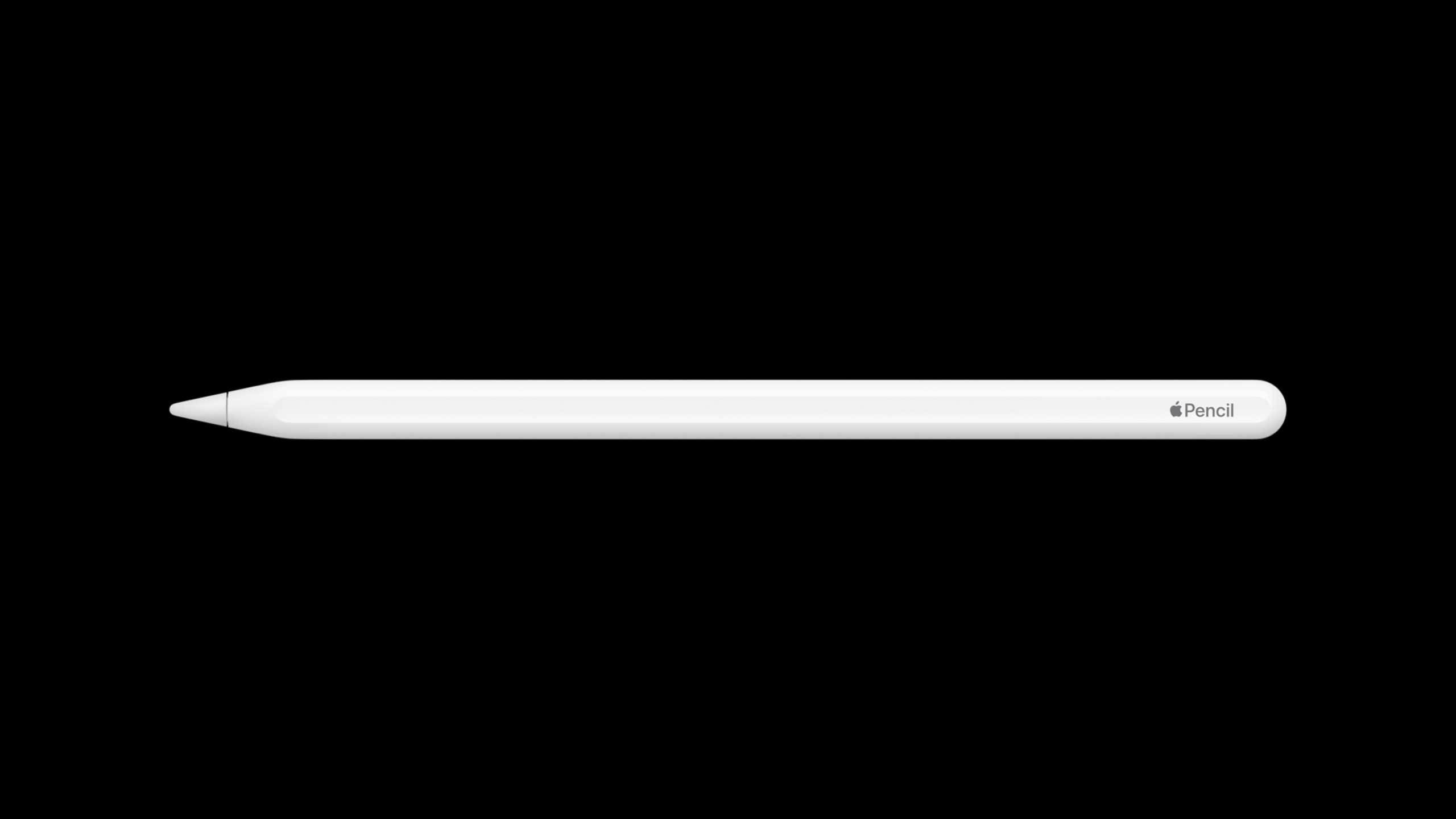
Highlight
iOS 14 adds smart selection, insertion space, system color picker, global finger drawing strategy, and independence to PencilKit
PKToolPickerExamples andPKDrawingstroke access entrance, developers can usedrawingPolicyControl Apple Pencil and finger input with tool picker state.
Core Content
PencilKit has handed over low-latency drawing, Apple Pencil pressure sensitivity and system toolbar to iOS 13PKCanvasView. The problem lies in the input strategy: within the same canvas, fingers should sometimes be drawing and sometimes scrolling, selecting, or adjusting handwriting. If developers only rely on oldallowsFingerDrawing, it’s difficult to simultaneously respect the user’s global Apple Pencil preferences and the app’s own mode switching. (04:03)
iOS 14 first puts a batch of experience upgrades into the system layer. Apps that are already connected to PencilKit will automatically get more text-editing-like handwriting selection, insertion space, a new UIKit color picker, and better latency performance;PKCanvasViewMac Catalyst has also begun to be supported, but there is no tool picker on Catalyst and ink needs to be set through the canvas API. (01:21)
What developers really want to migrate is the input strategy and toolbar state.PKCanvasViewDrawingPolicysubstituteallowsFingerDrawing, clearly separate “Draw on any input”, “Only allow Pencil drawing” and “Follow the default policy”.PKToolPickerIt has also moved from shared window instances to independent instances, making it easier for an App to have both a note-taking canvas and a coloring canvas. (05:21)
This session finally pushed the boundary toPKDrawinginternal. iOS 14 gives developers access to strokes, inks, paths, and points. 10107 only click on this route, and the specific reading, modification and construction of drawing data are left to subsequent 10148 to continue. (09:08)
Detailed Content
PencilKit’s system-level experience will continue to evolve
(01:21) PencilKit documents get smart selections in iOS 14. The user can double-click to select a word, double-click again to select a line, or use grab handles to expand the selection. For non-continuous content, the system provides velocity-sensitive tap-and-pan gestures, allowing users to select scattered strokes like brush strokes.
(01:51) Inserting space solves a common problem of handwritten notes: after finishing writing, you find that a paragraph is missing in the middle. The user can click on the blank area, select Insert Space from the callout bar, and then drag the handle to make space. These capabilities are provided by the system, and existing PencilKit clients do not need to write additional code.
(02:23) PencilKit also features the new UIKit system color picker. Users can choose from spectrums, sliders, custom colors and eye droppers. The talk explicitly points more details to 10052’s UIKit pickers session.
Use drawingPolicy instead of allowsFingerDrawing
(05:21)allowsFingerDrawingIn iOS 14 is newPKCanvasViewDrawingPolicyreplace. Developers should not directly change the drawing gesture recognizerallowedTouchTypes, the input intention should be written on the drawing policy of canvas.
var drawingPolicy: PKCanvasViewDrawingPolicyKey points:
PKCanvasViewDrawingPolicy.anyInputAllows drawing with both finger and Apple Pencil. -PKCanvasViewDrawingPolicy.pencilOnlyOnly Apple Pencil drawing is allowed, and the finger can scroll or trigger smart selection gestures. -PKCanvasViewDrawingPolicy.defaultWill respect user switching via settings or tool picker when tool picker is visibleUIPencilInteraction.prefersPencilOnlyDrawingstate.- When the tool picker is hidden, the default strategy only lets Apple Pencil draw, and your fingers are responsible for scrolling and selection.
Control the Draw With Finger switch in the tool picker
(07:06) If the App is a pure Pencil drawing tool, the canvas is set topencilOnlyFinally, the Draw With Finger switch in the tool picker is misleading. The drawing strategy controls should now be hidden.
PKToolPicker.showsDrawingPolicyControlsKey points:
- This control on iPad will display the Draw With Finger switch by default.
- When canvas policy is fixed to
pencilOnlywhen, putshowsDrawingPolicyControlsset tofalse, to prevent the canvas behavior from changing after the user switches. - If the app wants to respect the user’s global Apple Pencil settings, keep this control and let canvas use it
.default。
Each canvas can maintain its own PKToolPicker
(08:40) iOS 14 updatedPKToolPickerinitialization method. Developers can create multiple independent tool pickers, each instance having its own drawing policy controls, selected tool, and other states. The lecture uses note-taking mode and coloring mode to illustrate this difference.
notesCanvas.drawingPolicy = .default
notesToolPicker.showsDrawingPolicyControls = true
notesToolPicker.selectedTool = PKInkingTool(.pen, color: .black, width: 2)

drawingCanvas.drawingPolicy = .anyInput
drawingToolPicker.showsDrawingPolicyControls = false
drawingToolPicker.selectedTool = PKInkingTool(.marker, color: .purple, width: 20)
Key points:
- Take notes using canvas
.default, letting the user decide whether to draw with their finger through system preferences. - The note-taking tool picker displays drawing policy controls, and users can directly see and switch Draw With Finger.
- Color canvas use
.anyInput, because this mode explicitly allows both the finger and the Apple Pencil to be colored. - The coloring tool picker hides drawing policy controls to avoid switches that conflict with fixed policies.
- App must hold each
PKToolPickerinstance, otherwise the state and life cycle of picker cannot be maintained stably.
Stroke access pushes PencilKit from the canvas to the data layer
(09:08) The last change isPKDrawingInternal data becomes available. Developers can access strokes and further see ink, path, points and other information. 10107 The complete code is not expanded, it points to 10148 the scenarios of recognition, animation, machine learning and drawing modification.
This boundary is important. In the past, PencilKit was mainly used to put a high-quality canvas in the app; after iOS 14, drawing data can enter the app’s own business logic, such as annotation recognition, stroke animation, shape correction, and handwriting content analysis based on machine learning.
Core Takeaways
- A creative interface that coexists with taking notes and coloring: put it in the same document
notesCanvasanddrawingCanvas, the former uses.defaultand displays Draw With Finger, which uses.anyInputAnd fix the purple marker. This allows users to retain scrolling and selection when taking notes, and can color directly with their fingers when coloring. - Make an annotation tool that respects the system Apple Pencil preference: let the main annotation canvas be used
.default, retaining the tool picker’s drawing policy controls. After the user switches Prefer Only Pencil Drawing in system settings or any PencilKit app, your app will follow the same preference. - Make a professional drawing mode for pure Pencil: Set the canvas to
pencilOnly, and close at the same timeshowsDrawingPolicyControls. Fingers are used to scroll, select, and adjust content, and Apple Pencil generates strokes, perfect for sketches, project annotations, and handwriting on long documents. - Basic drawing capabilities reserved for Catalyst version: Used on Mac Catalyst
PKCanvasViewDisplay or edit PencilKit content and set ink through canvas API. Since the tool picker does not support Catalyst, the interface must provide its own tool selection entrance. - Leave the stroke data to the recognition or animation process: Treat 10107 as the entry point, continue reading 10148
PKStroke, ink, path and point details. Suitable for stroke playback, pattern recognition, annotation classification or handwriting content analysis.
Related Sessions
- Meet Scribble for iPad — Explains how Apple Pencil handwriting input enters standard text controls, and when a custom text experience is needed
UIScribbleInteraction. - Inspect, modify, and construct PencilKit drawings — In depth
PKDrawingThe strokes, inks, paths, and points are the next step in understanding the stroke access points in this field. - Build with iOS pickers, menus and actions — Introduces UIKit’s system color picker and other controls to complement the new PencilKit color picker background mentioned in this session.
Comments
GitHub Issues · utterances