
Highlight
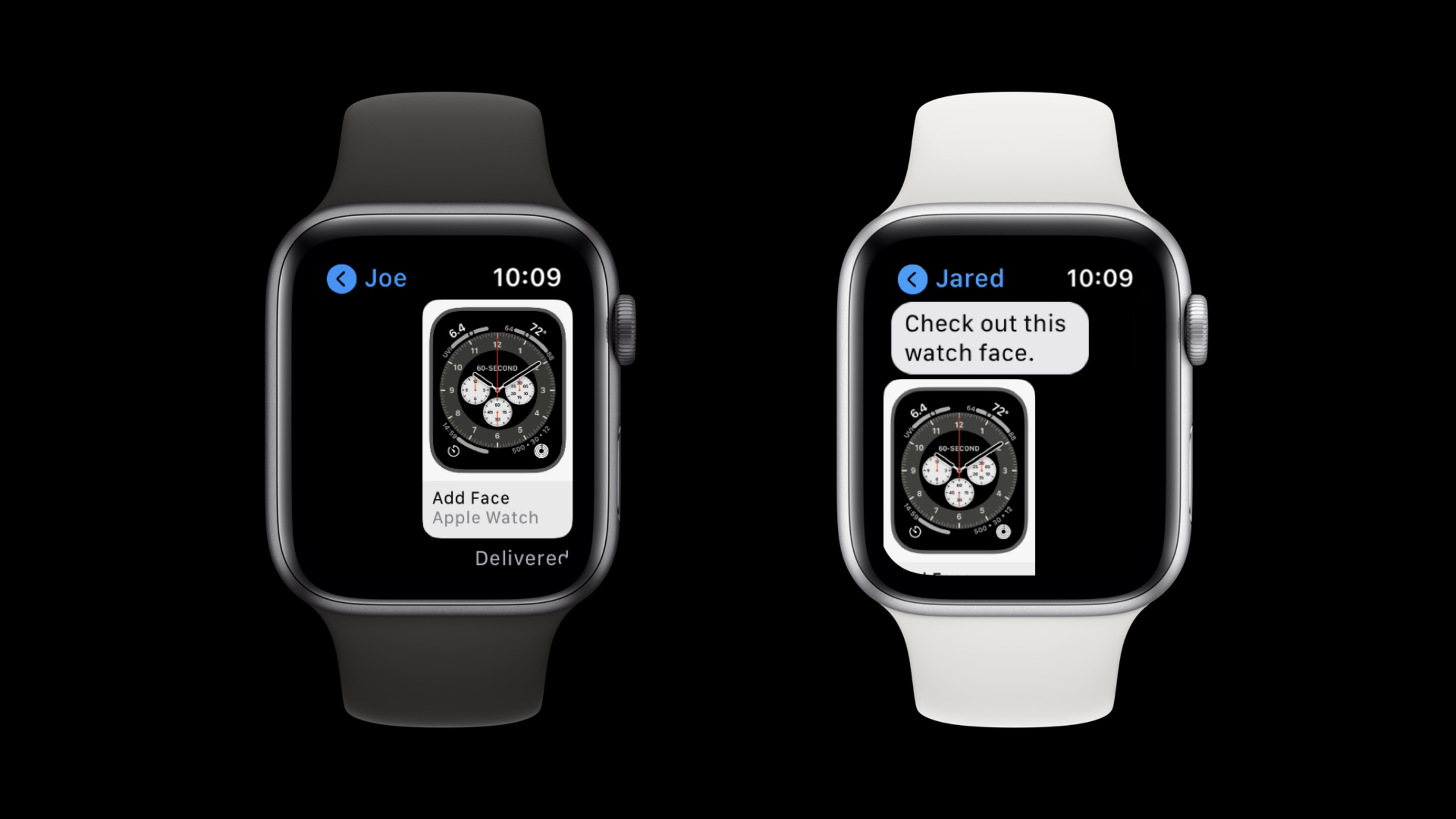
watchOS 7 and iOS 14 introduce Watch Face Sharing. Users can share configured Apple Watch watch faces through watches, iPhones, apps or websites. When the recipient adds a watch face containing third-party Complication, he or she will be prompted to install the corresponding app.
Core Content
The Complication of the Apple Watch App is very suitable for placing on the watch face, but in the past it was difficult for developers to directly hand over a “already configured” watch face to the user.Users need to open the Watch App themselves, find the appropriate watch face, select the style, and then put the Complication of an App in the correct position.This path is too long and many people will not complete it.
watchOS 7 and iOS 14 give a shorter path: the watch face can be used as.watchfaceFile sharing.Users can long-press the watch face on Apple Watch and click Share, or they can send it through the Share button in the Watch App on iPhone.After the recipient sees the preview and clicks it, he will enter the system process of adding a watch face (00:12).
The implications for developers are more immediate.You can put your Complication into a pre-designed watch face and deliver it to users from the iOS App, watchOS App or website.If the watch face contains your Complication, users will be prompted to install your App when adding the watch face; if the App is not available in the other region, that Complication will not appear on the watch face (01:00).
Session’s Coffee Tracker example breaks the complete process into four steps: first create a watch face containing App Complication in the Watch App;.watchfacePut the files and preview images into the Xcode bundle; create an interface for adding watch faces in the App; and finally solve the problem that the old Apple Watch does not support some new watch faces (03:51).
Detailed Content
First confirm that the user has a paired Apple Watch
(06:49) The sample App provides an “Add Watch Face” entry on the iPhone.Before the entrance appears, useWatchConnectivityCheck whether this iPhone is paired with an Apple Watch.
var isPaired: Bool {
    if (WCSession.isSupported()) {
        let session = WCSession.default
        session.delegate = self
        session.activate()
        return session.isPaired
    } else {
        return false
    }
}
Key points:
WCSession.isSupported()First determine whether the current device supports WatchConnectivity.WCSession.defaultGet the system session and use it later to read the pairing status.session.delegate = selfandsession.activate()Put the session into an available state.session.isPairedJust answer one question: whether this iPhone is paired with an Apple Watch.- Return directly when WatchConnectivity is not supported
false, the interface does not display the entry for adding a watch face.
Initiate the addition process from the .watchface file in the bundle
(08:47) When actually adding a watch face, the App needs to importClockKit, find the.watchfacefile and then callCLKWatchFaceLibrary().addWatchFace(at:completionHandler:)。
private func addFaceWrapper(withName: String) {
    if let watchfaceURL = Bundle.main.url(forResource: withName, withExtension: "watchface") {
        CLKWatchFaceLibrary().addWatchFace(at: watchfaceURL, completionHandler: {
            (error: Error?) in
            if let nsError = error as NSError?, nsError.code == CLKWatchFaceLibrary.ErrorCode.faceNotAvailable.rawValue {
                print(nsError)
            }
            isLoading = false
        })
    }
}
Key points:
Bundle.main.url(forResource:withExtension:)Read the packages already packaged in the App bundle.watchfacedocument.CLKWatchFaceLibrary()It is the entrance provided by ClockKit to allow the system to take over the process of adding a watch face.addWatchFace(at:completionHandler:)Receives a local file URL and then takes the user to the Watch App’s confirmation screen.- The completion handler will return an error.Focus on examples
faceNotAvailable, because some watch faces don’t work with older Apple Watch models. isLoading = falseCorresponding to the activity indicator on the interface, the loading state stops after the adding process is completed.
Prepare fallback face for old equipment
(10:33) The Modular Compact face selected by Coffee Tracker is not compatible with Series 3.The processing method is that the first addition fails and the error code isfaceNotAvailable, try an alternate Series 3-compatible watch face.
private func addFaceWrapper(withName: String, fallbackName: String?) {
    if let watchfaceURL = Bundle.main.url(forResource: withName, withExtension: "watchface") {
        CLKWatchFaceLibrary().addWatchFace(at: watchfaceURL, completionHandler: {
            (error: Error?) in
            if let nsError = error as NSError?, nsError.code == CLKWatchFaceLibrary.ErrorCode.faceNotAvailable.rawValue {
                if let name = fallbackName {
                    // We failed, trying with fallbackName.
                    addFaceWrapper(withName: name, fallbackName: nil)
                }
            }
            isLoading = false
        })
    }
}
Key points:
fallbackNameIt’s the second one.watchfaceFile name, Modular face is used in the example as the Series 3 compatible version.- only
faceNotAvailableTrigger fallback so other errors are not mistaken for compatibility issues. - Passed in when calling recursively
fallbackName: nil, to avoid infinite retries after fallback continues to fail. - Both watch face files need to be put into the Xcode project in advance, and the URL can be obtained from the bundle at runtime.
- The compatibility list comes from the Human Interface Guidelines, and Session recommends developers to prepare alternatives based on the dial support range.
Website hosting dial file
(12:45) Watch faces can also be placed on websites.When users download the watch face file in iOS Safari, they will be prompted to add it to Apple Watch.
This part does not give the server code, but the transcript clearly mentions three implementation details.First, it is best for the server to provide files using the watch face MIME type displayed in the session, which is easier for Safari to identify.Second, the watch face preview should be placed above the official “Add Apple Watch Face” button on the web page.Third, if the main watch face is not compatible with Series3. Alternate dials, corresponding previews and buttons should be provided on the web page (12:54, 13:33).
The role of QR code and NFC tag is also limited to “carrying a web link”.The term Session is to put hosting.watchfacePut the Web link of the file and let the user scan the link and then go through Safari’s addition process (13:50).
Core Takeaways
-
Make an in-app recommended watch face portal: Package the most suitable watch faces for new users into a bundle, and display the preview on the settings page or key function page of the iOS App.Why it’s worth doing: Your Complication will be visible to users when they add a watch face.How to get started: Generate with Watch App
.watchfaceFiles and previews, reuseCLKWatchFaceLibrary().addWatchFaceInitiate the addition. -
Prepare two sets of watch faces for different hardware: Design a face with higher information density for the new Apple Watch, and prepare a compatible version for Series 3.Why it’s worth doing: Users won’t
faceNotAvailableStuck in failed state.How to start: Select a compatible watch face according to the Human Interface Guidelines and handle the fallback in the completion handler. -
Make the default state of Complication into a shareable configuration: Prepare watch faces containing sample entries for weather, tide, fitness or schedule apps, so that users who have not installed the app can also see a reasonable preview.Why it’s worth doing: The transcript mentions that the watch face file will contain sample entries and the preview will not be blank.How to start: First complete the sample data of ClockKit Complication, and then export the watch face containing the Complication.
-
Host watch face downloads for event or content pages: available on the event page, course page or brand page on the website
.watchfaceDocumentation, previews and official buttons.Why it’s worth it: Session explicitly supports website hosting, and Safari can prompt users to add watch faces.How to get started: Serve files with the correct MIME type and include backup downloads for watch faces that are not Series 3 compatible. -
Connect Shortcuts and watch face entries: If the app already has watchOS Shortcuts, put common operations into Complication, and then give them to users through shared watch faces.Why it’s worth doing: Users can see the status from the dial and quickly enter actions.How to start: First complete App intents and Apple Watch Complication, and then use the watch face sharing process of this session to distribute.
Related Sessions
- Create complications for Apple Watch — Explaining multiple complications of ClockKit timeline, family, template and watchOS 7 is the prerequisite for understanding third-party Complication in this session.
- Build complications in SwiftUI — Shows how to use SwiftUI to build Graphic Complication, which can be used as a source of visual content in shared watch faces.
- Keep your complications up to date — Talk about timeline update, background refresh and push to help shared dials keep information up to date.
- What’s new in watchOS design — Discuss watchOS action design, which is suitable for designing the “Add watch face” entrance in the app and direct operations on the watch.
- Create quick interactions with Shortcuts on watchOS — Supplement the path to trigger shortcut operations from Complication, suitable for designing high-frequency actions with shared watch faces.
Comments
GitHub Issues · utterances