
Highlight
WWDC 2020 is open to 23 million developers for free online for the first time, and it is announced that Mac will switch to Apple Silicon, laying the foundation for a shared chip architecture for iOS, iPadOS and macOS applications.
Core Content
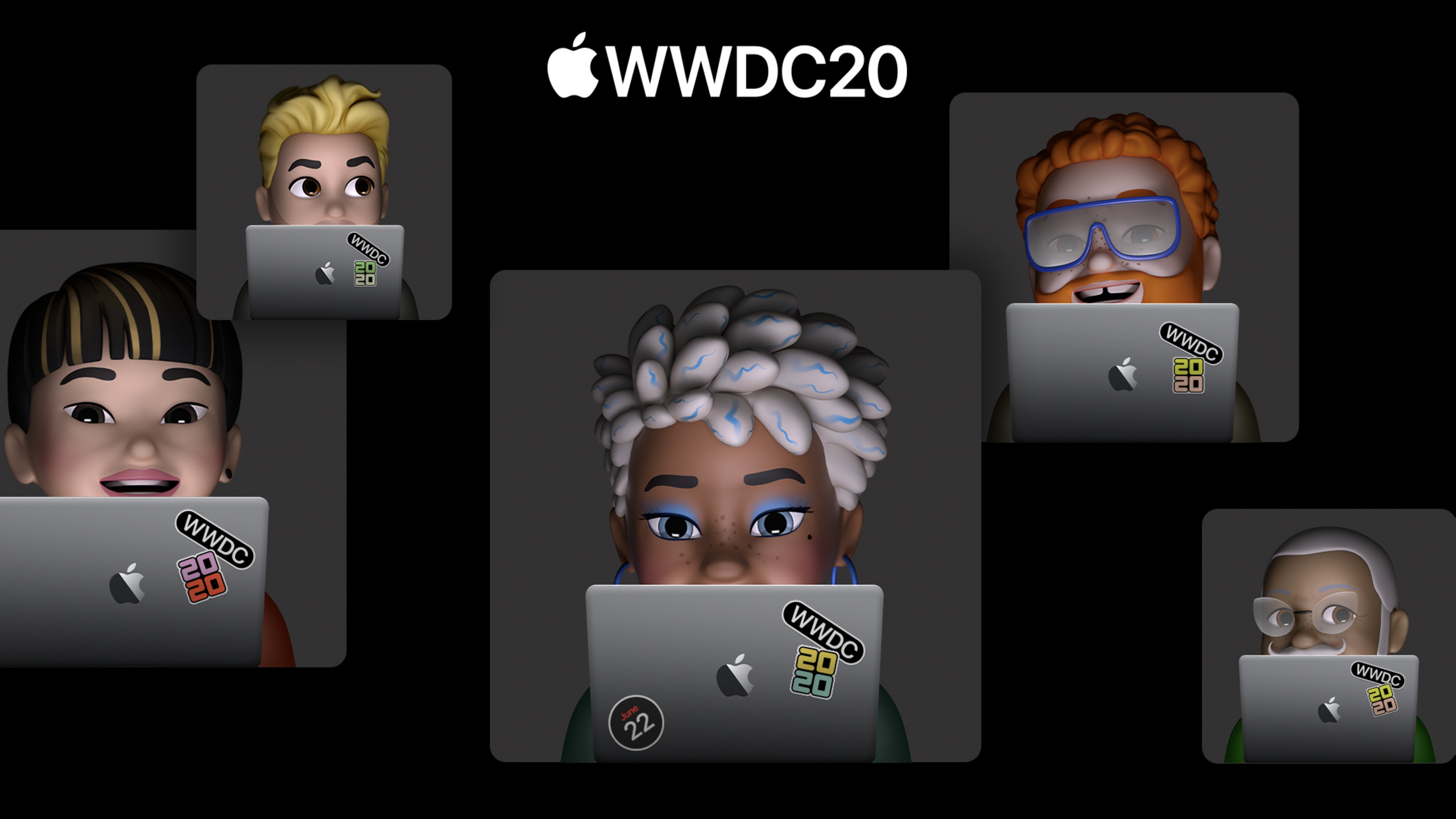
Keynote 2020 opens with a special background.Tim Cook first explained that this WWDC will be delivered directly from Apple Park to developers’ homes. More than 100 engineering videos, developer forums and one-on-one engineering consultation sessions will be free and open to 23 million developers around the world (04:41).For developers, this is not simply about moving offline meetings online; the method of meeting distribution has changed, and the learning rhythm of platform updates has also changed.
Keynote’s main line is clear: users switch between phones, tablets, watches, living rooms, and Macs more and more frequently, and the system needs to reduce interruptions at each entrance.iOS 14’s App Library, Widgets, Picture in Picture, and App Clips are all dealing with this issue; iPadOS 14 uses sidebar, compact search, and Scribble to make large-screen operations more like productivity tools; watchOS 7 turns dials, sleep, and handwashing detection into more daily entry points.
The final Apple Silicon is the structural change of this conference.By switching Macs from Intel processors to Apple-developed SoCs, Apple can bring Secure Enclave, high-performance GPUs, Neural Engine, unified chip architecture, and higher performance per watt to Mac.The migration isn’t news just for hardware teams, it affects how Mac apps are built, test matrices, performance assumptions, and the path iPhone/iPad apps take into the Mac App Store.
Detailed Content
iOS 14: Home screen, widgets, and instant app entry
(07:40) The App Library is iOS 14’s answer to the home screen bloat problem.The system puts an automatic organization space on the last page of the home screen, including search, alphabetical sorting, Suggestions, Recently Added and smart classification.Users can hide infrequently used pages and reduce access paths to one or two swipes.
Key points:
- App Library automatically categorizes applications, so users do not need to manually maintain folders.
- Suggestions uses on-device intelligence to predict which apps users may need next.
- Recently Added means newly downloaded apps don’t have to be scattered across multiple home screens.
(09:32) Widgets move from Today View to Home Screen and add multiple sizes.Smart Stack can be turned manually or automatically rotated based on the situation of the day.Keynote does not expand the WidgetKit code, but clearly shows the user model of the Widget Gallery, size selection, drag-and-drop to the home screen, and Smart Stack automatic switching.
Key points:
- Widgets become information cards on the home screen, no longer just hidden in Today View. -Three sizes allow the same type of information to be expressed with different densities.
- Smart Stack allows the system to display different widgets in the morning, before a meeting, in the evening, etc.
(11:43) Picture in Picture comes to iPhone.After the user exits from video or FaceTime to the home screen, the screen will float above the current app and can be dragged, zoomed, and retracted to the edge of the screen while the audio continues to play.
Key points:
- The video experience no longer takes up the entire iPhone screen.
- The position and size of the floating window are controlled by the user.
- The audio continues to play after closing the floating window, suitable for lectures, meetings and long video scenarios.
(29:00) App Clips is the new distribution portal in Keynote that is most directly oriented to developers.It is a small part of the complete app, emphasizing being lightweight, fast, and easy to discover.Users can open it from web pages, Messages, Maps place card, NFC tags, QR codes, or Apple-designed App Clip Codes; payment can be made with Apple Pay, and login can be done with Sign in with Apple; to ensure startup speed, App Clips need to be less than 10 MB.
Key points:
- App Clip is suitable for short tasks such as parking, ordering coffee, renting a car, and ordering food.
- Apple Pay and Sign in with Apple reduce entry costs on first use.
- App Clips will not occupy the home screen for a long time, but recently used App Clips can be opened again from the App Library.
- Multi-merchant platforms can also create different App Clip experiences for different merchants.
iPadOS 14: Large-screen controls and Apple Pencil input
(32:49) iPadOS 14 changes many system apps into a structure more suitable for large screens.Photos, Notes, Files, and Music all use sidebars to concentrate navigation on the left; Toolbar organizes operations through drop-down menus; apps like Calendar place controls in a unified top area to leave more space for content.
Key points:
- Sidebar allows iPad Apps to display navigation and content at the same time.
- Unify the Toolbar to reduce the problem of scattered controls at the bottom and top.
- Compact Siri, Compact Calls, and Universal Search all reduce context switching.
(39:14) Scribble allows Apple Pencil to write directly into any text box, and the system will automatically convert it into text.In the demonstration, handwriting can be used in the Safari search box and Reminders input box, and English and Chinese can also be recognized on the same line.Handwriting can also be selected like text, moved, changed color, or pasted into Pages via Copy as Text.
Key points:
- The text box directly supports Pencil handwriting input, so users do not need to put down Pencil and switch to the keyboard.
- On-device machine learning distinguishes between handwriting and drawings next to it.
- Data Detectors can identify phone numbers and addresses written in handwriting.
AirPods, watchOS, and privacy: Putting system capabilities into everyday actions
(42:52) AirPods adds Automatic Switching, which will automatically switch audio between iPhone, iPad and Mac.AirPods Pro’s spatial audio uses directional audio filtering, headphone accelerometers, and gyroscopes to track head movement and continuously compare the relative movement of the head and screen to keep 5.1, 7.1, and Dolby Atmos content spatially positioned (43:22).
Key points:
- Automatic Switching handles the Bluetooth management costs when users switch across devices.
- Spatial audio takes both head movement and device movement into account.
- Supported content formats include 5.1, 7.1 and Dolby Atmos.
(46:17) watchOS 7 allows one App to provide multiple complications on the same watch face, and also introduces Face Sharing.Developers can build rich complications with native SwiftUI, and users can discover preconfigured watch faces from the App Store, the web, friends’ messages, or social platforms.
Key points: -Multiple complication allows the same App to display multiple types of data on the watch face.
- Face Sharing turns watch faces from personal configurations into distributable portals.
- When the relevant App is missing, the system will prompt the user to install it.
(51:17) The sleep function starts from goal setting, and guides users to establish a bedtime process with Wind Down, Do Not Disturb, Sleep Mode and gentle alarm clock.Apple Watch uses machine learning models to analyze tiny movements caused by movement and breathing to determine wakefulness and sleep status.
Key points:
- The sleep function covers the complete process from bedtime to waking up, and the statistics page is only a part of it.
- Wind Down can access shortcut commands, such as meditation apps or relaxing music.
- iPhone users can use Sleep Schedules, Wind Down, and Sleep Mode even without an Apple Watch.
(55:29) The privacy section lists four platform principles for developers: data minimization, on-device intelligence, security, transparency and control.iOS 14 adds approximate location, microphone and camera status bar indications, authorization requirements before tracking across apps and websites, and a privacy summary on the App Store product page (57:33).
Key points:
- Location permissions can be downgraded from precise location to approximate location.
- There will be system visible prompts for current and recent use of the microphone or camera.
- The App Store displays developers’ self-reported data collection and sharing practices.
macOS Big Sur and Apple Silicon: A new migration cycle for Mac
(01:09:08) macOS Big Sur is the biggest design update since Mac OS X.The Dock, App Icons, Sidebar, Menu Bar, Control Center, Notification Center, and Widgets have all been redesigned.Messages and Maps get features closer to iOS 14, and Safari adds Privacy Report, password breach detection, WebExtensions API, extended permissions control, customizable start page, and built-in translation.
Key points:
- Big Sur’s UI is closer to Apple’s all-platform visual language, but retains the Mac’s window, menu bar, and multi-window working methods.
- Control Center comes to Mac, and commonly used system controls can be dragged to the menu bar.
- Safari extensions can grant permissions by day, site, or long-term.
(01:26:50) Apple announced the move to Apple Silicon for Macs.Johny Srouji divided the reasons into three levels: First, Apple has accumulated ten years of SoC design experience on iPhone, iPad and Apple Watch; second, Mac can obtain higher performance per watt, Secure Enclave, high-performance GPU, Neural Engine, video display and image processing engine; third, all product lines will have a common architecture, making it easier for developers to provide solutions for the entire AppleEcological writing and optimization software (01:28:13).
Key points:
- The core metric for Apple Silicon migration is performance per watt.
- Mac will get a family of SoCs designed for the native product line.
- Unified architecture affects code reuse and optimization paths across iPhone, iPad, and Mac.
(01:34:21) The keyword of the developer migration tool chain is Universal 2.Xcode can build a Universal binary that supports both Intel Macs and Apple Silicon Macs.Apple says most developers can have their apps running within a few days simply by opening the project and recompiling.For apps that have not been natively migrated, macOS Big Sur provides Rosetta 2, which will translate existing Mac Apps during installation and can also dynamically translate JIT JavaScript or Java code when needed (01:39:21).
Key points:
- Universal 2 covers both Intel Macs and Apple Silicon Macs with a single binary.
- Rosetta 2 keeps unupdated apps running on your new Mac.
- Virtualization technology supports developers to run environments such as Linux and Docker.
(01:42:16) Because iPhone, iPad, and new Mac are all based on Apple Silicon, iPhone and iPad apps can run natively and unmodified on new Mac.Users can download them from the Mac App Store, and most apps require no developer changes.Apple is simultaneously releasing the Quick Start Program and Developer Transition Kit, DTK, a Mac mini form factor device with an A12Z SoC, 16 GB of RAM, 512 GB SSD, Mac I/O ports, macOS Big Sur developer beta, and Xcode tools (01:44:02).
Key points:
- For the first time, iPhone and iPad apps are now available for Apple Silicon Mac directly in the Mac App Store.
- Quick Start Program provides documentation, sample code, forums, DTS support and labs.
- The migration rhythm given by Tim Cook is to release the first Apple Silicon Mac at the end of 2020, and the entire migration cycle will take about two years, while continuing to support Intel Mac for many years (01:45:50).
Core Takeaways
-
Change the home screen entry to glance-first: What to do: Design widgets for the most frequently viewed states in the app.Why it’s worth doing: Put the Widget on the Home Screen in iOS 14, and the Smart Stack will reveal the information in the appropriate scene.How to start: First choose a state that is valuable without interaction, such as package progress, next lesson, bill due date, and then look at the implementation of WidgetKit and timeline.
-
Tear out App Clips for one-time tasks: What to do: Make short processes such as parking, ordering, making reservations, and scanning QR codes to collect tickets into App Clips.Why it’s worth doing: Keynote makes it clear that App Clips can be discovered through NFC, QR, Maps, Messages and App Clip Code, and can connect to Apple Pay and Sign in with Apple.How to get started: Cut out a single task path less than 10 MB from the full app, retaining payments, logins, and full app bootstrapping upon completion.
-
Revisiting architectural assumptions for Mac apps: What to do: Prepare Universal 2 builds and native testing for Apple Silicon.Why it’s worth it: Apple Silicon brings new CPU/GPU/Neural Engine combinations, Rosetta 2 is just the transition layer.How to get started: Build the Universal binary using Xcode’s standard architecture settings, then check out low-level dependencies, plugins, JIT, virtualization, and performance test scripts.
-
Let the iPad input model cover Pencil, keyboard and trackpad: What to do: Change the text input, search, navigation and batch operations of the iPad App to a structure adapted to multiple input devices.Why it’s worth it: Scribble, compact search, the sidebar, and the new Toolbar are all pushing iPad toward longer production workflows.How to start: First sort out the most common input scenarios in the app, and confirm that the text box, search box, sidebar level and shortcut operations can be completed under the Pencil and keyboard paths.
-
Make private information part of the product surface: What to do: Clarify user explanations for precise location, approximate location, microphone, camera, tracking and data sharing during the feature design stage.Why it’s worth doing: iOS 14 puts these permission changes into the system UI and App Store product pages, so users will see more privacy summaries before downloading.How to start: Write down the purpose of use for each sensitive permission, reduce default collection, and prioritize on-device processing.
Related Sessions
- Platforms State of the Union — An overview of developer technology after Keynote, unpacking the engineering details of Apple Silicon, Big Sur, WidgetKit, App Clips, and watchOS.
- Meet WidgetKit — An in-depth explanation of the SwiftUI, timeline, Smart Stack and configuration model of iOS 14 Widgets.
- Explore App Clips — Explains how to select App Clip scenes, control volumes, and reach users through Maps, NFC, QR, and App Clip Code.
- Port your Mac app to Apple silicon — Apple Silicon porting guide for existing macOS apps, covering Universal Apps, debugging, testing, and low-level code considerations.
- Explore the new system architecture of Apple silicon Macs — Understand the system architecture of Apple Silicon Mac from SoC, unified memory, Metal/Accelerate, boot and security changes.
Comments
GitHub Issues · utterances