
Highlight
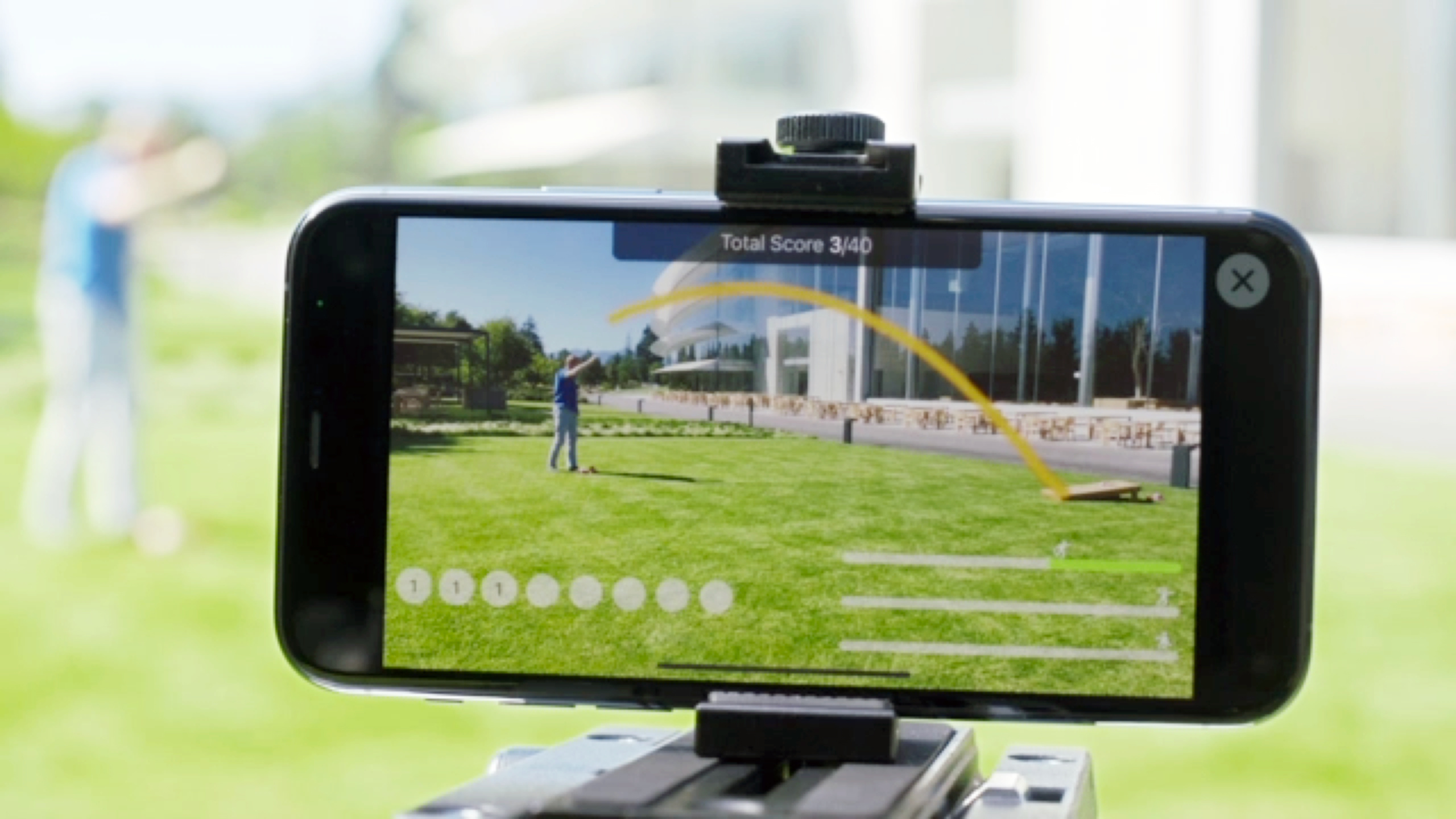
Apple uses the Action & Vision sample app to demonstrate how to combine Create ML, Core ML and Vision’s object detection, human pose, trajectory and contour detection on the device, allowing an iPhone or iPad to record bean bag throws, identify throw types and provide real-time feedback on speed, angle and score.
Core Content
The first step for many sports analysis apps is to let users watch the video themselves.Film it, play it back, and rely on your eyes to determine where the action went wrong.Action & Vision changes the perspective: the mobile phone is first fixed on the sidelines, uses the camera to observe the players and the field, and then completes the recognition, analysis and feedback on the local machine.
The example chosen by Session is bean bag toss.The app needs to answer four questions: where is the venue, how do players move, how do bean bags fly, and finally what feedback should be given to the user.This example is simple enough to understand and complete enough: it requires site positioning, human posture, motion trajectory, action classification, speed and angle calculation at the same time.
Apple breaks down the process into three stages.In the preparation stage, the object detection model trained by Create ML is first used to find the board, and then image registration is used to determine whether the camera is stable.During the setup phase, contour detection is used to measure the edges and holes of the board, and body posture detection is used to find players.During the game stage, the parabola of the bean bag is tracked, the body posture window before and after the throw is taken, and the Core ML model is used to determine whether it is overhand, underhand or under-the-leg.
The value of this session is not in a single API.It shows the engineering organization of a real-time vision app: camera frames enter different ViewControllers and queues, Vision requests are each responsible for a type of observation, and finally the business state machine merges these results into feedback that the user can understand.
Detailed Content
There are no official code snippets for the query data of this session.The following code block only lists the classes, functions, attributes and calculation relationships named in transcript to illustrate the implementation path of the sample project.
Venue identification: first find the board, then confirm that the camera is stable
(05:56) The speaker first lists the entire algorithm chain.The board is recognized by a custom object detection model from Create ML, which is passed at runtimeVNCoreMLRequestMake inferences.After finding the board, the app uses image registration to determine whether the camera has been fixed, and then uses contour detection to measure the edge of the board.
// SetupViewController preparation-stage flow, organized from the transcript code walkthrough
let boardDetectionRequest: VNCoreMLRequest
let sceneStabilityRequest: VNTranslationalImageRegistrationRequest
let boardContourRequest: VNDetectContoursRequest

boardContourRequest.regionOfInterest = boardBoundingBox
Key points:
VNCoreMLRequestResponsible for running the board detection model trained by Create ML and outputting the bounding box of the board.VNTranslationalImageRegistrationRequestCompares translational changes in consecutive frames; the app considers the scene stable when the 15-frame moving average is less than 10 pixels.VNDetectContoursRequestUse what you got in the previous stepboardBoundingBoxset upregionOfInterest, only find contours in the board area.- The contour results are used to find the edges and holes of the board, and the actual size of the board will be used later when calculating the true speed.
Player identification: use body gestures to take people out of the screen
(08:54) After the board and field are ready, the App needs to find the players.What is used here is the new one added in iOS 14VNDetectHumanBodyPoseRequest.It returns human body joint points such as elbows, shoulders, wrists, and legs. The App can calculate joint angles based on this, and can also use continuous postures as input to the action classification model.
// GameViewController runs the body-pose request after receiving camera frames
let detectPlayerRequest: VNDetectHumanBodyPoseRequest

func handleBodyPoseResults(_ observations: [VNRecognizedPointsObservation]) {
    let playerBox = humanBoundingBox(observations)
    bodyPoseObservations.append(contentsOf: observations)
}
Key points:
VNDetectHumanBodyPoseRequestIt is the core input for action analysis in this field, and subsequent throwing angles and action classifications all rely on it.humanBoundingBoxUsed in transcript to filter low-confidence observations and return the bounding box of the player entering the frame.- The app will save
bodyPoseObservations, because action classification requires gesture sequences within a period of time window. - This step does not upload the picture to the cloud; the beginning of the session clearly emphasizes that all analysis can be completed on the device side.
Trajectory detection: Split beanbag flight into computable parabolas
(18:01) After the game starts, the App needs to find the flight path of the bean bag.VNDetectTrajectoriesRequestIt is a stateful request (stateful request), which needs to continuously feed the sample buffer with timestamp.It does not give a conclusion in the first frame, but accumulates evidence from multiple frames and only reports the trajectory around the fifth frame.
let detectTrajectoryRequest: VNDetectTrajectoriesRequest
detectTrajectoryRequest.frameAnalysisSpacing = CMTime.zero
detectTrajectoryRequest.trajectoryLength = trajectoryLength
detectTrajectoryRequest.minimumObjectSize = minimumObjectSize
detectTrajectoryRequest.maximumObjectSize = maximumObjectSize
Key points:
frameAnalysisSpacingControls the analysis frame interval; set to 0 to analyze all frames, or increase it to reduce load on older devices.trajectoryLengthUsed to filter out fragmented moves that are too short.minimumObjectSizeandmaximumObjectSizeFilter noise, arm swings, and other large objects based on bean bag size.VNDetectTrajectoriesRequestKeep the same instance as it builds state over the sequence of frames.- Session clearly reminds: trajectory detection needs to stabilize the scene, the object motion must be approximated as a parabola, and the sample buffer must have a timestamp.
(19:29) The trajectory results are given byVNTrajectoryObservationreturn.It contains detection points, projection points, parabolic coefficients and time range.The app uses this information to draw a smooth trajectory and passUUIDDistinguish between beanbag trajectories and shadow trajectories.
func processTrajectoryObservations(_ observations: [VNTrajectoryObservation]) {
    for observation in observations {
        let detectedPoints = observation.points
        let projectedPoints = observation.projectedPoints
        let coefficients = observation.equationCoefficients
        let timeRange = observation.timeRange
    }
}
Key points:
pointsis the center point sequence of the moving object.projectedPointsIt is a projection point that describes a parabola and is suitable for drawing smooth curves.equationCoefficientscorrespondy = ax^2 + bx + ccoefficient.timeRangeTell the App the actual start and end time of the throw, which is used to look back at the corresponding human posture window.
Action classification: Use throwing event to intercept posture window
(25:00) Throwing types are not predicted continuously.The app first uses trajectory detection to confirm that a throw has occurred, then takes 45 frames from the body posture history and merges them into oneMLMultiArray, leaving it to the Core ML model to predict labels and confidence.
let bodyPoseWindow = bodyPoseObservations // 45 frames around the detected throw
let modelInput: MLMultiArray = prepareInputWithObservations(bodyPoseWindow)
let throwType = playerStats.getLastThrowType()

let confidence = highestProbability
Key points:
- transcript clearly states that this field model is trained by Create ML and run in the app through Core ML.
- 45 frame window around the throwing point detected by the trajectory, intended to cover the complete throwing motion.
- Model input comes from
VNDetectHumanBodyPoseRequestThe extracted body pose does not directly use the original video frames. - The model initially only had three categories: underhand, overhand, and under-the-leg. Later, Other/Negative class was added to filter non-throwing actions such as picking up bean bags and walking.
Speed and angle: convert pixel measurements into user feedback
(27:51) The app already knows the true dimensions of the board: two feet by four feet.Contour detection gives the pixel size of the board in the image. Once the ratio is established between the two, the beanbag trajectory length can be converted from pixels to real distance.Divide by the trajectory duration and you get the release speed.
let distanceInPixels = trajectoryLengthInPixels
let distanceInFeet = distanceInPixels * boardScaleInFeetPerPixel
let releaseSpeed = distanceInFeet / trajectoryDuration

let releaseAngle = angle(from: wristPoint, to: elbowPoint, relativeTo: horizon)
Key points:
- The true scale comes from the fixed dimensions of the regular board and does not require additional calibration objects.
releaseSpeedIn transcript byupdatePathLayerCalculated, using trajectory length and duration.releaseAngleexistgetReleaseAngleIn the calculation, use the bean bag to release the wrist and elbow points for that frame.- These metrics finally enter the summary view to help players compare different throwing trajectories, average speeds, release angles and final scores.
Real-time processing: release the camera buffer first, then render the UI
(33:00) The most common problem with real-time apps is the camera buffer.The number of available buffers for the camera is limited. If the analysis code occupies the buffer for too long, the camera will lose frames.Session’s suggestion is to dequeue, process in parallel, return the buffer as soon as possible, and then asynchronously return to the main queue to render the results.
func captureOutput(_ output: AVCaptureOutput, didOutput sampleBuffer: CMSampleBuffer) {
    trajectoryQueue.async {
        performTrajectoryAnalysis(sampleBuffer)
    }

    bodyPoseQueue.async {
        performBodyPoseAnalysis(sampleBuffer)
    }

    DispatchQueue.main.async {
        renderLatestOverlay()
    }
}
Key points:
- Trajectory and body pose are queued separately to avoid blocking all analysis on the same execution path.
- UI overlay updates are put back into the main queue, but do not wait for rendering to complete before releasing the camera buffer.
- If you can’t keep up with the frame rate, use capture output
didDropCheck back to see the cause of frame loss. - When playing local videos, session is used
AVPlayerItemVideoOutputCooperateCADisplayLink, take the pixel buffer according to the display time for analysis to avoid playback lag.
Core Takeaways
-
Shoot or Throw Review Tool: What it does: Record parabolic movements such as basketball, Frisbee, and tennis serve.Why it’s worth doing: This field
VNDetectTrajectoriesRequestPoints, parabolas and time frames are given.How to start: First fix the camera position, useminimumObjectSizeandmaximumObjectSizeLock the target size and presstimeRangeIntercept the posture before and after the action. -
Home Fitness Movement Feedback: What to do: Identify the type and number of movements such as squats, lunges, jumping jacks, etc.Why it’s worth it: Action & Vision proves that body posture can translate into
MLMultiArrayand handed over to the action classification model.How to start: First look at 10043 to train the action classifier, and then connect the pose window cache to your own Core ML model. -
Children’s Sports Game Scorer: What it does: Turn real-life throwing, jumping, and swinging movements into automatic scoring games.Why it’s worth doing: This game uses GameManager to connect the three states of settings, games, and summary, which is suitable for low-threshold interactive games.How to start: First define a stable site, use contour detection to establish the true scale, and then map the trajectory or attitude results into scores.
-
Trainer’s Action Comparison Report: What to do: Summarize the speed, release angle, and trajectory shape of multiple throws into a training report.Why it’s worth doing: The summary view already shows trajectory, average speed, release angle and score.How to get started: Save every time
VNTrajectoryObservationof projected points, release speed and release angle, with graphs showing best and worst attempts.
Related Sessions
- Build an Action Classifier with Create ML — Learn how to use Create ML to train the action classification model used in this field.
- Detect Body and Hand Pose with Vision — In-depth understanding
VNDetectHumanBodyPoseRequestand posture key point output. - Explore Computer Vision APIs — Supplements the use of contour detection, optical flow, and Vision/Core Image combinations.
- Get models on device using Core ML Converters — Learn how trained models are converted and run on device with Core ML.
Comments
GitHub Issues · utterances