
Highlight
iOS 14 adds section snapshots, list layout, cell registration and standard cell configuration to UICollectionView based on the Compositional Layout and Diffable Data Source of iOS 13, allowing the same collection view to host grid, outline and table view style lists.
Core Content
UICollectionViewSeparate data, layout, and presentation from the start.Data answers “what to display”, layout answers “where to put it”, and cells and supplementary views answer “what it looks like”.This split makes the collection view very flexible and allows the code of complex pages to be easily dispersed.
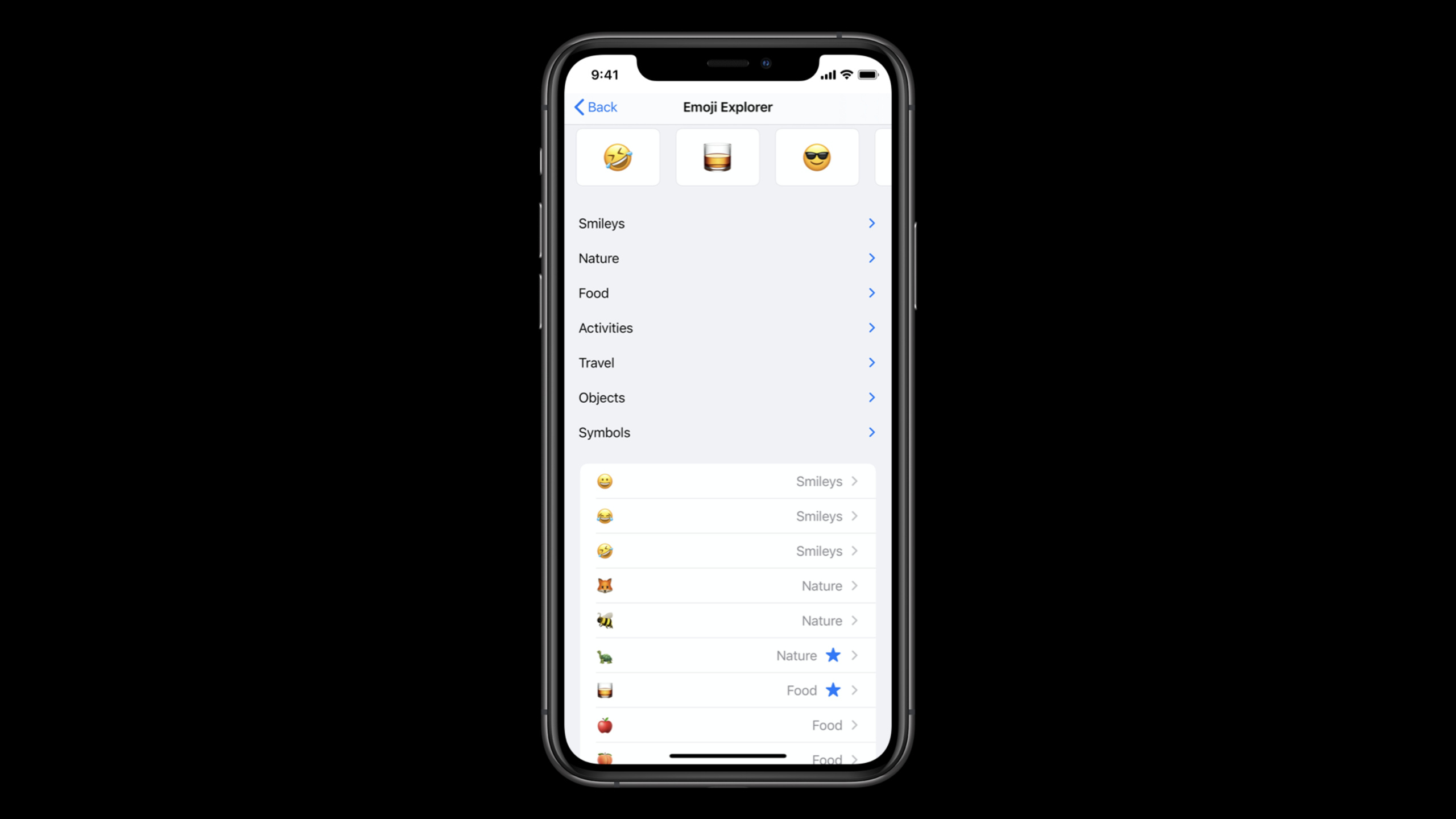
iOS 13 brings Diffable Data Source to the data side and Compositional Layout to the layout side.With iOS 14, Apple continues to improve capabilities along these two lines, and also updates the cell API on the display side.The Emoji Explorer in the speech is a miniature: the top is a horizontally scrolling emoji grid, the middle is an expandable and collapseable outline, and the bottom is a paragraph that looks likeUITableViewlist.
If this page is implemented with the old idea, the developer is likely to switch back and forth between multiple data sources, multiple layout branches, and handwritten cell configurations.iOS 14’s approach is to combine these differences into the sameUICollectionView:section snapshot describes the data of each section, Compositional Layout lists describe the appearance of the list, and cell registration and content configuration are responsible for making cell configuration reusable.
This session is an overview.It will not cover each API in depth, but will string together the three entries of Data, Layout, and Presentation to update the collection view of iOS 14.When it comes to implementation, the three sessions 10045, 10026, and 10027 respectively correspond to these three directions.
Detailed Content
Data: Use section snapshot to combine each section
(03:15) iOS 14 adds section snapshot for Diffable Data Source.it represents a singleUICollectionViewSection data solves two problems: combining data sources into section-level blocks and expressing hierarchical data.
Emoji Explorer has exactly three different sections.The horizontal scrolling emoji area is represented by a section snapshot, the outline area is represented by another section snapshot, and the list area is represented by a third section snapshot.In this way, a collection view can host a grid, an expandable outline, and a normal list at the same time.
Key points:
- The granularity of section snapshot is a single section, not the entire collection view.
- The outline can be expanded and collapsed because the section snapshot can express the parent-child hierarchy.
- transcript clearly puts the section snapshot in the enhancement of Diffable Data Source, please see 10045 for further details.
Layout: Create a list with Compositional Layout
(06:15) iOS 14 adds Lists to Compositional Layout.it allows you toUITableViewstyle section into anyUICollectionView, and retains the collection view’s ability to mix layouts by section.
let configuration = UICollectionLayoutListConfiguration(appearance: .insetGrouped)
let layout = UICollectionViewCompositionalLayout.list(using: configuration)
Key points:
UICollectionLayoutListConfigurationDescribes the appearance of the list, used here.insetGrouped。UICollectionViewCompositionalLayout.list(using:)Generate list layout directly.- transcript Description Lists are built on Compositional Layout, so it can be mixed with other layouts by section.
- List section supports common table view capabilities, including swipe actions and common cell layout.
This code creates a layout where all sections are lists.More complex pages can return different layouts by section in the section provider of Compositional Layout, putting lists, horizontal scrolling areas, and custom grids together.
Presentation: Unify dequeuing and configuration with Cell Registration
(07:33) The old way of writing collection view cells usually requires registering the cell class or nib first, then dequeueing in the data source, and converting the result into a specific cell type.Cell registration in iOS 14 combines registration, dequeue and configuration into a generic object.
// Example of using new iOS 14 cell registration

let reg = UICollectionView.CellRegistration<MyCell, ViewModel> { cell, indexPath, model in
   // configure cell content
}

let dataSource = UICollectionViewDiffableDataSource<S,I>(collectionView: collectionView) {
                     collectionView, indexPath, item -> UICollectionViewCell in
   return collectionView.dequeueConfiguredReusableCell(using: reg, for: indexPath, item: item)
}
Key points:
UICollectionView.CellRegistration<MyCell, ViewModel>Declare the cell type and the passed model type at the same time.- The closure will be executed when the new cell is constructed, and the cell is configured with the model.
- After using registration, there is no need to call it separately
register。 dequeueConfiguredReusableCell(using:for:item:)Return the configured cell from the cell provider of the data source.
This writing method goes well with Diffable Data Source.The item identifier is responsible for stably representing data, and the cell registration is responsible for mapping the corresponding model to cell content.
Presentation: Use UIListContentConfiguration to describe standard cell content
(08:32) cell content configuration provides a set of standard layouts with similar effectsUITableViewThe standard cell type of the past.Configuration object description content, framework is responsible for layout and performance optimization.
var contentConfiguration = UIListContentConfiguration.cell()
contentConfiguration.image = UIImage(systemName:"hammer")
contentConfiguration.text = "Ready. Set. Code"
cell.contentConfiguration = contentConfiguration
Key points:
UIListContentConfiguration.cell()Create a standard cell content layout.imageSet the left image.textSet the main text.- Assign configuration to
cell.contentConfigurationOnly then will the cell apply this content description.
(08:38) If you need auxiliary text on the trailing side, you can usevalueCell()。
var contentConfiguration = UIListContentConfiguration.valueCell()
contentConfiguration.image = UIImage(systemName:"hammer")
contentConfiguration.text = "Ready. Set. Code."
contentConfiguration.secondaryText = "#WWDC20"
cell.contentConfiguration = contentConfiguration
Key points:
valueCell()The layout corresponding to the main text plus trailing auxiliary text.secondaryTextIt is the second paragraph of text, placed on the trailing side in this style.- This type of configuration can be used for collection view cells or table view style cells.
(08:44) If the secondary text should be below the main text, you can usesubtitleCell()。
var contentConfiguration = UIListContentConfiguration.subtitleCell()
contentConfiguration.image = UIImage(systemName:"hammer")
contentConfiguration.text = "Ready. Set. Code."
contentConfiguration.secondaryText = "#WWDC20"
cell.contentConfiguration = contentConfiguration
Key points:
subtitleCell()BundlesecondaryTextPlace below the main text.- The same group of image, text, and secondaryText can get different layouts through different factory methods.
- transcript Special note, these configurations are very lightweight and only describe how the content should be presented.
(09:07) The same set of ideas also applies to background configuration.It is responsible for the cell background and can adjust attributes such as color and border style.Content configuration and background configuration combine to form iOS 14’s modern cell configuration model.
Core Takeaways
1. Make a mixed layout material browser
What to do: Put horizontally scrolling recent materials at the top, expandable category outlines in the middle, and a normal list at the bottom.
Why it’s worth doing: Emoji Explorer shows how the same collection view can host grids, outlines, and lists simultaneously.This structure is very suitable for content such as emojis, icons, templates, and photo materials that are classified and have recent access records.
How to start: First use Diffable Data Source to build a stable item identifier; use an independent section snapshot for each section; useUICollectionLayoutListConfigurationCreate a list section.
2. Migrate the old UITableView page to UICollectionView
What to do: Migrate the settings page, collection page or message list to a collection view list, first maintaining the original table view appearance.
Why it’s worth doing: Lists provide the common appearance and swipe actions of the table view, while retaining space for subsequent mixed layouts of the collection view.After the migration is complete, you can gradually add horizontal recommendation areas, grid sections, or outlines.
How to start: UseUICollectionLayoutListConfiguration(appearance: .insetGrouped)Create the first version of the layout; use diffable data source on the data source side; change the cell side toUICollectionView.CellRegistration。
3. Extract a set of reusable cell configurations
What to do: Unify the image, title, subtitle and value styles for different list pages, and reduce repeated writing of cell configurations in each view controller.
Why it’s worth doing: Cell registration collects the mapping from model to cell in a closure, and content configuration collects standard content layout into lightweight value types.Together they reduce duplicate code for registering, reusing identifiers, and manual subview layout.
How to start: Create by model typeUICollectionView.CellRegistration<Cell, Model>;Select in closureUIListContentConfiguration.cell()、valueCell()orsubtitleCell();Finally assigned tocell.contentConfiguration。
4. Make an expandable table of contents or sidebar
What to do: Make an expandable directory in an iPad app or document tool to display folders, chapters, or tags hierarchically.
Why it’s worth doing: One of the two goals of section snapshot is to express hierarchical data. Transcript also uses outline-style UI as a common visual design in iOS 14.
How to start: First organize the root nodes and sub-nodes of each section into stable identifiers; use section snapshot to manage the expansion state; continue to see 10045 when you need more in-depth expansion, collapse and reordering behaviors.
Related Sessions
- Advances in diffable data sources — Going deep into section snapshots and reordering is a complete expansion of the data direction of this field.
- Lists in UICollectionView — Talking about UICollectionView lists and sidebars is an in-depth introduction to the layout direction of this field.
- Modern cell configuration — Talking about content/background configurations and state is the in-depth direction of this presentation.
Comments
GitHub Issues · utterances