
Highlight
UIKit can accurately handle trackpad, mouse wheel, extra keys, and keyboard modifier input in iPad and Mac Catalyst Apps using UIHoverGestureRecognizer, prefersPointerLocked, allowedScrollTypesMask, buttonMask, modifierFlags, and UIApplicationSupportsIndirectInputEvents.
Core Content
iPadOS 13.4 brings the mouse and trackpad into the daily operation of ordinary iPad apps.When users move the pointer to the edge of the video player, they expect the control bar to appear automatically; when they slide the drawer with two fingers, they expect the content to move with it; when they right-click, they expect more direct contextual operations to open.These behaviors cannot be guaranteed by touch paths alone. UIKit provides separate event and gesture entrances for indirect input.
The main thread of this session is clear: let each app handle common inputs first, and then add advanced controls for heavy users.Common inputs include pointer movement, pointer lock, scroll input, pinch, and rotate.Advanced controls include mouse buttons, keyboard modifiers, gesture reception filtering, and switching from compatibility mode to the new indirect input event model.
The key difference is the event source.Finger touch still goes traditionalUITouchpath; trackpad scrolling drivesEventType.scroll;Precise pinching and rotating will goEventType.transform;mouse buttons and keyboard modifier keys will hang onUIEventandUIGestureRecognizersuperior.Apps need to read this information at the correct level to avoid pushing all interactions backtouchesBegana path.
Detailed Content
1. Use UIHoverGestureRecognizer to respond to pointer movement
(01:49)UIHoverGestureRecognizerIntroduced in Catalina for Mac Catalyst and available in iPadOS.It is suitable for responding to the pointer entering or leaving the bounds of a view, such as showing or hiding the video playback control bar.When modifying pointer appearance or hover effects, you should useUIPointerInteraction。
let controlsHover = UIHoverGestureRecognizer(target: self, action: #selector(handleHover))

@objc func handleHover(_ recognizer: UIHoverGestureRecognizer) {
    switch recognizer.state {
    case .began:
        // Pointer entered our view - show controls
        self.showsPlaybackControls = true
    case .ended:
        // Pointer exited our view - hide controls
        self.showsPlaybackControls = false
    default:
        break
    }
}
Key points:
UIHoverGestureRecognizerLike other gesture recognizers, works via target-action..beganThe corresponding pointer enters the bounds of the current gesture view..endedThe corresponding pointer leaves the bounds of the current gesture view.- The transcript clearly differentiates between gesture state and window-level pointer phases, e.g.
RegionEntered、RegionMoved、RegionExited。
2. Use prefersPointerLocked to apply for pointer lock
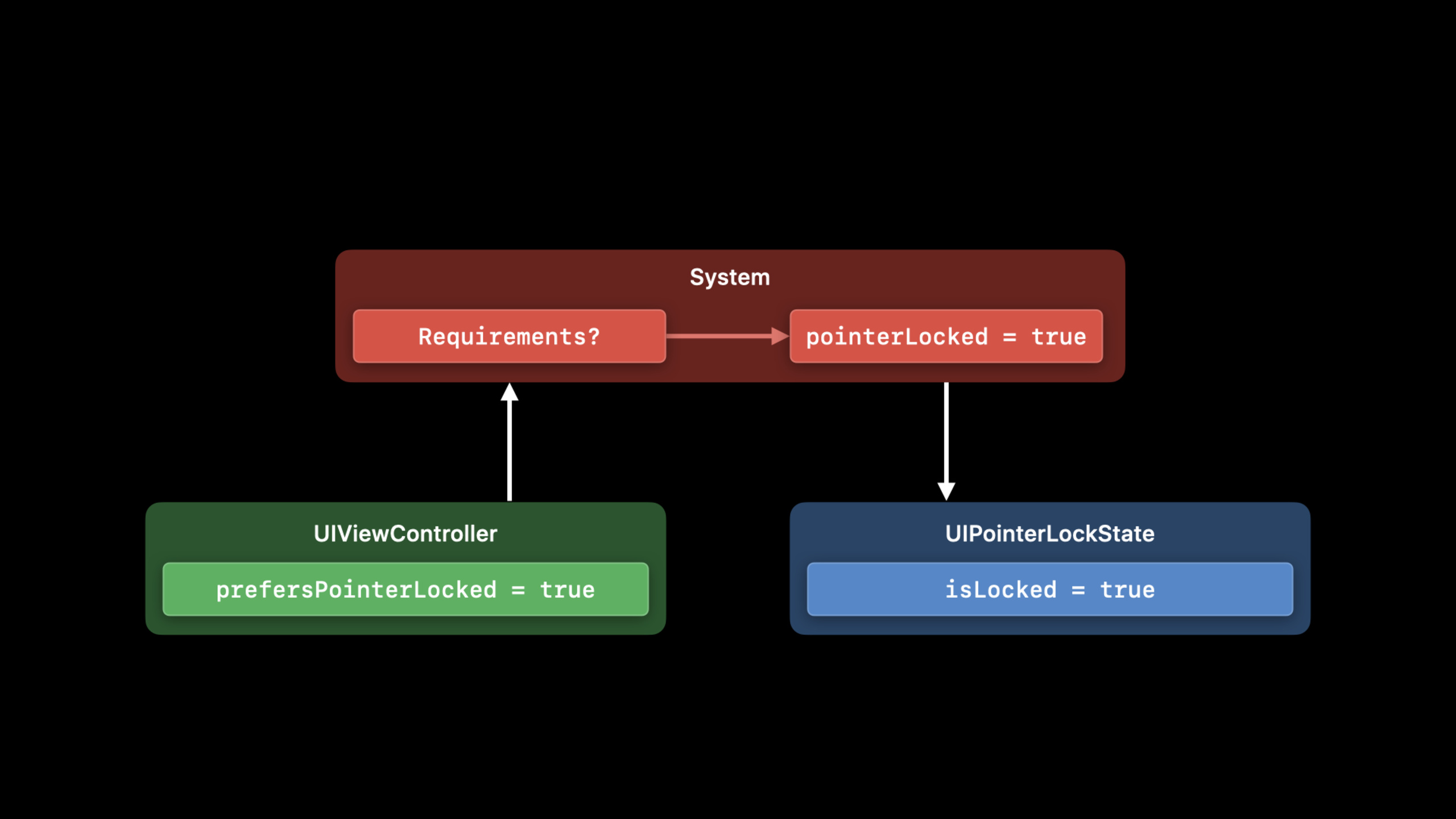
(05:33) iPadOS 14 and Mac Catalyst Big Sur add APIs for locking pointers.A typical scenario is a game: the user does not want the pointer to move on the screen, but wants the relative displacement to directly drive the perspective or character.App expresses preferences through the view controller, and whether to lock or not is ultimately determined by the system based on the scene state.
class GameViewController: UIViewController {

    var shouldLockPointer: Bool = true

    override var prefersPointerLocked: Bool {
        return self.shouldLockPointer
    }

    func disablePointerLock() {
        self.shouldLockPointer = false
        self.setNeedsUpdateOfPrefersPointerLocked()
    }
}
Key points:
prefersPointerLockedThe default value isfalse。- View controllers that require a locked pointer override this property and return the current preference.
- Called after status changes
setNeedsUpdateOfPrefersPointerLocked()to let the system reread the preferences. - scene on iPadOS needs to be full screen and in
foregroundActive;App on Mac Catalyst needs to be the frontmost application.
(05:53) If the business logic relies on the real lock state, read the scene’spointerLockState, and observeUIPointerLockState.didChangeNotification.session emphasizes that the App cannot assume that preferences will be satisfied.
if let pointerLockState = self.window.windowScene?.pointerLockState {
    self.observer = notificationCenter.addObserver(forName: UIPointerLockState.didChangeNotification,
                                                   object: pointerLockState,
                                                   queue: OperationQueue.main) { (note) in
        guard let lockState = note.object as? UIPointerLockState else { return }
        gameEngine.performExpensiveOperationWhile(lockState.isLocked)
    }
}
Key points:
pointerLockStatemay benil, indicating that the current scene does not support pointer lock.isLockedIt is the real state after system analysis.- Notifications are triggered when Slide Over, Control Center, Notification Center, or foreground App state changes affect lock conditions.
3. Open scroll input for UIPanGestureRecognizer
(09:54)UIScrollViewThe pan gesture recognizer will handle all scroll inputs, but ordinaryUIPanGestureRecognizerThere is no scroll mask by default.Interactions such as custom drawers, pull-to-refresh, and canvas dragging need to be set according to the scene.allowedScrollTypesMask。
// Enable scroll input for touch surface devices

self.drawerPan.allowedScrollTypesMask = [.continuous]


// Enable scroll input for scroll wheel devices as well

self.pullToRefreshPan.allowedScrollTypesMask = [.all]
Key points:
.continuousUsed for continuous scrolling on touch surfaces such as trackpads..allReceives both continuous scrolling and mouse wheel input.- The drawer example in the session only accepts continuous scrolling because the designer judged that it is unnatural for the scroll wheel to open the side content.
- Custom pull-to-refresh can be selected
.all, so that both the trackpad and scroll wheel can be triggered.
4. Let pinch and rotate use precise transform events
(10:41)UIPinchGestureRecognizerandUIRotationGestureRecognizerPinch and rotate on the trackpad are automatically handled.Old projects are in compatibility mode by default, and UIKit will simulate a two-finger touch.join inUIApplicationSupportsIndirectInputEventsAfter that, the App will receive theEventType.transform, gesture accuracy is higher.
<key>UIApplicationSupportsIndirectInputEvents</key>
<true/>
Key points:
- This Info.plist key is not a prerequisite for enabling pointer interaction, clicks, scroll input or trackpad gestures.
- it will be enabled
TouchType.indirectPointerandEventType.transform。 - Driven by the transform event,
numberOfToucheswill return0,locationOfTouch:inViewMay throw an exception. - deal with
UIPanGestureRecognizer、UIPinchGestureRecognizer、UIRotationGestureRecognizerWhen, it is necessary to migrate the judgment of dependent events to the newshouldReceivemethod.
5. Use buttonMaskRequired to receive the specified mouse button
(14:48)UIEvent.ButtonMaskRepresents the pointing device button that was pressed when clicked.UITapGestureRecognizeraddedbuttonMaskRequired, you can directly require a certain button to trigger the gesture.
self.thirdMouseButtonTap.buttonMaskRequired = .button(3)Key points:
.button(3)Returns the mask corresponding to the third mouse button.- This writing method is suitable for adding additional operations to professional users, such as binding the third key to a temporary tool in the editor.
buttonMaskexist simultaneously inUIEventandUIGestureRecognizer, but the reading timing is different.
(15:07) Keyboard modifier keys passedUIKeyModifierFlagsexpressed, and exposed asmodifierFlags.In gesture callback, the response mode can be changed according to the modifier keys.
func handleHover(_ recognizer: UIHoverGestureRecognizer) {

    // Show chapter controls if alt is pressed
    let showChapterControls = recognizer.modifierFlags.contains(.alternate)

    // ...
}
Key points:
.alternateCorresponds to the Option/Alt modifier key.- The same hover gesture in the example can show playback controls on normal hover and chapter controls on option hold.
- This type of advanced interaction is suitable for hidden less frequent but very efficient functions.
6. Filter events in shouldReceive(_ event:)
(16:38) NewUIGestureRecognizerandUIGestureRecognizerDelegateMethod allows the gesture to be accepted or rejected before processingUIEvent.Special reminder for session: These methods occur before gesture completely handles the event, so you need to readUIEventattribute on theUIGestureRecognizerhysteresis property on.
class SecondaryClickGesture: UIGestureRecognizer {

    override func shouldReceive(_ event: UIEvent) -> Bool {
        // Must look at the event’s mask, not the gesture’s
        return event.buttonMask == .secondary
    }

    override func touchesBegan(_ touches: Set<UITouch>, with event: UIEvent) {
        // Touch handling code ...
    }
}
Key points:
shouldReceive(_ event:)You can have a custom gesture receive only secondary clicks.- this stage
event.buttonMaskis the latest value. gestureRecognizer(shouldReceive touch:)Non-touch events such as scroll or transform are not overridden.
(17:36) If you want Control + primary key click to be equivalent to secondary click, you can check bothbuttonMaskandmodifierFlags。
class SecondaryClickGesture: UIGestureRecognizer {

    override func shouldReceive(_ event: UIEvent) -> Bool {
        // Must look at the event’s properties, not the gesture’s
        let secondaryClick = event.buttonMask == .secondary

        let controlClick = event.buttonMask == .primary && event.modifierFlags == .control

        return secondaryClick || controlClick
    }

    override func touchesBegan(_ touches: Set<UITouch>, with event: UIEvent) {
        // Touch handling code ...
    }
}
Key points:
secondaryClickOverride right-click or two-finger click.controlClickOverride the main button plus the Control modifier key.- This mode is suitable for operations such as context menus, inspectors, professional editing tools, etc.
(18:10) The delegate method can also filter hover events.The example below only receives closed caption hover while holding down Option/Alt.
let ccHover = UIHoverGestureRecognizer(target: self,
                                       action: #selector(handleClosedCaptionHover))

ccHover.delegate = self

func gestureRecognizer(_ gestureRecognizer: UIGestureRecognizer,
                       shouldReceive event: UIEvent) -> Bool {

    if gestureRecognizer == self.closedCaptionHover {
        return event.modifierFlags.contains(.alternate)
    }

    return true
}
Key points:
- The gesture delegate can define different filter conditions for different gestures.
event.modifierFlags.contains(.alternate)Is the only condition to receive closed caption hover.- Other gestures return
true, maintain the original event flow.
Core Takeaways
1. Pointer floating layer of video player
What it does: Display the control bar when the pointer enters the playback area, and display the chapter or subtitle entry when holding down Option/Alt.
Why it’s worth doing: The session hover example and the modifier flags example cover exactly these two interaction levels.
How to start: Add player viewUIHoverGestureRecognizer, read in callbackrecognizer.stateandrecognizer.modifierFlags。
2. Pointer lock mode for games or 3D views
What to do: Use relative mouse displacement for perspective control in full-screen gaming, 3D modeling, or map roaming scenarios.
Why it’s worth doing:prefersPointerLockedandUIPointerLockState.isLockedAllows apps to express locking preferences and adjust rendering or input logic based on system-parsed state.
How to start: Override in the main view controllerprefersPointerLocked,observeUIPointerLockState.didChangeNotification,existisLockedWhen true enables relative displacement control.
3. Customize the touchpad scrolling of drawers and canvases
What to do: Make the side drawer, timeline, canvas pan, pull-to-refresh support trackpad two-finger sliding and mouse wheel.
Why it’s worth doing: AverageUIPanGestureRecognizerBy default, scroll input is not accepted. Users will encounter the problem that the touchpad can scroll the list but cannot drag the custom area.
How to get started: Custom pan gesture settings for eachallowedScrollTypesMask, used when continuous scrolling of the touchpad is required..continuous, used when roller support is needed.all。
4. Multi-button quick operation of professional tools
What to do: In drawing, editing, IDE, and spreadsheet apps, map the third mouse button, right button, and Control + click to different tools or contextual operations.
Why it’s worth doing:buttonMaskRequired、event.buttonMaskandevent.modifierFlagsIt can hand over precise input to the corresponding gesture and reduce mode switching.
How to start: Simple tap useUITapGestureRecognizer.buttonMaskRequired;Complex filtering is written inshouldReceive(_ event:)or delegate’sgestureRecognizer(_:shouldReceive:)middle.
5. Migrate from touch compatibility mode to indirect input
What to do: Let the trackpad pinch and rotate go straight awayEventType.transform, and useTouchType.indirectPointerDistinguish between mouse clicks and finger clicks.
Why it’s worth doing: The old compatibility mode will simulate touch, and precise gestures may accidentally touch other recognizers; the new indirect input path can make gesture semantics clearer.
How to start: Add in Info.plistUIApplicationSupportsIndirectInputEvents, check dependenciesnumberOfTouches、locationOfTouch:inViewandgestureRecognizer(shouldReceive touch:)code.
Related Sessions
- Build for the iPadOS pointer — Customize pointer effects, regions, and shapes with UIPointerInteraction so iPad controls respond to hover.
- Design for the iPadOS pointer — Apply iPadOS pointer design principles, effects, shapes, gestures, and keyboard modifiers to app workflows.
- Bring keyboard and mouse gaming to iPad — Use Game Controller keyboard and mouse events, pointer lock, and full-screen behavior for iPad games.
- Support hardware keyboards in your app — Use the responder chain, UIKeyCommand, modifier flags, and raw keyboard events in iPad and Mac Catalyst apps.
Comments
GitHub Issues · utterances