
Highlight
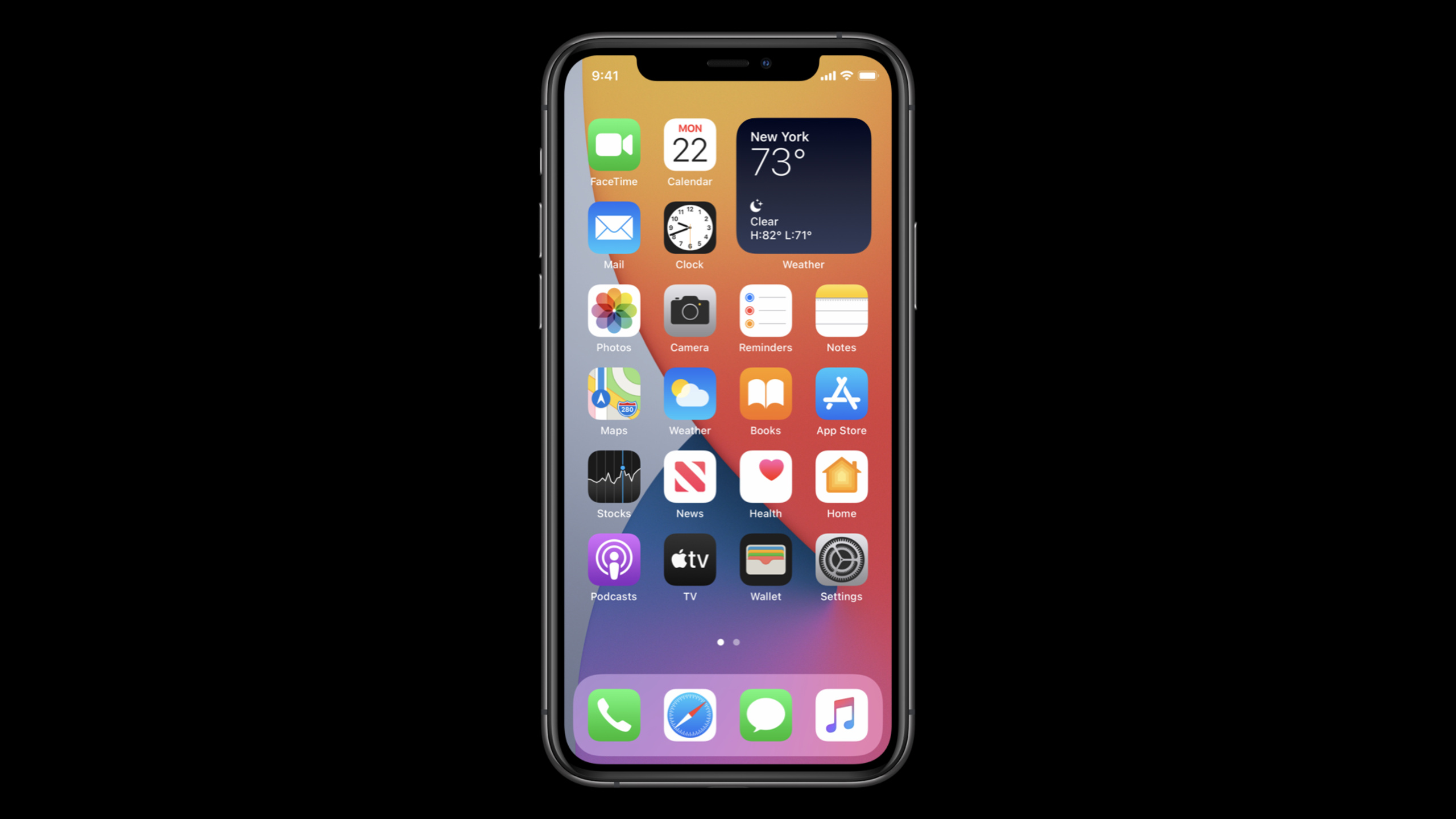
As the third lecture in the Design for intelligence series, Apple puts “discovery” into system entrances such as Shortcuts, Siri Suggestions widget, Search, Lock Screen, Sharing Suggestions, Calendar and Maps, so that App functions can be found by users outside the home screen.
Core Content
The problem with many apps is not that they have few functions, but that their entrances are too narrow.Users must remember the app name, open the home screen icon, and follow the navigation hierarchy to find a feature.The more functions there are, the more this path relies on user memory; the busier the user is, the less likely they will actively remember what your App can help them accomplish.
JP Lacerda defined intelligence in this session as the collaboration between systems and apps.The system understands the user’s goals, habits, preferences, and relationships; the App connects its capabilities to the system entrance.In this way, App is no longer just a monolithic container.Its functionality can appear in Search, Lock Screen, Calendar, Maps, Sharing or widget stack.
This lecture follows the first two lectures, and the focus shifts from “why intelligent design” and “how to collaborate with the system” to “how users discover these capabilities.”The examples in the verbatim manuscript are very specific: Shortcuts can be run through clicks or Siri; Siri Suggestions widgets, Search and Lock Screen can display relevant suggestions; iOS 14’s Smart Stack will put widgets on the top of the stack at the right time; Siri Event Suggestions can bring restaurant reservations into Calendar and remind users through Lock Screen before departure.
Apple also provides evaluation criteria.After engaging in intelligence, the goals fall on traffic, utility and visibility.The verbatim manuscript mentioned that after a user first uses Sharing Suggestion of an app, the average number of shares will double before; some airlines saw 82% of notification check-ins coming from the Siri Event Suggestion check-in action; some third-party apps are seen on Lock Screen, Sharing, Search and other entrances an average of five times a day.
Detailed Content
Intelligence expands from within the App to the system entrance (01:24)
The speaker first gave the role of the developer: App participates in intelligence by integrating with the system, so the system can treat the App as a collection of capabilities beyond a single container.The key here is to let the system know which app capabilities can appear outside the home screen; the business logic is still the responsibility of the app itself.
App capability
-> system integration
-> suggestion on behalf of the app
-> entry point beyond the Home Screen
Key points:
- App capability is the action or content that the user really wants to complete or obtain.
- system integration lets the system know that these capabilities exist and can be displayed at the appropriate entrance.
- suggestion on behalf of the app to extend reach responsibilities from in-app navigation to the system level.
- The entry point beyond the Home Screen is the core benefit of this session.
Shortcuts brings action to voice, Search and Lock Screen (01:47)
Shortcuts is the first example.It lets users complete app actions with a single tap or asking Siri.The Shortcuts app is built into iOS and can configure both simple actions and multi-step shortcuts and automations.After the action enters Shortcuts, it may also appear in the Siri Suggestions widget, Search, and Lock Screen.
Shortcut action
-> tap or Siri
-> Siri Suggestions widget / Search / Lock Screen
Key points:
- This session does not expand on the implementation code of Shortcuts, but only emphasizes its value as a discovery portal.
- After the same App action enters Shortcuts, it can be actively run by the user or suggested by the system in related scenarios.
- If the user already has a clear goal, the value of Shortcuts is to reduce the number of steps to enter the app from the home screen and then navigate.
Widgets and Smart Stack make information appear at the right time (02:12)
The new Smart Stack added to iOS 14 is the second entry point.The Weather widget example in the verbatim script illustrates that if the App provides a widget, Smart Stack can put it on the top of the stack at the appropriate time.The “discovery” here happens when the user glances at the home screen: the most useful information at the moment is pushed to a position where it’s easier to see.
App vends a widget
-> Smart Stack evaluates timing
-> widget moves to the top of the stack
Key points:
- Widgets are suitable for carrying timely information and cannot be just a reduced version of the App homepage.
- Smart Stack emphasizes time correlation. Apps should put information that is most suitable for quick scanning into widgets.
- This entrance addresses “what the user may need at the moment” rather than “where the user clicks on the function.”
Sharing and Siri Event Suggestions bring content into other system scenarios (02:22)
Sharing Suggestions are geared toward content distribution.When there are photos, videos and other content on the device, the system will help users send the content to the most important people or groups.The verbatim script then cuts to Siri Event Suggestions: restaurant reservations can automatically appear in Calendar, Lock Screen can remind departures based on traffic conditions, and Maps can give route suggestions to the airport with one click.
reservation in the app
-> Calendar
-> Lock Screen leave-time notification
-> Maps direction suggestion
Key points:
- This type of entry requires the App to bring structured information into the system, rather than just displaying a confirmation page within the App.
- Calendar, Lock Screen, and Maps cover the continuous paths users take to accomplish the same thing.
- The session only talks about opportunities and design value; for specific implementation, you should continue to see the Siri Event Suggestions session.
Evaluating intelligence depends on traffic, utility and visibility (03:20)
The speaker first emphasized privacy in the indicator section.Apple’s use of device analytics to improve products requires user opt-in; the information collected does not directly identify individuals and can only be sent to Apple with the user’s explicit consent.Later, the session uses three numbers to illustrate the impact of intelligence on the App.
Sharing Suggestion: first engagement -> average sharing volume doubles
Siri Event Suggestion check-in action: 82% of notification check-ins in some airline apps
System visibility: some third-party apps seen five times per day across system entry points
Key points:
- traffic measures whether the entry brings users back to the app or the ability of the app.
- Utility measures whether the system suggestions really help users save operations.
- Visibility measures whether the App is visible to users in Lock Screen, Sharing, Search, etc.
- Metrics need to be built on privacy and user consent.
Core Takeaways
1. Make a system entry mapping table
What to do: Group the core capabilities of the app into Shortcuts, Search, Lock Screen, Sharing, Calendar, Maps and widgets, and mark where each capability is best suited to appear.
Why it’s worth doing: The main thread of the session is to allow App capabilities to enter entry points outside the home screen.Only by mapping first can we determine which abilities are worth recommending to the system.
How to start: List the 5 most frequent goals of users, and write down the triggering time, required information and ideal entrance for each goal; functions with unclear entrances should be left in the app first, and there is no rush to integrate the system.
2. Design repeated actions as Shortcut candidates
What to do: Pick out frequently repeated, targeted actions by users and make them triggerable through clicks, Siri or Shortcuts automation.
Why it’s worth it: The verbatim text clearly says Shortcuts can be run via tap or Siri, with suggestions available in the Siri Suggestions widget, Search, and Lock Screen.
How to start: Start with actions that do not require complicated browsing, such as placing an order again, starting a recording, and opening a fixed workflow; for implementation details, continue to refer to SiriKit, Shortcuts, and intents-related sessions.
3. Select the “most useful at the moment” information for the widget
What to do: Let the widget display a small piece of information that the user is most likely to need at the moment, rather than compressing the app homepage into a small view.
Why it’s worth doing: iOS 14’s Smart Stack can put widgets on the top of the stack at the right time. Whether the information is timely will directly affect whether it is worthy of being displayed.
How to start: Define a clear question for the widget: what does the user need to know at a glance now? Then prepare display content in different states according to time, location or schedule scenarios.
4. Let booking and itinerary information enter the system journey
What to do: If the app handles restaurant reservations, flights, hotels, events, or ticketing, design these confirmations into structured events that can go into Calendar, Lock Screen, and Maps.
Why it’s worth doing: The restaurant and flight examples in the session illustrate that after completing the reservation, the user will also experience departure reminders, route planning, and check-in, all of which occur outside the app.
How to start: First sort out the basic fields of the event object: time, location, confirmation status, and user’s next action; the specific API and markup solutions will be put into the Siri Event Suggestions session for further implementation.
5. Measuring the effects of system entrance alone
What to do: Create an independent performance dashboard for the system entrance, and track the entrance exposure, triggering, return to the App, completed actions and subsequent retention.
Why it’s worth doing: Apple uses sharing volume, notification check-ins and daily visibility to explain the value of intelligence, indicating that this type of integration needs to be verified with results.
How to start: First define a main indicator for each portal: Sharing looks at the share volume, Event Suggestions looks at the check-in or arrival rate, and the widget looks at the opening or task completion rate; all statistics must comply with user consent and privacy boundaries.
Related Sessions
- Design for intelligence: Apps, evolved — Explain from the overall design concept how apps can become more proactive through extensions, Siri Suggestions, voice, widgets, and App Clips.
- Design for intelligence: Make friends with “The System” — Explain the three system intelligence building blocks of define, learn, and execute, as well as the roles of intents, donations, and extensibility.
- Design for intelligence: Meet people where they are — Starting from the user’s actual journey throughout the day, explain how the app can provide the right value at the right time.
- What’s new in SiriKit and Shortcuts — Overview of the new entrance, compact interface, and action organization for Siri and Shortcuts in iOS 14.
- Broaden your reach with Siri Event Suggestions — In-depth explanation of how to get booking, flight, and event information into Calendar, Maps, and Siri Event Suggestions.
Comments
GitHub Issues · utterances