
Highlight
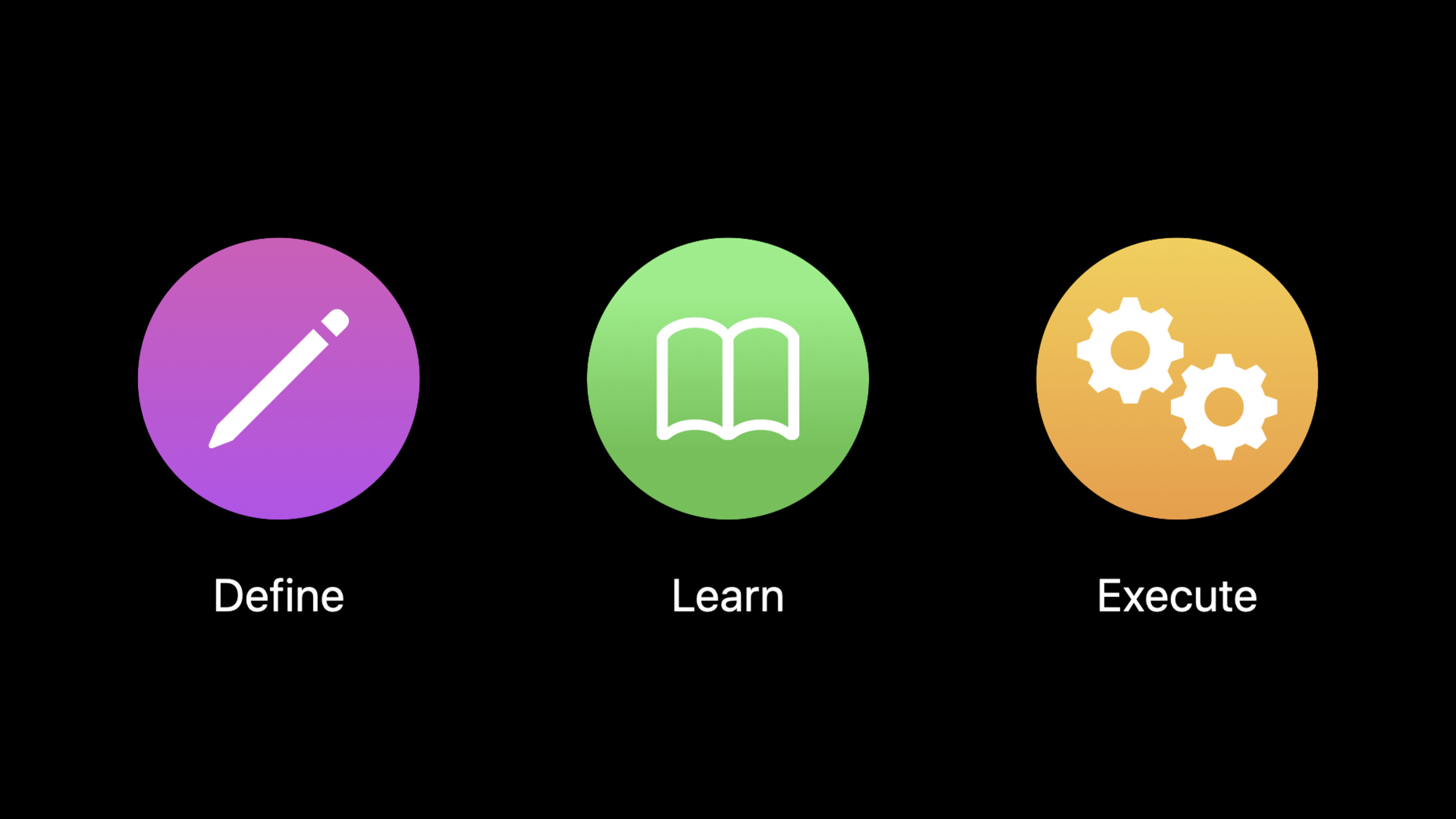
Apple splits the system’s intelligent collaboration model into three steps: define, learn, and execute: developers use Intents to define key actions, use donation to let the device learn usage patterns locally, and then let Siri, Shortcuts, Widgets, and events suggest executing these actions at the appropriate time.
Core Content
The core functions of many apps are not complicated, and the trouble lies at the entrance.When users want to order coffee, check the order delivery time, check the weather city or open the reminder list, they often have to first unlock the device, find the app, and then go through several layers of interfaces.This process is acceptable for occasional tasks, but becomes friction for tasks that are repeated every day.
The answer to this session is to make the app and the system speak the same language.Developers first define the most frequently repeated actions of users as intents, and describe them clearly along with the parameters required to complete the actions.When the user completes these actions in the app, the app will donate the actually executed intent donation to the system.The system uses the local intelligence of the device to learn these signals and gradually determine which tasks are suitable for which scenarios.
The final step in this model is execute.When a hit is predicted, the system returns the intent to the app.The app can complete the action in the background, or it can open to the most relevant page, and it can also put the confirmation interface into the process of Siri or Shortcuts.What users feel is that tasks originally hidden in the app have become easier to reach.
Detailed Content
Define: State the key actions clearly
(01:42) Apple calls the Intents framework a common language between apps and systems.The intent expresses what the user wants to do in the app, and the parameters express what attributes are needed to complete the action.Session uses order coffee as an example: the action is to order coffee, and the parameters can be coffee type and cup size; when the user actually places an order, these parameters will become specific values such as a cup of large iced latte.
Key points:
- Intents should be designed starting from tasks that users can complete repeatedly, such as ordering coffee, recording water consumption, checking the news, or checking the order delivery time.
- Parameters describe the context required for the action itself.Without parameters, the system can only know that the user wants to order coffee; with parameters, the system can know what kind of coffee and size are ordered this time.
- Custom intents are suitable for describing unique actions of the app; system-defined intents are suitable for general categories such as messages and media.
Learn: Use donation to let the system learn real behaviors
(03:46) The learning phase relies on donation.Apple’s definition of donation is very specific: it is a record left at a certain point in time by an executed intent.Users often order large latte in the morning and occasionally lemonade in the afternoon. These signals will accumulate with use, and the system will then use the device’s local intelligence to find patterns.
Key points:
- Donations should happen when users complete important tasks, not when they open a page or browse a list.
- The system will combine time, location and broader context to determine when a task occurs.
- transcript clearly emphasizes that donated information never leaves the device, and personalized predictions are completed locally on the device.
Execute: Complete the action directly after predicting the hit
(06:00) When the system predicts that the user may want to perform a certain task, the intent is reconstructed based on past donations.After the user clicks on the suggestion, the system hands the underlying intent to the App.Apple gives two execution paths: first complete the action in the background; if you must open the App, go directly to the relevant page.
Key points:
- Background execution is suitable for tasks that do not require complicated confirmation, which can reduce app switching.
- Tasks that require confirmation can be displayed in the App UI during the process, such as confirming an order before placing an order.
- When opening the app, do not return to the home page. Instead, enter the confirmation page, details page or execution result page corresponding to the intent.
Shortcuts: Let voice and automation take over app actions
(09:18) The Shortcuts section continues with Soup Chef.The user can say “Hey Siri, order soup” to run the order soup intent, or “check delivery” to run the intent to check the delivery time.The Add to Siri flow displays the intent parameters; if a parameter is left blank, Siri will ask the user at runtime.
Key points:
- Add to Siri shouldn’t just be hidden in the settings page.session It is recommended to place it where the user has just completed the task, such as the order confirmation page.
- Shortcuts app can pass the intent output of one App to another App.Soup Chef’s order history intent outputs the number of orders in the past seven weeks, and Charty’s new chart series intent receives these data to generate charts.
- Donation will also drive predictions in Search and automation suggestions in Shortcuts. For example, if the system finds that users often order soup after get off work on Thursdays, it can suggest corresponding automations.
Widgets and event suggestions: the same model enters more system entrances
(15:04) iOS 14 widgets are also supported by intents.The intent allows the user to configure what type of data the widget displays, and the parameters allow the user to select specific content.The show weather intent of the weather widget can take location as a parameter, so the user can select the city they want to see.
Key points:
- The goal of widgets is to put important information hidden deep in the App UI on the Home Screen or Today View.
- Smart Stack will use donation to decide which widget appears on top.When users check the weather in New York at a fixed time every day, the system can learn this pattern and automatically bring up the relevant widgets at that time.
- (17:05) Siri Event Suggestions also use the Intents framework.When the user views the reservation, the App should donate reservation details; iOS 14 and macOS Big Sur also introduce new ways to integrate with Mail and Safari through web markup.
Core Takeaways
1. Create an intent list for high-frequency tasks
What to do: List 3-5 actions that users will complete repeatedly in the app, and write each action as an intent candidate.
Why it’s worth doing: Session repeatedly emphasizes that system intelligence requires the App to first define “what”.Without intents, Siri, Shortcuts, widgets, and event suggestions all lack understandable units of action.
How to start: Start with tasks with the shortest path to completion and the highest repetition frequency, such as reordering, recording data once, and checking a certain status.Mark the necessary parameters for each task, and then determine whether there is a system intent that can be used.
2. Only donate key actions that have been completed
What to do: Donate where the user actually completes the task, such as the order is submitted successfully, the drinking record is saved, and the reservation details are viewed.
Why it’s worth doing: Donation is a signal of the system’s learning mode.Low-quality signals make predictions worse, while high-quality signals help the system determine time, place, and context.
How to start: Group the existing hidden points according to user goals, delete events that can only explain “viewed the page”, and retain events that can explain “what has been accomplished”.Each donation must be able to be played back into a specific intent.
3. Place the Add to Siri entry on the task completion page
What to do: Put Add to Siri right after the user completes an action, rather than just on the settings page.
Why it’s worth doing: The value of Shortcuts comes from making familiar tasks faster.When a user has just completed an order, query or record, it is easiest to understand whether this action is suitable for triggering by voice or automation in the future.
How to start: Select a confirmation page to display the Add to Siri entry corresponding to the intent.Check that the parameters are clear enough; if a value may change each time, allow the user to fill it in when running the shortcut.
4. Align widget configuration with intent parameters
What to do: When designing your widget, map configurable items to intent parameters, such as cities, lists, accounts, or followers.
Why it’s worth doing: session description iOS 14 widgets backed by intents.Parameters allow the widget to transform from a general information block into the user’s own information entry.
How to start: First find out the most frequently switched dimension in the widget, and then design it as an optional parameter.Then use donation to help Smart Stack determine when this widget is most worthy of appearing at the top.
5. Make deep links for the execution path after the prediction hit
What to do: When the system returns the intent to the App, directly complete the task or open to the relevant page.
Why it’s worth doing: The execute phase determines whether the user really saves time.After opening the prediction portal, you have to find the function again from the home page, and the value of system intelligence will be offset.
How to start: Write clearly the background execution conditions, confirmation interface and in-app landing point for each intent.Tasks that require user confirmation go to the confirmation page; tasks that only need to display results go to the results page; tasks that can be completed in the background give clear feedback.
Related Sessions
- Design for intelligence: Apps, evolved — Introducing the design background of system intelligent experience, which is the pre-concept of the define, learn, and execute models in this field.
- Design for intelligence: Discover new opportunities — Continue to discuss extensibility and explain how App functions can enter more system entrances.
- Feature your actions in the Shortcuts app — An in-depth explanation of how to make App actions appear in the Shortcuts app and automation suggestions.
- Add configuration and intelligence to your widgets — Explain the relationship between widgets, intent configuration, Smart Stack and system intelligence.
- Empower your intents — Added SiriKit intent implementation details, including in-app intent handling and richer Siri interactions.
Comments
GitHub Issues · utterances