
Highlight
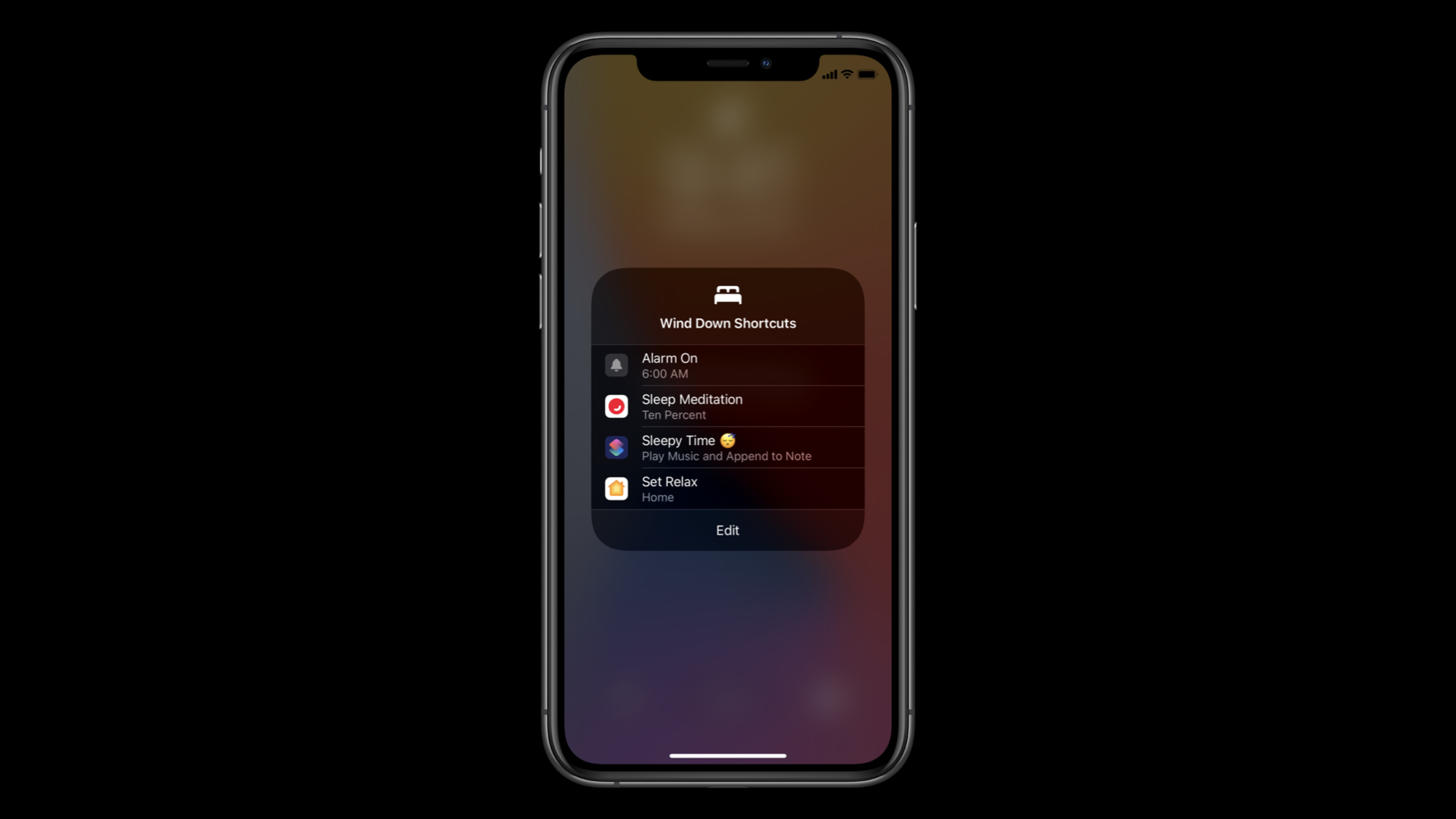
iOS 14 has made a major upgrade to the sleep function of the Health App and introduced the concept of Wind Down (sleep mode).Users can set a bedtime, and the system will automatically enter the Wind Down state some time before going to bed - the screen will dim, notifications will be muted, and apps related to “relaxation activities” selected by the user will be recommended.
Core Content
The biggest thing I fear is one more step in my bedtime routine.The user is ready to take a break. If the user has to unlock the phone, search for apps, and then enter a meditation, diary, or white noise page, this action itself will interrupt Wind Down.The Health App of iOS 14 expands sleep settings into a system-level process: after users set a sleep schedule, they can run selected Shortcuts directly from the lock screen during Wind Down.
This session talks about how developers enter this portal.Apple calls these entries Wind Down Shortcuts.They can come from the app’s intent or fromNSUserActivity.The first thing developers have to do is to determine which actions in the app are really suitable before going to bed: starting sleep meditation, playing relaxing soundscapes, writing an evening diary, and setting soft lighting are all suitable for the scene; warming up for a run or starting a meeting are not suitable.
After entering the system recommendation, the actions must be easy to recognize.Wind Down’s lock screen space is very small, and all users see is a short shortcut name.session repeatedly emphasizedsuggestedInvocationPhrase, because this sentence is both a Siri voice trigger phrase and the text on the lock screen that describes the shortcut.A good phrase should be short, specific, and differentiate between different actions within the same app.
Detailed Content
1. UseshortcutAvailabilityFlag bedtime category
(02:38) The entrance to Wind Down is for specific actions in the App, not the entire App.session clearly states that the main method is intent: you can use the system’s built-in intent, such asINCreateNoteIntent, you can also define custom intents.After completing the intent, set a newshortcutAvailabilityproperty.
(03:14)shortcutAvailabilityexist simultaneously inINIntentandNSUserActivity.It tells the system which category in the Wind Down setup flow this action fits into.The speech cited several categories: meditation apps can use mindfulness, Notes or Weather apps can use Prepare for Tomorrow, white noise apps can use sleep music, and yoga apps can use yoga and stretching.
import Intents

let intent = INPlayMediaIntent(
    mediaItems: nil,
    mediaContainer: nil,
    playShuffled: nil,
    playbackRepeatMode: .unknown,
    resumePlayback: nil,
    playbackQueueLocation: .unknown,
    playbackSpeed: nil,
    mediaSearch: nil
)

intent.shortcutAvailability = [.sleepMusic]
intent.suggestedInvocationPhrase = "Play Counting Sleepy Dinosaurs"
Key points:
INPlayMediaIntentCorresponds to the Bedtime example in transcript, used to start audio playback..sleepMusicCorresponds to the sleep music option mentioned at 04:46, suitable for white noise, bedtime music and relaxing soundscapes.suggestedInvocationPhraseCorresponding to the explanations at 07:36 and 10:19, the system will use it as the shortcut name on the lock screen.- No real media items are constructed here because the focus of the session is the Wind Down mark; for media search and playback details, you can continue to see the SiriKit Media Intents related session.
2. UseINVoiceShortcutCenterProactively recommend key actions
(04:35) The first path to the Bedtime example is suggestion.App creates intent and setsshortcutAvailability, packaged asINShortcut, and then passINVoiceShortcutCenterofsetShortcutSuggestionsLeave it to the system.In this way, when users set Wind Down in the Health App, they can see this action in the Music category.
(06:07) Session special reminder: If the App’s action list changes, it must be called againsetShortcutSuggestions.In this way, only the most relevant actions will appear in the Wind Down setting process.
let shortcut = INShortcut(intent: intent)

if let shortcut {
    INVoiceShortcutCenter.shared.setShortcutSuggestions([shortcut])
}
Key points:
INShortcut(intent:)It is the packaging step to turn the intent into a shortcut that can be displayed by the system.INVoiceShortcutCenter.sharedCorresponds to the shared property in transcript.setShortcutSuggestionsA good place to put a core bedtime action that your app always wants users to discover, such as “play today’s soundscape.”- The value of suggestion is controllable: the developer can ensure that certain actions are displayed in the Wind Down setting.
3. Donate during real use and let the system learn user preferences
(06:32) The second path is donation.When a user performs an action in daily use of the App, the App donates this intent or user activity to the system.The system uses this to understand which actions are more important to this user and places them in places like Wind Down settings, search, and lock screen suggestions.
(07:58) The intent donation process shown in the speech is: initialize intent, setshortcutAvailability,set upsuggestedInvocationPhrase, packaged asINInteraction, finally calldonate。
let playedTrackIntent = intent
playedTrackIntent.suggestedInvocationPhrase = "Play Counting Sleepy Dinosaurs"

let interaction = INInteraction(intent: playedTrackIntent, response: nil)
interaction.donate { error in
    if let error {
        // In a real app, log donation failures so system recommendation opportunities are not silently lost.
        print(error)
    }
}
Key points:
- donation should occur after the user actually performs an action, such as playing a white noise track.
INInteractionis a container for intent donation, which the transcript explicitly mentions at 08:30.- The phrase can use the track name so that the text that appears on the lock screen is easier to identify than “Play sound”.
- Donation and suggestion should be done at the same time: suggestion ensures that the core action is visible, and donation helps the system learn personal preferences.
4. UseNSUserActivitySupport non-intent actions
(08:39) If the App has been usedNSUserActivityTo express a certain action, you can also perform Wind Down.The order given by session is: initialize user activity, set eligible for search and eligible for prediction, set title, setsuggestedInvocationPhraseandshortcutAvailability, and finally assign it to the view controlleruserActivityProperty completion donation.
let activity = NSUserActivity(activityType: "com.example.bedtime.journal")
activity.isEligibleForSearch = true
activity.isEligibleForPrediction = true
activity.title = "Night Journal"
activity.suggestedInvocationPhrase = "Open Night Journal"
activity.shortcutAvailability = [.sleepJournaling]

viewController.userActivity = activity
Key points:
isEligibleForSearchandisEligibleForPredictionCorresponds to the requirement of 08:44 in transcript.titleandsuggestedInvocationPhraseBoth affect system display, which is also used for Siri triggers..sleepJournalingCorresponds to the journaling scene in Wind Down, suitable for journaling, mood recording and bedtime review.viewController.userActivity = activityIt is the donation method mentioned in the speech and is suitable for existing page behavior.
5. The phrase should be designed for the lock screen space
(09:02)suggestedInvocationPhraseNot a decorative field.The session explicitly states that it will be used to name the app’s shortcut and will also be displayed on the lock screen during Wind Down.Since lock screen space is limited, phrases should be short and specific.
(09:37) An example of Bedtime is “Play Counting Sleepy Dinosaurs”.It contains the specific track name so users can distinguish it from other sounds in the app.A counter-example is “Play sound”, which is too general a name to tell the user what exactly will be played.
intent.suggestedInvocationPhrase = "Play Counting Sleepy Dinosaurs"Key points:
- The phrase needs to be able to uniquely identify the action, especially when the same app exposes multiple bedtime content.
- Remove redundant words to avoid Wind Down lock screen truncation.
- Use the name of the object that the user will recognize, such as a music track, meditation session, journal template, or bedtime list.
- This phrase must be set in both suggestion and donation paths.
Core Takeaways
1. Make a bedtime soundscape entrance
What to do: Turn white noise, bedtime music, or relaxing stories from the app into a Wind Down Shortcut.
Why it’s worth doing: The Bedtime example of session usesINPlayMediaIntentStart the soundscape and use.sleepMusicPut it in the Music category of Wind Down.
How to start: First select a most commonly used audio track and createINPlayMediaIntent,set up.sleepMusicand short phrases, then useINVoiceShortcutCenter.shared.setShortcutSuggestionsexposed to the system.
2. Make a quick entry to your evening diary
What to do: Let users open the evening diary, mood record, or bedtime review page directly from the lock screen.
Why it’s worth doing: transcript gives the example of Day One journaling in the Health setup process.NSUserActivityAlso supports settingshortcutAvailability。
How to get started: Create a journal pageNSUserActivity,set upisEligibleForSearch、isEligibleForPrediction、title、suggestedInvocationPhraseand.sleepJournaling, and then bind to the current view controller.
3. Make a “Prepare for Tomorrow” list
What to do: Display tomorrow’s important things, weather, first meeting or travel reminder before bed.
Why it’s worth doing: Putting apps like Notes and Weather into the Prepare for Tomorrow scene shows that Wind Down not only serves relaxation, but also serves the preparation for the next day.
How to get started: Build “Review Tomorrow Summary” into an intent or user activity, use the phrase “Review Tomorrow”, and make a donation after the user checks the schedule frequently.
4. Make a pre-bed stretching or meditation retreat
What to do: Put a regular-length bedtime yoga, breathing exercise, or meditation class into Wind Down.
Why it’s worth doing: The session clearly differentiates between yoga for relaxation, which is suitable before going to bed, and warm-up run, which is not suitable before going to bed. Developers should choose actions that really help them fall asleep.
How to start: Start with the lightest course in the app, set the mindfulness or yoga and stretching category, and write the phrase as the course name instead of the general “Start session.”
Related Sessions
- What’s new in SiriKit and Shortcuts — An overview of SiriKit and Shortcuts updates in 2020, including compact Siri UI, Shortcuts organization, and Wind Down flags.
- Feature your actions in the Shortcuts app — Explain how to let App actions enter the Shortcuts App, automated suggestions, and system intelligent recommendation portals.
- Empower your intents — Explains intent handling, in-app intent handling, rich session presentation, and SiriKit integration.
- Create quick interactions with Shortcuts on watchOS — Describes the operation, complication entry and intent routing of Shortcuts on Apple Watch.
- Expand your SiriKit Media Intents to more platforms — Explain how music and audio apps support Siri media playback requests through INPlayMediaIntent.
Comments
GitHub Issues · utterances