
Highlight
This session gives a minimal process for locating Siri and Shortcuts debugging issues: use Xcode to prefill Siri queries, attach Intents and Intents UI processes respectively, check the 10-second completion handler constraint, and use device logs and
os_logString together multi-process timelines.
Core Content
When SiriKit makes an error, all users hear is often “Sorry, there was a problem with the app.”This sentence is useful to users and has almost no information for developers.The real problem could be anywhere in the Intents extension, the Intents UI extension, the host process, the completion handler, or the device crash log.
Roman’s advice starts with the debug entry.Don’t invoke Siri, say the test phrase again, and wait for the system to route the request to the extension every time.Xcode’s scheme editor can pre-fill Siri intent queries so that the same request can be run repeatedly.This way, developers can focus on breakpoints, logging, and execution order.
The second key point is process boundaries.Intents extension and Intents UI extension are two independent processes.When only attached to the handler process, the breakpoint of the UI extension will not be hit; if you only look at the log of one process, it is easy to misjudge at which step the request stopped.
Finally, session converges common failures into three types of checks: whether the completion handler is called before the 10-second timeout, whether it is called only once, and whether the process crashes midway through the request.Then cooperate with device logs and Console.app filtering of Devices and Simulatorsos_logkeyword, you can restore the timeline of multiple processes jointly processing a Siri request.
Detailed Content
1. Prefill Siri queries with Xcode
(00:19) The talk starts with automating Siri queries.Xcode’s scheme editor allows developers to provide Siri intent queries before debugging.In this way, you don’t need to manually trigger Siri every time when debugging the Intents extension, nor do you need to read the same sentence repeatedly.
Fix three things before debugging:
- The Siri intent query to test
- The Intents extension to attach
- The host process, either Siri or Shortcuts
Key points:
- Siri intent query is the input for this debugging. Fix the input first so that breakpoints and logs can be compared.
- Intents extension is the main process that handles requests, and handler-related breakpoints should be placed here.
- The host process can choose Siri or Shortcuts App, which is suitable for comparing the behavior differences of the same intent under two entrances.
2. Attach multiple extension processes at the same time
(00:33) When Xcode is attached to the Intents extension, the debugger is only connected to this handler.Intents UI extension is another process, so UI breakpoints will not be hit automatically.Roman explicitly recommends attaching multiple processes simultaneously via the Xcode debug menu.
One Siri request may involve:
- The Siri or Shortcuts host process
- Intents extension
- Intents UI extension
Key points:
- Processing logic and UI display do not run in the same process.
- The handler breakpoint is valid, but it does not mean that the UI extension breakpoint will also be valid.
- Multi-process attachment can help locate whether the problem occurs in the request processing, result postback or UI rendering stage.
3. Three checks to handle “problem with the app”
(00:57) When Siri reported “Sorry there was a problem with the app”, the session did not let the developer guess the error code first, but gave three basic checks.
When a SiriKit request fails, check first:
- Whether the completion handler is called before the 10-second timeout
- Whether the completion handler is called only once
- Whether the process crashed midway through the request
Key points:
- The completion handler of the Intent handling protocol method must be called before the 10 seconds timeout.
- The completion handler can only be called once; repeated calls will throw an exception in the process.
- If the process crashes mid-request, Siri may still see just a generic error message.
4. Use device logs andos_logRestore timeline
(01:27) There is “View Device Logs” in the Devices and Simulators window of Xcode.When the SiriKit request fails, first check whether the related process has crashed.This step can separate “handler did not return” from “process has crashed”.
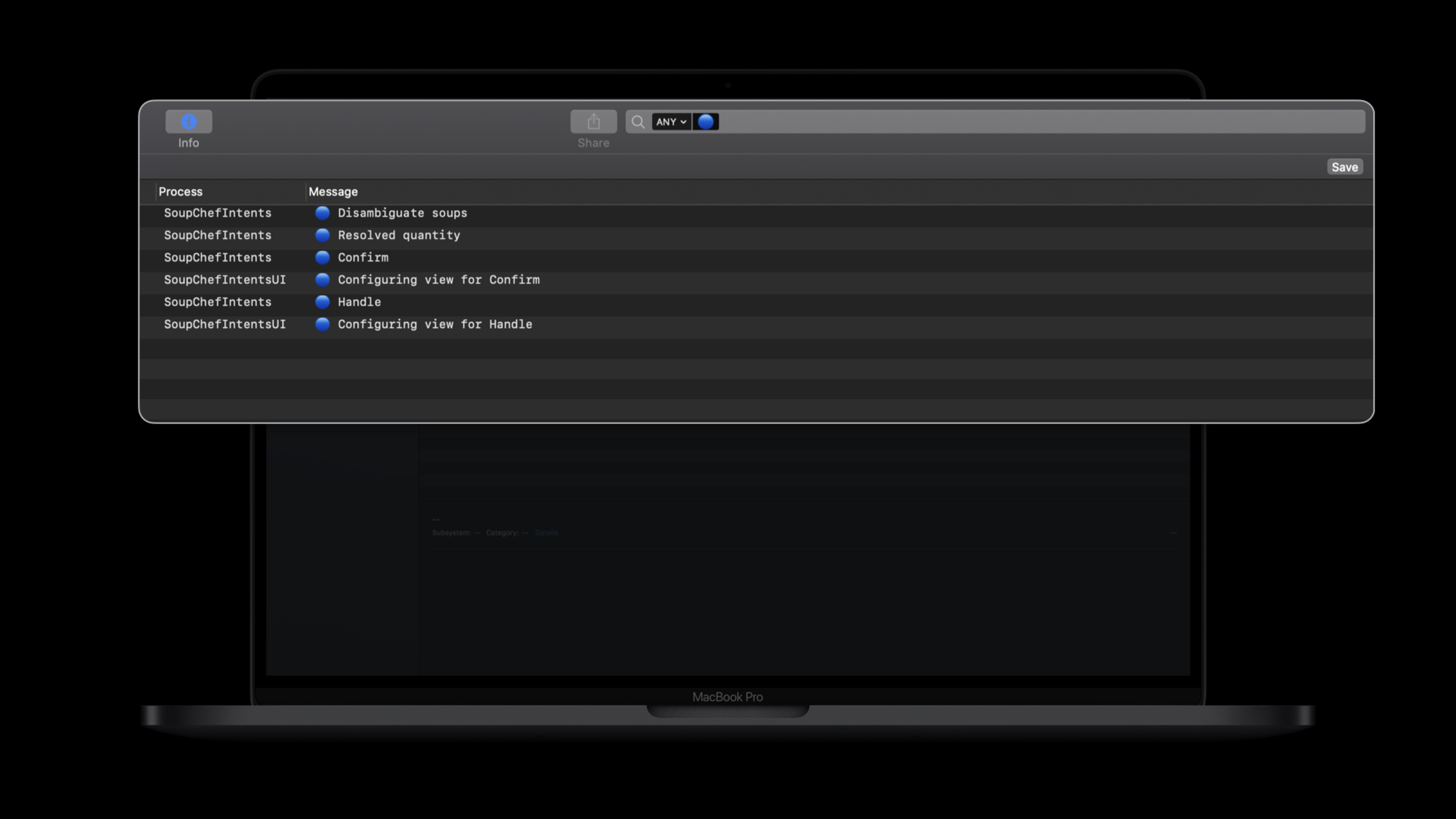
(01:36)os_logSuitable for completing information beyond breakpoints.The speech suggested adding emoji or other unique keywords before the log, and then using Console.app to filter this keyword to get an accurate event timeline of all related processes.
🍲 [Intents extension] <event>
🍲 [Intents UI extension] <event>
🍲 [Siri or Shortcuts host] <event>
Key points:
- The unique keyword allows Console.app to only display logs related to SiriKit debugging this time.
- Only with the process name or extension name in the log can you see the cooperation sequence of multiple processes clearly.
- Record the completion handler call point, which can directly verify whether it times out and whether it is called repeatedly.
Core Takeaways
-
What: Build a fixed set of debugging queries for each SiriKit intent. Why it’s worth doing: The first step in the session is to automate Siri queries. Only by fixing the input can breakpoints, logs and crashes be reproduced stably. How to start: Organize the most common user statements into test phrases, configure and run them one by one in the Xcode scheme editor, and record the differences between the two host processes of Siri and Shortcuts.
-
What to do: Separate breakpoint checks for Intents extension and Intents UI extension. Why it’s worth doing: The two extensions are independent processes. Only attaching the handler will miss the breakpoint of the UI extension. How to start: Put breakpoints in the processing method and UI update entry respectively, attach two processes at the same time through the Xcode debug menu, and confirm the complete path of the request from the handler to the UI.
-
What: Create a runtime protection log for the completion handler. Why it’s worth doing: Failure to call within 10 seconds, repeated calls, and crashes during the request will all become general error messages on the Siri side. How to start: Write the same at the entrance of each intent handling protocol method and before and after the completion handler call
os_logkeyword, and record the request ID and call times in the log. -
What to do: Incorporate device logs into the SiriKit QA process. Why it’s worth doing: If the extension crashes mid-request, it’s easy to misjudge just by looking at the Siri UI or breakpoint status. How to start: Every time the “problem with the app” recurs, open Devices and Simulators, first use “View Device Logs” to find the crash of Intents extension and Intents UI extension, and then return to Console.app to see
os_logtimeline.
Related Sessions
- What’s new in SiriKit and Shortcuts — Overview of the compact interface for Siri and Shortcuts in iOS 14, and how SiriKit intents / Shortcuts actions are organized.
- Empower your intents — Explains in-app intent handling, Intents extension performance, and how to improve the SiriKit action experience.
- Design high quality Siri media interactions — Take media playback as an example to illustrate how to design, test and debug high-quality Siri voice interactions.
- Expand your SiriKit Media Intents to more platforms — Describes the access and result processing of SiriKit Media Intents on HomePod, Apple TV and other platforms.
- Feature your actions in the Shortcuts app — Describes how to make App actions appear in the Shortcuts App, automated suggestions, and system recommendation portals.
Comments
GitHub Issues · utterances