
Highlight
iOS 14 adds in-app Intent processing to SiriKit, and allows custom Intents to support disambiguation with images and subtitles, dynamic search, paging, and deprecation markers. Developers can make Siri and Shortcuts actions faster and clearer.
Core Content
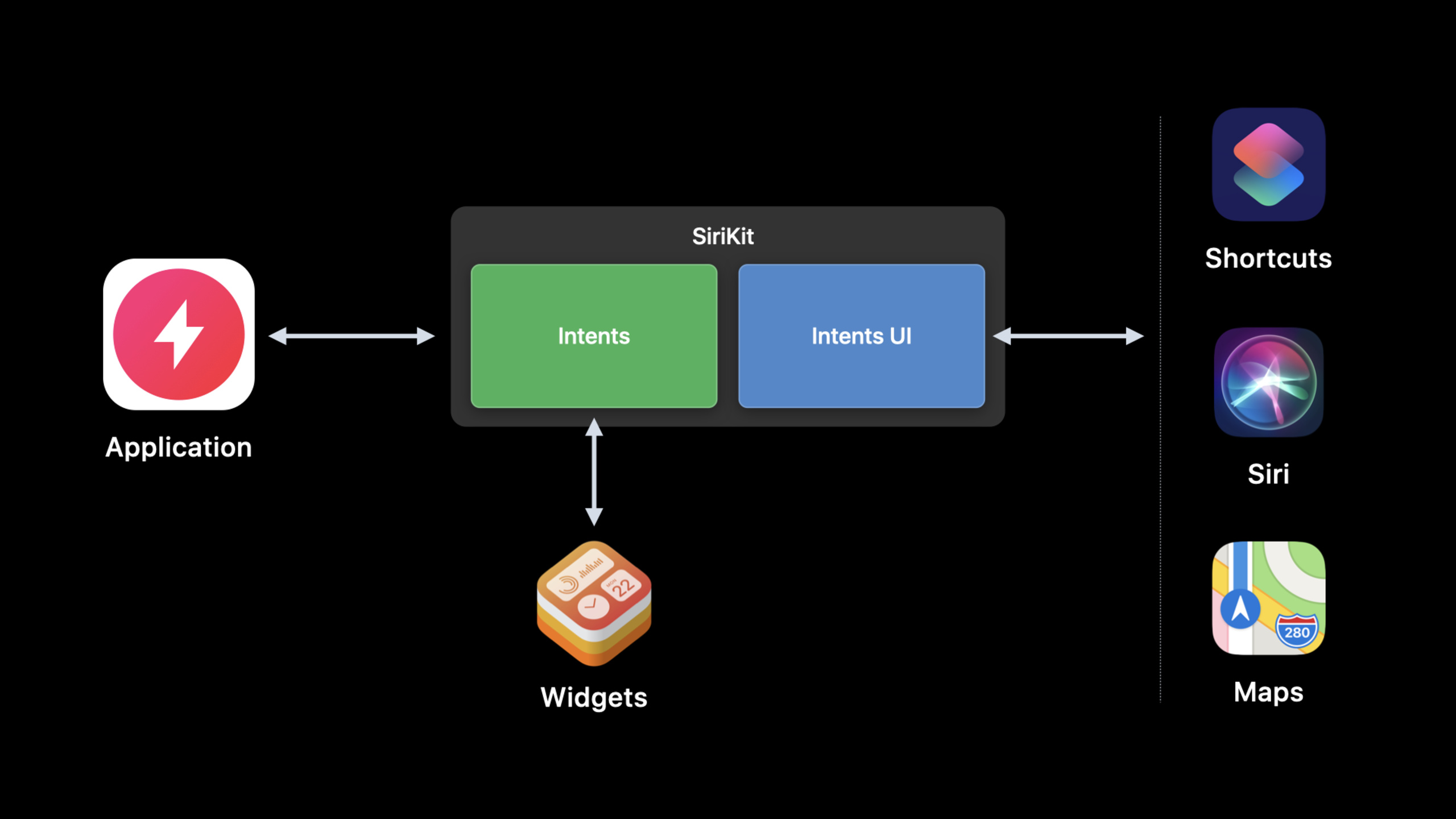
The most underestimated aspect of SiriKit integration is that it runs outside of the app.The user says something to Siri, and the system connects to your intent handler.This handler may be in the Intents extension, or it may need to bring the user back to the App.No matter which path you take, each step of resolve, confirm, and handle only has a 10-second budget. Starting the extension, loading the framework, and performing static initialization will eat up this time.
In the past, media playback, fitness training, and ongoing tasks on the screen were often split into two parts: the extension was responsible for resolve and confirm, and the App was responsible for the actual execution.This will increase state transfer and force the code to be split into a shared framework.iOS 14 gives a new option: In-app Intent handling.As long as the App supports multi-windows and adopts the UIScene life cycle, it can receive SiriKit requests in the App process and leave intents related to the current UI or heavy processing within the App for completion.
The second half of this session is about the quality of experience of custom Intents.iOS 14 allows disambiguation lists to have subtitles and images, allows Siri’s spoken lists to be paginated, allows dynamic options to support user-entered search terms, and allows parameters to be split into configurable and resolvable dimensions.It deals with a different kind of problem: users are already willing to trigger your actions with Shortcuts or Siri, but the parameter list, candidates, and migration strategy can’t be confusing.
So, this is not a session just about “How to access Siri”.Its core is splitting decisions: which intents should continue to be placed in lightweight extensions, and which ones should be moved into the App; which parameters should be selected during configuration, and which ones should be asked by Siri at runtime; which old intents should be deprecated, and which UI intents should be maintained separately from non-UI intents.
Detailed Content
1. Calculate the 10-second budget first
(02:00) Every time the user interacts with the intent, whether in the resolve, confirm or handle stage, the intent handler has 10 seconds to complete the request.Timing begins when the system connects to the extension.If the extension is not yet running, startup time is also included.
SiriKit request lifecycle:
1. User request initiates a connection to the handler.
2. System launches the Intents extension when needed.
3. The process loads linked frameworks and runs +load/static initializers.
4. Handler performs resolve, confirm, or handle business logic.
5. Each interaction phase must finish within 10 seconds.
Key points:
- 10 seconds is not pure business logic time; process startup, framework loading,
+loadand static initialization will occupy it. - Intents extensions are usually lighter than full apps because they are independent processes and use less memory.
- Apple recommends that extensions only link against the frameworks they really need.The more links there are, the longer Siri will wait.
- If an intent can be completed within the extension, let the extension handle it first, which makes it easier to optimize the startup time.
2. Decide which Intents should be handled within the app
(03:57) iOS 14 introduces in-app Intent handling.Apps can add intent handlers to directly handle SiriKit’s resolve, confirm, and handle requests.Typical scenarios presented in the talk include media playback control, starting a workout, operations that affect the real-time UI on the screen, and photo or video processing affected by extension memory limitations.
Use in-app intent handling when:
- The action starts or controls media playback.
- The action starts a workout.
- Handling changes UI that is already live on screen.
- The work needs memory that is inconvenient for an extension.
- Existing app structure cannot easily move logic into an extension.
Key points:
- The previous common method of splitting media and workout was to use extension as resolve/confirm and App as handle; iOS 14 allows the entire link to be placed in the App process.
- If the result of the intent is to change the current screen content, in-app processing can directly access the current UI state.
- Tasks such as photo and video processing may exceed the extension’s memory comfort zone and are suitable for evaluating in-app processing.
- App launch time also counts toward the 10-second budget.Moving into an app doesn’t mean you can ignore startup performance.
3. In-App processing requires UIScene and dispatcher
(05:34) When implementing Intent processing within the app, the first step is to confirm that the App supports multiple windows and adopts the UIScene life cycle.When SiriKit requests to launch an app, the app may not have any UIScene connected yet.Then, list the intents to be handled by the App in the Supported Intents area of the App target and implement them in the App delegatehandlerForIntent:。
func application(_ application: UIApplication, handlerFor intent: INIntent) -> Any? {
    if intent is ShowDirectionsIntent {
        return IntentHandlerStore.shared.currentHandler
    }

    return nil
}
Key points:
handlerForIntent:Defined in transcript as a dispatcher: it maps the incoming intent to an object that can handle the intent.- The returned object must use the corresponding handling protocol.For example, the speech
ProcessPhotoIntentNeed to return to adoptionProcessPhotoIntentHandlingobject. - In the Recipe Assistant example, the App
ShowDirectionsIntentJoin Supported Intents. - The speaker stores the current handler in a singleton and adds it to each view controller
viewDidAppearUpdate it so that the current page on the screen responds to the “Next Step”.
4. When UI is needed, use continueInApp to bring the user back to the front desk
(06:37) If handling the intent requires the user to see an interface in the App, the handler must confirm that the relevant UI is already on the screen.When the App is in the background, the handler can be usedcontinueInAppresponse code requests the system to open the app.In the Recipe Assistant example, the user uses Siri to say “next step” and the App will advance to the next step of the recipe.
ShowDirectionsIntent handling flow:
1. resolve recipe parameter.
2. If recipe is missing, ask for disambiguation.
3. If recipe exists, return success.
4. In handle, make sure the app is in the foreground.
5. If the app is in the background, respond with continueInApp.
6. SceneDelegate continues the user activity.
7. Current view controller runs nextStep().
Key points:
- This process comes from the Recipe Assistant demo in the lecture, the intent name is
ShowDirections。 continueInAppAppears in the handle stage and is used to handle intents that require a front-end UI.SceneDelegateneed to be implementedwillConnectToSessionandcontinueUserActivity, undertakecontinueInAppbrought user activity.NextStepProvidingIt is the protocol in the demo, used to expose each view controller.nextStepability.
5. Rich disambiguation makes candidates easier to select
(12:55) iOS 14 adds rich disambiguation.Developers can provide subtitle strings and subtitles for custom types in the disambiguation list and dynamic options of Shortcuts App.INImagepicture.When triggered by Siri voice, you can also configure how many items are read out at a time, as well as subsequent paging prompts.
Rich disambiguation data:
- title: custom type display value
- subtitle: String
- image: INImage

Siri voice-only pagination:
- maximum number of items spoken at once
- subsequent introduction spoken by Siri
Key points:
- Both subtitle and image are provided at runtime, serving custom type candidates.
- This information will appear in the dynamic options of the user’s configured intent, and will also appear in the dialog list that requires disambiguation.
- Pagination is only used for disambiguation when the user calls it via “Hey Siri” voice.
- In Xcode’s intent editor, you can set the maximum number of spoken words and subsequent prompts in the Siri Dialog area.
6. Dynamic search is suitable for large directory parameters
(14:44) iOS 13 already supports dynamic options.iOS 14 extends this API to search scenarios: when the user enters a search term when configuring the intent in the Shortcuts App, the system will repeatedly call thesearchTermThe code-generated method.Empty search terms can return the default value, and non-empty search terms are used to search the large directory.
Dynamic options with searchTerm:
1. User edits an intent parameter in Shortcuts.
2. Shortcuts passes the current searchTerm to the provider method.
3. Empty searchTerm returns default values.
4. Non-empty searchTerm returns matching catalog results.
5. Completion returns an INObjectCollection.
Key points:
- The talk clearly states that dynamic search is only suitable for searching large catalogs.
- Small static collections do not need to access this capability because Shortcuts App supports filtering by default.
- completion handler receives new
INObjectCollection。 INObjectCollectionDynamic options can be grouped into titled sections, optionally using indexed collation.
7. Parameters, deprecation and code generation should be managed separately
(15:57) iOS 14 allows parameters to be marked as configurable and resolvable respectively.Parameters marked configurable allow users to fill in during Shortcuts configuration; parameters marked resolvable will be parsed by Siri or Shortcuts at runtime.There are no runtime parsed parameters and no need to provide a Siri dialog.
(17:01) If the function corresponding to a custom intent has been offline or replaced by a new intent, Xcode 12 can mark it as deprecated.Shortcuts App will notify existing users that this action may not be available in the future and hide it from the action list.
Intent definition maintenance checklist:
- Mark each parameter configurable when users should set it in Shortcuts.
- Mark each parameter resolvable only when runtime resolution is needed.
- Use the Deprecated checkbox for removed or replaced custom intents.
- Use Custom Class inspector for generated class names and prefixes.
- Put non-UI intents in a separate intent-definition file when needed.
- Choose the intent code-generation language in build settings.
Key points:
- With configurable and resolvable separated, parameter design is no longer forced to equal runtime dialog design.
- The class prefix should not be written into the type name of the intent editor; it is recommended to set it in the Custom Class inspector or Project Document inspector.
- If the Intents UI extension target contains an intent-definition file, Xcode will automatically list the intents in the file as intents supported by the UI extension.
- Custom intent without UI can be put into a separate intent-definition file, and the Intents UI extension target is not added.
Core Takeaways
1. Create a voice control function for the current page
What to do: Let users use Siri to trigger actions such as “Next”, “Pause”, “Continue” and “Mark Done” when the app page is open.
Why it’s worth doing: The Recipe Assistant in this demo is in this mode.Intents affect the current UI on the screen, and Intent handling within the app can be directly connected to the current view controller.
How to start: First let the App support multiple windows and UIScene.Add the target custom intent to the Supported Intents of the App target, and then usehandlerForIntent:Returns the handler corresponding to the current page.
2. Do a SiriKit performance audit
What to do: Check which frameworks the Intents extension is linked to, and delete any dependencies that are not needed to handle the intent.
Why it’s worth doing: extension’s framework loading,+loadand static initialization both count toward the 10-second budget.The slower it starts, the more likely Siri interactions will appear to be laggy.
How to start: Start with the most commonly used intents and list the modules that are really needed for resolve, confirm, and handle.The lightweight logic that can stay in the extension continues to stay in the extension, and tasks that require UI or high memory are re-evaluated and processed within the app.
3. Make a searchable Shortcuts parameter selector
What to do: Access dynamic search for large directory parameters such as playlists, products, files, and locations.
Why it’s worth doing: iOS 14 will take user inputsearchTermBy passing dynamic options to provide methods, developers can return matches based on input, rather than popping out a long list all at once.
How to get started: Enable as-you-type search for parameters in the intent editor.An empty search term returns the most recently used or default value. A non-empty search term queries the directory and usesINObjectCollectionPress section to return.
4. Make a clearer candidate list
What: Supplement subtitle and image to disambiguation candidates, allowing users to more quickly distinguish similar objects in Siri or Shortcuts.
Why it’s worth it: iOS 14’s rich disambiguation supports subtitles andINImage.This can reduce repeated questioning of similar recipes, contacts, rooms, and playlists.
How to start: First find a parameter that is often chosen incorrectly by users.Keep the title short and use subtitle to write the differences; only add image if the picture can directly help identification.
5. Organize the Intent definition file
What to do: Mark the offline custom intent as deprecated, separate the intents without UI and the intents that require Intents UI for maintenance.
Why it’s worth doing: If old intents are not cleaned up, they will remain in the user’s Shortcuts configuration and create failed entries.Mixing Intents UI extension target without UI intent will also expand the maintenance coverage.
How to start: Check the intent-definition files one by one.The replaced intent is checked as Deprecated; the intent that does not require UI is moved to a separate file; the custom class name and prefix are placed in the Custom Class or Project Document inspector.
Related Sessions
- What’s new in SiriKit and Shortcuts — Overview of changes to SiriKit, Shortcuts, compact Siri UI, rich conversational experiences, and system portals in iOS 14.
- Feature your actions in the Shortcuts app — Explain how to let the App’s intent actions enter the Shortcuts App, automated suggestions, and system recommendation portals.
- Decipher and deal with common Siri errors — Supplements the locating methods for common failures in intent integration from the perspective of Siri errors and debugging.
- Create quick interactions with Shortcuts on watchOS — Describes the operation, complication entry and intent routing of Shortcuts on Apple Watch.
- Evaluate and optimize voice interaction for your app — Judge when to use Siri technology from a design perspective and optimize the app’s voice interaction process.
Comments
GitHub Issues · utterances