
Highlight
Apple breaks Siri voice experiences into System Intents, custom intents, Shortcuts, Suggestions, Automations, and silent/voice modes, and provides design guidelines for judging which app features suit voice and how to write conversational copy.
Core Content
Many apps hide core tasks behind several layers of UI. New users need menus and hierarchy to understand features; experienced users often just want to complete one thing: play a new album by an artist, order a usual bowl of soup, or open an obscure setting. Porting those actions verbatim to voice and making users answer form fields one by one slows the experience down.
This session’s entry point is Siri’s design boundaries. Apple first defines Siri as a system capability usable through Voice, Touch, and Automation, then splits what developers can integrate into Intents, Shortcuts, Suggestions, and Automations. System Intents already ship with system-written natural language flows; custom intents require developers to map task steps, required information, question order, and failure feedback themselves.
Features that truly suit voice share traits: many steps, frequent repetition, clear user goals, or the user is driving, walking, or wearing AirPods and cannot conveniently open the app. Voice’s value here is letting users skip familiar UI hierarchy and reach the target action directly.
Apple also reminds developers to design for both silent mode and voice mode. In iOS 14, when the iPhone ringer switch is muted, Siri defaults to not speaking and presents task information through on-screen UI and text conversation. Custom intents need separate dialogue and UI for when the user is looking at the screen versus not.
Detailed Content
Siri is a set of entry points (00:32)
The session cites the Siri Human Interface Guidelines definition: Siri helps users quickly complete everyday tasks through Voice, Touch, or Automation. The presenter then splits the voice experience into assistant, Intents, Shortcuts, Suggestions, and Automations. Developers must judge which app features can enter system-level entry points.
Key points:
- Voice is only one Siri modality—the same task should be available through voice, touch, and automation.
- Intents are the shared language between developers and Siri, describing what information tasks like “send a message” or “order coffee” need.
- Shortcuts, Suggestions, and Automations bring app actions into users’ daily paths.
Judge System Intents and custom intents first (01:45)
System Intents cover some common domains. When sending a message, the system already knows to collect recipient and message content and has the conversational flow to complete the request. Developers plug in their data and check whether it reads naturally in the system conversation, and whether errors and unsupported cases map to Siri-provided feedback.
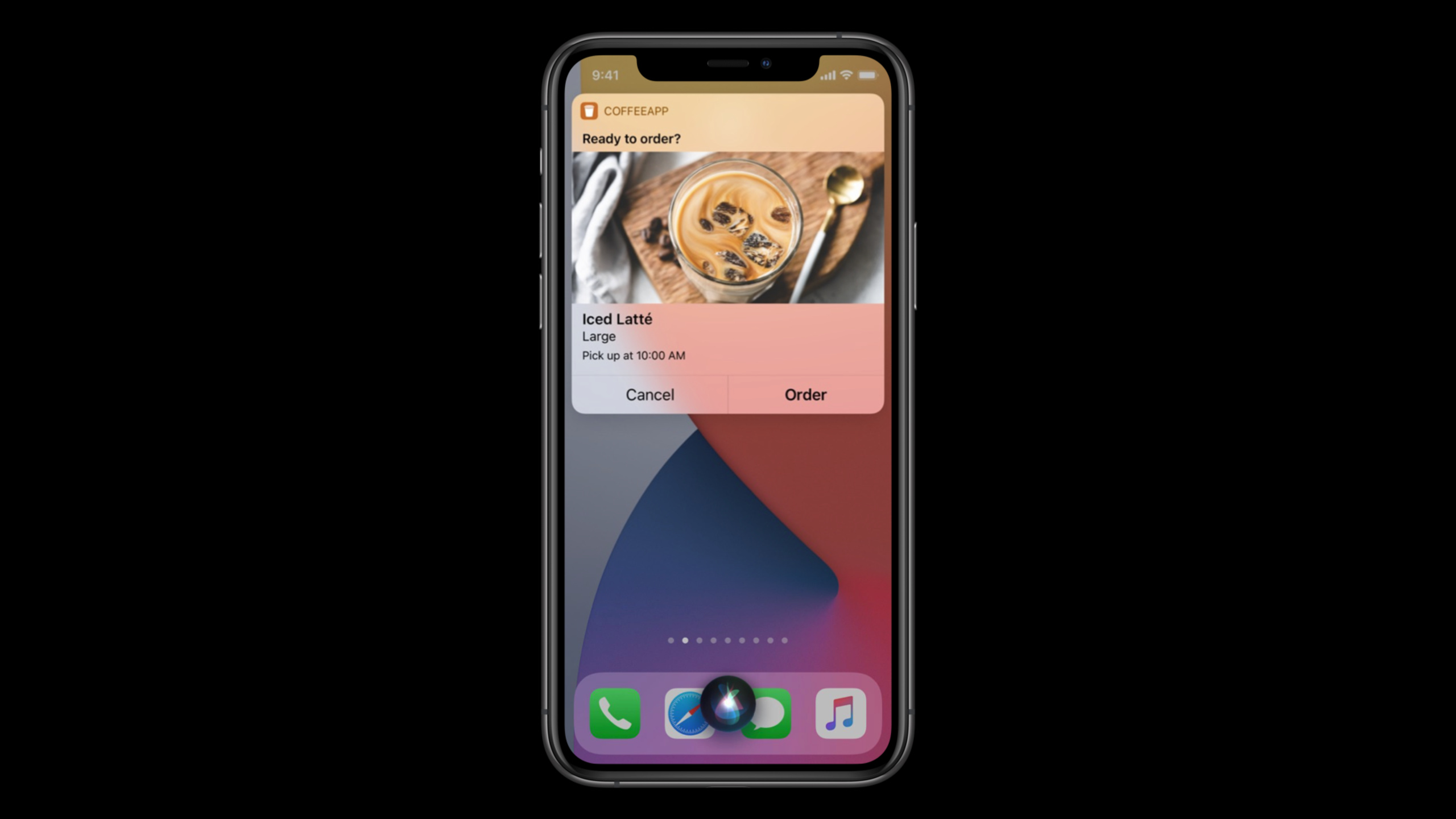
Custom intents apply when system domains do not cover the task. The session uses “order coffee” as an example: the app team knows the business best, so they define the conversational flow. Answer three questions first: how many steps the user needs, what information each step requires, and in what order to ask.
Key points:
- When System Intents apply, prioritize system natural language and conversational flows.
- With custom intents, design shifts from “write one command” to “write a conversation that completes a task.”
- Error branches need separate design—users must know if information is missing, content is unsupported, or the app cannot complete the task.
Shortcuts expand where actions appear (03:49)
Shortcuts is an umbrella for several capabilities. Users find preset actions in the Shortcuts app, create their own routines, and share actions with others. Siri Suggestions can suggest actions the user has done at least once, or suggest actions they may not have done based on past behavior.
Automations run actions on device or in the Home environment by condition—time, location, or specific events. Voice lets custom intents support completing tasks without opening the app and adds app actions to automation.
Key points:
- Shortcuts is not a single entry—it includes Suggestions, Shortcuts app, Automations, and Voice.
- Actions become Shortcuts before they can appear in user-built routines.
- Voice suits “I need this now” tasks; automation suits “run when conditions are met.”
Choose features that suit voice (05:21)
The presenter explicitly says voice should not just fill forms. Good voice tasks usually simplify multi-step, frequent interactions. In the music example, users need not open the app, search the artist, find the new album, and tap play—just say “play DaBaby’s latest album” and let the app interpret and execute.
The Soup Chef example is closer to ordinary apps. New users need to read the menu; regulars already know they want tomato bisque. Voice lets regulars skip the menu and order directly. The presenter also notes advanced features not on the main screen suit voice because power users want faster paths to them.
Key points:
- Voice-friendly actions are usually high-frequency, clear, repeatable tasks.
- Voice can bypass navigation hierarchy users already know.
- Driving, walking, and AirPods scenarios amplify voice entry value.
Design silent mode and voice mode separately (07:16)
In iOS 14, when the iPhone ringer switch is muted, Siri defaults to silent mode. Siri does not speak; on-screen UI and text conversation present task information. Voice mode continues showing UI on available screens while speaking information needed to complete the task.
System Intents already handle these modes. Custom intents need developers to specify dialogue and UI when the user is looking at the screen versus not. Siri uses the appropriate pieces at the right time.
Key points:
- The same intent cannot rely on the same expression with and without a screen.
- When the screen is visible, text and UI can carry detail.
- Without a screen or in voice mode, spoken dialogue must be short while retaining information needed to complete the task.
Conversational copy should sound like speech (08:32)
The Siri team reduces spoken content in appropriate scenes. On a user’s first settings change request, Siri can give more information; on later requests the user knows the flow and does not need the same explanation. Attribution works similarly: if a custom intent is well done and the user frequently uses the shortcut, Siri stops repeatedly explaining the information source.
This puts responsibility back on developers: custom intent dialogue must feel natural. Session rules are direct: use questions when the user must provide more information; avoid business jargon; write for spoken English, not written English; keep it short because users struggle to remember long spoken passages.
Key points:
- Questions are clear dialogue markers telling the user a response is needed.
- Jargon makes users pause and think—especially disruptive in voice.
- Short familiar dialogue retains task state while reducing repeated explanation.
Core Takeaways
1. High-frequency actions straight to Siri
What to do: Make frequently repeated actions triggerable via Siri intent—usual orders, common settings, fixed playback tasks.
Why it’s worth doing: Music and Soup Chef examples in the session show voice best lets experienced users skip multi-layer UI and complete clear goals.
How to start: Find high-repeat, few-parameter, easily explained failure actions from logs; if a System Intent matches, use the system domain; otherwise use custom intents with clear question order and confirmation copy.
2. Dual-modal replies for custom intents
What to do: Prepare silent mode and voice mode reply strategies for each custom intent.
Why it’s worth doing: iOS 14 makes Siri default to not speaking based on the mute switch—information density differs when users look at the screen versus not.
How to start: Split each intent’s result into “must be spoken” and “can show in UI”; voice mode keeps only short sentences needed to complete and confirm; silent mode supplements detail in the interface.
3. Use Shortcuts for user routines
What to do: Put repeatable app actions in the Shortcuts app so users can add them to personal flows and Automations.
Why it’s worth doing: The session treats Shortcuts as the union of Suggestions, Shortcuts app, Automations, and Voice—actions enter this system before appearing in more system entry points.
How to start: Pick actions suited for composition, name parameters clearly, check action descriptions in Shortcuts app so users know what the action does and what input it needs.
4. Build a dialogue review checklist for voice entry
What to do: Before shipping Siri integration, review question sentences, error sentences, confirmation sentences, and success sentences line by line with a checklist.
Why it’s worth doing: The session reduces natural conversation to concrete rules: use questions when answers are needed, avoid jargon, use spoken language, control length.
How to start: Write happy path and error path for each custom intent as real conversation; check each line for jargon, excessive length, and whether the user knows what to do next.
Related Sessions
- Design high quality Siri media interactions — Deep dive on Siri interaction design, custom vocabulary, debugging, and testing for media apps.
- What’s new in SiriKit and Shortcuts — iOS 14 updates to SiriKit, Shortcuts, compact Siri UI, and action organization.
- Empower your intents — Continue learning intent handling, rich conversational experience, and SiriKit integration.
- Decipher and deal with common Siri errors — Locate and handle common errors in Siri integration.
- Feature your actions in the Shortcuts app — Make app actions easier to discover in Shortcuts app and system suggestions.
Comments
GitHub Issues · utterances