
Highlight
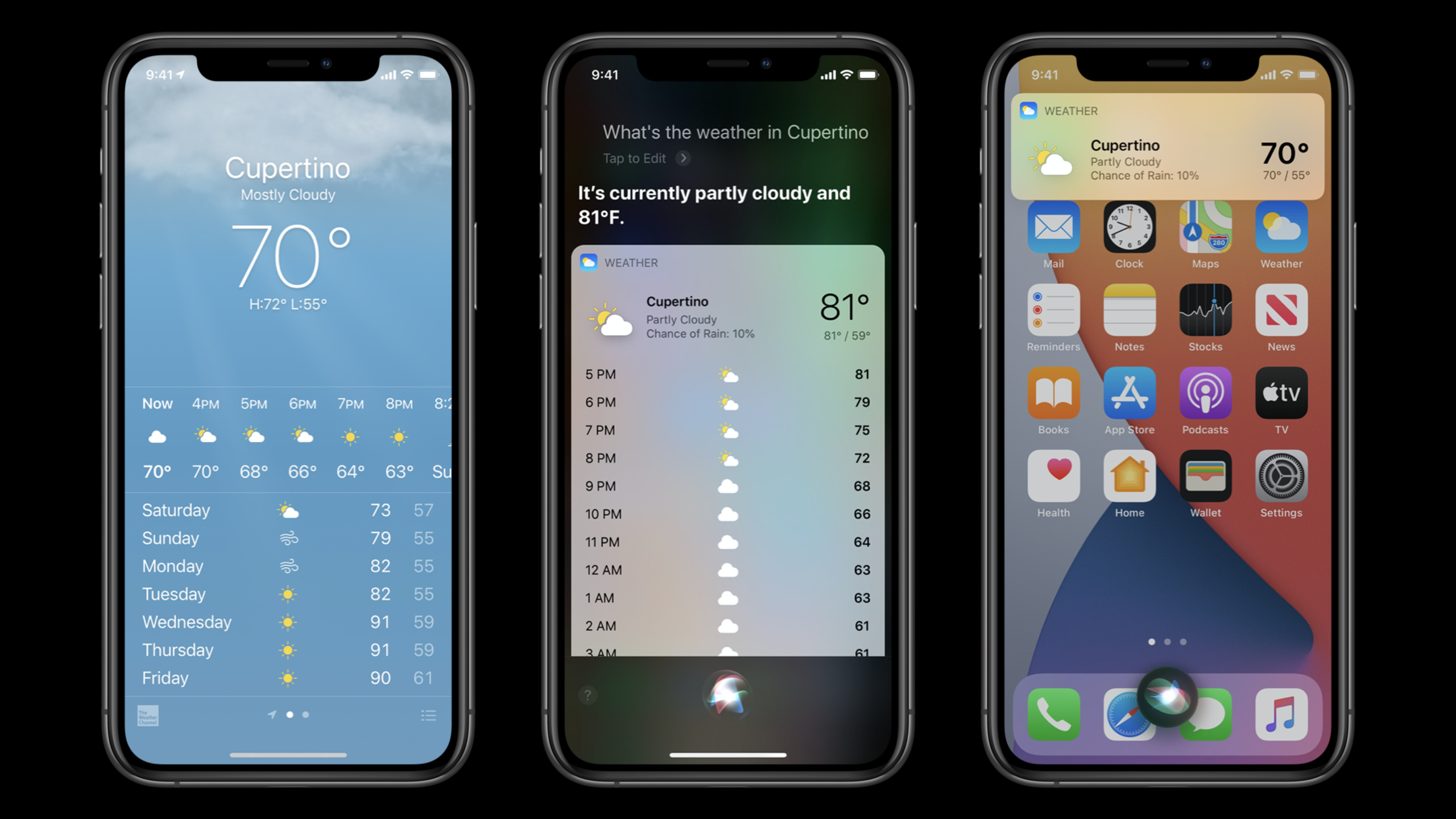
iOS 14 changes the running experience of Siri and Shortcuts to a compact interface, and allows developers to use images, subtitles, Wind Down tags and watchOS portals to expose App actions to more system scenarios.
Core Content
Prior to iOS 13, many Siri or Shortcuts integrations still felt like a temporary flow that was opened from outside the app. After users trigger a shortcut, they may have to jump back to the Shortcuts App or see a large interface that takes up the screen. For short actions like “reorder your usual soup,” “start writing in a journal,” or “play white noise before bed,” the interface itself becomes friction.
The changes in iOS 14 address this problem from two directions. First, both Siri and Shortcuts use a new compact UI (compact interface) that only displays necessary information above the current task. Second, the Shortcuts App adds folders, automated suggestions, new triggers, and Apple Watch support, making it easier for users to organize, discover, and run actions from the app.
The focus of this session is not on adding a separate framework, but on putting SiriKit and Shortcuts back into the operating system’s entry network. What developers need to do is also more specific: put the Add to Siri button where the user just completed the task, provide a clearer display of options for conversational selections, streamline the Intents UI, and use the new Wind Down tag to bring bedtime-friendly actions into the Health setup process.
Start with an in-app task
The speech started with Soup Chef’s “soup time” as an example. If users frequently repeat an action, developers should place the Add to Siri button near that action instead of hiding it deep in the settings page. In this way, when the user completes an operation, they can immediately turn it into a voice phrase or Shortcuts action.
This design requirement is very practical: don’t ask “which APIs can be connected to Siri” first, first find the tasks that are repeatedly performed in the app. Ordering soup, opening a writing environment, and playing bedtime music are all more suitable shortcuts than “opening the app homepage”.
Keep short actions short
The new compact UI lets Siri and Shortcuts feedback float above the current context. The weather example illustrates the design criterion: only keep the answers the user wants at the moment, leaving the complete information to the app itself. Intents UI must also comply with this standard. The less vertical space, the easier it is for users to feel that the action is still in the original task flow.
Push the action to more entrances
Shortcuts adds folders in iOS 14, bringing smart folders such as share sheet and Apple Watch. On Apple Watch, you can also put shortcuts on the watch face for complication. In terms of automation, iOS 14 adds triggers such as mail, messages, closing apps, battery, connecting charger, etc., and more triggers can run automatically. The clearer the actions provided by developers, the easier it will be to combine these portals into users’ own processes.
Detailed Content
1. Add to Siri should appear in the context
(01:33) Apple explicitly recommends placing the Add to Siri button in a “contextual” location. When users perform an action every day, the button should appear near that action, allowing users to easily configure trigger phrases.
App actions suitable for exposing as shortcuts:
- Users perform them repeatedly
- They can be completed with one trigger
- The result can be understood outside the app
- Parameters can be filled by phrases, lists, or system input
Key points:
- “Repeated execution” comes from the soup ordering example in the speech; one-time or low-frequency actions are not suitable for Siri entry.
- “One trigger and done” corresponds to the goal of Shortcuts: quickly run actions with a single click, Siri, or automation.
- “Understanding the results from outside the app” means the user should not be forced into the full app to know what is going on.
- “Parameters can be completed” corresponds to the input, selection and disambiguation processes described later.
2. Compact UI should only display necessary information
(02:20) iOS 14’s Siri UI becomes a compact style with the goal of reducing interruptions. Weather experience description for speech: Complete weather information remains in the Weather App, and Siri answers retain only what is most needed for the current question.
(03:43) Shortcuts also gets the same running experience. When input is required, the system pops up a compact input interface; when input is not required, shortcut can run in the background.
Shortcut input scenarios supported by compact UI:
- text
- numbers
- dates
- messages and emails
- photos
- songs
Key points:
- These input types are from 03:49 to 03:58 of transcript.
- The input interface only appears when the shortcut requires supplementary information from the user.
- Where it can be run is no longer limited to the Shortcuts App; the talk emphasized that it extends to anywhere shortcuts can be run.
- When designing Intents UI, give priority to reducing vertical space so that the interface covers the current context for a shorter period of time.
3. Conversational selection can have pictures and subtitles
(04:47) For conversational shortcuts, the intent can clarify the user’s intent through questioning. iOS 14’s new display capabilities allow developers to add images and subtitles to option lists to help users distinguish similar options.
disambiguation option:
- title: User-readable option name
- subtitle: Supplemental description that distinguishes similar options
- image: Image used when visual recognition is needed
Key points:
- Title is basic information; without a clear title, pictures and subtitles cannot save the selection process.
- subtitle is good for explaining differences between similar items, such as different tastes, locations, accounts or playlists.
- Images should be used with restraint; too many images will make the small interface crowded.
- This point has a more in-depth explanation of the intent experience in 10073 “Empower your intents”.
4. Intents UI needs to adapt to compact backgrounds
(05:28) Intents UI will appear in the compact UI of Siri and Shortcuts. Apple’s recommendation is to first determine what the intent is really doing before deciding what to display. The new Intents UI also uses a consistent background material; if the view background is kept transparent, it can make the fragment interface more relevant to the system context.
Intents UI checklist:
- Keep the snippet as short as possible
- The background can be transparent
- Test readability on different backgrounds
- Show only the information users need to complete the current action
Key points:
- The snippet is short to reduce interruptions to the current task.
- Transparent background from 06:20 to 06:24 of transcript.
- Readability testing is critical; transparent materials can cause underlying content to affect text and control contrast.
- “Only display required information” corresponds to the trade-off method in the weather example.
5. Shortcuts Organization, Automation, and Wind Down
(07:17) iOS 14 adds folders to Shortcuts to help users organize more and more shortcuts. The system also provides smart folders to identify shortcuts available on a share sheet or Apple Watch.
(08:35) Automation triggers have also been expanded. Users can run shortcuts when they receive an email or message, close an app, when the battery reaches a certain level, or when the charger is connected; more triggers can be run automatically directly.
(10:48) Wind Down is the most specific developer API point for this session. Apps suitable for bedtime routines can mark actions as sleep-friendly and have them appear in Health’s Wind Down settings experience.
typedef NS_OPTIONS(NSUInteger, INShortcutAvailabilityOptions) {
    INShortcutAvailabilityOptionSleepMindfulness = (1UL << 0),
    INShortcutAvailabilityOptionSleepJournaling = (1UL << 1),
    INShortcutAvailabilityOptionSleepMusic = (1UL << 2),
    INShortcutAvailabilityOptionSleepPodcasts = (1UL << 3),
    INShortcutAvailabilityOptionSleepReading = (1UL << 4),
    INShortcutAvailabilityOptionSleepWrapUpYourDay = (1UL << 5),
    INShortcutAvailabilityOptionSleepYogaAndStretching = (1UL << 6),
};

@property (readwrite, assign, NS_NONATOMIC_IOSONLY)
    INShortcutAvailabilityOptions shortcutAvailability API_AVAILABLE(ios(14.0), watchos(7.0));
Key points:
INShortcutAvailabilityOptionsis the Wind Down API named by transcript.- Options cover mindfulness, journaling, music, podcasts, reading, wrap up your day, yoga and stretching and other bedtime categories.
shortcutAvailabilitycan be hung on the Intents additions ofINIntentorNSUserActivityto declare which system scenarios this action is suitable for.- Session 10083 will continue to talk about the complete access method of Wind Down.
Core Takeaways
1. Make an entrance to “Add shortcut commands just after completing the task”
What to do: After the user completes a common task, provide the Add to Siri entry on the results page or confirmation page.
Why it’s worth doing: 10068 Make it clear that Add to Siri should not be hidden in the settings page; the closer the context is to the real task, the easier it is for users to understand the value of this shortcut.
How to start: First list the 3 most frequently repeated actions in the app, make one of them a SiriKit intent or NSUserActivity shortcut, and then put the configuration entry on the task completion page.
2. Make an intent result card suitable for compact UI
What to do: Design a short results snippet for the intent, showing only the status, key objects, and next steps.
Why it’s worth doing: Siri and Shortcuts in iOS 14 will place the Intents UI above the current context; the shorter the content, the more like a system-level operation.
How to start: Split the details page of the existing app into three layers: information that must be confirmed, optional supplementary information, and information that needs to be opened to see the app. Intents UI only places the first layer.
3. Make a selection process with pictures and subtitles
What to do: When there are multiple similar candidates for the user’s intent parameters, supplement the candidates with subtitle and image.
Why it’s worth doing: The speech pointed out that iOS 14 supports displaying disambiguation lists with pictures and subtitles, which is suitable for easily confused options such as orders, locations, playlists, and contacts.
How to start: First find a list of parameters that users often choose incorrectly. Keep the title clear and add a short subtitle for similar items; add image only if visual distinction helps.
4. Make an entrance to the process before going to bed
What to do: Make actions related to meditation, journaling, music, reading, or stretching appear in the Wind Down settings experience.
Why it’s worth doing: 10068 named Wind Down, which is suitable for sleep-related apps to expose actions to Health’s bedtime guidance.
How to start: Set shortcutAvailability for the corresponding intent or user activity, select the matching INShortcutAvailabilityOptions sleep category, and then go to the 10083 access session to check the complete process in depth.
5. Make a shortcut action that can be run on Apple Watch
What to do: Optimize shortest path App actions to Apple Watch and allow users to trigger from watch face complication.
Why it’s worth doing: iOS 14/watchOS 7 brings the Shortcuts App to Apple Watch. Users can run shortcuts on their wrists and manage whether to sync to the watch.
How to start: First select an action that does not require long input, confirm that the intent can be routed and displayed on watchOS, and then refer to 10190 to optimize the running speed and presentation method.
Related Sessions
- Empower your intents — A deep dive into SiriKit’s in-app intent handling, Intent extension capabilities, and conversational options with images and subtitles.
- Feature your actions in the Shortcuts app — Describes how to let App actions enter the Shortcuts App, automated suggestions, and system recommendation portals.
- Integrate your app with Wind Down — Explains how to expose App actions suitable for bedtime processes to Health’s Wind Down setting experience.
- Create quick interactions with Shortcuts on watchOS — Describes the operation, complication entry and intent routing of Shortcuts on Apple Watch.
Comments
GitHub Issues · utterances