
Highlight
In 2020, SiriKit Media Intents are expanded to HomePod and tvOS 14, and new alternatives UI, in-app intent handling and app prewarming are added, allowing media apps to give alternative results within Siri and start playback faster.
Core Content
When making a music, podcast, or audio content app, the difficulty with Siri requests is usually not the play button. The user is speaking natural language, such as “Play songs from a certain album.” Your app needs to parse this sentence into a real media item and start playing it as soon as possible. In the past, if the match was wrong, compact Siri UI could only start playing the first result directly, and users often had to open the app if they wanted to change a song.
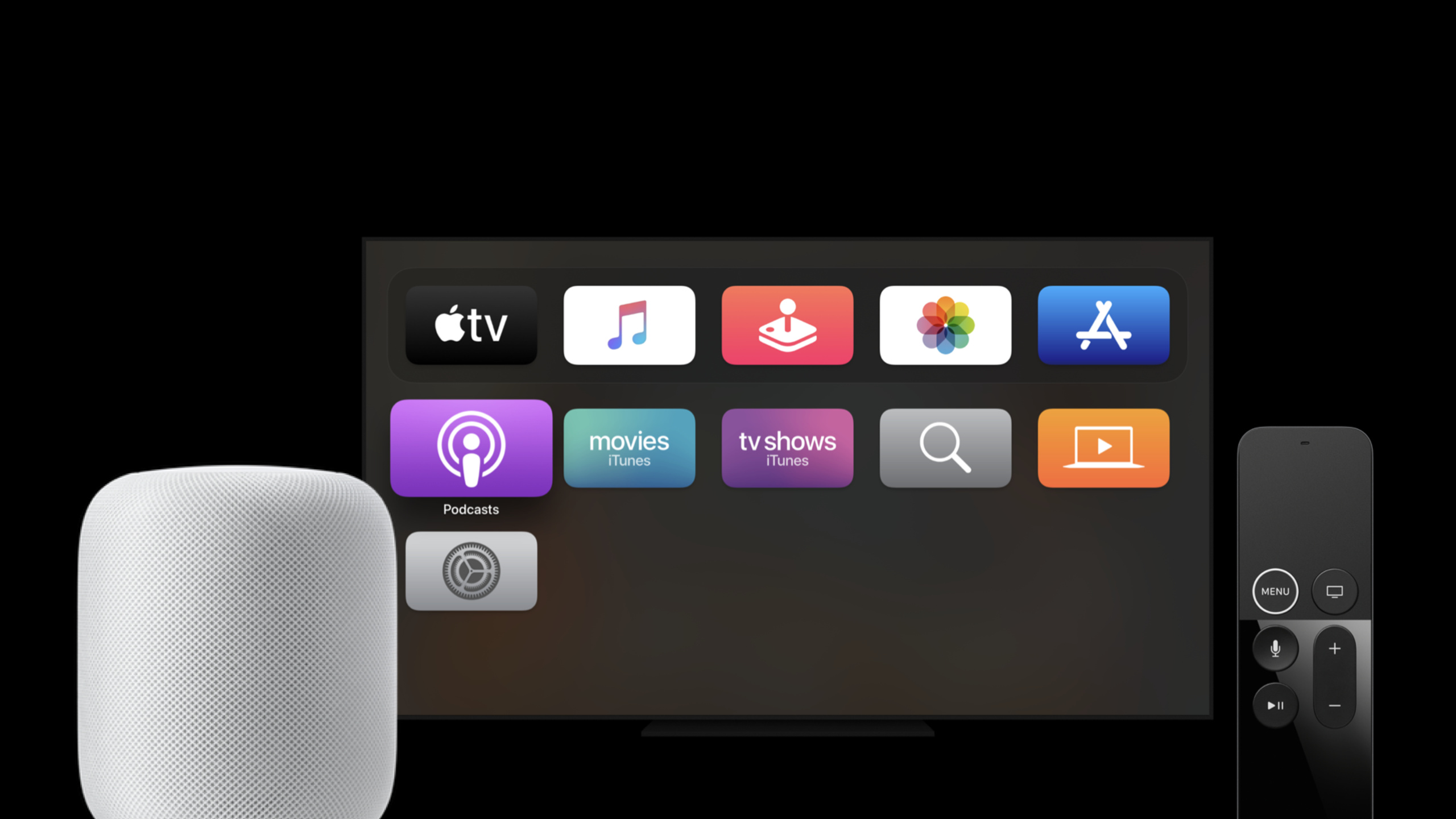
This session will first expand the scope of the platform. HomePod uses the same Media Intents and works with the new cloud playback API to adapt to home scenarios. tvOS 14 also supports SiriKit Media Intents. TV Apps can handle INPlayMediaIntent like iOS Apps, allowing users to use Siri to request content directly on the big screen.
The second change is the alternatives UI. An app can return multiple candidate media items at once. Siri plays the first result first, while placing subsequent candidates in the “Maybe You Wanted” menu. After the user clicks on the alternative item, Siri will put the media item into the INPlayMediaIntent passed to handle, and the developer can continue to use the original playback path.
Finally, there is startup performance. Two new paths will be added in 2020: in-app intent handling moves resolve, confirm, and handle into the App process; app prewarming allows apps using extensions to start earlier and prepare credentials and players in advance. The goal of both is the same: shorten the wait between the user finishing the request and the content starting to play.
Detailed Content
HomePod and tvOS 14 Extensions
(01:00)
HomePod uses the same set of media intents and introduces a new cloud playback API. The session does not show HomePod-side code, but points to the Developer Program information at developer.apple.com/siri. The practical conclusion is: If your service wants to be connected to HomePod, you need to first confirm that media search, user accounts, and cloud playback links can be completed without a local App UI.
(02:25)
The access method of tvOS reuses the Intent extension idea in iOS. The core entry point is still resolveMediaItems, which receives INPlayMediaIntent to find specific media items from natural language requests.
func resolveMediaItems(for intent: INPlayMediaIntent, with completion: @escaping ([INPlayMediaMediaItemResolutionResult]) -> Void) {
}
Key points:
INPlayMediaIntentis the playback request parsed by Siri.resolveMediaItemsis responsible for converting requests into media items that can be played within the App.- completion returns resolution results, and Siri will continue to enter the handle stage based on these results.
(03:03)
Users on tvOS usually only interact with one foreground App at a time, so it is recommended that the session returns .continueInApp in handle to let the App start in the foreground mode and start playing.
func handle(intent: INPlayMediaIntent, completion: (INPlayMediaIntentResponse) -> Void) {
  completion(INPlayMediaIntentResponse(code: .continueInApp, userActivity: nil))
}
Key points:
handleis the response stage before actually starting playback..continueInApptells the system to continue entering the App instead of just processing it in the background.userActivityis passed innilhere because the example only demonstrates playback path switching.
Alternatives UI
(05:24)
The old practice only returned a media item. Siri can only play back this result.
INPlayMediaMediaItemResolutionResult.success(with: mediaItems[0])Key points:
success(with:)is a singular API.- The return value is only one resolved media item.
- compact Siri UI does not have enough information to display alternatives.
(05:40)
New in 2020, the Plural API can return multiple media items. The first item will be played, with subsequent items shown as alternatives.
INPlayMediaMediaItemResolutionResult.successes(with: mediaItems)Key points:
successes(with:)receives an array of media items.- The first element of the array is still the default playback result.
- Subsequent elements enter Siri’s “Maybe You Wanted” alternative result interface.
(06:37)
The sample App ControlAudio changes focus on resolveMediaItems. It first takes out mediaSearch from the intent, and then hands the search results to the plural resolution API in one go.
func resolveMediaItems(for intent: INPlayMediaIntent, with completion: @escaping ([INPlayMediaMediaItemResolutionResult]) -> Void) {
    let mediaSearch = intent.mediaSearch
    resolveMediaItems(for: mediaSearch) { optionalMediaItems in
        guard let mediaItems = optionalMediaItems else {
            return
        }
        completion(INPlayMediaMediaItemResolutionResult.successes(with: mediaItems))
    }
}
Key points:
intent.mediaSearchis Siri’s structured media search criteria for user requests.- The inner layer
resolveMediaItems(for: mediaSearch)represents the App’s own search logic. guard let mediaItemsavoid submitting empty data when there are no search results.successes(with:)is the key change that triggers alternatives UI.
(06:07)
There is no need for a new callback model after the user clicks on an alternative. Siri will set the selected media item into the INPlayMediaIntent passed to handle, and the App will continue to process it according to the existing playback logic.
func handle(intent: INPlayMediaIntent, completion: (INPlayMediaIntentResponse) -> Void) {
  completion(INPlayMediaIntentResponse(code: .handleInApp, userActivity: nil))
}
Key points:
- Entry after alternative selection is still
handle. .handleInAppmeans to let the App handle playback in its own process.- The code does not need to distinguish between the “first hit” and “user-selected alternatives” processes.
In-app intent handling and app prewarming
(08:28)
in-app intent handling moves intent handling stages into the app instead of launching the Intents extension first and then launching the app. This allows one less process to be started, and can also initiate network requests, obtain credentials or prepare the player earlier in the resolve phase.
session also reminds: the complete App is heavier than the extension. If in-app intent handling is used, the App startup path needs to be optimized to ensure Siri response speed during the resolve phase.
(10:24)
If you continue to use extensions, app prewarming can make the app start earlier. Preheating logic should be placed in application(_:didFinishLaunchingWithOptions:), such as preparing credentials or players.
func application(_ application: UIApplication, didFinishLaunchingWithOptions launchOptions: [UIApplication.LaunchOptionsKey: Any]?) -> Bool {
    // Locate any app prewarming logic in this method -- fetch credentials, get audio player ready, etc.
    return true
}
Key points:
- Preheating occurs at the App startup entrance.
- The example given by session is to obtain credentials and prepare audio player.
- This path is suitable for apps that already have an extension architecture, because the intent resolution logic can still remain in the extension.
Core Takeaways
TV voice on demand entrance
- What to do: Add Siri playback access to tvOS music, podcast or video apps, allowing users to speak the name of the content, band or song directly on the TV.
- Why it’s worth doing: tvOS 14 supports SiriKit Media Intents, and the session clearly states that the tvOS access steps are the same as iOS.
- How to start: Reuse the existing
INPlayMediaIntentparsing logic, complete the Intent extension in the tvOS target, and return.continueInAppin thehandle.
Search results alternative menu
- What: Display candidates in Siri when a user requests a match that might match multiple songs, multiple podcast episodes, or an album of the same name.
- Why it’s worth it: Alternatives UI allows users to change results in the compact Siri UI, reducing the number of times they open the app.
- How to start: Change singular
success(with:)to pluralsuccesses(with:), and put the most likely media item first in the array.
Warm up link before playing
- What to do: Obtain user credentials, initialize the player, or prepare an audio session ahead of Siri requests to enter playback.
- Why it’s worth doing: Session uses credential fetching and audio player setup as typical scenarios for app prewarming.
- How to start: If you continue to use extension, put light preheating into
application(_:didFinishLaunchingWithOptions:); if you switch to in-app intent handling, advance necessary requests to the resolve stage.
HomePod access evaluation
- What to do: Organize the HomePod access list for the audio service and confirm whether the account, media search and cloud playback path can work without the local UI.
- Why it’s worth doing: HomePod uses the same media intents and adapts to home playback scenarios through the cloud playback API.
- How to start: First read the HomePod access application link and SiriKit audio management documentation in session Resources, and then use the existing media search logic to verify whether the Siri request can stably return unique or multiple candidates.
Related Sessions
- Design high quality Siri media interactions — The interaction design, custom vocabulary and debugging methods of Siri media requests are the precursor to the experience design of this session.
- What’s new in SiriKit and Shortcuts — An overview of SiriKit and Shortcuts in 2020, including compact Siri UI and richer conversational presentation.
- Empower your intents — Explains in-app intent handling, Intent performance and rich interaction capabilities, supplementing the performance part of this article.
- Feature your actions in the Shortcuts app — Describes how to make it easier for your app’s intents to appear in Shortcuts apps and system suggestions.
Comments
GitHub Issues · utterances