
Highlight
watchOS provides four opportunities to update the ClockKit timeline: foreground refresh, Background App Refresh, background URLSession and complication push; background refresh is usually up to 4 times per hour, complication push is up to 50 times per Watch per day, and the App needs to control the update rhythm according to the data source.
Core Content
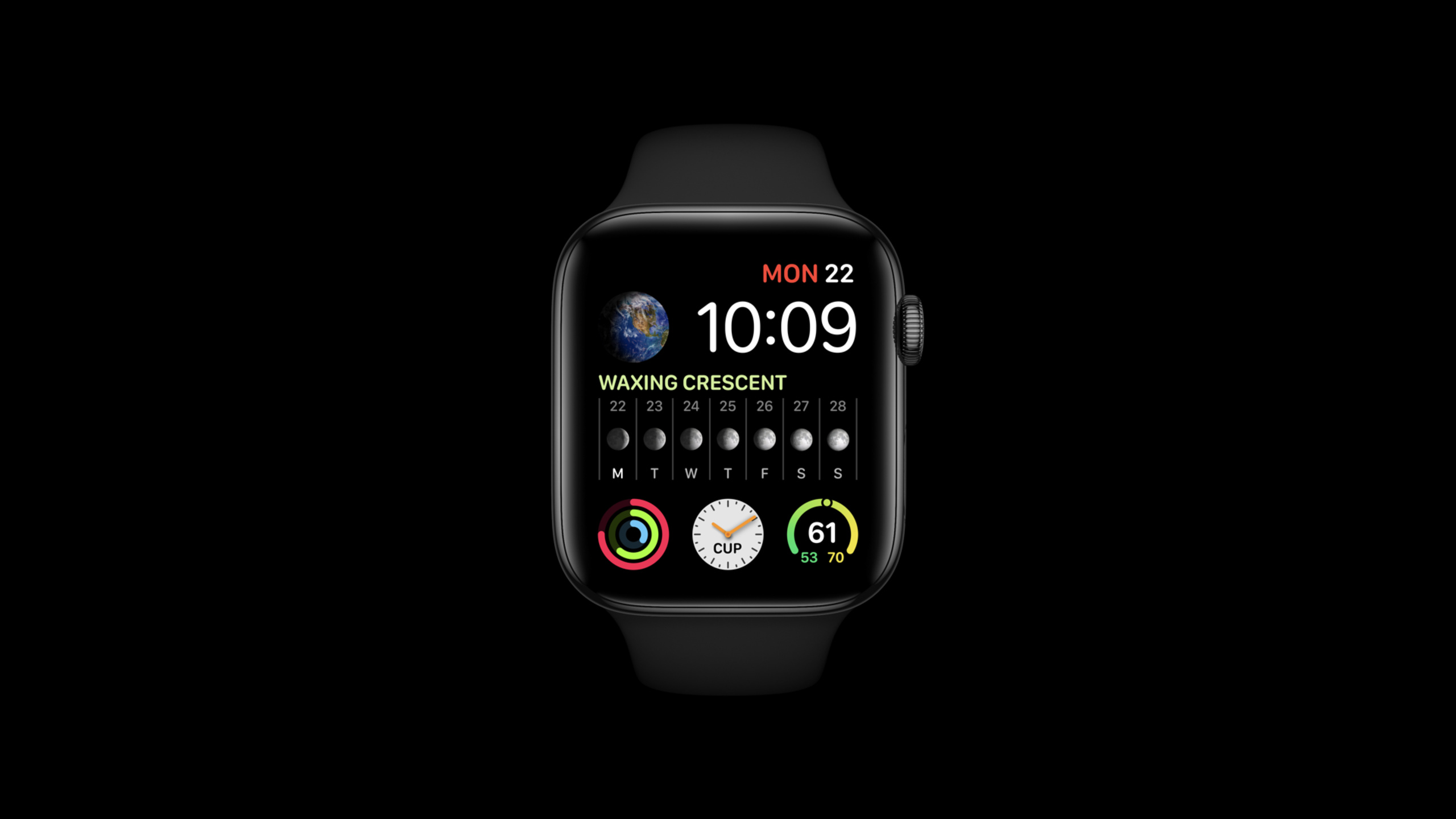
Apple Watch complication is always on the watch face. What users see when they raise their wrist is the status of the app, and they may not necessarily open the app first. Therefore, watchOS will give some special opportunities to apps with complication: the app may be retained by the system and will be restarted to update the watch face content if necessary (00:43).
The scope of this talk is very narrow: after already having complication, how to make it continue to display new data when the user does not open the app. The example App is an independent Watch App with three types of information on the watch face: getting activity data from HealthKit, getting weather and wind speed from the server, and receiving encouraging messages from friends (02:13).
Front-end updates are the most direct. When the user opens the app, changes selections, or the app receives new data in the foreground, the code calls CLKComplicationServer.sharedInstance().reloadTimeline(for:), and ClockKit then requests the current timeline entry. You need to update selectively here, and only update the complication that really needs to be changed (03:11).
The background update mechanism should be selected according to the data source. Background App Refresh is suitable for accessing APIs and local data on the Watch, such as HealthKit; background URLSession is suitable for downloading data from the server; complication push is suitable for event-driven data, such as a new encouragement sent by a friend. All three mechanisms can wake up the App when the App is inactive, but each has constraints on frequency, time, and task completion (01:33).
Detailed Content
The front desk uses reloadTimeline to trigger the reconstruction of the current entry.
(03:32) updateActiveComplications() gets the currently active complications, and then asks ClockKit to reload the timeline one by one.
class ExtensionDelegate: NSObject, WKExtensionDelegate {

    func updateActiveComplications() {

        let complicationServer = CLKComplicationServer.sharedInstance()

        if let activeComplications = complicationServer.activeComplications {

            for complication in activeComplications {

                complicationServer.reloadTimeline(for: complication)

            }
        }
    }
}
Key points:
CLKComplicationServer.sharedInstance()is the entry point for updating ClockKit timeline.activeComplicationsonly contains complications that are actually enabled on the current watch face.- The sample code updates all active complications; the lecture reminds the real app that it should be more detailed and only refresh the items that need to be updated.
- After each
reloadTimeline(for:), ClockKit will request the current entry from the data source.
(04:26) When ClockKit requests the current entry, the App creates the corresponding template based on the complication family and returns CLKComplicationTimelineEntry through the handler.
class ComplicationController: NSObject, CLKComplicationDataSource {

    func getCurrentTimelineEntry(for complication: CLKComplication,
        withHandler handler: @escaping (CLKComplicationTimelineEntry?) -> Void) {

        switch (complication.family) {

        case .modularSmall:
            let template = CLKComplicationTemplateModularLargeTallBody.init(
                headerTextProvider: headerTextProvider,
                bodyTextProvider: bodyTextProvider)

            entry = CLKComplicationTimelineEntry(date: Date(),
                complicationTemplate: template)
        }

        handler(entry)
    }
}
Key points:
complication.familydetermines which template to return.- The template is populated by content providers such as text providers.
CLKComplicationTimelineEntry(date:complicationTemplate:)binds the effective time and the display template together.handler(entry)is a callback that must be completed, through which ClockKit obtains the content to be displayed.
Background App Refresh is suitable for local data and Watch API
(05:20) The sample app uses Background App Refresh to pull HealthKit activity data. The frequency limit given in the speech is up to four times per hour, and the actual number will be affected by other processes and battery power.
private func scheduleBAR(_ first: Bool) {
    let now = Date()
    let scheduledDate = now.addingTimeInterval(first ? 60 : 15*60)

    let info: NSDictionary = ["submissionDate": now]

    let wkExt = WKExtension.shared()
    wkExt.scheduleBackgroundRefresh(withPreferredDate: scheduledDate, userInfo: info)
    { (error: Error?) in
        if (error != nil) {
            print("background refresh could not be scheduled \(error.debugDescription)")
        }
    }
}
Key points:
first ? 60 : 15*60corresponds to scheduling as soon as possible for the first time, and subsequent requests at a 15-minute pace.userInfocan bring the context during scheduling. The example usessubmissionDateto calculate the actual wake-up delay of the system.- The time of
scheduleBackgroundRefresh(withPreferredDate:userInfo:)is the preferred time, and the system only guarantees to choose the appropriate time to wake up after this time. - The completion handler is called asynchronously on the main thread, and errors must be handled if scheduling fails.
(08:47) If the background work is asynchronous, you must wait for the data provider to complete before updating complication, scheduling the next refresh, and marking the task as complete.
class ExtensionDelegate: NSObject, WKExtensionDelegate {

    var healthDataProvider: HealthDataProvider

    func handle(_ backgroundTasks: Set<WKRefreshBackgroundTask>) {
        for task in backgroundTasks {
            switch task {
            case let backgroundTask as WKApplicationRefreshBackgroundTask:

                healthDataProvider.refresh() { (update: Bool) -> Void in
                    if update {
                        self.updateActiveComplications()
                    }
                    self.scheduleBAR(first: false)
                    backgroundTask.setTaskCompletedWithSnapshot(false)
                }
Key points:
WKApplicationRefreshBackgroundTaskis the task type when Background App Refresh arrives.healthDataProvider.refresh()is responsible for reading HealthKit data asynchronously.- Only call
updateActiveComplications()whenupdateis true to avoid wasting refresh opportunities when there are no data changes. scheduleBAR(first: false)schedules the next request before the current task is completed, because only one request is outstanding at the same time.setTaskCompletedWithSnapshot(false)must be called after all work has completed; the talk points out that forgetting to mark completion is a common reason for exceeding the 15 second total time limit.
Background App Refresh cannot make network requests. The talk explicitly says that URLSession is an exception and attempts to use it will fail. It also gives two time limits: up to 4 seconds of active CPU time, and up to 15 seconds of total time (09:22).
background URLSession suitable for server data
(11:35) The weather data comes from the server, so the example app uses a background URLSession instead. The key settings are background configuration, non-discretionary, and sessionSendsLaunchEvents = true.
class WeatherDataProvider: NSObject, URLSessionDownloadDelegate {

    private lazy var backgroundURLSession: URLSession = {
        let config = URLSessionConfiguration.background(withIdentifier: "BackgroundWeather")
        config.isDiscretionary = false
        config.sessionSendsLaunchEvents = true

        return URLSession(configuration: config, delegate: self, delegateQueue: nil)
    }()
Key points:
URLSessionConfiguration.background(withIdentifier:)creates a background download session.isDiscretionary = falsemeans that the request is not given to the system for free deferral.sessionSendsLaunchEvents = trueallows the app to wake up in the background when download events arrive.delegateQueue: nillets the URLSession delegate callback enter the background serial queue.
(12:02) The download task specifies the earliest start time via earliestBeginDate and sets the expected number of bytes sent/received.
func schedule(_ first: Bool) {

    if backgroundTask == nil {

        if let url = self.currentWeatherURLForLocation(delegate.currentLocationCoordinate)
        {
            let bgTask = backgroundURLSession.downloadTask(with: url)

            bgTask.earliestBeginDate = Date().addingTimeInterval(first ? 60 : 15*60)

            bgTask.countOfBytesClientExpectsToSend = 200
            bgTask.countOfBytesClientExpectsToReceive = 1024

            bgTask.resume()

            backgroundTask = bgTask
        }
    }
}
Key points:
backgroundTask == nilensures that only one weather download task is retained at the same time in this example.- The URL comes from the latest cache location, and the speech scenario is to get wind speed and weather by location.
earliestBeginDatereuses the scheduling policy for the first 60 seconds and the subsequent 15 minutes.countOfBytesClientExpectsToSendandcountOfBytesClientExpectsToReceivehelp the system understand the transfer size.- After
resume(), the download can run independently of the App; when completed, the system will wake up the App throughWKURLSessionRefreshBackgroundTask.
(14:08) After the download is complete, the delegate reads the data from the file URL and processes the JSON. Then didCompleteWithError calls the saved completion handler on the main thread.
class WeatherDataProvider: NSObject, URLSessionDownloadDelegate {

    func urlSession(_ session: URLSession, downloadTask: URLSessionDownloadTask,
                    didFinishDownloadingTo location: URL) {

        if location.isFileURL {
            do {

                let jsonData = try Data(contentsOf: location)
                if let kiteFlyingWeather = KiteFlyingWeather(jsonData) {
                    // Process weather data here.
                }

            } catch let error as NSError {
                print("could not read data from \(location)")
            }
        }
    }
Key points:
didFinishDownloadingToreceives the file location downloaded to the local area.- The example first confirms
location.isFileURLand then readsData(contentsOf:). KiteFlyingWeather(jsonData)is the weather analysis entry of the sample App.- After the task is completed, you still have to wait for the URLSession delegate event to be delivered before marking
WKURLSessionRefreshBackgroundTaskas completed.
The background URLSession can also typically send and receive up to four requests per hour, with the actual number affected by Wi-Fi, cellular signal, and battery power. When the App is activated, it must be reattached to the session so that it can receive possible pending delegate callbacks (10:31).
complication push is suitable for event-driven data
(16:16) If the data comes from emergencies on the server, push is more appropriate than scheduled pull. The example app uses complication push to update encouraging messages from friends.
class PushNotificationProvider: NSObject, PKPushRegistryDelegate {

    func startPushKit() -> Void {
        let pushRegistry = PKPushRegistry(queue: .main)
        pushRegistry.delegate = self
        pushRegistry.desiredPushTypes = [.complication]
    }

    func pushRegistry(_ registry: PKPushRegistry,
                      didUpdate pushCredentials: PKPushCredentials, for type: PKPushType) {
        // Send credentials to server
    }

    func pushRegistry(_ registry: PKPushRegistry,
                      didReceiveIncomingPushWith payload: PKPushPayload,
                      for type: PKPushType, completion: @escaping () -> Void) {
        // Process payload
        delegate.updateActiveComplications()
        completion()
    }
}
Key points:
PKPushRegistry(queue: .main)specifies that PushKit callbacks use the main queue.desiredPushTypes = [.complication]corresponds to the complication push type.- The credentials returned by
didUpdate pushCredentialsare to be uploaded to the server. - After receiving the push, process the payload first, and then call
updateActiveComplications(). completion()must be called after payload processing is completed.
There are also hard requirements on the server side: the App identifier must end with .watchkitapp.complication and use it to create an Apple Push Notification service SSL Certificate. The WatchKit extension also requires remote notification background mode and push notifications capability (16:51).
Each Watch can receive up to 50 complication pushes per day. The 51st and subsequent notifications are ignored, so the server needs to throttle by user and device. The push payload is organized as a background push and provides content-available in the aps dictionary (18:34).
Core Takeaways
- Activity Progress Complication: What to do: Display the current day’s activity status on the dial. Why it’s worth doing: The session example reads HealthKit using Background App Refresh, and the background task can run up to four times per hour. How to start: Put the HealthKit query into
HealthDataProvider.refresh(), and only callupdateActiveComplications()when the data changes. - Wind Weather complication: What it does: Displays wind speed and weather suitable for kite flying based on the latest cached location. Why it’s worth doing: The session example uses a background URLSession to download server data when the app is inactive. How to start: Create
URLSessionConfiguration.background, setsessionSendsLaunchEvents = true, parse the JSON and update the timeline after the download is complete. - Friend Encouragement complication: What to do: Display the latest encouragement from friends on your watch face. Why it’s worth doing: Session shows that event-driven data is suitable for complication push, and push can be sent according to emergencies. How to start: Register the
.complicationtype ofPKPushRegistry, upload push credentials to the server, and refresh the relevant complication after receiving the payload. - Instant Preview of Setting Changes: What to do: After the user changes the location, target or display item in the Watch App, the watch face will immediately display the new content. Why it’s worth doing: Session is recommended to update complications when the App is active in the foreground and the state responds to input changes. How to start: Get
activeComplicationsafter the settings are saved and callreloadTimeline(for:)only on the affected complications.
Related Sessions
- Create complications for Apple Watch — First complete the basics of timeline, family, template and multiple complication of ClockKit complication.
- Build complications in SwiftUI — Continue to see how Graphic complications use SwiftUI view and combine it with the update mechanism of this session.
- Meet Watch Face Sharing — Learn how to share watch faces that contain App complications; this is also the recommended content at the end of this session.
- Create quick interactions with Shortcuts on watchOS — Learn about the lightweight interaction entry that triggers watchOS Shortcut from complication.
Comments
GitHub Issues · utterances