
Highlight
The Apple platform natively supports DNS over TLS and DNS over HTTPS. Developers can use NEDNSSettingsManager to publish system-level DNS configuration, or use Network.framework’s PrivacyContext to specify encrypted DNS for App connections.
Core Content
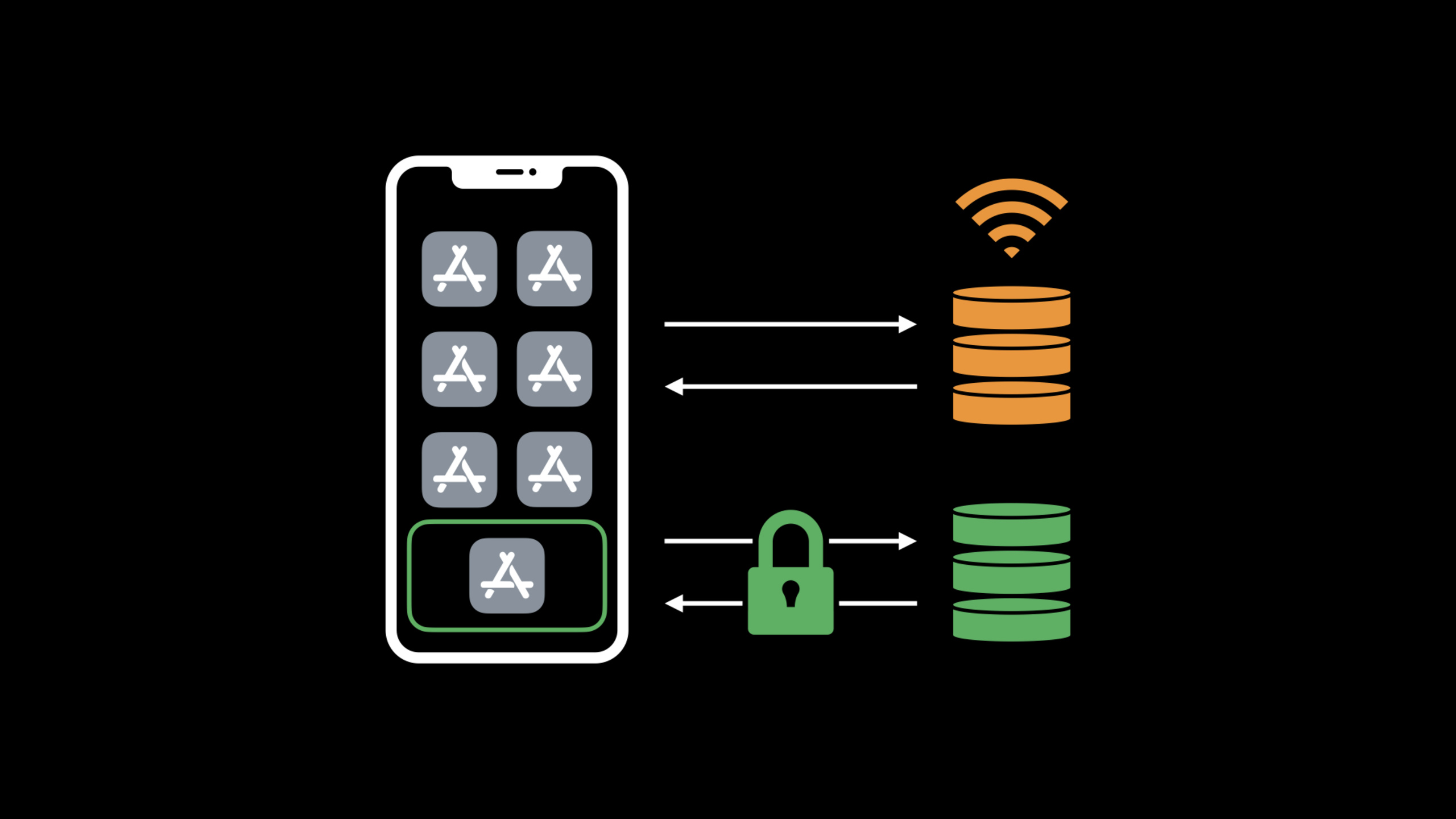
When an app accesses a website, the system first resolves the domain name into a server address. This problem is usually addressed to the DNS server configured on the local network. The risk is stated very directly in the verbatim: DNS questions and answers usually use unencrypted UDP. Other devices on the same network can see which names you have checked, and may also interfere with the returned results.
Another problem comes from the local parser itself. When you join a public Wi-Fi, your internet usage may be tracked or blocked. The function of encrypted DNS is to use encryption to protect DNS questions and answers; when you do not trust the current network, you can also send the query to a DNS server you trust.
Starting in 2020, Apple platforms natively support two protocols: DNS over TLS (DoT) and DNS over HTTPS (DoH). Both use TLS to encrypt DNS messages, and DoH also uses HTTP to improve performance.
This session gives two access paths. The first is the system level: the DNS service provider can write a NetworkExtension App, or the enterprise can issue the DNSSettings payload through MDM to configure a single encrypted DNS server as the system default resolver. The second one is at the app level: developers can enable encrypted DNS for some or all connections in their apps.
System-level configuration also deals with network compatibility. Private domain names in corporate Wi-Fi can only be resolved by corporate DNS servers; VPNs and captive networks have their own resolution rules. The focus of Session is not just to turn on encryption, but also to use Network Rules to specify when to enable and when to make exceptions.
Detailed Content
1. Create system-level DNS configuration
(04:16)
System DNS settings can be configured by the NetworkExtension App using NEDNSSettingsManager, or by an MDM profile containing the DNSSettings payload. Two ways of describing the same thing: DNS server configuration, and Network Rules that determine when the configuration takes effect.
The following is a DoH configuration fragment in the session:
// Create a DNS configuration

import NetworkExtension

NEDNSSettingsManager.shared().loadFromPreferences { loadError in
    if let loadError = loadError {
        // ...handle error...
        return
    }
    let dohSettings = NEDNSOverHTTPSSettings(servers: [ "2001:db8::2" ])
    dohSettings.serverURL = URL(string: "https://dnsserver.example.net/dns-query")
    NEDNSSettingsManager.shared().dnsSettings = dohSettings
    NEDNSSettingsManager.shared().saveToPreferences { saveError in
        if let saveError = saveError {
            // ...handle error...
            return
        }
    }
}
Key points:
loadFromPreferencesreads the existing configuration first to avoid directly overwriting the user’s current status.NEDNSOverHTTPSSettingsdefines a DoH server; the server IP address is optional.serverURLis required for DoH configuration.- After assigning the configuration to
dnsSettings, callsaveToPreferencesto apply it to the system. - After saving, the user also needs to enable this DNS server in the Settings App.
2. Use Network Rules to handle private networks
Public DNS servers cannot resolve private names that exist only on the local network. The example given by Session is corporate Wi-Fi: some private domain names accessed by employees are only known by the DNS server in the corporate network.
Apple already handles both types of compatibility scenarios automatically. Exceptions will be made when logging into captive networks such as coffee shop networks; when the VPN is activated, the resolution within the VPN tunnel will use the VPN’s DNS settings. Rules such as enterprise private domain names require the App to configure Network Rules itself.
// Apply network rules

let workWiFi = NEOnDemandRuleEvaluateConnection()
workWiFi.interfaceTypeMatch = .wiFi
workWiFi.ssidMatch = ["MyWorkWiFi"]
workWiFi.connectionRules =
    [ NEEvaluateConnectionRule(matchDomains: ["enterprise.example.net"],
                               andAction: .neverConnect) ]

let disableOnCell = NEOnDemandRuleDisconnect()
disableOnCell.interfaceTypeMatch = .cellular

let enableByDefault = NEOnDemandRuleConnect()

NEDNSSettingsManager.shared().onDemandRules = [
    workWiFi,
    disableOnCell,
    enableByDefault
]
Key points:
NEOnDemandRuleEvaluateConnectionmakes the rule match only the specified network type and SSID.NEEvaluateConnectionRuleexcludesenterprise.example.netfrom encrypted DNS settings.NEOnDemandRuleDisconnectturns off this set of DNS settings on cellular networks.NEOnDemandRuleConnectis a catch-all rule that enables DNS settings to be enabled by default.onDemandRulesis an ordered list, the previous rules are matched first.
3. Enable encrypted DNS in App connection
(10:47)
If you do not provide a DNS service that can be used by the entire system, you can also enable encrypted DNS only in your app. Session explicitly mentions that this path applies to URLSessionTask, Network framework connections, and POSIX APIs such as getaddrinfo.
The entrance to the Network framework is PrivacyContext. One PrivacyContext is used for each set of connections that share DNS settings. When you require encrypted resolution, you can pass in a fallback DNS server configuration; if the system already has a DNS configuration, the system-level configuration takes precedence, otherwise the App’s fallback takes effect.
// Use encrypted DNS with NWConnection

import Network

let privacyContext = NWParameters.PrivacyContext(description: "EncryptedDNS")
if let url = URL(string: "https://dnsserver.example.net/dns-query") {
    let address = NWEndpoint.hostPort(host: "2001:db8::2", port: 443)
    privacyContext.requireEncryptedNameResolution(true,
        fallbackResolver: .https(url, serverAddresses: [ address ]))
}

let tlsParams = NWParameters.tls
tlsParams.setPrivacyContext(privacyContext)

let conn = NWConnection(host: "www.example.com", port: 443, using: tlsParams)
conn.start(queue: .main)
Key points:
NWParameters.PrivacyContextholds a set of DNS privacy settings.requireEncryptedNameResolution(true, fallbackResolver:)requires the connection to use encrypted name resolution..https(url, serverAddresses:)points to the DoH server and its addresses.setPrivacyContexthooks DNS settings toNWParameters.tls.- After the
NWConnectioncreated with this set of parameters is started, the host name will be resolved according to this set of settings.
4. Verify the actual DNS protocol used by the connection
Once the connection is ready, you can request an EstablishmentReport. The report has a set of resolution steps, each of which records the DNS protocol: HTTPS, TLS, UDP or TCP. Transcript also warns that answers from cache may not have protocol fields.
If you want the entire app to use the same set of settings, you can configure the default PrivacyContext. This affects every DNS resolution initiated by the app, including URLSessionTask and getaddrinfo.
// Use encrypted DNS for other APIs

import Network

if let url = URL(string: "https://dnsserver.example.net/dns-query") {
    let address = NWEndpoint.hostPort(host: "2001:db8::2", port: 443)
    NWParameters.PrivacyContext.default.requireEncryptedNameResolution(true,
        fallbackResolver: .https(url, serverAddresses: [ address ]))
}

let task = URLSession.shared.dataTask(with: ...)
task.resume()

getaddrinfo(...)
Key points:
NWParameters.PrivacyContext.defaultis the app-level default DNS privacy setting.- After setting the default context, parsing initiated by
URLSessionwill use this set of configurations. getaddrinfoin the low-level API will also be affected by this set of configurations.- If the network blocks encrypted DNS by policy, Wi-Fi will be marked with a privacy warning and the app connection will fail instead of using a resolution path that compromises privacy.
Core Takeaways
-
Make a DNS service provider configuration App: If you provide public DNS services, you can use
NEDNSSettingsManagerto write an App that is only responsible for publishing DoH or DoT configurations; the entrance isNEDNSOverHTTPSSettingsor the corresponding DoT settings. After saving, let the user activate it in the Settings App. -
Make rule templates for enterprise networks: Make user-commonly used enterprise Wi-Fi SSIDs, private domain names, and cellular network policies into interface options; write
NEOnDemandRuleEvaluateConnection,NEEvaluateConnectionRule,NEOnDemandRuleDisconnectand the hiddenNEOnDemandRuleConnectat the bottom layer. -
Add a layer of in-app DNS policy to sensitive connections: Create dedicated
NWParameters.PrivacyContextfor connections such as login, payment, and synchronization; userequireEncryptedNameResolution(true, fallbackResolver:)to point to the trusted DoH server, and then put the context intoNWParameters.tls. -
Make a connection diagnosis page: Request
EstablishmentReportafter the connection is ready, and read thednsProtocolparsed each time; the page only displays the status of protocols such as HTTPS, TLS, UDP, and TCP to help locate whether the device has really encrypted DNS. -
Connect the default PrivacyContext to the old network layer: If there are both
URLSessionandgetaddrinfoin the project, you can configureNWParameters.PrivacyContext.defaultfirst so that the same set of fallback settings can be used for DNS resolution in the app.
Related Sessions
- Boost performance and security with modern networking: An overview of modern networking APIs under the same topic, covering IPv6, HTTP/2, TLS 1.3 and encrypted DNS.
- Support local network privacy in your app: Explains iOS 14 local network permissions, paying attention to privacy transparency in network access as much as this article.
- Build local push connectivity for restricted networks: Talking about local push connectivity in restricted networks, it is suitable to read together with NetworkExtension related configuration.
- Build trust through better privacy: Explaining how to build user trust from the perspective of platform privacy functions can be used as the upper-level background of this article’s encrypted DNS.
Comments
GitHub Issues · utterances