
Highlight
SwiftUI’s
DocumentGroupallows the App to use a Scene to declare document opening and management capabilities, and the system provides a document browser, standard document commands, macOS status tracking and Handoff, and iOS document browsing and sharing interfaces.
Core Content
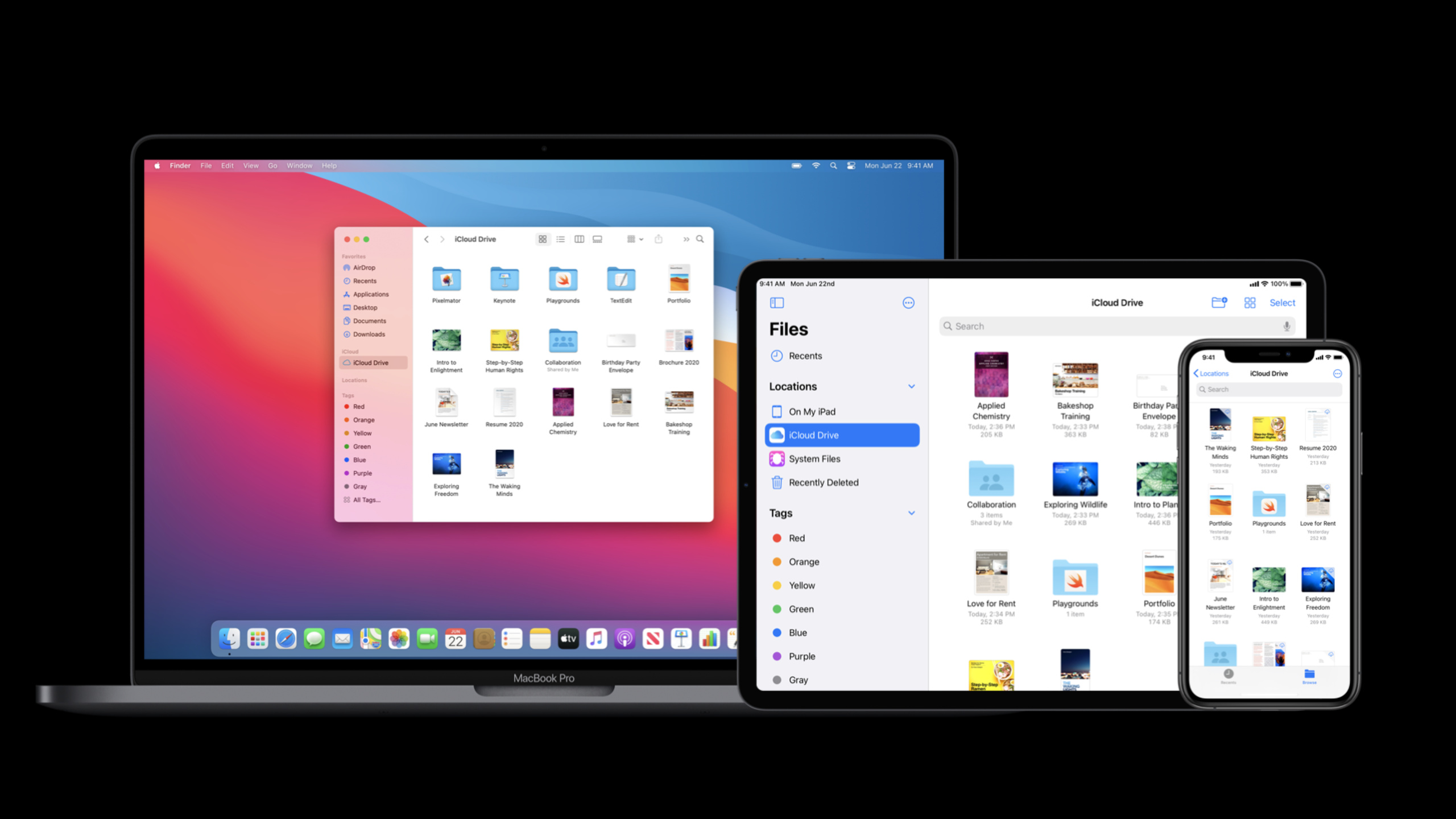
Users organize files in Finder and Files apps using tags, cloud file providers, and external storage devices. When they open a file, they expect the app to directly edit the original document; if the app just imports the file into its own database, the user will make changes to a copy, and the original file will not change accordingly.
Such capabilities are not exclusive to professional creative tools. The main work of Pixelmator, Keynote, and Final Cut Pro revolves around document management; Xcode, Mail, and Console will also open projects, EML files, or crash reports outside the main interface. The key point is to open and edit the file itself, rather than swallowing the file into the app’s private data.
SwiftUI puts this capability into DocumentGroup. App is still composed of App, Scene and View; when Scene is replaced by DocumentGroup, you are declaring that this App supports opening and managing certain types of documents. SwiftUI then adds platform behaviors, including status tracking and Handoff for macOS, as well as document browser, navigation bar search and sharing portal for iOS.
The demonstration starts with a drawing prototype in the iPad Playground. Tina put it into a multi-platform app called ShapeEdit, first configured the document types that the system can recognize, then let the document model implement FileDocument, and finally replaced the default TextEditor with canvas. By the end, the drawing app makes it possible to save drawings and reopen them later.
Detailed Content
DocumentGroup connects document management to Scene
(02:00) A SwiftUI application is composed of App, Scene and View. When adding document support, the new Scene type is DocumentGroup. It can be used alone as a Scene of the App, or it can be combined with multiple DocumentGroup or WindowGroup in the same App.
(02:12) The minimal example in the official Code tab is a text editor:
@main
struct TextEdit: App {
    var body: some Scene {
        DocumentGroup(newDocument: TextDocument()) { file in
            TextEditor(text: file.$document.text)
        }
    }
}
Key points:
@mainmarks the App entrance,bodyreturns a Scene.DocumentGroup(newDocument: TextDocument())declares the base document used when creating a new document.fileis the file context passed in by theDocumentGroupclosure.file.$document.textprovides read-write binding, andTextEditorcan directly edit the text in the document.- transcript explains at 06:49 that this binding lets SwiftUI know when the text is updated and is responsible for registering undo and marking the document in dirty state.
The document type first lets the system recognize the file.
(04:43) Xcode’s document App template will add Document Type to Info.plist. The identifier inside is the Uniform Type Identifier, which is used by the system to associate files on the disk with the App.
(05:07) plain text This type of type is declared elsewhere, and the App only needs to import it. ShapeEdit needs to define its own drawing format, so it needs to fill in the Exported Type Identifier: write a description for the format, make it conform to public data and public content, and then assign a file extension.
(08:24) The transcript specifically distinguishes between importedAs and exportedAs. The imported type is a computed variable because its value may change with the installed app; the exported type is owned by the current app and can be declared as a constant.
FileDocument defines the document on disk
(07:41) The document type of ShapeEdit is a value type and adheres to the FileDocument protocol. This protocol represents documents on disk. The first step is to define readableContentTypes, which is an array of UTType. SwiftUI uses this array to determine whether the file type the user wants to open is supported by the app.
(09:11) When reading the document, the initialization method will get FileWrapper and contentType. The demo uses JSONDecoder after deleting the template code, so the document type needs to comply with Codable.
(09:43) When writing out a document, the method also receives the target FileWrapper and contentType. FileWrapper is an inout parameter, which can create a new wrapper or update an existing wrapper. The demo uses JSONEncoder to write the document back to a file.
(10:12) The document model is a struct, so the copy-on-write behavior of value types is preserved. The actual benefit given by transcript is: while the user is still drawing, the App can already start saving.
Switch from text template to drawing document
(10:32) After the document support is ready, demonstrate adding the canvas code in the Playground to the project. There is a graphic type in the project to describe graphic properties, and a Canvas View to display graphics.
(10:56) Then change the data type of the document from text to graphic type, add the initial graphic, and replace TextEditor with canvas. The last ShapeEdit run can save the drawing, and the same drawing can be opened later.
Core Takeaways
-
Text Document Editor
What it does: Make a lightweight editor that opens raw text files. Why it’s worth doing:
DocumentGroupalready handles opening and managing documents,TextEditorcan be bound directly tofile.$document.text. How to start: First use the official snippet to run throughDocumentGroup(newDocument:), then make the document type comply withFileDocument, and put the readable type intoreadableContentTypes. -
Drawing or Whiteboard App
What to do: Migrate the drawing prototype in iPad Playground into a multi-platform app that can save files. Why it’s worth doing: The session’s ShapeEdit demo starts exactly with a canvas prototype and ends with saving and reopening the drawing. How to start: First define graphic type and Canvas View, then change the document data from text to graphic type, and use
JSONDecoderandJSONEncoderto process the reading and writing layer. -
Log or Crash Report Viewer
What to do: Add an entry to open EML, crash report or log files to a common tool App. Why it’s worth doing: The transcript clearly mentions that the main interfaces of Mail and Console are not document-based, but they still support opening additional files. How to start: Keep the original
WindowGroupand combine it with aDocumentGroupto specifically handle file opening scenarios. -
Custom formatted project files
What to do: Define your own file format for design drafts, engineering configurations, or creative projects. Why it’s worth doing: The system requires UTI to associate the disk file with the App. ShapeEdit declares its own format through Exported Type Identifier. How to start: Use the same type identifier in Document Type and Exported Type Identifier in Info.plist, make the type conform to public data and public content, and assign an extension.
Related Sessions
- App essentials in SwiftUI — First understand the hierarchy of App, Scene and View; this session refers to it directly when talking about
DocumentGroup. - Data Essentials in SwiftUI — Complement the SwiftUI data flow background, especially how binding passes document changes to the view.
- What’s new in SwiftUI — A year-by-year overview of where apps, scenes, DocumentGroup, and Uniform Type Identifiers are in SwiftUI 2020.
- Stacks, Grids, and Outlines in SwiftUI — Continuing work on list, hierarchy, and inspector interfaces for editors like ShapeEdit.
- Build a SwiftUI view in Swift Playgrounds — Corresponds to the initial iPad Playground prototype stage of ShapeEdit.
Comments
GitHub Issues · utterances