
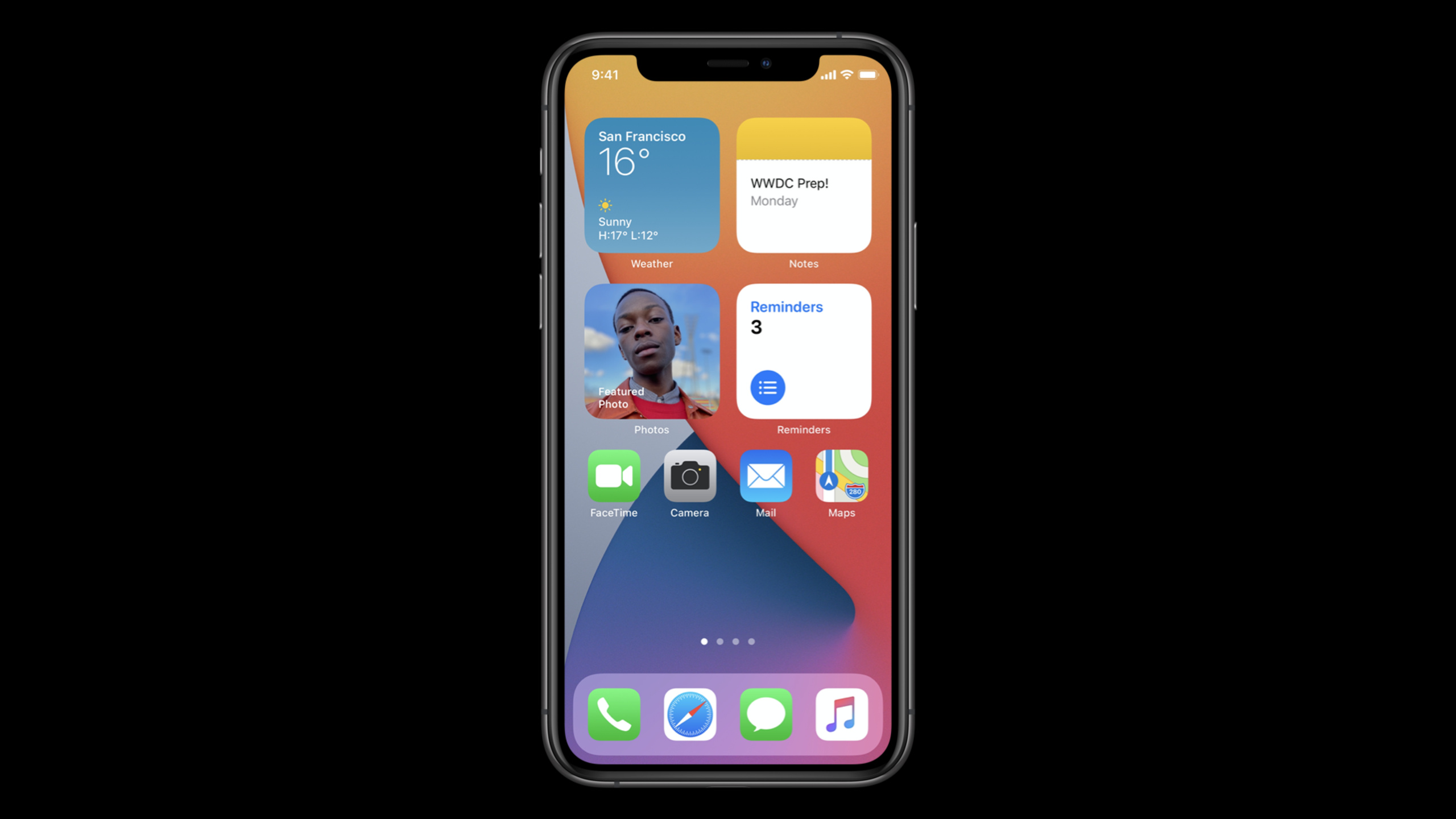
Highlight
WidgetKit uses SwiftUI and timeline mechanisms in iOS 14 to pre-deliver app content to the system, allowing the home screen, Today View, iPad home screen, and macOS Big Sur notification center to display information cards that can be read at a glance and clicked to jump back to the app.
Core Content
Space on the Home Screen is expensive. Users return to the home screen many times a day, staying only for a few seconds at a time. A small-sized widget only has an area of about four icons. If buttons, scrolling lists, or complex controls are stuffed inside, users will leave before they understand it.
This is also the starting point of WidgetKit. Apple defines widgets as content projections that can be glanced at, rather than as small apps that run continuously. The content is the focus, and clicking only brings the user back to the main App; in the small size, the entire widget has only one tap target. When it comes to medium and large, SwiftUI’s Link can allow different areas to enter different locations. (01:50, 12:27)
The new system capabilities solve two old problems. First, the widget does not need to wait for the App process to start before drawing the interface. The WidgetKit extension returns a set of SwiftUI views with time in the background. The system saves these view hierarchy according to timeline and displays them at the correct time. Second, the same pre-prepared content can also be used by the Widget Gallery, and what the user sees before adding is the actual widget status. (05:44, 13:23)
WidgetKit also builds relevance and personalization into the model. Smart Stacks will use on-device intelligence to automatically move appropriate widgets to the top; developers can use Siri Shortcuts donations to help the system understand user habits, and can also provide relevance on timeline entries. The configuration is left to Intents. The system can automatically generate an editing interface from Intents. Users can select cities, stocks or other parameters by long pressing the widget. (02:51, 04:05, 21:13)
Therefore, the first step in making WidgetKit is not to write a reduced version of the home page. A more stable path is to first find out the information in the app that is most suitable for being read at a glance, and then decide its size, update time, click point and whether it needs to be configured.
Detailed Content
Define a widget kind
(08:10) A widget definition consists of kind, configuration, supportedFamilies and placeholder. kind allows an extension to support multiple widget types; StaticConfiguration is suitable for scenarios that do not require user configuration; placeholder can only display the representative content of this widget type and cannot contain user data.
@main
public struct SampleWidget: Widget {
    private let kind: String = "SampleWidget"

    public var body: some WidgetConfiguration {
        StaticConfiguration(kind: kind,
                            provider: Provider(),
                            placeholder: PlaceholderView()) { entry in
                                SampleWidgetEntryView(entry: entry)
                            }
        .configurationDisplayName("My Widget")
        .description("This is an example widget.")
    }
}
Key points:
@mainmarks the entry point of the widget extension.kindis a string used by the system to identify this type of widget.provideris responsible for providing snapshot and timeline.placeholderis the default display content and is only occasionally requested by the system.configurationDisplayNameanddescriptionwill appear in the interface for adding widgets.
Use timeline to drive display
(13:13) WidgetKit’s running model is divided into three types of UI: placeholder, snapshot and timeline. Snapshot is used to quickly return an entry. Widget Gallery usually displays a preview of the real widget. The timeline is a set of entries and dates that tell the system which view should be displayed at each point in time.
public struct Provider: TimelineProvider {

    public func snapshot(with context: Context,
                         completion: @escaping (SimpleEntry) -> ()) {
        let entry = SimpleEntry(date: Date())
        completion(entry)
    }

    public func timeline(with context: Context,
                         completion: @escaping (Timeline<Entry>) -> ()) {
        let entry = SimpleEntry(date: Date())
        let timeline = Timeline(entries: [entry, entry], policy: .atEnd)
        completion(timeline)
    }
}
Key points:
snapshotreturns a single entry, aiming to be fast.timelinereturns the entry array and reload policy..atEndindicates that the system requests the next timeline after the timeline ends.- transcript also mentioned that you can specify a certain date to reload, or you can tell the system not to reload.
- The timeline entry will be serialized to disk by the system, and there is no need to start the app’s launcher process when the home screen is displayed.
Control refresh, no real-time running experience
(15:03) reload is the time when the system wakes up the extension and requests a new timeline. The system will refer to the reload policy, widget viewing frequency and device environment changes. When the App receives a background notification, or the user makes changes in the foreground App that will affect the widget, it can request a refresh through WidgetCenter.
Key points:
- A common timeline should cover several days, rather than just returning the current moment.
- Widgets that are viewed frequently will get more reloads, and widgets that are viewed less often will get less reloads.
WidgetCentercan reload according to kind, can reload the entire timeline, and can also read the current configuration list.- When you need to access the server, you can use background URLSessions, and the results are handed over to the extension through
onBackgroundURLSessionEvents. - Background processing and network have system budget, and widgets are not suitable for updating every second.
Use Intents for configuration
(18:50) If the widget needs to be personalized, WidgetKit uses Intents to carry the configuration. The city of the Weather widget and the stock symbol of the Stocks widget are typical parameters. iOS 14 also allows Intents to support in-app Intent handling, and the App can directly answer questions in the configuration interface.
@main
public struct SampleWidget: Widget {
    private let kind: String = "SampleWidget"

    public var body: some WidgetConfiguration {
        IntentConfiguration(kind: kind,
                    intent: ConfigurationIntent.self
                            provider: Provider(),
                            placeholder: PlaceholderView()) { entry in
                                SampleWidgetEntryView(entry: entry)
                            }
        .configurationDisplayName("My Widget")
        .description("This is an example widget.")
    }
}
Key points:
IntentConfigurationreplacesStaticConfiguration.ConfigurationIntent.selflets the system know what type of Intent parameters this widget uses.- When the user edits the widget, the system automatically generates a configuration interface based on the Intent.
- If a parameter requires dynamic options, the Intents extension or App can return candidate values.
Let timeline receive configuration and relevance
(20:54) After configuring the timeline, the provider must also be replaced with IntentTimelineProvider. The timeline method will receive configuration, and developers use these Intent parameters to generate corresponding entries. Smart Stack relevance uses Shortcuts donations and TimelineEntryRelevance to help the system determine when to move the widget to the top.
public struct Provider: IntentTimelineProvider {

    public func timeline(for configuration: ConfigurationIntent, with context: Context,
                         completion: @escaping (Timeline<Entry>) -> ()) {
        let entry = SimpleEntry(date: Date(), configuration: configuration)

        // generate a timeline based on the values of the Intent

       completion(timeline)
    }
}
Key points:
timeline(for:with:completion:)will get theconfigurationselected by the user.- entry can save this configuration and use it to determine the display content.
- If the same
INIntentis used behind the widget, and the user donates Shortcuts after performing relevant actions in the app, there is a chance to help Smart Stack judge the timing. TimelineEntryRelevancecan providescoreandduration; the score is interpreted relative to the entries provided by the developer in the past.
Core Takeaways
-
What to do: Make the most frequently opened information in the App into a small widget. Why it’s worth doing: Transcript repeatedly emphasizes that the small size only has about four icon areas, and the user’s stay time is very short. Best for single facts like the weather, next meeting, and today’s progress. How to start: First make a
StaticConfiguration, write a SwiftUI view that only displays core numbers or status, and then usewidgetURLto bring the click back to the corresponding page. -
What to do: Generate an all-day timeline for time-sensitive content such as schedules, training, and to-dos. Why it’s worth doing: The core capability of WidgetKit is to return entries with time in advance, and the system displays them according to time. The example of Calendar shows that the extension can prepare views before the meeting, during the meeting, and after the next meeting in advance. How to start: Implement
TimelineProvider, generate entries at several key time points in the future, and first use.atEndor the reload policy of the specified date to verify the refresh rhythm. -
What to do: Add Intent configuration to the widget with selectable content. Why it’s worth doing: The Weather and Stocks examples are both from transcript. Users can select cities, stocks or lists in the widget editing interface, and the system will automatically generate UI using Intent. How to start: Change the widget definition from
StaticConfigurationtoIntentConfiguration, then let the provider implementIntentTimelineProvider, and useconfigurationto generate different timelines. -
What: Let Smart Stack display your widgets at the right time. Why it’s worth it: Smart Stacks will automatically move related widgets to the top. Siri Shortcuts donations and
TimelineEntryRelevanceboth give the system more signals. How to get started: Donate Shortcuts when users complete repeatable actions; set relevance score and duration for timeline entries with clear expiration dates.
Related Sessions
- Design great widgets — From a design perspective, break down what content a widget should display, how to choose size, layout and fonts.
- Build SwiftUI views for widgets — Then build WidgetKit’s SwiftUI view layer from scratch.
- Add configuration and intelligence to your widgets — Continue talking about configurable widgets, Siri suggestions, Smart Stack and relevance.
- What’s new in SiriKit and Shortcuts — 2020 updates to add Intents, Shortcuts, and in-app Intent handling.
Comments
GitHub Issues · utterances