
Highlight
Apple added
prefersAssistiveTechnologySettingstoAVSpeechSynthesizer, letting app speech follow the voice, rate, and pitch settings of the current assistive technology such as VoiceOver.
Core Content
Many apps’ first instinct for adding speech is creating an AVSpeechSynthesizer. That makes sense for map direction announcements, AAC (Augmentative and Alternative Communication) apps, and environmental description tools for low-vision users—these experiences center on speech, and the app must decide when to speak, what to say, and which voice to use.
The same approach causes problems in screen-reader scenarios. When users already use VoiceOver or other assistive technology, the app speaking through its own AVSpeechSynthesizer may bypass voices and rates configured for assistive technology. The session draws a boundary first: if you only need to supplement occasional event descriptions for VoiceOver users, use UIAccessibility.post(notification: .announcement, ...) to hand the request to the running assistive technology.
Scenarios that truly need AVSpeechSynthesizer are where app speech has independent value. The iOS 14 addition is here: AVSpeechUtterance.prefersAssistiveTechnologySettings can request the current assistive technology’s speech settings. Apps like Seeing AI can still describe objects in the viewfinder while sounding closer to the VoiceOver the user is already using.
The second half handles two practical problems. AAC apps may let users choose their own voice, rate, pitch, and volume; during calls, synthesized speech must route into phone or FaceTime. Audio-heavy apps must also decide whether speech occupies the app’s shared audio session, avoiding interference with music, video, and sound effects.
Detailed Content
Hand occasional events to assistive technology
(01:25) When the app only needs to supplement an occasional event for VoiceOver users—such as a status change or completed action—it doesn’t need its own screen reader. Post an announcement through UIAccessibility and VoiceOver manages playback.
UIAccessibility.post(notification: .announcement, argument: "Hello World")Key points:
notification: .announcementmeans this is an announcement for the current assistive technology to speak.argumentis the text to read aloud.- This path suits occasional speech supplements, not building speech-centric app features.
Create and retain AVSpeechSynthesizer
(02:55) Speech-centric features need the app to control playback. The minimal flow is create synthesizer, create utterance, call speak(_:). The presenter specifically notes the AVSpeechSynthesizer object must be retained until speech finishes.
self.synthesizer = AVSpeechSynthesizer()
let utterance = AVSpeechUtterance(string: "Hello World")
self.synthesizer.speak(utterance)
Key points:
AVSpeechSynthesizer()is the object that schedules speech.AVSpeechUtterance(string:)contains the text to speak.speak(utterance)hands the utterance to the synthesizer for playback.self.synthesizermust be retained by the instance so the object isn’t released before speech ends.
Follow VoiceOver and other assistive technology speech settings
(04:08) By default, AVSpeechSynthesizer uses the device’s Accessibility Spoken Content settings. iOS 14’s prefersAssistiveTechnologySettings can request settings from the currently running assistive technology, including voice, rate, and pitch.
self.synthesizer = AVSpeechSynthesizer()
let utterance = AVSpeechUtterance(string: "Hello World")
utterance.prefersAssistiveTechnologySettings = true
self.synthesizer.speak(utterance)
Key points:
prefersAssistiveTechnologySettings = trueis set onAVSpeechUtterance.- When VoiceOver or other assistive technology is running, its voice, rate, and pitch take priority.
- When no assistive technology is running, the system continues with Spoken Content settings or properties explicitly set on the utterance.
- AAC apps may need user-customized voices—evaluate whether to enable this property based on product goals.
Customize voices for speech-centric apps
(05:42) AAC apps may let users choose a voice that represents them. AVSpeechUtterance supports specifying voice by language code or voice identifier, and reading the system’s installed voice list. The presenter also notes Siri voices, even if selectable in Spoken Content settings, cannot be used directly through the AVSpeechSynthesizer API; the system falls back to a voice matching the language code.
let utterance = AVSpeechUtterance(string: "Hello World")

// Choose a voice using a language code
utterance.voice = AVSpeechSynthesisVoice(language: "en-US")

// Choose a voice using an identifier
utterance.voice = AVSpeechSynthesisVoice(identifier: AVSpeechSynthesisVoiceIdentifierAlex)

// Get a list of installed voices
let voices = AVSpeechSynthesisVoice.speechVoices()
Key points:
AVSpeechSynthesisVoice(language:)suits choosing a system voice by language.AVSpeechSynthesisVoice(identifier:)suits specifying a known voice.AVSpeechSynthesisVoice.speechVoices()returns currently available system voices; the list updates when users download new voices.- Siri voices are not directly selectable through this API.
Adjust rate, pitch, and volume
(06:16) If the app decides to control speech style itself, set utterance rate, pitch multiplier, and volume. The transcript gives ranges of rate 0 to 1, pitch multiplier 0.5 to 2, and volume 0 to 1.
let utterance = AVSpeechUtterance(string: "Hello World")

// Choose a rate between 0 and 1, 0.5 is the default rate
utterance.rate = 0.75

// Choose a pitch multiplier between 0.5 and 2, 1 is the default multiplier
utterance.pitchMultiplier = 1.5

// Choose a volume between 0 and 1, 1 is the default value
utterance.volume = 0.5
Key points:
ratecontrols speaking speed; the example raises the default 0.5 to 0.75.pitchMultipliercontrols pitch multiplier; default is 1.volumecontrols this utterance’s volume; default is 1.- If
prefersAssistiveTechnologySettingsis also on and assistive technology is running, assistive technology settings take priority.
Route synthesized speech into an active call
(06:34) A key AAC scenario is letting non-verbal users communicate via phone or FaceTime. mixToTelephonyUplink is designed for this: with an active outgoing call, speech routes to the call; without an active call, speech uses the default audio route.
self.synthesizer = AVSpeechSynthesizer()
self.synthesizer.mixToTelephonyUplink = true
Key points:
mixToTelephonyUplinkis set onAVSpeechSynthesizer.- Active calls can be phone calls or FaceTime calls.
- Without a call, the system does not forcibly change the default playback path.
Let the system manage speech audio session
(07:02) By default, speech audio uses the app’s shared audio session. Setting usesApplicationAudioSession to false hands speech audio management to the system, handling audio interruptions, setting session active/inactive, and letting speech duck and mix with other app audio.
self.synthesizer = AVSpeechSynthesizer()
self.synthesizer.usesApplicationAudioSession = false
Key points:
usesApplicationAudioSessiondefaults totrue.- When set to
false, speech audio no longer uses the app’s shared audio session. - The system manages interruption handling and session activation state.
- For apps that also play music, video, or sound effects, this reduces speech interfering with other audio.
Core Takeaways
- Add controllable object announcements for viewfinder-style tools
What to do: Use AVSpeechSynthesizer in object recognition, tour, or scanning apps to speak objects or environmental changes detected in the viewfinder.
Why it’s worth doing: The session uses Seeing AI to show apps for blind or low-vision users can stay VoiceOver-accessible while the synthesizer controls object description timing.
How to start: Ensure UI elements have correct accessibility labels; create AVSpeechUtterance when object recognition results stabilize; if VoiceOver is running, set prefersAssistiveTechnologySettings to true.
- Add phone communication mode for AAC apps
What to do: Let users tap phrases and route synthesized speech into an active phone or FaceTime call.
Why it’s worth doing: The transcript explicitly states mixToTelephonyUplink can route speech to an active outgoing call—critical for non-verbal users.
How to start: Reuse existing phrase-building UI; initialize AVSpeechSynthesizer; set mixToTelephonyUplink = true when entering call mode; keep normal speaker path when no call is active.
- Provide consistent in-app speech for VoiceOver users
What to do: In features that need the app to speak itself, have speech adopt the current assistive technology’s voice, rate, and pitch.
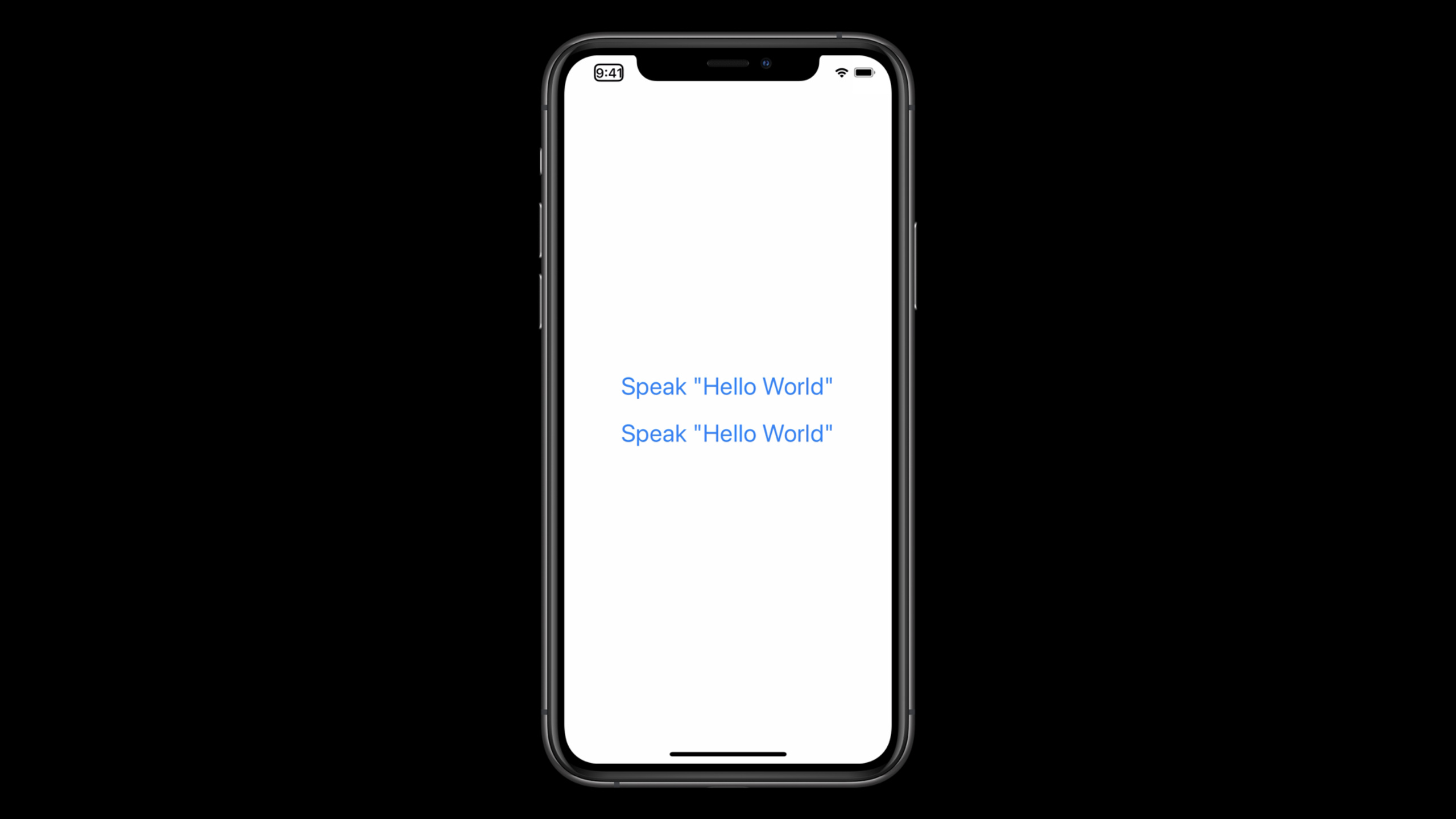
Why it’s worth doing: The session demo shows the disconnect when default speech differs from VoiceOver settings; prefersAssistiveTechnologySettings makes a second announcement feel closer to VoiceOver.
How to start: Check every AVSpeechUtterance creation point; set prefersAssistiveTechnologySettings = true for utterances aimed at assistive technology users; keep separate settings for AAC scenarios where users explicitly customize voice.
- Separate in-app speech from the main audio session
What to do: In apps with lots of music, video, or sound effects, let the system manage speech audio to reduce audio focus conflicts.
Why it’s worth doing: With usesApplicationAudioSession = false, the system handles speech audio interruptions, active state, and lets speech duck and mix with other app audio.
How to start: Map all speech outlets in the app; pilot usesApplicationAudioSession = false in non-recording scenarios first; regression-test with music playback, video playback, and incoming call interruptions.
Related Sessions
- VoiceOver efficiency with custom rotors — Also centers on VoiceOver user experience—how custom rotors improve navigation efficiency in complex interfaces.
- App accessibility for Switch Control — How Switch Control reuses accessibility information—good to read alongside this session’s UIAccessibility boundaries.
- Make your app visually accessible — Complements speech experience with visual accessibility interface adaptation.
- Accessibility design for Mac Catalyst — Cross-platform accessibility details for Mac Catalyst: keyboard, grouping, and Accessibility Inspector.
- Evaluate and optimize voice interaction for your app — From Siri and conversational interaction angle, supplements voice entry design evaluation methods.
Comments
GitHub Issues · utterances