
Highlight
Apple added HDR editing support to AVFoundation’s AVVideoComposition: the built-in compositor and built-in Core Image filters can process HDR, while custom compositors must declare 10-bit pixel formats, HDR source frames, and Wide Color source frames.
Core Content
Video editing apps used to focus mainly on cutting, joining, transforms, and blending. With HDR, the problem gets finer: pixels can exceed the SDR 0 to 1 range, common delivery formats use 10-bit, and transfer functions may be HLG or PQ. An existing transition, filter, or custom compositor that still assumes SDR color handling can crush highlights or compute filter results as negative values.
This session narrows the risk to one core object: AVVideoComposition. AVComposition mainly describes timeline alignment of source media and largely ignores HDR; AVVideoComposition handles geometry, blending, and filtering and must know input and output color characteristics. Apple’s update simplifies two common paths: when you use the built-in compositor, or when you call built-in Core Image filters with AVMutableVideoComposition(asset:applyingCIFiltersWithHandler:), the framework handles HDR frames for you.
Where developers must change code is custom logic. Custom Metal Core Image kernels must accept extended dynamic range and cannot assume maximum brightness is 1. Custom compositors must also tell AVFoundation they support 10-bit or higher pixel buffers, accept HDR source frames, and handle Wide Color. On playback, use AVPlayer.eligibleForHDRPlayback to decide whether the current hardware and display are suitable for HDR preview.
Detailed Content
1. HDR path with the built-in compositor (06:43)
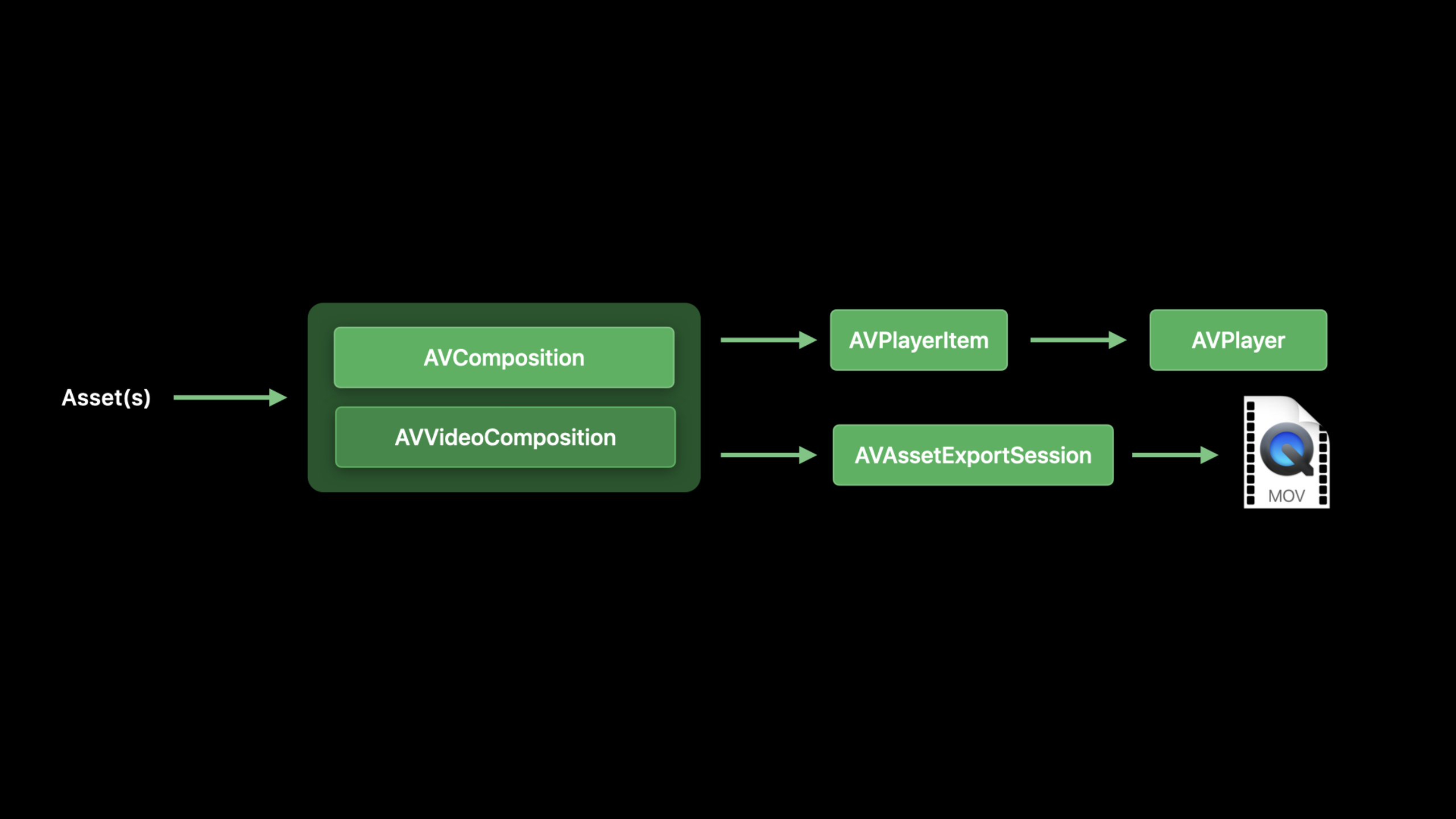
A common editing workflow creates AVComposition and AVVideoComposition, then hands them to AVPlayerItem for preview or AVAssetExportSession for export. The session is clear: the HDR-critical piece is AVVideoComposition because it handles blending and transforms.
let videoComposition = AVMutableVideoComposition()

videoComposition.instructions = [videoCompositionInstruction]
videoComposition.frameDuration = CMTimeMake(value: 1, timescale: 30)
videoComposition.renderSize = assetSize
Key points:
instructionsdescribe how to blend or transform video layers over each timeline segment; instructions must not overlap or leave gaps.frameDurationsets the composition output frame rate; the example uses 1/30 second.renderSizesets the output dimensions.- This code does not set
customVideoCompositorClass, so AVFoundation uses the built-in compositor; the transcript says existing apps on this path that feed HDR video usually get HDR output synthesized with the same instructions.
2. Creating AVVideoComposition with Core Image filters (09:55)
The second path suits single-layer filtering. AVMutableVideoComposition passes the current frame from the first enabled video track to the handler; you send request.sourceImage through a CIFilter and call request.finish with the result.
let videoComposition =
    AVMutableVideoComposition(asset: asset,
    applyingCIFiltersWithHandler: {
        (request: AVAsynchronousCIImageFilteringRequest) -> Void in

        let ciFilter = CIFilter(name: "CIZoomBlur")

        ciFilter!.setValue(request.sourceImage, forKey: kCIInputImageKey)

        request.finish(with: ciFilter!.outputImage!, context: nil)
    })
Key points:
applyingCIFiltersWithHandlerremoves hand-written composition instructions and focuses on per-frame filtering.request.sourceImageis the current input frame, aCIImagein the transcript.CIZoomBluris a built-in Core Image filter; the session says built-in Core Image filters can process HDR sources.request.finish(with:context:)returns filter output to AVFoundation for the rest of the video composition pipeline.
3. Custom Core Image kernels must accept extended dynamic range (10:57)
If the handler calls a custom Metal Core Image kernel, the code must understand HDR pixel range. The session shows a highlight-check kernel: if any RGB channel exceeds 1, paint the pixel bright red.
#include <metal_stdlib>
#include <CoreImage/CoreImage.h>
using namespace metal;

extern "C" float4 HDRHighlight(coreimage::sample_t s, coreimage::destination dest) {
    if (s.r > 1.0 || s.g > 1.0 || s.b > 1.0)
        return float4(2.0, 0.0, 0.0, 1.0);
    else
        return s;
}
Key points:
CoreImage/CoreImage.hbrings in types needed for Metal Core Image kernels.coreimage::sample_t sis the input pixel; in HDR contents.r,s.g, ands.bcan be greater than 1.float4(2.0, 0.0, 0.0, 1.0)deliberately outputs red above the SDR white point to mark HDR highlight regions.- The session then uses a color inverter as a counterexample: writing
1.0 - s.rfor SDR produces negative values when HDR pixels are greater than 1.
4. Custom compositors must declare HDR capability (13:58)
Custom compositors offer the most freedom: blend multiple video layers, apply geometry and filters per layer. The tradeoff is the framework does not assume HDR support. Developers handle both real compositing logic and capability declarations.
class SampleCustomCompositor: NSObject, AVVideoCompositing {
    var sourcePixelBufferAttributes: [String : Any]? =
        [kCVPixelBufferPixelFormatTypeKey as String:
            [kCVPixelFormatType_420YpCbCr10BiPlanarVideoRange]]

    var requiredPixelBufferAttributesForRenderContext: [String : Any] =
        [kCVPixelBufferPixelFormatTypeKey as String:
            [kCVPixelFormatType_420YpCbCr10BiPlanarVideoRange]]

    var supportsHDRSourceFrames = true
    var supportsWideColorSourceFrames = true

    func startRequest(_ request: AVAsynchronousVideoCompositionRequest) {
        ...
    }

    func renderContextChanged(_ newRenderContext: AVVideoCompositionRenderContext) {
    }
}
Key points:
sourcePixelBufferAttributestells the framework which input pixel buffer formats the compositor supports.requiredPixelBufferAttributesForRenderContexttells the framework which formats the output render context needs.kCVPixelFormatType_420YpCbCr10BiPlanarVideoRangeis the 10-bit format in the example; real projects should list formats they actually support.supportsHDRSourceFrames = trueis a new field. If unset orfalse, the framework converts HDR sources to SDR before handing them to the compositor.supportsWideColorSourceFrames = truereflects that HDR often comes with Wide Color; the transcript says the framework assumes compositors that handle HDR can also handle Wide Color.
5. Color properties and playback eligibility (17:49, 21:01)
Without explicit composition color properties, the framework picks an output format with priority HLG, then PQ, then SDR. To fix output to HLG, PQ, or SDR, set colorPrimaries, colorTransferFunction, and colorYCbCrMatrix explicitly. Preview playback should also check whether the system can display HDR.
extension AVPlayer {
    @available(macOS 10.15, *)
    open class var eligibleForHDRPlayback: Bool { get }
}

if AVPlayer.eligibleForHDRPlayback {
    videoComposition.colorPrimaries = AVVideoColorPrimaries_ITU_R_2020
    videoComposition.colorTransferFunction = AVVideoTransferFunction_ITU_R_2100_HLG
    videoComposition.colorYCbCrMatrix = AVVideoYCbCrMatrix_ITU_R_2020
}
else {
    videoComposition.colorPrimaries = AVVideoColorPrimaries_ITU_R_709_2
    videoComposition.colorTransferFunction = AVVideoTransferFunction_ITU_R_709_2
    videoComposition.colorYCbCrMatrix = AVVideoYCbCrMatrix_ITU_R_709_2
}
Key points:
AVPlayer.eligibleForHDRPlaybackis a class var; you can query it without creating anAVPlayerinstance.truemeans the system can consume HDR video and at least one built-in or external display can show HDR.- The HLG example uses
ITU_R_2020color primaries,ITU_R_2100_HLGtransfer function, andITU_R_2020YCbCr matrix. - When HDR playback is unavailable, the example sets composition color properties to SDR to avoid spending processing on HDR preview that cannot be displayed.
- The transcript also notes this property describes playback capability only; systems that cannot play HDR may still support an HDR export path.
Core Takeaways
-
HDR editing previewer: Build a macOS video editing preview window. Why it’s worth it: The built-in compositor can handle HDR with your existing
AVVideoCompositioninstructions. How to start: Keep your existingAVMutableVideoCompositionstructure and check whether color properties were explicitly pinned to SDR. -
HDR highlight diagnostic filter: Build a filter that marks regions above the SDR white point in red. Why it’s worth it: The session’s
HDRHighlightkernel identifies HDR highlights with conditions likes.r > 1.0. How to start: Put the kernel in a Metal Core Image file and connect it to preview withapplyingCIFiltersWithHandler. -
Custom compositor HDR upgrade: Add HDR support to a multi-layer transition or picture-in-picture editor. Why it’s worth it: Custom compositors can blend multiple layers, apply geometry, and filter each layer. How to start: Support 10-bit pixel buffers first, then set
supportsHDRSourceFramesandsupportsWideColorSourceFrames. -
Automatic HDR/SDR preview switching: Show HDR or SDR preview based on device capability. Why it’s worth it:
eligibleForHDRPlaybackchecks both system HDR consumption and display conditions. How to start: Read this class var on the playback path; set HLG color properties when true,ITU_R_709_2when false. -
SDR copy for sharing: Offer an “export for standard displays” option in your editing app. Why it’s worth it: The transcript gives an email-sharing scenario where recipients may lack HDR playback. How to start: Set the three video composition color properties to SDR on that export or preview path.
Related Sessions
- Export HDR media in your app with AVFoundation — Continues with HDR content export, covering
AVAssetExportSession,AVAssetWriter, supported formats, and platform limits. - Optimize the Core Image pipeline for your video app — Explains
CIContext, Metal queues, andAVMutableVideoCompositionperformance practices for video filters. - Build Metal-based Core Image kernels with Xcode — Deep dive into
.ci.metalfiles, kernel loading, and Core Image custom filter integration. - Decode ProRes with AVFoundation and VideoToolbox — macOS AVFoundation video decode, VideoToolbox, and Metal display pipeline.
Comments
GitHub Issues · utterances