
Highlight
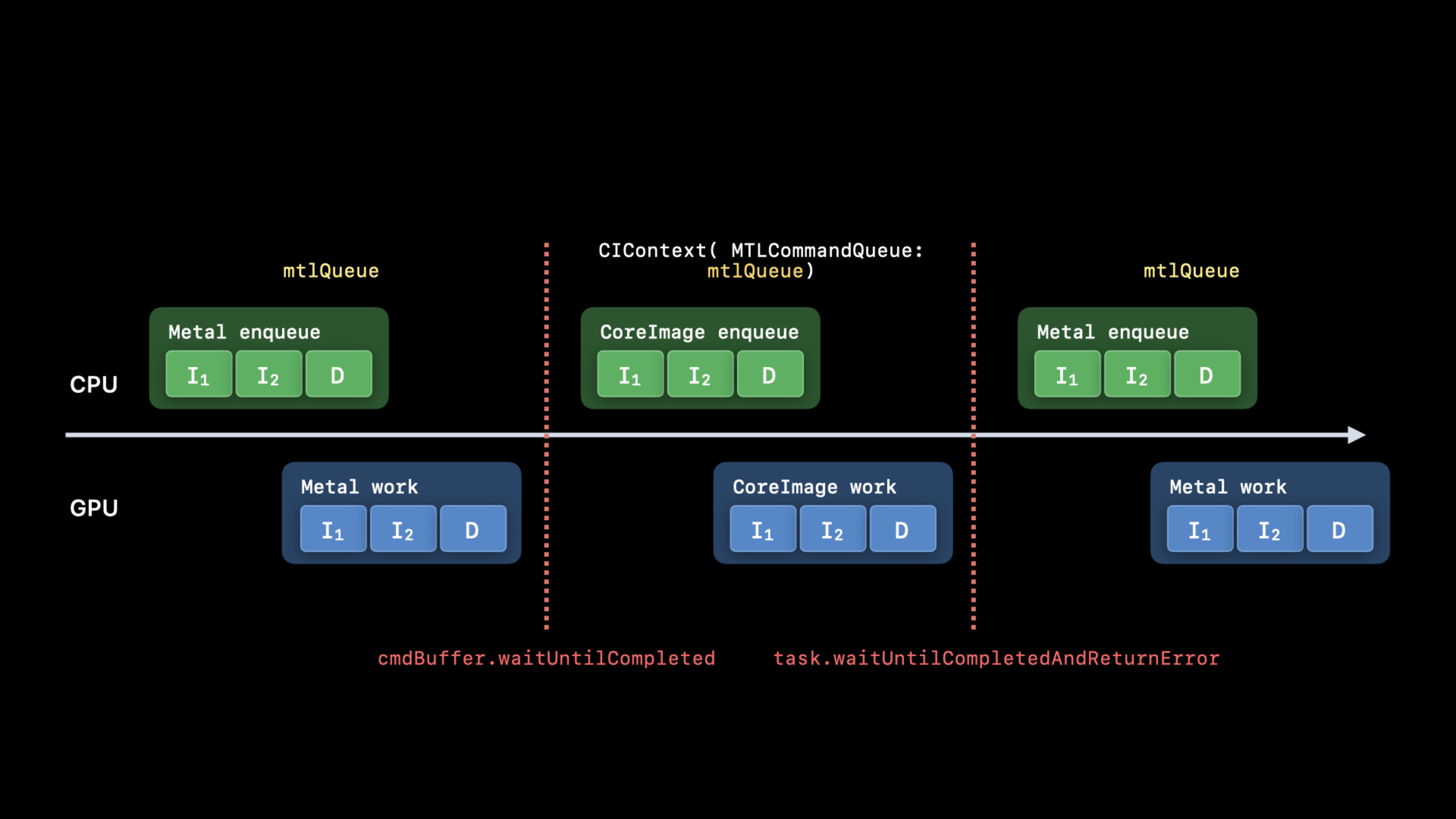
Apple recommends reusing one CIContext per view, disabling intermediate result caching, and binding CIContext to the same MTLCommandQueue when mixing with Metal to reduce memory use and GPU queue waits.
Core Content
Video filters face different pressure than still-image filters. Every video frame changes; if the app creates CIContext frequently or lets Core Image and its own Metal rendering use separate command queues, time goes to initialization, caching, and waiting for synchronization. The closer playback is to real time, the easier these costs become dropped frames.
This session splits optimization into three parts. First, make CIContext a long-lived object per view and disable intermediate caching; second, put filters in Metal when possible, prefer built-in Core Image filters, and write .ci.metal kernels when needed; third, choose the right view for video playback—use AVMutableVideoComposition with AVFoundation for playback, or MTKView when you control rendering and display yourself.
All advice targets the same goal: keep Core Image work aligned with the video frame lifecycle. Retain only necessary state per frame, put GPU work on the right queue, and send final output straight into video playback or a Metal drawable.
Detailed Content
1. Create CIContext for the video view (00:52)
Apple’s first recommendation is one CIContext per view. CIContext is easy to create but initialization costs time and memory. Video frames always differ, so intermediate caching gains little and disabling it lowers memory use.
let context = CIContext(options: [
    .cacheIntermediates: false,
    .name: "MyAppView"
])
Key points:
.cacheIntermediates: falsematches the video scenario in the transcript: each frame differs and caching intermediate images increases memory pressure..namegives the context a readable name for Core Image debugging tools.- This context should live with the view lifecycle; do not recreate it every frame.
If the app already has Metal rendering, CIContext should use the same Metal command queue. The session timeline example shows separate queues cause wait commands and bubbles in the GPU pipeline.
let context = CIContext(mtlCommandQueue: queue, options: [
    .cacheIntermediates: false
])
Key points:
mtlCommandQueuelets Core Image share a queue with other Metal rendering.- When input or output is a Metal texture, this reduces cross-queue synchronization.
- The transcript says sharing a queue removes waits and pipelines work better.
2. Prefer built-in Core Image filters (02:59)
The session recommends built-in filters because they are already Metal-implemented. Xcode documentation adds parameter descriptions, sample images, and sample code.
import CoreImage.CIFilterBuiltins

func motionBlur(inputImage: CIImage) -> CIImage? {
    let motionBlurFilter = CIFilter.motionBlur()
    motionBlurFilter.inputImage = inputImage
    motionBlurFilter.angle = 0
    motionBlurFilter.radius = 20
    return motionBlurFilter.outputImage
}
Key points:
CoreImage.CIFilterBuiltinsprovides typed filter entry points; the example createsCIFilter.motionBlur()directly.inputImage,angle, andradiusare inputs for this filter.- Returning
outputImageis still a Core Image recipe; actual rendering happens at playback or view output.
3. Put custom CIKernel in .ci.metal (03:56)
When built-in filters are not enough, write custom CIKernel in Metal to move compilation to build time and gain gather reads, group writes, half-float math, syntax highlighting, and build-time syntax checks.
// MyKernels.ci.metal
#include <CoreImage/CoreImage.h> // includes CIKernelMetalLib.h
using namespace metal;

extern "C" float4 HDRZebra(coreimage::sample_t s, float time, coreimage::destination dest)
{
    float diagLine = dest.coord().x + dest.coord().y;
    float zebra = fract(diagLine / 20.0 + time * 2.0);
    if ((zebra > 0.5) && (s.r > 1 || s.g > 1 || s.b > 1))
        return float4(2.0, 0.0, 0.0, 1.0);
    return s;
}
Key points:
#include <CoreImage/CoreImage.h>brings in ordinary Metal classes and Core Image types.extern "C"is required for kernel function declarations.coreimage::sample_tis a pixel from the input image—linear, premultiplied alpha RGBAfloat4, suitable for SDR and HDR per the transcript.coreimage::destinationprovides destination pixel coordinates; the example usesdest.coord()for zebra stripes.- The condition
s.r > 1 || s.g > 1 || s.b > 1detects HDR pixels above the SDR white point.
4. Connect to AVPlayerView with AVMutableVideoComposition (05:50)
If the main goal is filtered video playback, AVPlayerView is the simplest path. The key object is AVMutableVideoComposition, created from an asset and a per-frame callback. The callback sets Core Image filters and returns output to the request.
let videoComposition = AVMutableVideoComposition(
    asset: asset,
    applyingCIFiltersWithHandler: { request in
        let filter = HDRZebraFilter()
        filter.inputImage = request.sourceImage

        if let output = filter.outputImage {
            request.finish(with: output, context: myCtx)
        } else {
            request.finish(with: err)
        }
    }
)
Key points:
- The
applyingCIFiltersWithHandlerhandler runs per video frame. request.sourceImageis the current frame input.request.finish(with:context:)returns Core Image output to AVFoundation.- In Xcode debugging you can click the eye icon on
CIImageto inspect the recipe; the example may show 10-bit HDR surfaces auto color-managed from HLG to Core Image working space.
5. Control rendering and display with MTKView (07:01)
For more control, use MTKView. At initialization create CIContext, allow Core Image to use Metal Compute, and on HDR views set floating-point pixel format and extended dynamic range.
class MyView: MTKView {
    var context: CIContext
    var commandQueue: MTLCommandQueue

    override init(frame frameRect: CGRect, device: MTLDevice?) {
        let dev = device ?? MTLCreateSystemDefaultDevice()!
        context = CIContext(mtlDevice: dev, options: [.cacheIntermediates: false])
        commandQueue = dev.makeCommandQueue()!

        super.init(frame: frameRect, device: dev)

        framebufferOnly = false
        colorPixelFormat = MTLPixelFormat.rgba16Float
        if let caml = layer as? CAMetalLayer {
            caml.wantsExtendedDynamicRangeContent = true
        }
    }
}
Key points:
framebufferOnly = falselets Core Image use Metal Compute.rgba16Floatis the macOS HDR view setting in the session.wantsExtendedDynamicRangeContent = trueletsCAMetalLayershow extended dynamic range content.
For drawing, the session uses CIRenderDestination with a block that returns the drawable texture so CIContext can queue Metal work before waiting for the previous frame.
func draw(in view: MTKView) {
    let size = self.convertToBacking(self.bounds.size)
    let destination = CIRenderDestination(
        width: Int(size.width),
        height: Int(size.height),
        pixelFormat: colorPixelFormat,
        commandBuffer: nil
    ) {
        return view.currentDrawable!.texture
    }

    context.startTask(toRender: image, from: rect, to: destination, at: point)

    let commandBuffer = commandQueue.makeCommandBuffer()!
    commandBuffer.present(view.currentDrawable!)
    commandBuffer.commit()
}
Key points:
CIRenderDestinationrecords target size, pixel format, and a deferred texture fetch block.startTask(toRender:from:to:at:)starts the Core Image render task.- Present the current drawable on a command buffer to finish the frame.
Core Takeaways
- Real-time HDR overexposure overlay: Build a video preview overlay that marks regions above the SDR white point in red. This session’s
HDRZebrakernel shows the approach; implement the kernel in a.ci.metalfile and connect it throughAVMutableVideoComposition. - Low-memory video filter previewer: Offer real-time filter previews in an editing app. Reuse one
CIContextper preview view with.cacheIntermediates: falseso scrubbing the timeline does not accumulate useless intermediate frames. - Core Image and Metal mixed renderer: Add Core Image filters to a player that already has Metal overlays. Create
CIContextwith the sameMTLCommandQueueso Metal input, Core Image processing, and final compositing stay on one queue. - Visual filter debug mode: Add a button in an internal build to inspect the current frame’s
CIImagerecipe. The session shows Xcode’s eye-icon debug entry—document that flow in your performance playbook. - HDR MetalKit preview window: Build an
MTKViewpreview for a macOS video tool. SetframebufferOnly = false,rgba16Float, andwantsExtendedDynamicRangeContent, then useCIRenderDestinationto send Core Image output to the current drawable.
Related Sessions
- Build Metal-based Core Image kernels with Xcode — Continues with
.ci.metalfiles, kernel loading, and Core Image custom filter integration. - Discover Core Image debugging techniques — Generating and reading Core Image graphs for memory, color, and performance issues from this session.
- Edit and play back HDR video with AVFoundation — HDR video editing and playback, including
AVMutableVideoCompositionwith Core Image filters. - Export HDR media in your app with AVFoundation — HDR export workflow to extend real-time filter processing into export.
Comments
GitHub Issues · utterances