
Highlight
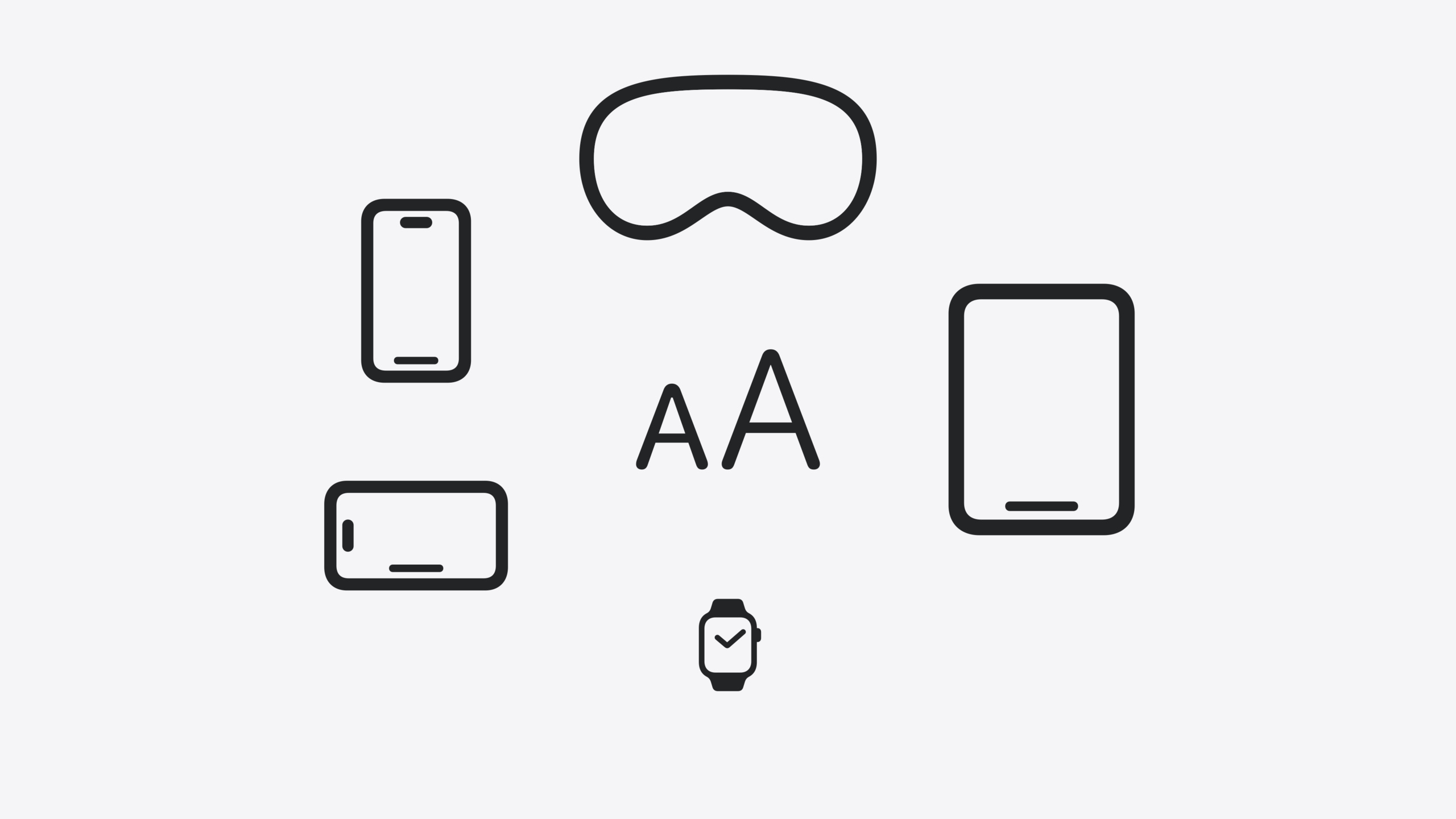
Dynamic Type 是 Apple 平台的文字大小自适应机制。用户可以在设置里选择 7 种常规尺寸和 5 种辅助功能大字号,应用需要适配所有尺寸。这场 Session 从四个层面讲适配策略:文字缩放、布局调整、图片符号处理、Large Content Viewer 兜底。
核心内容
你做了一个 App,文字用固定字号 17pt,布局用 HStack 水平排列。大部分用户没抱怨。直到有一天,一个用户把系统字号调到最大辅助功能级别——你的标题被截断,按钮文字只剩半个字,水平排列的四个图标挤成一团。这个用户关掉了你的 App。
Dynamic Type 就是解决这个问题的机制。用户在「设置 > 辅助功能 > 显示与文字大小 > 更大文字」里选择自己喜欢的字号,系统提供 7 种常规尺寸,开启「更大辅助功能字号」后还有 5 种更大的选项。你的 App 如果用了系统 Text Styles,文字会自动跟随用户选择缩放;如果硬编码字号,就完全不理会用户偏好。
这场 Session 从四个层面讲适配:第一,用系统 Text Styles 替代硬编码字号;第二,当字号大到水平排列放不下时,切换为垂直布局;第三,图片和 SF Symbols 在大字号下的缩放策略;第四,对于 Tab Bar 这类不能跟着放大的控件,用 Large Content Viewer 做兜底展示。
详细内容
1. 用系统 Text Styles 缩放文字
SwiftUI 里用 .font() 修饰符指定 Text Style(03:53):
import SwiftUI

struct ContentView: View {
    var body: some View {
        Text("Hello, World!")
            .font(.title)
    }
}
关键点:
.font(.title)使用系统 title 文字样式,自动随 Dynamic Type 缩放- 系统提供 body、headline、title 等多种样式,各自维护视觉层级
UIKit 里用 preferredFont(forTextStyle:) 并设置 adjustsFontForContentSizeCategory(04:06):
import UIKit

class ViewController: UIViewController {
    override func viewDidLoad() {
        super.viewDidLoad()
        let label = UILabel(frame: .zero)
        setupConstraints()
        label.text = "Hello, World!"
        label.adjustsFontForContentSizeCategory = true
        label.font = .preferredFont(forTextStyle: .title1)
        label.numberOfLines = 0
        self.view.addSubview(label)
    }
}
关键点:
adjustsFontForContentSizeCategory = true让标签在系统字号变化时自动更新字体numberOfLines = 0允许文字占任意多行,避免截断preferredFont(forTextStyle:)返回对应样式的动态字体
检测问题的工具:Xcode Preview 里点击 Variants 按钮,选择 Dynamic Type Variants,一次预览所有字号变体。也可以用 Xcode 调试器覆盖 Dynamic Type 设置,或执行辅助功能审计检查文字截断、裁剪和对比度问题(04:36)。
2. 动态布局切换
当字号进入辅助功能范围,水平排列可能放不下。SwiftUI 用 dynamicTypeSize 环境变量配合 AnyLayout 做动态切换(07:20):
import SwiftUI

struct FigureCell: View {
    @Environment(\.dynamicTypeSize)
    private var dynamicTypeSize: DynamicTypeSize

    var dynamicLayout: AnyLayout {
        dynamicTypeSize.isAccessibilitySize ?
        AnyLayout(HStackLayout()) : AnyLayout(VStackLayout())
    }

    let systemImageName: String
    let imageTitle: String

    var body: some View {
        dynamicLayout {
            FigureImage(systemImageName: systemImageName)
            FigureTitle(imageTitle: imageTitle)
        }
    }
}
关键点:
@Environment(\.dynamicTypeSize)读取当前字号大小isAccessibilitySize判断是否为辅助功能大字号AnyLayout允许在运行时切换 HStackLayout 和 VStackLayout- 单个 cell 在辅助功能字号下从上下排列(VStack)切换为左右排列(HStack)
外层容器也需要同步切换(07:52):
import SwiftUI

struct FigureContentView: View {
    @Environment(\.dynamicTypeSize)
    private var dynamicTypeSize: DynamicTypeSize

    var dynamicLayout: AnyLayout {
        dynamicTypeSize.isAccessibilitySize ?
        AnyLayout(VStackLayout(alignment: .leading)) : AnyLayout(HStackLayout(alignment: .top))
    }

    var body: some View {
        dynamicLayout {
            FigureCell(systemImageName: "figure.stand", imageTitle: "Standing Figure")
            FigureCell(systemImageName: "figure.wave", imageTitle: "Waving Figure")
            FigureCell(systemImageName: "figure.walk", imageTitle: "Walking Figure")
            FigureCell(systemImageName: "figure.roll", imageTitle: "Rolling Figure")
        }
    }
}
关键点:
- 外层在辅助功能字号下从 HStack 切换为 VStack,让每个 cell 占满屏幕宽度
alignment参数在两种布局下分别设置对齐方式
UIKit 用 UIStackView 实现(08:20):
import UIKit

class ViewController: UIViewController {
    private var mainStackView: UIStackView = UIStackView()

    required init?(coder: NSCoder) {
        super.init(coder: coder)
        NotificationCenter.default.addObserver(self, selector: #selector(textSizeDidChange(_:)), name: UIContentSizeCategory.didChangeNotification, object: nil)
    }

    override func viewDidLoad() {
        super.viewDidLoad()
        setupStackView()
    }

    @objc private func textSizeDidChange(_ notification: Notification?) {
        let isAccessibilityCategory = self.traitCollection.preferredContentSizeCategory.isAccessibilityCategory
        mainStackView.axis = isAccessibilityCategory ? .vertical : .horizontal
        setupConstraints()
    }
}
关键点:
- 监听
UIContentSizeCategory.didChangeNotification响应字号变化 isAccessibilityCategory判断是否为辅助功能字号- 修改
UIStackView.axis即可在水平/垂直间切换
3. 图片和 SF Symbols 的缩放策略
装饰性图片不应该跟着放大。设置 App 里每个列表项左侧的小图标在大字号下保持原尺寸,文字绕过图标换行显示。SwiftUI 的 List 自动处理这种换行(10:12)。UIKit 用 NSAttributedString + NSTextAttachment 实现内联图片,文字自然绕过(10:30)。
如果图片需要跟着缩放(比如含文字或关键图标的图片),SwiftUI 用 @ScaledMetric(11:05):
import SwiftUI

struct ContentView: View {
    @ScaledMetric var imageWidth = 125.0
    var body: some View {
        VStack {
            Image("Spatula")
                .resizable()
                .aspectRatio(contentMode: .fit)
                .frame(width: imageWidth)
            Text("Grill Party!")
                .frame(alignment: .center)
        }
    }
}
关键点:
@ScaledMetric属性包装器让数值随 Dynamic Type 自动缩放- 指定基准宽度 125pt,运行时自动根据字号调整
- SF Symbols 不需要
@ScaledMetric,系统自动缩放
UIKit 用 UIImage.SymbolConfiguration 配合 textStyle(11:38):
import UIKit

func imageWithBodyConfiguration(systemImageName: String) -> UIImage? {
    let imageConfiguration = UIImage.SymbolConfiguration(textStyle: .body)
    let configuredImage = UIImage(systemName: systemImageName, withConfiguration: imageConfiguration)
    return configuredImage
}
关键点:
SymbolConfiguration(textStyle: .body)让 SF Symbol 跟 body 样式同步缩放- 非 Symbol 的自定义图片需要手动用
UITraitCollection处理缩放
4. Large Content Viewer 兜底
Tab Bar 这类常驻控件不能跟着字号放大——放大后 Tab Bar 会占屏幕四分之一面积。系统自带的 Tab Bar 已内置 Large Content Viewer。自定义控件需要手动添加。
SwiftUI 用 .accessibilityShowsLargeContentViewer 修饰符(13:15):
import SwiftUI

struct FigureBar: View {
    @Binding var selectedFigure: Figure

    var body: some View {
        HStack {
            ForEach(Figure.allCases) { figure in
                FigureButton(figure: figure, isSelected: selectedFigure == figure)
                    .onTapGesture {
                        selectedFigure = figure
                    }
                    .accessibilityShowsLargeContentViewer {
                        Label(figure.imageTitle, systemImage: figure.systemImage)
                    }
            }
        }
    }
}
关键点:
.accessibilityShowsLargeContentViewer接受一个闭包,返回长按时弹出的放大视图- 闭包里用
Label同时提供文字和图标 - 用户长按控件时弹出居中的放大展示,滑动可切换相邻控件
UIKit 用 UILargeContentViewerInteraction(13:45):
import UIKit

class FigureCell: UIStackView {
    var systemImageName: String!
    var imageTitle: String!

    init(systemImageName: String, imageTitle: String) {
        super.init(frame: .zero)
        self.systemImageName = systemImageName
        self.imageTitle = imageTitle
        setupFigureCell()
        self.addInteraction(UILargeContentViewerInteraction())
        self.showsLargeContentViewer = true
        self.largeContentImage = UIImage(systemName: systemImageName)
        self.scalesLargeContentImage = true
        self.largeContentTitle = imageTitle
    }
}
关键点:
addInteraction(UILargeContentViewerInteraction())添加交互showsLargeContentViewer = true启用展示largeContentImage和largeContentTitle设置弹窗中的图标和文字scalesLargeContentImage = true让图标在弹窗中放大
核心启发
-
做什么:把所有硬编码字号替换为系统 Text Styles。为什么值得做:这是支持 Dynamic Type 的第一步,改动小、收益大,文字立刻能跟随用户设置缩放。怎么开始:SwiftUI 里用
.font(.body)/.font(.title)等替换.font(.system(size: 17));UIKit 里用preferredFont(forTextStyle:)替换UIFont.systemFont(ofSize:),并设adjustsFontForContentSizeCategory = true。 -
做什么:为水平排列的卡片式布局预留「水平变垂直」的切换能力。为什么值得做:辅助功能大字号下水平空间不够,文字会被截断;垂直布局让每个项目占满宽度,文字可读。怎么开始:SwiftUI 里用
@Environment(\.dynamicTypeSize)+AnyLayout,根据isAccessibilitySize切换;UIKit 里用UIStackView,监听didChangeNotification切换 axis。 -
做什么:给自定义 Tab Bar 和工具栏加 Large Content Viewer。为什么值得做:这些控件不能跟着字号放大,大字号用户长按后看不到内容标签,等于丢失了导航能力。怎么开始:SwiftUI 加
.accessibilityShowsLargeContentViewer { Label(...) };UIKit 加UILargeContentViewerInteraction并设置largeContentTitle和largeContentImage。 -
做什么:在 UI 测试中集成辅助功能审计。为什么值得做:每次迭代都能自动捕获文字截断、裁剪、低对比度等 Dynamic Type 问题,不用手动逐页检查。怎么开始:在 XCTest 中调用辅助功能审计 API,搭配不同 Dynamic Type 设置跑测试。
关联 Session
- Catch up on accessibility in SwiftUI — SwiftUI 辅助功能全面入门,涵盖 VoiceOver、Switch Control 等辅助技术
- Demystify SwiftUI containers — 理解 SwiftUI 容器视图的子视图管理模型,有助于设计动态布局
- What’s new in UIKit — UIKit 新特性,包含文本和输入相关改进
- Build multilingual-ready apps — 多语言文字显示最佳实践,与 Dynamic Type 适配互补
评论
GitHub Issues · utterances