
Highlight
SwiftUI 在 iOS 17 为 ScrollView 引入了五组新 API:
safeAreaPadding和contentMargins精确控制边距、scrollTargetBehavior自定义滚动对齐、containerRelativeFrame基于容器的尺寸计算、scrollPosition替代 ScrollViewReader 的程序化滚动控制、以及scrollTransition基于滚动位置的视觉过渡效果。
核心内容
ScrollView 的基础
Harry 从 SwiftUI 团队出发,先回顾了 ScrollView 的基本概念:
- ScrollView 有 axes 定义滚动方向
- 内容超出 ScrollView 大小时会被裁剪,用户需要滚动查看
- ScrollView 将 safe area 解析为 content 的 margins
- 默认情况下 ScrollView 会立即计算所有内容,可以用 lazy stack 改变这个行为
- 内容在 ScrollView 中的精确位置叫 content offset
Safe Area 与 Content Margins
(02:29)给 ScrollView 添加边距时,直接用 .padding() 会导致内容被裁剪。正确的做法是使用 .safeAreaPadding():
ScrollView(.horizontal) {
    LazyHStack(spacing: hSpacing) {
        ForEach(palettes) { palette in
            GalleryHeroView(palette: palette)
        }
    }
}
.safeAreaPadding(.horizontal, hMargin)
关键点:
.safeAreaPadding()把 padding 加到 safe area 上,ScrollView 占满宽度- 内容有边距,但下一个元素可以”偷看”出来
- 滚动指示器也会正确放置
(04:00)如果需要分别控制内容和滚动指示器的边距,使用 contentMargins:
ScrollView(.horizontal) {
    LazyHStack(spacing: hSpacing) {
        ForEach(palettes) { palette in
            GalleryHeroView(palette: palette)
        }
    }
}
.contentMargins(.horizontal, hMargin)
关键点:
contentMargins可以单独 inset 内容或滚动指示器- 解决了 safe area 无法为不同内容配置不同 inset 的问题
Scroll Target Behavior
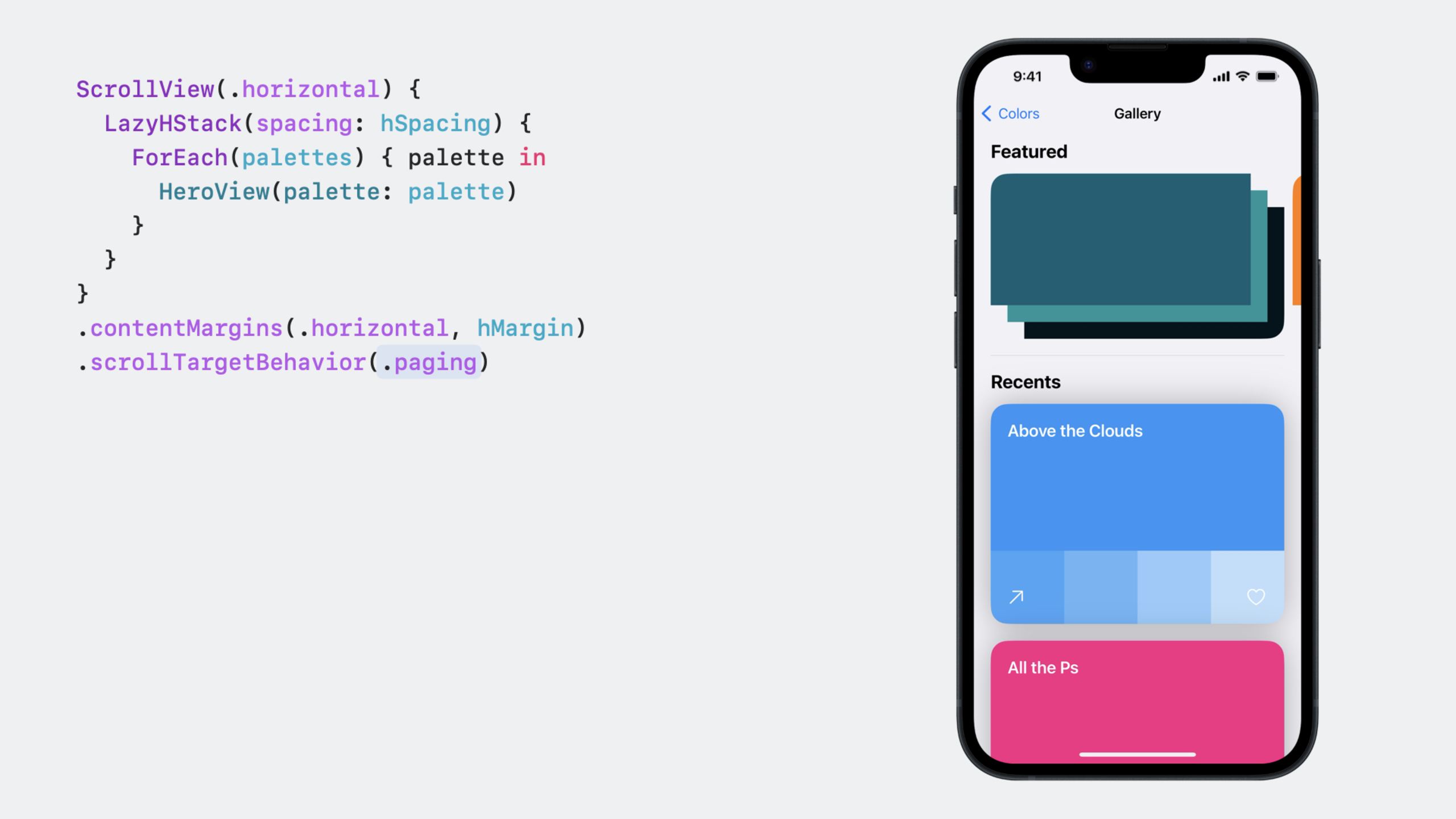
(04:46)默认情况下,ScrollView 使用标准减速率计算滚动停止位置。新 API 可以改变这个行为:
ScrollView(.horizontal) {
    LazyHStack(spacing: hSpacing) {
        ForEach(palettes) { palette in
            GalleryHeroView(palette: palette)
        }
    }
    .scrollTargetLayout()
}
.contentMargins(.horizontal, hMargin)
.scrollTargetBehavior(.viewAligned)
关键点:
.paging:整页翻动,基于 ScrollView 的容器大小.viewAligned:对齐到子视图,需要配合.scrollTargetLayout()使用.scrollTargetLayout()标记 Lazy Stack 中的每个子视图为滚动目标- 在 iPad 上
.viewAligned比.paging更适合,因为页面不会太大
自定义 ScrollTargetBehavior:
struct MyScrollTargetBehavior: ScrollTargetBehavior {
    func updateTarget(_ target: inout ScrollTarget, context: TargetContext) {
        if target.rect.minY < 50 && context.velocity.dy > 0 {
            target.rect.origin.y = 0
        }
    }
}
关键点:
- 实现
updateTarget方法修改滚动目标 - SwiftUI 在计算滚动停止位置时调用此方法
- 也适用于 ScrollView 大小变化等其他场景
Container Relative Frame
(07:42).containerRelativeFrame 让视图尺寸基于最近的容器:
GalleryHeroView(palette: palette)
    .aspectRatio(heroRatio, contentMode: .fit)
    .containerRelativeFrame(
        [.horizontal], count: columns, spacing: hSpacing
    )
关键点:
- 容器可以是 ScrollView、NavigationSplitView 的列、或窗口
count和spacing参数创建网格布局- 容器宽度变化时,视图自动更新尺寸
horizontalSizeClass环境属性现在在所有平台可用
Scroll Position
(09:46)scrollPosition 替代了 ScrollViewReader,提供更简单的程序化滚动控制:
struct GalleryHeroContent: View {
    var palettes: [Palette]
    @Binding var mainID: Palette.ID?

    var body: some View {
        ScrollView(.horizontal) {
            LazyHStack(spacing: hSpacing) {
                ForEach(palettes) { palette in
                    GalleryHeroView(palette: palette)
                }
            }
            .scrollTargetLayout()
        }
        .contentMargins(.horizontal, hMargin)
        .scrollTargetBehavior(.viewAligned)
        .scrollPosition(id: $mainID)
        .scrollIndicators(.never)
    }
}
关键点:
scrollPosition接收一个绑定到可选 ID 的 binding- 写入 binding 时,ScrollView 滚动到对应 ID 的视图
- 滚动时,binding 自动更新为当前最前面的视图 ID
- 需要配合
.scrollTargetLayout()使用
在 macOS 上为鼠标用户添加翻页按钮:
private func scrollToNextID() {
    guard let id = mainID, id != palettes.last?.id,
          let index = palettes.firstIndex(where: { $0.id == id })
    else { return }

    withAnimation {
        mainID = palettes[index + 1].id
    }
}
关键点:
- 修改
mainID状态即可触发滚动 - 可以包裹在
withAnimation中实现平滑滚动
Scroll Transitions
(12:34)scrollTransition 根据视图在 ScrollView 中的可见位置应用视觉变化:
GalleryHeroView(palette: palette)
    .scrollTransition(axis: .horizontal) { content, phase in
        content
            .scaleEffect(
                x: phase.isIdentity ? 1.0 : 0.80,
                y: phase.isIdentity ? 1.0 : 0.80)
    }
关键点:
phase有三个状态:identity(在中心)、topLeading(接近边缘)、bottomTrailing(离开边缘)- 只支持
VisualEffect协议中的修饰符(scaleEffect、rotation、offset 等) - 不支持改变内容大小的修饰符(如 font),因为这会影响 ScrollView 的布局
- 默认在视图位于可见区域中心时为 identity phase
详细内容
ScrollView 的基本结构
(00:46)一个基本的 ScrollView 结构:
struct Item: Identifiable {
    var id: Int
}

struct ContentView: View {
    @State var items: [Item] = (0 ..< 25).map { Item(id: $0) }

    var body: some View {
        ScrollView(.vertical) {
            LazyVStack {
                ForEach(items) { item in
                    ItemView(item: item)
                }
            }
        }
    }
}

struct ItemView: View {
    var item: Item

    var body: some View {
        Text(item, format: .number)
            .padding(.vertical)
            .frame(maxWidth: .infinity)
    }
}
关键点:
LazyVStack延迟创建不可见的内容ScrollView的 axes 参数指定滚动方向- 内容超出范围时自动启用滚动
完整的画廊实现
(02:29)一个完整的画廊实现,展示了所有新 API 的组合使用:
struct ContentView: View {
    @State var palettes: [Palette] = [
        .init(id: UUID(), name: "Example One"),
        .init(id: UUID(), name: "Example Two"),
        .init(id: UUID(), name: "Example Three"),
    ]

    var body: some View {
        ScrollView {
            GalleryHeroSection(palettes: palettes)
        }
    }
}

struct GalleryHeroSection: View {
    var palettes: [Palette]
    @State var mainID: Palette.ID? = nil

    var body: some View {
        GallerySection(edge: .top) {
            GalleryHeroContent(palettes: palettes, mainID: $mainID)
        } label: {
            GalleryHeroHeader(palettes: palettes, mainID: $mainID)
        }
    }
}

struct GalleryHeroContent: View {
    var palettes: [Palette]
    @Binding var mainID: Palette.ID?

    var body: some View {
        ScrollView(.horizontal) {
            LazyHStack(spacing: hSpacing) {
                ForEach(palettes) { palette in
                    GalleryHeroView(palette: palette)
                }
            }
            .scrollTargetLayout()
        }
        .contentMargins(.horizontal, hMargin)
        .scrollTargetBehavior(.viewAligned)
        .scrollPosition(id: $mainID)
        .scrollIndicators(.never)
    }
}

struct GalleryHeroView: View {
    var palette: Palette
    @Environment(\.horizontalSizeClass) private var sizeClass

    var body: some View {
        colorStack
            .aspectRatio(heroRatio, contentMode: .fit)
            .containerRelativeFrame(
                [.horizontal], count: columns, spacing: hSpacing
            )
            .clipShape(.rect(cornerRadius: 20.0))
            .scrollTransition(axis: .horizontal) { content, phase in
                content
                    .scaleEffect(
                        x: phase.isIdentity ? 1.0 : 0.80,
                        y: phase.isIdentity ? 1.0 : 0.80)
            }
    }

    private var columns: Int {
        sizeClass == .compact ? 1 : regularCount
    }
}
关键点:
GalleryHeroView使用containerRelativeFrame根据容器宽度自动计算尺寸columns根据horizontalSizeClass在 iPhone 上显示 1 列,iPad 上显示 2 列scrollTransition让非中心视图缩小到 80%,产生焦点效果scrollPosition让 header 中的按钮可以控制滚动
滚动指示器的智能行为
(08:54)scrollIndicators(.hidden) 的默认行为是:在使用触控板等多点触控输入时隐藏指示器,在连接鼠标时显示指示器。这是因为鼠标用户难以执行滑动手势。
如果确实需要始终隐藏指示器(同时提供替代滚动方式),使用 .scrollIndicators(.never)。
核心启发
-
卡片式轮播图
- 做什么:实现一个可以左右滑动、自动对齐到单张卡片的轮播图
- 为什么值得做:
.scrollTargetBehavior(.viewAligned)配合.scrollTargetLayout()让轮播图实现从”手动计算”变为”声明式配置” - 怎么开始:用
LazyHStack包裹卡片,添加.scrollTargetLayout()和.scrollTargetBehavior(.viewAligned)
-
跨设备自适应网格
- 做什么:一个布局在 iPhone 显示 1 列、iPad 显示 2-3 列的网格
- 为什么值得做:
containerRelativeFrame配合horizontalSizeClass不需要 GeometryReader 就能实现响应式布局 - 怎么开始:用
.containerRelativeFrame([.horizontal], count: columns, spacing: spacing),根据horizontalSizeClass设置columns
-
滚动驱动的视觉反馈
- 做什么:列表中的卡片在滚动到屏幕中央时放大,离开时缩小
- 为什么值得做:
scrollTransition让这种效果变成几行代码,不需要手动跟踪 content offset - 怎么开始:在列表项视图上添加
.scrollTransition(axis: .vertical) { content, phase in content.scaleEffect(phase.isIdentity ? 1.0 : 0.9) }
-
程序控制的滚动导航
- 做什么:点击”上一个”/“下一个”按钮控制横向滚动视图
- 为什么值得做:
scrollPosition比 ScrollViewReader 更简单,且支持双向绑定 - 怎么开始:定义
@State var currentID: Item.ID?,绑定到.scrollPosition(id: $currentID),按钮修改currentID即可
-
自定义滚动吸附行为
- 做什么:让 ScrollView 在接近顶部时自动吸附到最顶部
- 为什么值得做:
ScrollTargetBehavior协议让自定义滚动行为变得简单 - 怎么开始:创建遵循
ScrollTargetBehavior的结构体,在updateTarget中根据速度和目标位置修改target.rect
关联 Session
- Explore SwiftUI animation — SwiftUI 动画基础
- Animate with springs — 弹簧动画
- Wind your way through advanced animations in SwiftUI — 关键帧动画可用于滚动过渡
- SwiftUI essentials — SwiftUI 基础概念
评论
GitHub Issues · utterances