
Highlight
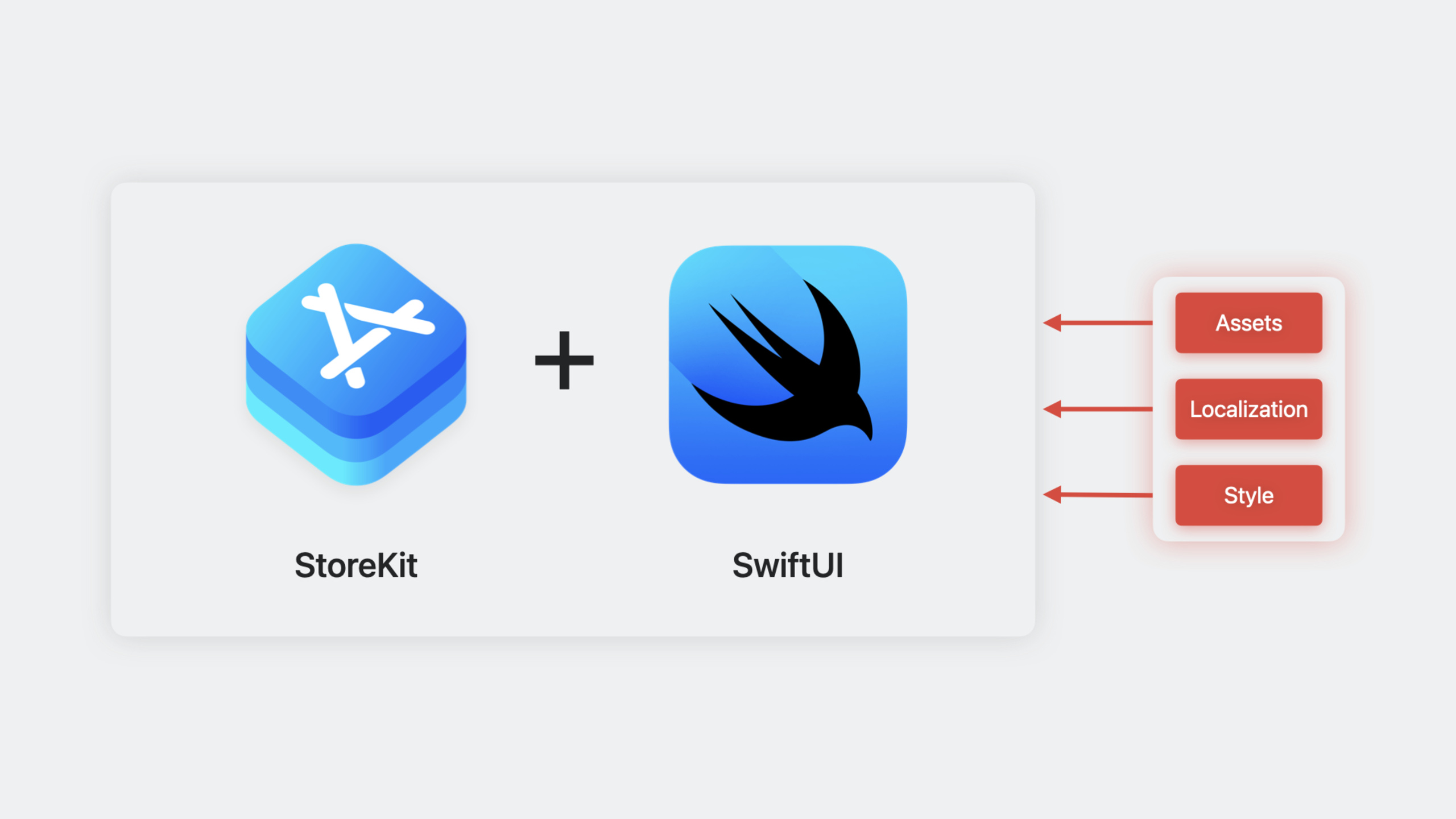
Apple 在 StoreKit 中推出了一组 SwiftUI 原生视图(StoreView、ProductView、SubscriptionStoreView),开发者只需几行代码就能在 App 中展示和销售内购商品与订阅,同时支持 Xcode Previews 实时预览,无需在 App Store Connect 中手动配置截图即可看到实际效果。
核心内容
在 iOS 17 之前,开发者要在 App 中搭建一个内购商店页面,需要做不少工作:加载产品列表、监听购买状态、处理交易回调、自己写 UI 布局。如果还要支持订阅,还要额外处理试用期、折扣优惠、升级降级等逻辑。一个完整的商店页面动辄几百行代码,而且每次调试都要跑真实设备。
StoreKit 在 iOS 17 中直接提供了三组 SwiftUI 视图,把产品加载、展示、购买流程全部封装好了。开发者只需要告诉它产品 ID,视图会自动从 App Store 拉取元数据(名称、价格、描述),渲染出完整的 UI。
这三组视图分别是:
- StoreView — 用于展示一次性购买商品(非消耗品、消耗品)的集合视图
- ProductView — 用于展示单个商品,可以自定义布局
- SubscriptionStoreView — 用于展示订阅商品组,自动处理试用期、折扣、升级等展示逻辑
下面分别来看这三组视图怎么用。
详细内容
StoreView:几行代码搭一个商品货架
StoreView 是最简单的入口。你给它一组产品 ID,它自动拉取元数据并以默认样式渲染出来。
(03:35) 先从最基本的开始。新建一个 BirdFoodShop 视图:
import SwiftUI
import StoreKit

struct BirdFoodShop: View {
    @Query var birdFood: [BirdFood]

    var body: some View {
        StoreView(ids: birdFood.productIDs)
    }
}
关键点:
import StoreKit引入 StoreKit 框架,才能使用这些新视图StoreView(ids:)接收一组产品 ID([String]),自动从 App Store Connect 拉取对应产品的元数据- 你不需要手动调用
SKProductRequest,不需要管理 loading/error 状态 @Query是 SwiftData 的属性包装器,这里用来获取鸟食数据模型中的产品 ID 列表
(04:51) 如果觉得默认的商品图标不够个性,可以传入一个闭包自定义每个产品的装饰图标:
StoreView(ids: birdFood.productIDs) { product in
    BirdFoodProductIcon(productID: product.id)
}
StoreView 默认使用 .compact 样式。你也可以显式指定样式:
StoreView(ids: birdFood.productIDs) { product in
    BirdFoodProductIcon(productID: product.id)
}
.productViewStyle(.compact)
ProductView:自定义布局和样式
当你想自己设计商店的排版时,ProductView 是更灵活的选择。它代表单个商品的视图,你可以把它放到任何 SwiftUI 布局容器里。
(06:47) 把 ProductView 放进 ScrollView + VStack 中,手动排版:
ScrollView {
    VStack(spacing: 10) {
        if let (birdFood, product) = birdFood.bestValue {
            ProductView(id: product.id) {
                BirdFoodProductIcon(
                    birdFood: birdFood,
                    quantity: product.quantity
                )
            }
            .padding()
            .background(.background.secondary, in: .rect(cornerRadius: 20))
            .padding()
            .productViewStyle(.large)
        }
    }
    .scrollClipDisabled()

    Text("Other Bird Food")
        .font(.title3.weight(.medium))
        .frame(maxWidth: .infinity, alignment: .leading)

    ForEach(birdFood.premiumBirdFood) { birdFood in
        BirdFoodShopShelf(title: birdFood.name) {
            ForEach(birdFood.orderedProducts) { product in
                ProductView(id: product.id) {
                    BirdFoodProductIcon(
                        birdFood: birdFood,
                        quantity: product.quantity
                    )
                }
            }
        }
    }
}
.contentMargins(.horizontal, 20, for: .scrollContent)
关键点:
ProductView(id:)接收单个产品 ID,自动加载并展示该产品- 第二个参数是装饰图标闭包,和
StoreView一样可以自定义 .productViewStyle(.large)指定大尺寸样式,适合做主打商品展示- 把
ProductView放进ForEach+VStack,就相当于手动实现了StoreView的布局能力 .productViewStyle(.compact)是默认样式,适合列表展示
(21:25) 使用推广图标,让某个产品在视觉上更突出:
ProductView(
    id: ids.nutritionPelletBox,
    prefersPromotionalIcon: true
) {
    BoxOfNutritionPelletsIcon()
}
prefersPromotionalIcon: true 会让图标使用更大的尺寸,适合在商品列表中突出某个推荐商品。
(21:56) 也可以给图标加边框:
ProductView(id: ids.nutritionPelletBox) {
    BoxOfNutritionPelletsIcon()
        .productIconBorder()
}(20:52) 在加载中时显示占位图标:
ProductView(id: ids.nutritionPelletBox) {
    BoxOfNutritionPelletsIcon()
} placeholderIcon: {
    Circle()
}
placeholderIcon 在产品元数据尚未加载完成时显示,避免 UI 空白。
自定义 ProductViewStyle
(23:02) ProductViewStyle 协议允许你完全控制产品视图的外观和行为。内置的有 .compact 和 .large,但你也可以自己写:
struct SpinnerWhenLoadingStyle: ProductViewStyle {
    func makeBody(configuration: Configuration) -> some View {
        switch configuration.state {
        case .loading:
            ProgressView()
                .progressViewStyle(.circular)
        default:
            ProductView(configuration)
        }
    }
}
使用方式:
ProductView(id: ids.nutritionPelletBox) {
    BoxOfNutritionPelletsIcon()
}
.productViewStyle(SpinnerWhenLoadingStyle())
关键点:
ProductViewStyle协议只有一个方法makeBody(configuration:)configuration.state有四种状态:.loading、.failure(let error)、.unavailable、.success(let product)- 在 loading 时显示菊花旋转指示器,其他情况回退到默认样式
ProductView(configuration)
(23:58) 更完整的自定义样式示例,完全控制每个状态:
struct BackyardBirdsStyle: ProductViewStyle {
    func makeBody(configuration: Configuration) -> some View {
        switch configuration.state {
        case .loading:
            ProgressView()
        case .failure(let error):
            Text("加载失败")
        case .unavailable:
            Text("不可用")
        case .success(let product):
            HStack(spacing: 12) {
                configuration.icon
                VStack(alignment: .leading, spacing: 10) {
                    Text(product.displayName)
                    Button(product.displayPrice) {
                        configuration.purchase()
                    }
                    .bold()
                }
            }
            .backyardBirdsProductBackground()
        }
    }
}
关键点:
configuration.icon是你之前传入的装饰图标闭包configuration.purchase()触发购买流程product.displayName和product.displayPrice是 App Store 元数据中的字段,自动本地化
SubscriptionStoreView:订阅商店一键生成
SubscriptionStoreView 是专门为订阅设计的视图。它自动处理了试用期、折扣、多档位对比等订阅特有的展示需求。
(09:57) 最基本的使用方式:
import SwiftUI
import StoreKit

struct BackyardBirdsPassShop: View {
    @Environment(\.shopIDs.pass) var passGroupID

    var body: some View {
        SubscriptionStoreView(groupID: passGroupID)
    }
}
groupID 是在 App Store Connect 中配置的订阅组 ID。SubscriptionStoreView 会自动加载该组中的所有订阅层级并展示。
(10:38) 在订阅页顶部添加营销内容:
SubscriptionStoreView(groupID: passGroupID) {
    PassMarketingContent()
}
传入的闭包是营销区域的内容,你可以放 logo、宣传图、功能介绍等。
(10:57) 设置全高背景和样式:
SubscriptionStoreView(groupID: passGroupID) {
    PassMarketingContent()
        .lightMarketingContentStyle()
        .containerBackground(for: .subscriptionStoreFullHeight) {
            SkyBackground()
        }
}
.backgroundStyle(.clear)
.containerBackground(for: .subscriptionStoreFullHeight) 设置整个订阅页的背景,从顶部营销区一直延伸到订阅选项区。
(11:21) 控制订阅按钮的标签样式:
.subscriptionStoreButtonLabel(.multiline).multiline 让按钮标签支持多行,适合显示较长的订阅描述。
(11:44) 设置选择器项的背景材质:
.subscriptionStorePickerItemBackground(.thinMaterial)(12:20) 显示兑换码按钮:
.storeButton(.visible, for: .redeemCode)(31:22) 切换控制样式为按钮式(默认是选择器式):
.subscriptionStoreControlStyle(.buttons)按钮式让每个订阅层级以独立按钮展示,而不是 Picker 式的单选列表。
(33:44) 给每个订阅层级自定义图标:
.subscriptionStoreControlIcon { subscription, info in
    Group {
        let status = PassStatus(
            levelOfService: info.groupLevel
        )
        switch status {
        case .premium:
            Image(systemName: "bird")
        case .family:
            Image(systemName: "person.3.sequence")
        default:
            Image(systemName: "wallet.pass")
        }
    }
    .foregroundStyle(.tint)
    .symbolVariant(.fill)
}(35:30) 只显示升级选项(隐藏当前订阅层级):
SubscriptionStoreView(
    groupID: passGroupID,
    visibleRelationships: .upgrade
) {
    PremiumMarketingContent()
        .containerBackground(for: .subscriptionStoreFullHeight) {
            SkyBackground()
        }
}
visibleRelationships: .upgrade 只展示比当前层级更高的订阅选项,适合已经订阅的用户升级。
(30:32) 显示 App Store 的隐私政策和条款链接:
.subscriptionStorePolicyForegroundStyle(.white)
.storeButton(.visible, for: .policies)(29:56) 自定义登录行为:
@State var presentingSignInSheet = false

var body: some View {
    SubscriptionStoreView(groupID: passGroupID) {
        PassMarketingContent()
            .containerBackground(for: .subscriptionStoreFullHeight) {
                SkyBackground()
            }
    }
    .subscriptionStoreSignInAction {
        presentingSignInSheet = true
    }
    .sheet(isPresented: $presentingSignInSheet) {
        SignInToBirdAccountView()
    }
}
如果用户需要在购买前登录你的 App 账号(比如关联现有账号的订阅状态),可以通过 .subscriptionStoreSignInAction 拦截默认的登录流程,弹出你自己的登录页。
处理购买结果
(14:10) 在视图上监听购买完成事件:
BirdFoodShop()
    .onInAppPurchaseCompletion { (product: Product, result: Result<Product.PurchaseResult, Error>) in
        if case .success(.success(let transaction)) = result {
            await BirdBrain.shared.process(transaction: transaction)
            dismiss()
        }
}(15:43) 监听购买开始事件(适合显示 loading 状态):
BirdFoodShop()
    .onInAppPurchaseStart { (product: Product) in
        self.isPurchasing = true
    }
查询订阅状态
(16:57) 使用 subscriptionStatusTask 查询当前用户的订阅状态:
subscriptionStatusTask(for: passGroupID) { taskState in
    if let statuses = taskState.value {
        passStatus = await BirdBrain.shared.status(for: statuses)
    }
}(19:37) 对于非消耗品,用 currentEntitlementTask 检查购买资格:
currentEntitlementTask(for: "com.example.id") { state in
    self.isPurchased = BirdBrain.shared.isPurchased(
        for: state.transaction
    )
}
处理产品加载状态
(26:44) 当需要更精细地控制加载流程时,使用 storeProductsTask:
@State var productsState: Product.CollectionTaskState = .loading

var body: some View {
    ZStack {
        switch productsState {
        case .loading:
            BirdFoodShopLoadingView()
        case .failed(let error):
            ContentUnavailableView(/* ... */)
        case .success(let products, let unavailableIDs):
            if products.isEmpty {
                ContentUnavailableView(/* ... */)
            } else {
                BirdFoodShop(products: products)
            }
        }
    }
    .storeProductsTask(for: productIDs) { state in
        self.productsState = state
    }
}
关键点:
storeProductsTask(for:)异步加载产品,并通过回调更新状态Product.CollectionTaskState有三种状态:.loading、.failed(let error)、.success(let products, let unavailableIDs)- 根据状态展示不同的 UI:加载中、加载失败、空结果、正常内容
核心启发
1. 给已有 App 快速接入内购商店
如果你的 App 目前是用 WebView 展示商品页,或者根本没有内购商店,现在只需要创建一个新页面,放一个 StoreView 或 SubscriptionStoreView,传入产品 ID,就有一个完整的原生商店页面了。产品元数据、价格本地化、购买按钮全部自动处理。
入口 API:StoreView(ids:) 或 SubscriptionStoreView(groupID:)
2. 打造一个有”主打款”的商品详情页
用 ProductView + .productViewStyle(.large) 把最划算的商品在顶部放大展示,下面用 .compact 样式列出其他商品。prefersPromotionalIcon: true 让主打商品的图标更加醒目。
入口 API:ProductView(id:prefersPromotionalIcon:content:) + .productViewStyle(.large)
3. 做订阅层级对比页
SubscriptionStoreView 默认的 Picker 样式已经提供了层级对比。但如果你想要更自定义的对比效果,可以用 .subscriptionStoreControlStyle(.buttons) 切换成按钮布局,然后给每个层级加上自定义图标和描述。visibleRelationships: .upgrade 用来做专门的升级页。
入口 API:SubscriptionStoreView(groupID:visibleRelationships:content:)
4. 结合 SwiftData 做一个动态商品货架
示例中用了 @Query var birdFood: [BirdFood] 从 SwiftData 获取数据,然后把数据模型中的 productIDs 传给 StoreView。你可以在 App 中维护一个本地商品目录(分类、排序、推荐逻辑),然后把对应的 product ID 列表交给 StoreKit 视图渲染。
入口 API:@Query + StoreView(ids:)
5. 写自定义 ProductViewStyle 做品牌化商店
如果你的 App 有独特的设计风格,内置的 .compact 和 .large 样式可能不够用。通过实现 ProductViewStyle 协议,你可以完全控制每个产品的展示方式——从 loading 状态的动画到购买按钮的样式,再到整个卡片的布局。
入口 API:ProductViewStyle 协议,makeBody(configuration:) 方法
关联 Session
- What’s new in StoreKit and In-App Purchase — 了解 StoreKit 在后续版本中的更多改进
- Explore App Store server APIs for In-App Purchase — 服务端验证和处理内购交易
- What’s new in SwiftUI — 了解 SwiftUI 的最新特性,与 StoreKit 视图配合使用
- What’s new in SwiftData — 示例中使用了 SwiftData,了解如何建模和管理数据
评论
GitHub Issues · utterances