
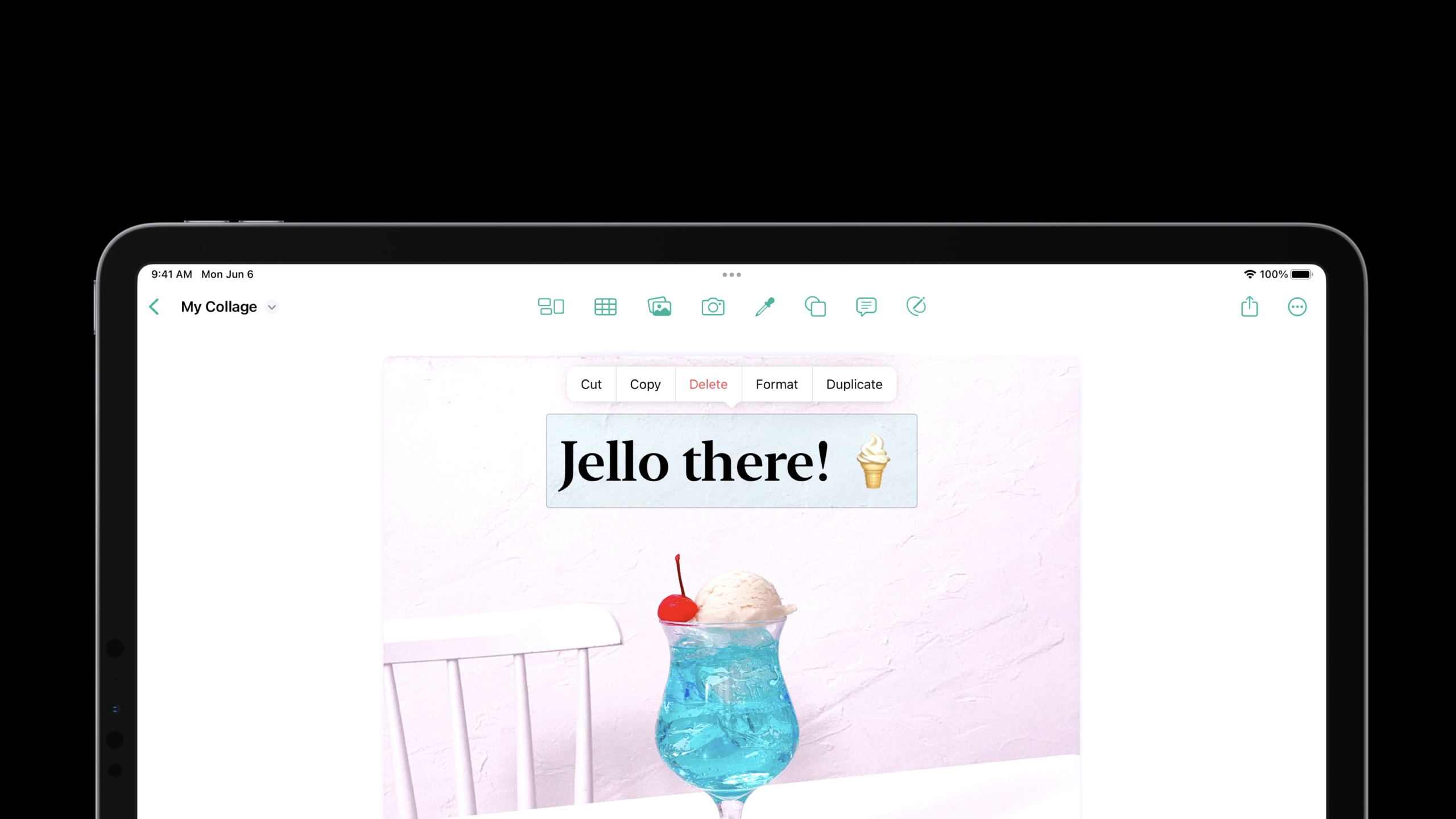
Highlight
iOS 16 引入了”desktop-class editing interactions”概念,专门为 iPad 上的文本编辑和交互体验做了升级。最核心的变化是
UIEditMenuInteraction替代了UIMenuController,新 API 提供了位置感知的编辑菜单,视觉效果和 macOS 的右键菜单更接近。
核心内容
iPad 应用以前常见的问题,是文本编辑和自定义画布的交互不一致。系统文本视图有复制、粘贴、查找。自定义视图想加同样的能力,往往要自己处理手势、菜单位置、键盘快捷键,以及 Mac Catalyst 的右键菜单。
iOS 16 把这类编辑操作收回到系统交互里。文本菜单有新的外观,会根据输入方式切换:触摸时仍然是紧凑菜单,触控板或 Magic Keyboard 右键时显示更接近桌面的 context menu,Mac Catalyst 上桥接到 Mac 用户熟悉的菜单(00:55)。
这场 session 分成两条线。第一条是新的编辑菜单:用文本代理方法和 UIEditMenuInteraction 替代 UIMenuController。第二条是查找与替换:用 UIFindInteraction 给文本内容接入系统查找面板,并让 Command-F、Command-G 这类快捷键按系统习惯工作(11:44)。
详细内容
文本编辑菜单不再靠 UIMenuController
以前往 UITextView 的编辑菜单里塞自定义动作,常见做法是围绕 UIMenuController 做处理。iOS 16 明确把这条路标记为废弃,Apple 要求改用新的文本代理方法,把自定义 UIMenuElement 合并到系统建议动作后面(02:42)。
func textView(
    _ textView: UITextView,
    editMenuForTextIn range: NSRange,
    suggestedActions: [UIMenuElement]
) -> UIMenu? {
    var additionalActions: [UIMenuElement] = []
    if range.length > 0 {
        let highlightAction = UIAction(title: "Highlight", ...)
        additionalActions.append(highlightAction)
    }
    let insertPhotoAction = UIAction(title: "Insert Photo", ...)
    additionalActions.append(insertPhotoAction)
    return UIMenu(children: suggestedActions + additionalActions)
}
关键点:
editMenuForTextIn range在菜单展示时被调用,适合根据当前选区动态决定动作。suggestedActions是系统已经准备好的 Cut、Copy、Paste 等动作。range.length > 0让Highlight只在有选中文本时出现。Insert Photo不依赖选区,所以每次都加入菜单。- 返回
UIMenu(children: suggestedActions + additionalActions),保留系统动作,再追加业务动作。
Apple 还说明,UITextFieldDelegate 和 UITextInput 也有类似方法。没有自定义需求时返回 nil,系统会显示标准菜单(02:55)。
自定义视图用 UIEditMenuInteraction
文本视图之外,问题更明显。比如一块自定义画布里选中了一个对象,用户点一下或右键时,你希望出现复制、粘贴、删除、复制一份这样的菜单。iOS 16 的答案是 UIEditMenuInteraction(04:54)。
let editMenuInteraction = UIEditMenuInteraction(delegate: self)
view.addInteraction(editMenuInteraction)

let tapRecognizer = UITapGestureRecognizer(target: self, action: #selector(didTap(_:)))
tapRecognizer.allowedTouchTypes = [UITouch.TouchType.direct.rawValue as NSNumber]
view.addGestureRecognizer(tapRecognizer)

@objc func didTap(_ recognizer: UITapGestureRecognizer) {
    let location = recognizer.location(in: self.view)
    if self.hasSelectedObjectView(at: location) {
        let configuration = UIEditMenuConfiguration(identifier: nil, sourcePoint: location)
        editMenuInteraction.presentEditMenu(with: configuration)
    }
}
关键点:
UIEditMenuInteraction(delegate: self)创建负责展示编辑菜单的交互对象。view.addInteraction(editMenuInteraction)把交互安装到承载内容的视图上。UITapGestureRecognizer负责定义触摸触发路径。allowedTouchTypes限制为 direct touch,避免把间接指针点击也走到同一套触摸逻辑。location(in:)取出用户触发菜单的位置。hasSelectedObjectView(at:)是业务判断:只有点到可操作对象才展示菜单。UIEditMenuConfiguration的sourcePoint会参与决定哪些 responder 动作可执行。presentEditMenu(with:)显示菜单。
这段代码解决了“怎么弹出菜单”。下一步是解决“菜单不要挡住内容”和“怎么加入业务动作”。这两个点都在 delegate 里完成(07:13)。
func editMenuInteraction(
    _ interaction: UIEditMenuInteraction,
    targetRectFor configuration: UIEditMenuConfiguration
) -> CGRect {
    guard let selectedView = objectView(at: configuration.sourcePoint) else { return .null }
    return selectedView.frame
}

func editMenuInteraction(
    _ interaction: UIEditMenuInteraction,
    menuFor configuration: UIEditMenuConfiguration,
    suggestedActions: [UIMenuElement]
) -> UIMenu? {
    let duplicateAction = UIAction(title: "Duplicate") { ... }
    return UIMenu(children: suggestedActions + [duplicateAction])
}
关键点:
targetRectFor configuration返回菜单锚定区域。- 找不到对象时返回
.null,系统会退回到 configuration 的 source point。 - 返回
selectedView.frame后,菜单围绕选中对象展示,避免遮住内容。 menuFor configuration用来定制本次菜单内容。suggestedActions仍然来自系统和 responder chain。Duplicate是业务动作,被追加在系统动作之后。
这一套还能服务 Mac Catalyst。session 明确说,Mac Catalyst 应用里,右键会桥接到 Mac 用户熟悉的 context menu;iPad idiom 的 Catalyst 应用里,程序化展示的 edit menu 也会桥接过去(08:25)。
菜单动作可以连续执行
编辑菜单也支持连续操作。iOS 16 给 UIMenuElement 增加了 .keepsMenuPresented 属性,适合缩进增加、缩进减少这类会连续点击的动作(10:34)。
UIAction(title: "Increase",
         image: UIImage(systemName: "increase.indent"),
         attributes: .keepsMenuPresented) { ... }

UIAction(title: "Decrease",
         image: UIImage(systemName: "decrease.indent"),
         attributes: .keepsMenuPresented) { ... }
关键点:
title给不同呈现样式提供可读名称。image让菜单在紧凑和桌面样式下都更完整。attributes: .keepsMenuPresented表示动作执行后菜单继续停留。- 处理闭包里的业务逻辑可以被重复触发,用户不需要每次重新打开菜单。
这对文本编辑器特别实用。用户调整缩进、列表层级或格式时,连续点击比“点一下、菜单消失、再打开”更接近桌面操作。
系统视图一行开启查找
第二部分是查找与替换。iOS 16 提供新的系统查找面板,会根据设备形态自动适配:有硬件键盘时浮在 shortcut bar 附近,没有硬件键盘时贴着软件键盘,iPhone 上变成紧凑布局,Mac 上像 AppKit find bar 一样嵌在内容里(12:02)。
如果内容由 UITextView、WKWebView 或 PDFView 展示,接入很小(12:46)。
open var findInteraction: UIFindInteraction? { get }
textView.isFindInteractionEnabled = true
关键点:
- 系统视图已经提供
findInteraction属性。 textView.isFindInteractionEnabled = true开启系统查找交互。- 启用后,硬件键盘上的
Command-F、Command-G、Command-Shift-G会按系统规则工作。 - 视图需要能成为 first responder,快捷键才有目标。
没有硬件键盘时,可以把入口放到导航栏按钮里,然后调用 find interaction 的 presentFindNavigator。在 Mac 上,还要给 find panel 留出嵌入内容区域;如果 interaction 装在 scroll view 上,系统会自动调整 content inset(13:43)。
自定义文本内容接入 UIFindInteraction
如果你的内容由自绘文档、列表式文档、或者已经有一套自己的查找实现承载,UIFindInteraction 仍然可以安装到任意 view 上(15:14)。
Apple 给了两种路径:已有查找实现时,自己 vend 一个 UIFindSession 子类,把现有状态桥接给系统 UI;没有查找实现时,让文档对象实现 UITextSearching,再返回 UITextSearchingFindSession(16:10)。
let customDocument = MyDocument(string: "")
lazy var customView = MyTextView(document: customDocument)

lazy var findInteraction = UIFindInteraction(sessionDelegate: self)

override var canBecomeFirstResponder: Bool { true }

override func viewDidLoad() {
    customView.addInteraction(findInteraction)
}

func findInteraction(_ interaction: UIFindInteraction, sessionFor view: UIView) -> UIFindSession? {
    return UITextSearchingFindSession(searchableObject: customDocument)
}
关键点:
customDocument保存真实文本内容。customView负责显示这个文档。UIFindInteraction(sessionDelegate: self)让当前对象负责提供 find session。canBecomeFirstResponder返回true,让键盘快捷键可以落到这里。customView.addInteraction(findInteraction)把系统查找 UI 安装到自定义视图。sessionFor view被调用时返回一个UIFindSession。UITextSearchingFindSession(searchableObject:)把搜索状态交给系统管理,把实际搜索交给实现UITextSearching的文档对象。
实现 UITextSearching 后,系统会调用 performTextSearch,并传入 aggregator。你把结果交给 aggregator,结果用 UITextRange 表示。aggregator 是线程安全的,所以结果可以在后台线程提供(18:19)。
如果一个界面同时显示多个文档,比如类似 Mail 会话视图的多个邮件内容,UITextSearching 和 UITextSearchingFindSession 还支持跨多个可见文档复用同一个 interaction,用户可以在不同文档的搜索结果之间跳转(19:19)。
核心启发
-
做什么:给 Markdown 编辑器的选中文本增加“Highlight”和“Insert Photo”。 为什么值得做:
UITextViewDelegate的editMenuForTextIn可以根据选区动态追加动作,同时保留系统 Cut、Copy、Paste。 怎么开始:实现textView(_:editMenuForTextIn:suggestedActions:),有选区时追加Highlight,总是追加Insert Photo。 -
做什么:给白板或排版工具的选中对象增加右键菜单和“Duplicate”。 为什么值得做:
UIEditMenuInteraction可以用同一套UIMenuElement同时服务触摸菜单、触控板右键和 Mac Catalyst context menu。 怎么开始:把UIEditMenuInteraction加到画布 view,手势命中对象后调用presentEditMenu(with:),在 delegate 里返回对象 frame 并追加Duplicate。 -
做什么:给大段文本阅读器接入系统查找面板。 为什么值得做:
UITextView、WKWebView、PDFView只需启用 find interaction,就能获得系统面板和标准键盘快捷键。 怎么开始:对文本视图设置isFindInteractionEnabled = true,确认承载视图能成为 first responder,并在无硬件键盘场景提供一个导航栏查找按钮。 -
做什么:给自绘文档实现跨页面查找。 为什么值得做:
UIFindInteraction不限于系统文本控件,UITextSearchingFindSession能把系统查找 UI 接到自定义文档模型。 怎么开始:让文档对象实现UITextSearching,在findInteraction(_:sessionFor:)中返回UITextSearchingFindSession(searchableObject:)。 -
做什么:给缩进、层级调整、格式切换这类动作保留菜单。 为什么值得做:
.keepsMenuPresented允许用户连续执行同一个菜单动作,减少重复打开菜单。 怎么开始:创建UIAction时设置attributes: .keepsMenuPresented,并为动作提供 title 和 SF Symbol 图标。
关联 Session
- Build a desktop-class iPad app — 从导航、工具栏、菜单和编辑 API 的角度,展示 iPad 应用桌面级改造的整体路线。
- Bring multiple windows to your SwiftUI app — 讲 SwiftUI 多窗口能力,和桌面级 iPad 工作流属于同一类生产力改造。
- Compose custom layouts with SwiftUI — 讲 SwiftUI 自定义布局,适合和桌面级编辑界面的复杂布局一起理解。
- Adopt Variable Color in SF Symbols — 讲 SF Symbols 的可变颜色,适合作为菜单和编辑操作图标表现的补充。
评论
GitHub Issues · utterances