
Highlight
iOS 15 让 UIKit 控件可以通过相机把现实文字直接输入到文本字段,并用
textContentType、keyboardType和UIKeyInput控制识别内容、入口位置和接收对象。
核心内容
旅行 App 经常让用户填写纸面信息。酒店电话在确认单上,地址在房间手册里,活动时间在传单上。用户以前只能把纸拿近一点,逐个字符输入到表单里。电话和地址很长,输错一位就要回头检查。
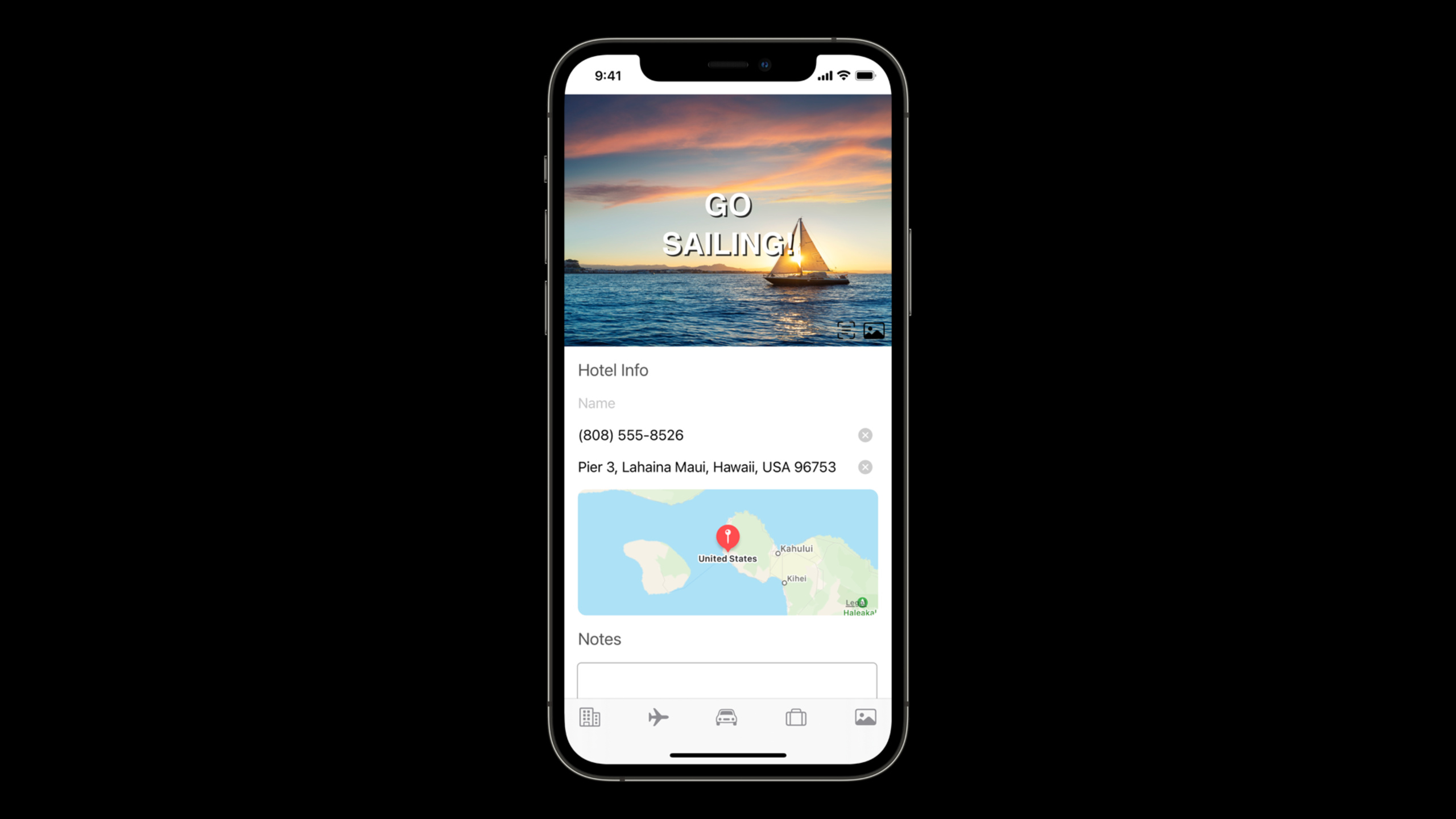
iOS 15 把 Live Text(实况文本)接入了键盘输入。用户在文本字段里打开 Text from Camera,系统启动相机,识别画面里的文字,用户选择后插入到当前输入位置。演示里的旅行日记 App 用它填写酒店电话和地址。
第一次演示还有一个问题。相机看到一整块文档文字,用户仍要拖动选择电话号码。识别已经成功,App 还没有告诉系统自己想要什么内容。
Apple 给出的解法很直接:沿用已有的文本输入属性。textContentType 和 keyboardType 原本用于 AutoFill(自动填充)和键盘布局。iOS 15 的相机输入也读取这些属性。字段声明为电话,系统就过滤电话;字段声明为完整地址,系统就过滤地址。
第二个问题是入口太隐蔽。编辑菜单要二次点击才出现,候选栏有时显示预测文本,用户不一定知道这里能用相机。iOS 15 新增 UIAction.captureTextFromCamera,开发者可以把相机输入放进工具栏、菜单或自己的按钮里。
最后,接收对象不限定为 UITextField 和 UITextView。只要 responder(响应者)实现 UIKeyInput,相机识别出的文字就能通过 insertText(_:) 送进去。演示中,一个 UIImageView 子类接收相机文字,把它显示成图片标题。
详细内容
用内容类型过滤相机识别结果
(02:18)相机输入的过滤依赖 TextContentType 和 KeyboardType。这些属性存在于文本字段和文本视图上。已经为 AutoFill 设置过这些属性的 App,在 iOS 15 会自动获得相机输入过滤收益。
(03:33)演示代码如下。
phone.keyboardType = .phonePad
phone.autocorrectionType = .no

address.textContentType = .fullStreetAddress
关键点:
phone.keyboardType = .phonePad把电话字段的键盘设为电话键盘。phone.autocorrectionType = .no关闭自动纠错;没有自动纠错或预测候选时,iOS 会在候选栏提供快速打开相机的按钮。address.textContentType = .fullStreetAddress声明地址字段需要完整街道地址。- 相机输入读取这些属性后,会忽略不匹配的文字,减少用户手动框选。
(02:53)本场演讲列出的可过滤类型有七种。前四种是已有类型:telephone number、full street address、URL、email。iOS 15 增加了 flight number、shipment tracking number、dates / times / durations。
phone.textContentType = .telephoneNumber
address.textContentType = .fullStreetAddress
website.textContentType = .URL
email.textContentType = .emailAddress
flight.textContentType = .flightNumber
tracking.textContentType = .shipmentTrackingNumber
eventTime.textContentType = .dateTime
关键点:
.telephoneNumber让相机优先抓取电话号码。.fullStreetAddress让相机优先抓取完整地址。.URL和.emailAddress适合从名片、海报、票据中提取网址和邮箱。.flightNumber面向旅行场景,适合登机牌、邮件打印件和行程单。.shipmentTrackingNumber面向物流场景,适合快递单和包裹标签。.dateTime面向活动时间、预约时间和持续时长。
把 Text from Camera 放到自己的入口里
(04:21)系统编辑菜单里的 Text from Camera 入口不一定容易发现。演讲里的 Notes 字段需要二次点击才显示编辑菜单,候选栏还可能被预测文本占用。Apple 建议在想主动推广相机输入时,添加专用 launcher(启动入口)。
(05:07)iOS 15 提供了 UIAction.captureTextFromCamera(responder:identifier:)。
let textFromCamera = UIAction.captureTextFromCamera(responder: self.notes, identifier: nil)关键点:
UIAction.captureTextFromCamera创建一个系统动作。responder: self.notes指定识别出的文本插入到notes这个响应者。identifier: nil表示不提供自定义标识。- 这个 action 自带标题和图像;放入按钮或菜单时,系统会提供一致的显示样式。
- 标题由系统本地化,开发者不需要自己写多语言文案。
(05:41)它可以和其他相机相关动作放在同一个菜单里。
let textFromCamera = UIAction.captureTextFromCamera(responder: self.notes, identifier: nil)

let choosePhotoOrVideo = UIAction(title: "Choose Photo or Video") { _ in
    presentPhotoPicker()
}

let takePhotoOrVideo = UIAction(title: "Take Photo or Video") { _ in
    presentCamera()
}

let scanDocuments = UIAction(title: "Scan Documents") { _ in
    presentDocumentScanner()
}

let cameraMenu = UIMenu(children: [
    choosePhotoOrVideo,
    takePhotoOrVideo,
    scanDocuments,
    textFromCamera
])

let menuToolbarItem = UIBarButtonItem(
    title: nil,
    image: UIImage(systemName: "camera.badge.ellipsis"),
    primaryAction: nil,
    menu: cameraMenu
)
关键点:
textFromCamera是系统相机文本输入动作。choosePhotoOrVideo、takePhotoOrVideo、scanDocuments代表 App 已有的相机或媒体动作。UIMenu(children:)把这些动作组合成一个菜单。textFromCamera放在同一组菜单里,用户能把它理解为相机能力的一部分。UIBarButtonItem(..., menu:)把菜单挂到工具栏按钮上。
显示入口前先检查可用性
(06:29)演讲提醒,添加相机输入入口之前,要先检查 canPerformAction(_:withSender:)。UIAction 内部会调用 UIResponder 上的 captureTextFromCamera,它和 cut、copy、paste 这类标准编辑动作类似,会受上下文影响。
let selector = #selector(UIResponder.captureTextFromCamera(_:))

if notes.canPerformAction(selector, withSender: nil) {
    let textFromCamera = UIAction.captureTextFromCamera(responder: notes, identifier: nil)
    cameraMenuItems.append(textFromCamera)
}
关键点:
#selector(UIResponder.captureTextFromCamera(_:))表示相机文本输入对应的 responder 动作。notes.canPerformAction(selector, withSender: nil)让系统判断当前上下文是否支持这个动作。- 返回
true后再创建并展示入口,可以避免给用户一个不可用按钮。 - 演讲列出的前提包括:设备硬件支持、响应者能处理文本插入、文本字段或文本视图可编辑、用户首选语言列表里至少有一种受支持语言。
让自定义视图接收相机输入
(08:26)文本控件采用 UIKeyInput。相机识别出的文本通过 insertText(_:) 传给响应者。UITextInput 扩展自 UIKeyInput,还能通过 setMarkedText 提供待插入文本预览。预览是可选能力;只想接收最终文本时,实现 UIKeyInput 就够了。
(09:59)演示里的图片标题视图这样实现。
class HeadlineImageView: UIImageView, UIKeyInput {
    var headlineLabel: UILabel = UILabel()
    var hasText: Bool = false

    override init(image: UIImage?) {
        super.init(image: image)
        initializeLabel()
    }

    func insertText(_ text: String) {
        headlineLabel.text = text
    }

    func deleteBackward() { }
}
关键点:
HeadlineImageView继承UIImageView,原始能力偏向图片展示。UIKeyInput让它可以作为文本输入的接收者。headlineLabel用来显示相机识别出的标题文字。hasText是UIKeyInput要求的属性;演讲里这个例子只需要相机输入,所以可以固定为false。insertText(_:)接收相机传入的字符串,并写入headlineLabel.text。deleteBackward()是UIKeyInput要求的方法;这个例子不需要删除逻辑,所以方法体为空。
(09:21)如果自定义响应者还想参与过滤,可以采用 UITextInputTraits,因为它提供 keyboardType 和 textContentType 这类可选属性。
final class TrackingNumberView: UIView, UIKeyInput, UITextInputTraits {
    var label = UILabel()
    var hasText: Bool { label.text?.isEmpty == false }
    var textContentType: UITextContentType! = .shipmentTrackingNumber
    var keyboardType: UIKeyboardType = .asciiCapable

    func insertText(_ text: String) {
        label.text = text
    }

    func deleteBackward() {
        label.text = nil
    }
}
关键点:
UIKeyInput负责接收插入文本。UITextInputTraits负责暴露输入特征。textContentType = .shipmentTrackingNumber告诉相机优先寻找快递单号。keyboardType = .asciiCapable给这个输入对象一个键盘类型提示。hasText根据当前标签内容返回状态。deleteBackward()清空标签内容,补齐基本删除行为。
核心启发
-
做什么:给酒店、民宿、会议签到表单添加纸面信息扫描。 为什么值得做:本场演讲展示了电话和地址过滤,正好覆盖入住单、确认函和前台资料。 怎么开始:给电话字段设置
.telephoneNumber和.phonePad,给地址字段设置.fullStreetAddress,再把UIAction.captureTextFromCamera放到表单工具栏。 -
做什么:做一个快递单号快速录入组件。 为什么值得做:iOS 15 新增
.shipmentTrackingNumber,相机可以从包裹标签里过滤出单号。 怎么开始:把输入控件的textContentType设为.shipmentTrackingNumber,在控件旁放一个相机按钮,按钮触发captureTextFromCamera。 -
做什么:给旅行 App 增加航班号扫描。 为什么值得做:演讲明确提到
.flightNumber适合旅行 App,用户可以从登机牌或行程单上录入航班。 怎么开始:为航班字段设置.flightNumber,为日期字段设置.dateTime,让相机分别过滤航班号和出发时间。 -
做什么:给照片封面添加现实文字标题。 为什么值得做:演示中的
HeadlineImageView说明图片视图也能通过UIKeyInput接收相机文字。 怎么开始:创建UIImageView子类,添加UILabel,实现insertText(_:),再用UIAction.captureTextFromCamera(responder: imageView, identifier: nil)启动输入。 -
做什么:给活动海报收藏 App 添加时间识别。 为什么值得做:iOS 15 的相机过滤支持 dates、times 和 durations,适合从海报和传单录入活动时间。 怎么开始:把时间字段的
textContentType设为.dateTime,识别完成后再把字符串交给自己的日期解析逻辑。
关联 Session
- Your guide to keyboard layout — 学习
UIKeyboardLayoutGuide,把自定义相机输入入口和键盘工具栏放到正确位置。 - Extract document data using Vision — 如果需要自己处理文档识别、条码和实时相机分析,可以继续看 Vision 的文档提取能力。
- Support Full Keyboard Access in your iOS app — 相机输入仍属于输入体验,完整键盘访问能帮助 App 覆盖更多交互方式。
- What’s new in camera capture — 想进一步控制相机捕获、视频效果和性能,可以补看 iOS 15 相机捕获更新。
评论
GitHub Issues · utterances