
Highlight
Apple 在 iOS 15 为 UITableView 和 UICollectionView 改进了 cell 预取、diffable data source 更新和 UIImage 预备解码 API,开发者可以减少滚动掉帧、异步内容错位和大图解码卡顿。
核心内容
很多应用的首页就是列表。旅行 App 展示目的地照片,社交 App 展示帖子,电商 App 展示商品卡片。每个 cell 看起来很简单:一张图,两行文字。用户一滑动,问题就暴露出来。
旧做法把太多工作放在 cell 即将显示的那一帧。collection view 需要取 cell、配置内容、计算布局,再把结果提交给渲染系统。如果这次提交超过当前屏幕刷新率给出的时间窗口,用户看到的就是一次停顿。
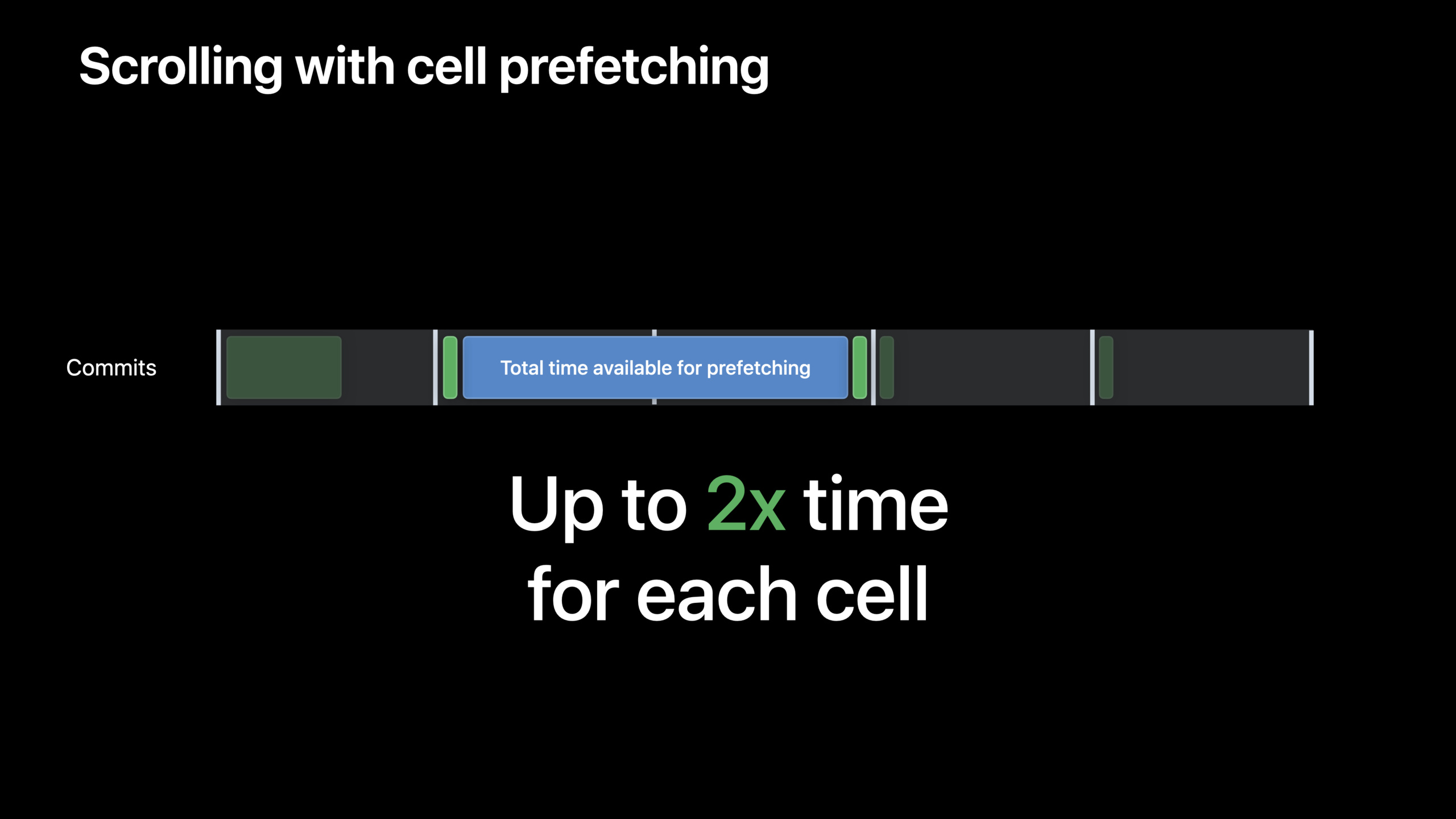
iOS 15 先改了系统层面的预取。UITableView 和 UICollectionView 会利用滚动过程中的空闲时间,提前准备下一个 cell。等它真正进入屏幕时,系统只需要显示已经准备好的结果。
这项优化不要求你改业务代码。只要用 iOS 15 SDK 构建,系统就能启用新的 cell 预取机制。它覆盖 UICollectionView 的列表、其他 compositional layout,也覆盖 UITableView。
系统预取只能帮你争取时间。cell 配置如果很慢,或者图片在主线程解码,仍然会掉帧。所以 Apple 又给出三条配套规则:数据源保存稳定 ID,异步内容用 reconfigureItems 更新,图片先用 prepareForDisplay 或 prepareThumbnail 准备好。
稳定 ID 让 diffable data source 少做事
Diffable data source(差异化数据源)保存的是模型标识符。它不应该保存整个模型对象。这样,点赞数、标题、图片状态变化时,item 的身份仍然稳定。
稳定 ID 的好处很直接。snapshot 发生变化时,系统可以只处理真正变化的项目。iOS 15 还改进了无动画 apply 的行为:以前可能内部走 reloadData,现在会应用差异,避免丢弃并重建屏幕上的所有 cell。
cell registration 必须创建一次
Cell registration(cell 注册)把某类 cell 的配置逻辑集中在一起。它会收到 diffable data source 传来的 item ID,然后从你的 store 取出模型和图片。
这里有一个容易踩的坑:registration 要在 cell provider 外面创建。如果每次 provider 调用都创建新的 registration,collection view 就无法复用原来的 cell。
异步图片不能直接抓住 cell
远程图片加载完成时,原来的 cell 可能已经被复用给另一个帖子。直接在回调里写 cell.imageView.image = ...,会把图片放到错误的位置。
iOS 15 的 reconfigureItems 解决这个问题。图片下载完成后,只告诉 data source 哪个 ID 需要重新配置。系统会重新运行 registration handler,并复用现有 cell。
大图要提前准备成可显示位图
图片文件通常是 JPEG、PNG 或 HEIC。UIImageView 把新图片提交到屏幕时,需要把压缩格式解码成像素数据。这个过程可能发生在主线程,时间一长就会错过提交期限。
iOS 15 的 UIImage preparation API 允许你提前做这件事。prepareForDisplay 生成已经准备好的 UIImage。prepareThumbnail 还会按目标尺寸缩小图片,节省 CPU 和内存。
详细内容
(01:25)用稳定 ID 组织列表数据
Apple 的示例 App 用 DestinationPost 表示一条旅行目的地帖子。这个类型遵守 Identifiable,核心字段是稳定的 id。
struct DestinationPost: Identifiable {
    // Each post has a unique identifier
    var id: String

    var title: String
    var numberOfLikes: Int
    var assetID: Asset.ID
}
关键点:
DestinationPost: Identifiable表示每条帖子都有可识别身份。id是每条帖子的唯一标识,其他属性变化时它保持不变。title和numberOfLikes是会变化的内容,不适合拿来当 diffable data source 的 item 身份。assetID把帖子和图片资源关联起来,cell 配置时再去资源 store 取图。
接下来,data source 使用 DestinationPost.ID 作为 item identifier。
class DestinationGridViewController: UIViewController {
    // Use DestinationPost.ID as the item identifier
    var dataSource: UICollectionViewDiffableDataSource<Section, DestinationPost.ID>

    private func setInitialData() {
        var snapshot = NSDiffableDataSourceSnapshot<Section, DestinationPost.ID>()

        // Only one section in this collection view, identified by Section.main
        snapshot.appendSections([.main])

        // Get identifiers of all destination posts in our model and add to initial snapshot
        let itemIdentifiers = postStore.allPosts.map { $0.id }
        snapshot.appendItems(itemIdentifiers)

        dataSource.apply(snapshot, animatingDifferences: false)
    }
}
关键点:
UICollectionViewDiffableDataSource<Section, DestinationPost.ID>把 item 类型限定为帖子 ID。NSDiffableDataSourceSnapshot<Section, DestinationPost.ID>()创建同样使用 ID 的 snapshot。snapshot.appendSections([.main])添加唯一 section。postStore.allPosts.map { $0.id }从模型数组提取稳定标识符。snapshot.appendItems(itemIdentifiers)只把 ID 放入 snapshot。dataSource.apply(snapshot, animatingDifferences: false)应用初始数据;iOS 15 起,无动画 apply 会应用差异,减少额外重建工作。
(03:47)用 cell registration 集中配置 cell
Cell registration 的 handler 会收到 cell、indexPath 和 postID。示例里用 postID 查出帖子,再用 assetID 查出图片资源。
let cellRegistration = UICollectionView.CellRegistration<DestinationPostCell,
                                                         DestinationPost.ID> {
    (cell, indexPath, postID) in

    let post = self.postsStore.fetchByID(postID)
    let asset = self.assetsStore.fetchByID(post.assetID)

    cell.titleView.text = post.region
    cell.imageView.image = asset.image
}
关键点:
UICollectionView.CellRegistration<DestinationPostCell, DestinationPost.ID>声明 cell 类型和 item ID 类型。- handler 的
postID来自 diffable data source。 postsStore.fetchByID(postID)用 ID 取回完整帖子数据。assetsStore.fetchByID(post.assetID)用资源 ID 取回图片资源。cell.titleView.text = post.region设置标题内容。cell.imageView.image = asset.image设置当前可用图片,可能是占位图。
使用 registration 时,把它传给 dequeueConfiguredReusableCell。
let cellRegistration = UICollectionView.CellRegistration<DestinationPostCell,
                                                         DestinationPost.ID> {
    (cell, indexPath, postID) in
    ...
}

let dataSource = UICollectionViewDiffableDataSource<Section.ID,
                                                    DestinationPost.ID>(collectionView: cv){
    (collectionView, indexPath, postID) in

     return collectionView.dequeueConfiguredReusableCell(using: cellRegistration,
                                                           for: indexPath,
                                                          item: postID)
}
关键点:
cellRegistration在 data source 的 cell provider 外面创建。UICollectionViewDiffableDataSource的 cell provider 负责返回 cell。dequeueConfiguredReusableCell会取出可复用 cell,并运行 registration handler。item: postID把当前 item ID 传给 handler。- registration 如果在 provider 内部重复创建,collection view 会为每个 registration 维护新的复用队列,复用效果会变差。
(08:22)让系统用空闲帧提前准备 cell
这段没有新的业务 API。核心变化在 UIKit 内部:iOS 15 的 UITableView 和 UICollectionView 会在短 commit 后利用剩余时间预取 cell。
// Build with the iOS 15 SDK to enable the new cell prefetching behavior
// in UITableView and UICollectionView.
关键点:
- cell 生命周期分成 preparation(准备)和 display(显示)。
- preparation 包括取 cell、运行 cell provider、执行 registration handler、查询布局属性和计算尺寸。
- iOS 15 会把 preparation 提前到 cell 上屏之前。
- prepared cell 可能永远不显示,例如用户突然反向滚动。
- 同一个 prepared cell 离屏后也可能进入等待状态,之后再次显示给同一个 index path。
- heavy work 应放在 preparation 阶段完成,不要等
willDisplay再做。
(14:17)不要在异步回调里直接更新旧 cell
远程图片场景里,资源 store 先返回占位图。错误写法是在下载回调里直接改 cell。
let cellRegistration = UICollectionView.CellRegistration<DestinationPostCell,
                                                         DestinationPost.ID> {
    (cell, indexPath, postID) in

    let post = self.postsStore.fetchByID(postID)
    let asset = self.assetsStore.fetchByID(post.assetID)

    if asset.isPlaceholder {
        self.assetsStore.downloadAsset(post.assetID) { asset in
            cell.imageView.image = asset.image
        }
    }

    cell.titleView.text = post.region
    cell.imageView.image = asset.image
}
关键点:
asset.isPlaceholder表示当前资源仍为占位图。downloadAsset发起异步下载。- 回调捕获了
cell对象。 - cell 会被复用;下载完成时,这个对象可能已经代表另一个帖子。
- 这段代码会导致图片错位。
(15:15)用 reconfigureItems 重新运行配置逻辑
正确做法是把更新请求交还给 data source。iOS 15 的 reconfigureItems 会重新配置已有 cell,避免重新 dequeue 一个新 cell。
private func setPostNeedsUpdate(id: DestinationPost.ID) {
    var snapshot = dataSource.snapshot()
    snapshot.reconfigureItems([id])
    dataSource.apply(snapshot, animatingDifferences: true)
}
关键点:
dataSource.snapshot()取出当前 snapshot。snapshot.reconfigureItems([id])标记指定 item 需要重新配置。dataSource.apply应用这次配置更新。reconfigureItems会复用 item 现有 cell,并重新运行 registration handler。- 它适合内容变化但 item 身份不变的场景。
下载完成后,只调用 setPostNeedsUpdate。
let cellRegistration = UICollectionView.CellRegistration<DestinationPostCell,
                                                         DestinationPost.ID> {
    (cell, indexPath, postID) in

    let post = self.postsStore.fetchByID(postID)
    let asset = self.assetsStore.fetchByID(post.assetID)

    if asset.isPlaceholder {
        self.assetsStore.downloadAsset(post.assetID) { _ in
            self.setPostNeedsUpdate(id: post.id)
        }
    }

    cell.titleView.text = post.region
    cell.imageView.image = asset.image
}
关键点:
- handler 每次都先按
postID获取当前帖子。 - 如果拿到占位图,就开始下载完整资源。
- 下载回调不再持有并修改旧 cell。
setPostNeedsUpdate(id: post.id)只通知 data source 重新配置这个帖子。- 第二次运行 handler 时,
fetchByID会返回完整图片资源。 - view 更新逻辑仍然集中在 registration handler 里。
(15:52)用 data source prefetching 提前下载内容
系统会提前准备 cell。你的数据也可以提前准备。UICollectionViewDataSourcePrefetching 适合启动网络请求,降低占位图显示时间。
var prefetchingIndexPaths: [IndexPath: Cancellable]

func collectionView(_ collectionView: UICollectionView,
                    prefetchItemsAt indexPaths [IndexPath]) {
   // Begin download work
    for indexPath in indexPaths {
        guard let post = fetchPost(at: indexPath) else { continue }
        prefetchingIndexPaths[indexPath] = assetsStore.loadAssetByID(post.assetID)
    }
}

func collectionView(_ collectionView: UICollectionView,
                    cancelPrefetchingForItemsAt indexPaths: [IndexPath]) {
    // Stop fetching
    for indexPath in indexPaths {
        prefetchingIndexPaths[indexPath]?.cancel()
    }
}
关键点:
prefetchingIndexPaths保存 index path 与下载任务的对应关系。prefetchItemsAt在 cell 需要显示前被调用。fetchPost(at:)根据 index path 找到帖子。assetsStore.loadAssetByID(post.assetID)开始加载资源。cancelPrefetchingForItemsAt在预取不再需要时被调用。cancel()停止对应下载,避免浪费网络和电量。
(18:43)用 prepareForDisplay 提前准备大图
图片显示前必须解码成位图。iOS 15 的 prepareForDisplay 可以提前完成这一步,完成后再回主线程更新 image view。
// Initialize the full image
let fullImage = UIImage()

// Set a placeholder before preparation
imageView.image = placeholderImage

// Prepare the full image
fullImage.prepareForDisplay { preparedImage in
    DispatchQueue.main.async {
       self.imageView.image = preparedImage
    }
}
关键点:
fullImage是原始大图。imageView.image = placeholderImage先显示廉价占位图。prepareForDisplay在后台准备适合显示的图片。- 回调里的
preparedImage是已经准备好的 UIImage。 DispatchQueue.main.async回到主线程更新 UI。- 设置 prepared image 时,image view 不需要再做昂贵准备工作。
在下载路径里,可以把准备和缓存放在 completion handler 之前。
func downloadAsset(_ id: Asset.ID,
                   completionHandler: @escaping (Asset) -> Void) -> Cancellable {
    // Check for an already prepared image
    if let preparedAsset = imageCache.fetchByID(id) {
        completionHandler(preparedAsset)
        return AnyCancellable {}
    }
    return fetchAssetFromServer(assetID: id) { asset in
        asset.image.prepareForDisplay { preparedImage in
            // Store the image in the cache.
            self.imageCache.add(asset: asset.withImage(preparedImage!))
            DispatchQueue.main.async {
                completionHandler(asset)
            }
        }
    }
}
关键点:
imageCache.fetchByID(id)先查找已经准备好的图片资源。- 找到缓存后直接执行
completionHandler。 AnyCancellable {}返回一个可取消对象,保持方法签名一致。fetchAssetFromServer下载原始资源。asset.image.prepareForDisplay在下载后准备图片。imageCache.add(asset: asset.withImage(preparedImage!))把准备后的图片放入内存缓存。DispatchQueue.main.async确保 completion handler 在主线程回调。
(20:50)用 prepareThumbnail 为目标尺寸准备缩略图
头像和小图不需要完整大图。prepareThumbnail(of:) 会按目标尺寸缩放并准备图片,减少 CPU 和内存占用。
// Initialize the full image
let profileImage = UIImage(...)

// Set a placeholder before preparation
posterAvatarView.image = placeholderImage

// Prepare the image
profileImage.prepareThumbnail(of: posterAvatarView.bounds.size) { thumbnailImage in
    DispatchQueue.main.async {
        self.posterAvatarView.image = thumbnailImage
    }
}
关键点:
profileImage是原始图片。posterAvatarView.image = placeholderImage先显示占位图。posterAvatarView.bounds.size提供目标显示尺寸。prepareThumbnail(of:)按目标尺寸准备缩略图。- 回调得到
thumbnailImage。 - 主线程把缩略图设置到头像视图。
核心启发
-
做什么:给图片瀑布流加稳定 ID 数据层。 为什么值得做:diffable data source 依赖稳定 identifier;内容变化时可以只重新配置对应 item。 怎么开始:让模型遵守
Identifiable,snapshot 只保存Model.ID,cell registration 中再用 ID 查 store。 -
做什么:把远程图片列表改成占位图 +
reconfigureItems。 为什么值得做:下载回调直接更新 cell 容易错位;reconfigureItems会按 item ID 重新运行配置逻辑。 怎么开始:资源 store 返回 placeholder asset,下载完成后调用snapshot.reconfigureItems([id])。 -
做什么:为首页大图建立内存级 prepared image cache。 为什么值得做:
prepareForDisplay能提前完成图片显示所需的位图准备,减少主线程提交压力。 怎么开始:在下载完成后调用asset.image.prepareForDisplay,把asset.withImage(preparedImage)放入 cache。 -
做什么:给头像、商品缩略图、相册网格使用目标尺寸缩略图。 为什么值得做:
prepareThumbnail(of:)会按视图尺寸处理图片,节省 CPU 时间和内存。 怎么开始:用 image view 的bounds.size作为目标尺寸,准备完成后回主线程设置图片。 -
做什么:为列表网络资源接入 data source prefetching。 为什么值得做:预取能让图片下载和准备更早开始,用户看到占位图的时间会缩短。 怎么开始:实现
collectionView(_:prefetchItemsAt:)启动下载,并在cancelPrefetchingForItemsAt里取消无用任务。
关联 Session
- What’s new in UIKit — 了解 iOS 15 UIKit 的 API、性能和界面更新。
- Take your iPad apps to the next level — 学习 iPad 应用的窗口、键盘和指针交互,适合复杂列表 App。
- Explore structured concurrency in Swift — 用 Swift 并发改造列表里的异步下载和取消逻辑。
- Showcase app data in Spotlight — 把本地数据索引给 Spotlight,补充列表内容的搜索入口。
评论
GitHub Issues · utterances