
Highlight
SwiftUI 在 Text、LocalizedStringKey、Markdown、FormatStyle、键盘快捷键和 Xcode 13 导出流程中补齐本地化能力,让开发者把字符串、格式和布局交给系统处理,减少多语言适配中的手工修正。
核心内容
很多应用第一次做本地化,问题都出在细节。
英文界面里,一个按钮写成 Done,一个标签写成 Ingredients,看起来没有问题。到了俄语、阿拉伯语或立陶宛语,文本长度、语义上下文、书写方向、键盘布局都会变化。
过去,开发者经常要自己检查这些变化。哪些字符串能导出给翻译?哪个 Ingredients 是菜谱里的“配料”,哪个是菜单里的“原料”?卡路里单位要怎样按地区显示?快捷键在非美式键盘上能不能按出来?这些问题很容易拖到发布前才暴露。
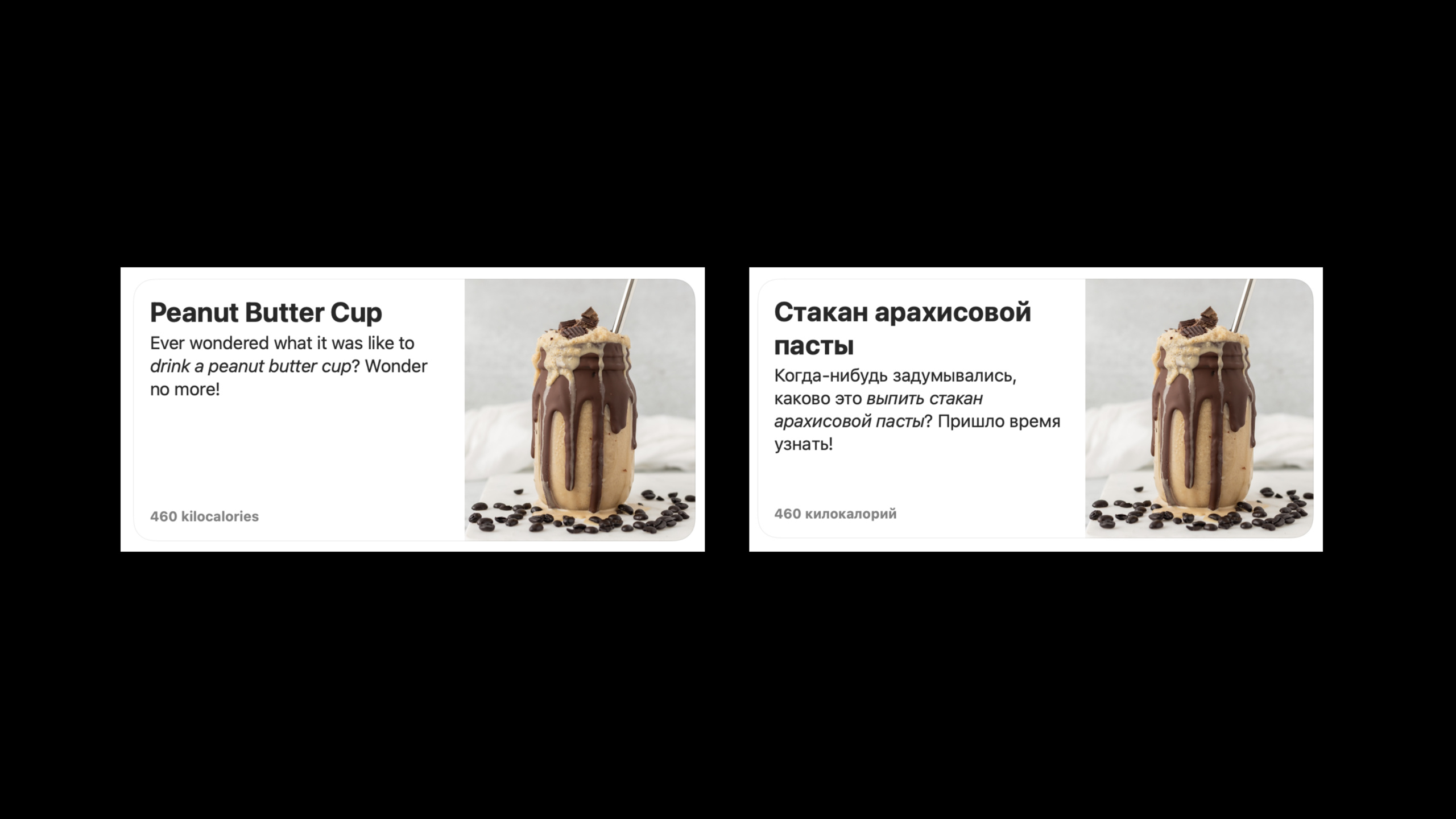
Apple 在这场 session 里,用 Fruta 示例应用演示了一条新的路径:SwiftUI 默认把 Text 的字符串字面量当成本地化键;自定义视图可以用 LocalizedStringKey 保持同样行为;样式交给 Markdown;数值交给新的格式化 API;布局和键盘快捷键交给系统自动适配。
Xcode 13 也改变了导出流程。导出本地化内容时,Xcode 可以构建目标,并通过 Swift 编译器提取 LocalizedStringKey。多行字符串、SwiftUI 自定义视图里的字符串,都能更准确地进入 localization catalog。
结果是,开发者不需要为每一种语言写一套 UI。你只要把可翻译内容暴露出来,给翻译足够上下文,再用系统格式化数据,SwiftUI 会处理大量语言差异。
详细内容
字符串字面量会自动查本地化表
(01:34)SwiftUI 的 Text 接收字符串字面量时,会在 main bundle 里做 localized string lookup。按钮标题、标签、提示文案都可以从这里开始。
import SwiftUI

struct RewardsSheet: View {
    let done: () -> Void

    var body: some View {
        Button(action: done) {
            Text("Done", comment: "Button title to dismiss rewards sheet")
        }
    }
}
关键点:
Button(action: done)使用传入的done闭包关闭奖励页面。Text("Done", comment: ...)把Done暴露为可本地化字符串。comment给翻译说明语境:这是关闭奖励 sheet 的按钮标题。- 运行时,SwiftUI 根据当前语言从 bundle 中查找对应翻译。
(01:58)字符串插值也会被提取。Xcode 13 会根据插值变量的类型推断 format specifier。
import SwiftUI

struct RewardsCard: View {
    let totalStamps: Int

    var body: some View {
        Text("You are \(10 - totalStamps) points away from a free smoothie!")
    }
}
关键点:
totalStamps是用户已经获得的点数。10 - totalStamps计算距离免费 smoothie 还差多少点。- 插值表达式会进入导出的本地化字符串文件或 catalog。
- Xcode 13 根据
Int类型推断格式占位符,减少手工写错%d、%@的机会。
(02:06)同一个英文词在不同场景里可能需要不同译法。Text 可以通过 tableName 把字符串放进独立表。
import SwiftUI

struct IngredientHeaders: View {
    var body: some View {
        VStack(alignment: .leading) {
            Text(
                "Ingredients.recipe",
                tableName: "Ingredients",
                comment: "Ingredients in a recipe. For languages that have different words for \"Ingredient\" based on semantic context."
            )
            Text(
                "Ingredients.menu",
                tableName: "Ingredients",
                comment: "Ingredients in a smoothie. For languages that have different words for \"Ingredient\" based on semantic context."
            )
        }
    }
}
关键点:
- 两个字符串都放在
Ingredients表里,便于管理同一类文案。 Ingredients.recipe用在菜谱上下文。Ingredients.menu用在 smoothie 菜单上下文。comment明确告诉翻译:某些语言会根据语义上下文选择不同词。
自定义 SwiftUI 视图要接收 LocalizedStringKey
(02:52)问题经常发生在自定义视图。你把 String 传给组件,再在组件内部交给 Text,Xcode 可能无法把这个字面量当成 SwiftUI 本地化键处理。
解决方式是把参数类型改成 LocalizedStringKey。
import SwiftUI

struct Card: View {
    var title: LocalizedStringKey
    var subtitle: LocalizedStringKey

    var body: some View {
        Circle()
            .fill(BackgroundStyle())
            .overlay(
                VStack(spacing: 16) {
                    Text(title)
                    Text(subtitle)
                }
            )
    }
}

struct OrderCompleteView: View {
    var body: some View {
        Card(
            title: "Thank you for your order!",
            subtitle: "We will notify you when your order is ready."
        )
    }
}
关键点:
title和subtitle使用LocalizedStringKey,保留 SwiftUI 的本地化语义。Text(title)和Text(subtitle)在运行时从 bundle 读取翻译。Card(...)调用处仍然传字符串字面量,写法不变。- Xcode 导出本地化内容时,可以提取传给
Card的标题和副标题。
(03:47)Xcode 13 导出本地化内容时可以使用编译器。多行字符串也能被正确解析。
import SwiftUI

struct SmoothieDescription: View {
    var body: some View {
        Text("""
        A delicious blend of tropical fruits and blueberries will
        have you sambaing around like you never knew you could!
        """,
        comment: "Tropical Blue smoothie description")
    }
}
关键点:
- 三引号声明多行字符串,适合较长描述文案。
Text仍然接收可本地化内容。comment标明这是 Tropical Blue smoothie 的描述。- Xcode 13 借助 Swift 编译器提取字符串,减少多行文本解析失败。
布局默认支持更长文本和从右到左语言
(04:12)本地化之后,文本通常会变长。SwiftUI 控件在合适场景下会让 Text 换行,避免直接裁切。
(04:26)从右到左语言也会影响布局方向。SwiftUI 会翻转表格单元格布局,并在合适时镜像 tab bar 里的符号。
开发者需要避免写死 left 和 right。Apple 在演示中强调了 leading 这样的方向无关写法。
import SwiftUI

struct SmoothieSummary: View {
    let smoothieTitle: LocalizedStringKey
    let ingredients: LocalizedStringKey

    var body: some View {
        VStack(alignment: .leading) {
            Text(smoothieTitle)
                .font(.headline)
            Text(ingredients)
        }
    }
}
关键点:
VStack(alignment: .leading)使用语义方向。- 在从左到右语言里,
leading通常对应左侧。 - 在从右到左语言里,系统可以把
leading映射到另一侧。 Text负责显示本地化后的 smoothie 名称和配料文字。
Markdown 让翻译决定样式落点
(05:13)SwiftUI 的 Text 可以直接显示带 Markdown 的本地化字符串。这样做的重点是把样式和翻译放在同一个字符串里。
import SwiftUI

struct LemonberryDescription: View {
    var body: some View {
        Text(
            "A refreshing blend that's a *real kick*!",
            comment: "Lemonberry smoothie description"
        )
    }
}
关键点:
*real kick*使用 Markdown emphasis。- 字符串仍然会作为本地化内容导出。
- 翻译可以根据目标语言调整被强调的词。
- SwiftUI 直接渲染带样式的
Text,不需要拆分多个文本片段。
FormatStyle 直接处理地区化数值
(06:04)iOS 15 之前,Fruta 需要创建 MeasurementFormatter,再把卡路里转成字符串。
import Foundation
import SwiftUI

struct LegacyCaloriesView: View {
    let nutritionFactKilocalories: Double

    static let measurementFormatter: MeasurementFormatter = {
        let formatter = MeasurementFormatter()
        formatter.unitStyle = .long
        formatter.unitOptions = .providedUnit
        return formatter
    }()

    var body: some View {
        let calories = Measurement<UnitEnergy>(
            value: nutritionFactKilocalories,
            unit: .kilocalories
        )

        return VStack(alignment: .leading) {
            Text(Self.measurementFormatter.string(from: calories))
            Text("Energy: \(calories, formatter: Self.measurementFormatter)")
        }
    }
}
关键点:
Measurement<UnitEnergy>表示带单位的能量值。MeasurementFormatter设置单位样式为.long。.providedUnit保留传入的.kilocalories单位。- 第一个
Text先把测量值转成字符串。 - 第二个
Text在插值中使用 formatter。
(06:22)iOS 15 的新格式化 API 可以在展示位置声明格式。
import Foundation
import SwiftUI

struct CaloriesView: View {
    let nutritionFactKilocalories: Double

    var body: some View {
        let calories = Measurement<UnitEnergy>(
            value: nutritionFactKilocalories,
            unit: .kilocalories
        )

        return VStack(alignment: .leading) {
            Text(calories.formatted(.measurement(width: .wide, usage: .food)))
            Text("Energy: \(calories, format: .measurement(width: .wide, usage: .food))")
        }
    }
}
关键点:
calories.formatted(...)直接返回适合当前 locale 的显示文本。.measurement(width: .wide, usage: .food)声明测量值的展示宽度和使用场景。usage: .food告诉系统这是食品能量场景。Text的插值可以直接接收format:,代码更靠近 UI 语义。
键盘快捷键会按当前键盘布局重映射
(06:53)macOS Monterey 和 iPadOS 15 会根据用户当前键盘布局调整 SwiftUI 里定义的快捷键。
Apple 的例子是 Command +。在美式键盘上它容易输入;在立陶宛语键盘上,原来的组合无法在按住 Command 时打出。系统会把它重映射成能输入的组合。
import SwiftUI

struct SmoothieCommands: Commands {
    let smoothie: Smoothie

    var body: some Commands {
        CommandMenu(Text("Smoothie", comment: "Menu title for smoothie-related actions")) {
            SmoothieFavoriteButton(smoothie)
                .keyboardShortcut("+")
        }
    }
}

struct Smoothie {}

struct SmoothieFavoriteButton: View {
    let smoothie: Smoothie

    init(_ smoothie: Smoothie) {
        self.smoothie = smoothie
    }

    var body: some View {
        Button("Favorite") {}
    }
}
关键点:
CommandMenu的标题用Text,可以添加翻译注释。SmoothieFavoriteButton(smoothie)是菜单中的动作入口。.keyboardShortcut("+")定义添加收藏的快捷键。- 系统根据当前键盘布局调整可输入的组合,开发者不需要为每种键盘布局写分支。
Xcode 13 的本地化工作流更依赖编译器
(08:47)Xcode 13 增强了 Swift 字符串提取。项目里的 Build Setting Use Compiler to Extract Swift Strings 对新 Swift 项目默认开启,旧 SwiftUI 项目可以手动打开。
import SwiftUI

struct StepperView: View {
    var label: LocalizedStringKey
    @Binding var value: Int

    var body: some View {
        Stepper(value: $value) {
            Text(label)
        }
    }
}
关键点:
label使用LocalizedStringKey,避免自定义视图吞掉本地化信息。@Binding var value接收外部状态。Stepper(value: $value)修改绑定值。Text(label)把可本地化标签显示在步进器旁边。
(13:53)Xcode localization catalog 会展示 key、source string、translation 和 comment。翻译看不到变量名,所以有歧义的字符串要补注释。
import SwiftUI

struct FavoritesTab: View {
    var body: some View {
        Label {
            Text("Favorites", comment: "Tab title. Noun: the list of favorite smoothies.")
        } icon: {
            Image(systemName: "heart")
        }
    }
}
关键点:
Label用于 tab bar 项。- 标题用
Text初始化,才能提供comment。 - 注释说明
Favorites是名词,指收藏列表。 - 翻译人员不用猜这是动作还是栏目名称。
核心启发
-
做什么:给自定义组件做一次本地化类型审计。 为什么值得做:这场 session 明确指出,自定义 SwiftUI 视图应使用
LocalizedStringKey或接收Text,否则字符串可能无法正确导出。 怎么开始:搜索项目里的var title: String、let label: String,优先把展示型参数改成LocalizedStringKey,再用伪语言预览检查。 -
做什么:为支付、收藏、订阅等高风险文案补翻译注释。 为什么值得做:Xcode catalog 里翻译看不到变量名,
Buy recipe for %@这类字符串会产生歧义。 怎么开始:把Text("Favorites")改成Text("Favorites", comment: "...");Label需要用Label { Text(...) } icon: { ... }写法。 -
做什么:把数值展示从手写字符串迁移到
FormatStyle。 为什么值得做:卡路里、长度、重量、日期在不同地区有不同格式,Text("%lf Calories")会把地区差异丢给翻译。 怎么开始:把MeasurementFormatter或字符串拼接替换为value.formatted(...),在Text插值里使用format:。 -
做什么:用 Markdown 管理本地化文本里的强调样式。 为什么值得做:不同语言强调的位置可能不同,把样式嵌在可翻译字符串里,翻译可以调整重点词。 怎么开始:把多个
Text拼接的强调文案合并成一个 Markdown 字符串,例如Text("A *real kick*!")。 -
做什么:发布前加入伪语言和键盘布局检查。 为什么值得做:伪语言能暴露漏提取的字符串,非美式键盘能暴露不可输入的快捷键。 怎么开始:在 scheme editor 的 App Language 里选择 Accented Pseudolanguage;为常用命令保留
.keyboardShortcut(...),让 macOS 和 iPadOS 做布局重映射。
关联 Session
- Streamline your localized strings — 继续讲本地化字符串的组织、复数形式、格式化和 Xcode 导出流程。
- What’s new in Foundation — 介绍 Swift 原生
AttributedString、Markdown 和新的格式化 API。 - What’s new in SwiftUI — 概览 SwiftUI 2021 的文本、格式化、键盘交互和多平台更新。
- Support Full Keyboard Access in your iOS app — 讲解如何让应用更好支持键盘导航和辅助输入。
评论
GitHub Issues · utterances