
Highlight
SwiftUI 在 2021 年新增
.searchable、isSearching、searchCompletion和.onSubmit(of: .search),开发者可以用声明式代码为跨平台应用添加搜索栏、搜索结果和搜索建议。
核心内容
一个列表应用做大以后,搜索会变成刚需。天气应用里有城市列表,音乐应用里有歌曲列表,设计工具里有调色板列表。用户知道自己要找什么,却被迫从头滚到尾。
以前做搜索,第一步是放一个搜索框。第二步是把输入同步到状态。第三步是根据输入切换结果列表。到了 iPadOS、macOS、watchOS、tvOS,还要分别处理搜索框的位置和交互习惯。
SwiftUI 2021 把这些事情收进一个修饰符:.searchable。它接收一个绑定的字符串,把搜索字段通过环境传给视图树。NavigationView 能识别这个搜索字段,并按平台放到合适的位置。
Weather 的例子说明了基础模型。界面仍然是 NavigationView 加列表。开发者把 .searchable(text:) 放到 navigation view 上。搜索时,通过 isSearching 环境值和搜索文本决定是否显示结果。
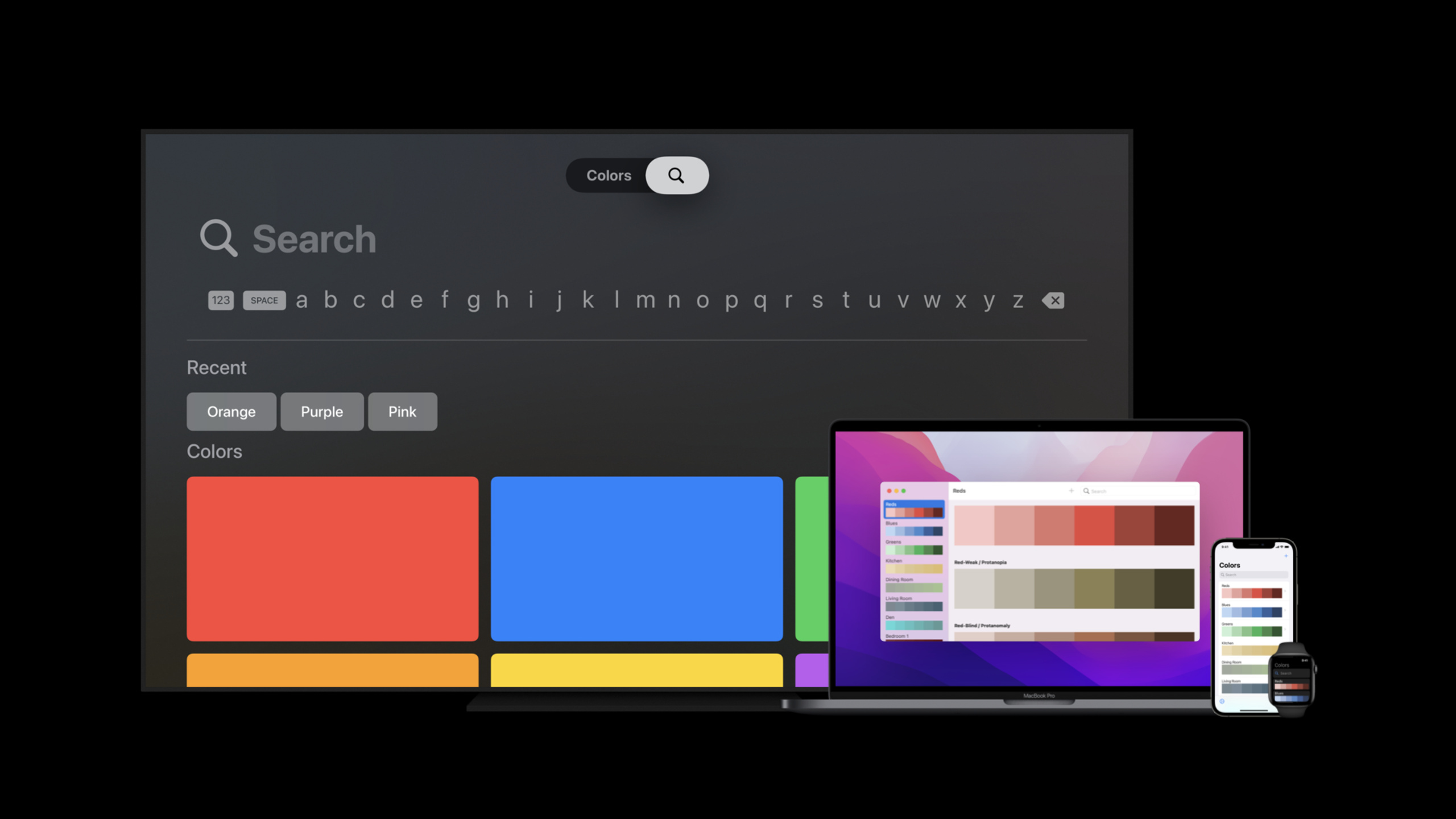
Colors 的例子说明了跨平台行为。同一段 double-column navigation view 代码,在 iOS 和 iPadOS 上把搜索栏关联到 sidebar,在 macOS 上把搜索框放到 toolbar 最右侧,在 watchOS 上放到视图顶部。tvOS 的结构不同,搜索通常是 tab,所以代码只把 .searchable 移到搜索 tab 上。
搜索框解决了输入问题,搜索建议解决了“用户不知道能搜什么”的问题。.searchable 可以接收 suggestions 闭包。建议可以是数据库里的热门词,也可以来自服务器。searchCompletion 能把一个普通视图变成可点击建议,选择后自动填入搜索文本并关闭建议面板。
详细内容
.searchable:把搜索字段交给 SwiftUI
(01:17)
SwiftUI 新增 searchable view modifier(视图修饰符)。它的核心输入是一个 Binding<String>。字符串保存当前搜索查询,SwiftUI 负责把搜索字段渲染到平台合适的位置。
import SwiftUI

struct ContentView: View {
    @State private var text = ""

    var body: some View {
        NavigationView {
            List(filteredCities, id: \.self) { city in
                Text(city)
            }
            .navigationTitle("Weather")
        }
        .searchable(text: $text)
    }

    private var filteredCities: [String] {
        let cities = ["Cupertino", "San Francisco", "London", "Tokyo"]

        if text.isEmpty {
            return cities
        }

        return cities.filter { city in
            city.localizedCaseInsensitiveContains(text)
        }
    }
}
关键点:
@State private var text = ""保存搜索查询,输入变化会触发视图刷新。NavigationView提供导航结构,session 里的 Weather 和 Colors 示例都从这里开始。List(filteredCities, id: \.self)根据过滤后的数组显示城市。.searchable(text: $text)把搜索字段绑定到text。filteredCities用text计算结果;空查询显示完整列表,非空查询显示匹配项。
(02:15)
searchable 会把搜索字段放进 environment(环境)。如果 NavigationView 能使用这个字段,它会把字段显示成搜索栏。如果没有视图使用它,SwiftUI 会提供默认实现,把搜索字段放到 toolbar。
ContentView()
    .searchable(text: $text)
关键点:
ContentView()是要标记为可搜索的内容。.searchable(text: $text)声明这块内容支持搜索。$text是 binding,搜索框和应用状态共享同一份查询文本。
isSearching:搜索时覆盖结果视图
(03:11)
搜索字段只是入口。真正的应用还需要决定结果显示在哪里。session 建议使用 isSearching 环境值判断用户是否正在搜索,并用 overlay 显示结果,这样主界面的状态不会因为搜索交互被重置。
import SwiftUI

struct WeatherList: View {
    @Binding var text: String

    @Environment(\.isSearching)
    private var isSearching: Bool

    var body: some View {
        WeatherCitiesList()
            .overlay {
                if isSearching && !text.isEmpty {
                    WeatherSearchResults(text: text)
                }
            }
    }
}

struct WeatherCitiesList: View {
    var body: some View {
        List(["Cupertino", "San Francisco", "London"], id: \.self) { city in
            Text(city)
        }
    }
}

struct WeatherSearchResults: View {
    var text: String

    var body: some View {
        List(["Search result for \(text)"], id: \.self) { result in
            Text(result)
        }
    }
}
关键点:
@Binding var text: String接收外层.searchable使用的同一份查询文本。@Environment(\.isSearching)读取 SwiftUI 设置的搜索状态。WeatherCitiesList()保持主列表一直存在。.overlay { ... }把搜索结果盖在主列表上方。if isSearching && !text.isEmpty避免用户只是点进搜索框时立刻显示空结果。WeatherSearchResults(text: text)用当前查询构造结果视图。
NavigationView:按平台选择搜索位置
(05:07)
Colors 应用使用 double-column NavigationView。把 .searchable 放在 navigation view 上以后,SwiftUI 会根据列数和平台选择默认关联的列。两列结构在 iOS 和 iPadOS 上会把搜索栏关联到 sidebar。macOS 会把搜索字段放在 toolbar 的 trailing 位置。
import SwiftUI

struct ColorsContentView: View {
    @State var text = ""

    var body: some View {
        NavigationView {
            Sidebar(text: $text)
            DetailView()
        }
        .searchable(text: $text)
    }
}

struct Sidebar: View {
    @Binding var text: String

    var body: some View {
        List(filteredPalettes, id: \.self) { palette in
            Text(palette)
        }
    }

    private var filteredPalettes: [String] {
        let palettes = ["Ocean", "Sunset", "Forest", "iMac"]

        if text.isEmpty {
            return palettes
        }

        return palettes.filter { palette in
            palette.localizedCaseInsensitiveContains(text)
        }
    }
}

struct DetailView: View {
    var body: some View {
        Text("Select a palette")
    }
}
关键点:
NavigationView { Sidebar(text: $text); DetailView() }构造两列界面。.searchable(text: $text)放在 navigation view 上,让 SwiftUI 选择默认列。Sidebar接收text,用查询过滤 palette 列表。DetailView保持 detail pane 的内容,macOS 可以把结果放在 detail pane 中。- 如果想让搜索字段关联到其他列,可以把
.searchable放到目标列视图上。
(07:15)
tvOS 的常见搜索体验是一个 tab。session 里的做法是:tvOS 下把内容换成 TabView,把 .searchable 放在搜索 tab 上;其他平台继续把 .searchable 放在 navigation view 上。
import SwiftUI

struct ColorsContentView: View {
    @State var text = ""

    var body: some View {
        NavigationView {
            #if os(tvOS)
            TabView {
                Sidebar(text: $text)
                    .tabItem { Text("Library") }

                ColorsSearch(text: $text)
                    .searchable(text: $text)
                    .tabItem { Text("Search") }
            }
            #else
            Sidebar(text: $text)
            DetailView()
            #endif
        }
        #if !os(tvOS)
        .searchable(text: $text)
        #endif
    }
}

struct ColorsSearch: View {
    @Binding var text: String

    var body: some View {
        if text.isEmpty {
            Text("Search palettes")
        } else {
            List(["Result for \(text)"], id: \.self) { result in
                Text(result)
            }
        }
    }
}
关键点:
#if os(tvOS)为 tvOS 提供单独的导航结构。TabView创建 tvOS 常见的标签式结构。ColorsSearch(text: $text).searchable(text: $text)只把搜索 tab 标记为可搜索。#if !os(tvOS)保留其他平台的默认 navigation view 搜索行为。ColorsSearch在空查询时显示占位内容,在非空查询时显示结果。
suggestions:用搜索建议告诉用户能搜什么
(09:09)
当用户不知道可以输入什么时,搜索建议能降低试错成本。.searchable 的 suggestions 闭包可以返回一组视图。session 展示了两种模式:按钮手动写入文本,或用 searchCompletion 自动完成。
import SwiftUI

struct ColorsContentView: View {
    @State var text = ""

    private let suggestions = [
        ColorSuggestion(text: "Ocean"),
        ColorSuggestion(text: "Sunset"),
        ColorSuggestion(text: "Forest")
    ]

    var body: some View {
        NavigationView {
            Sidebar(text: $text)
            DetailView()
        }
        .searchable(text: $text) {
            ForEach(suggestions) { suggestion in
                ColorsSuggestionLabel(suggestion)
                    .searchCompletion(suggestion.text)
            }
        }
    }
}

struct ColorSuggestion: Identifiable {
    let id = UUID()
    let text: String
}

struct ColorsSuggestionLabel: View {
    let suggestion: ColorSuggestion

    init(_ suggestion: ColorSuggestion) {
        self.suggestion = suggestion
    }

    var body: some View {
        Text(suggestion.text)
    }
}
关键点:
suggestions是动态建议数据,session 提到它可以来自应用数据库或服务器。.searchable(text: $text) { ... }的尾随闭包提供建议视图。ForEach(suggestions)为每条建议生成一个 label。ColorsSuggestionLabel(suggestion)是非交互视图。.searchCompletion(suggestion.text)把 label 转成可选择建议,选择后更新搜索文本并关闭建议。
(09:43)
如果想自己控制选择行为,也可以在 suggestions 中放按钮。按钮被点击后直接修改同一个 text 绑定。
import SwiftUI

struct ManualSuggestionsView: View {
    @State private var text = ""

    private let suggestions = [
        ColorSuggestion(text: "Blue"),
        ColorSuggestion(text: "Green"),
        ColorSuggestion(text: "Purple")
    ]

    var body: some View {
        NavigationView {
            List(suggestions) { suggestion in
                Text(suggestion.text)
            }
        }
        .searchable(text: $text) {
            ForEach(suggestions) { suggestion in
                Button {
                    text = suggestion.text
                } label: {
                    ColorsSuggestionLabel(suggestion)
                }
            }
        }
    }
}
关键点:
@State private var text = ""是搜索框和建议按钮共享的状态。Button { text = suggestion.text }在点击时把建议文本写入查询。label使用同一个ColorsSuggestionLabel,展示逻辑可以复用。- 这种写法适合需要附加自定义行为的建议项。
.onSubmit(of: .search):用户提交后再发起查询
(10:21)
有些搜索不适合每输入一个字符就执行。比如服务端查询、全文检索、昂贵的数据库请求。SwiftUI 新增 onSubmit modifier(提交修饰符),传入 .search 后,用户提交搜索查询时执行闭包。session 提到触发时机通常是选择搜索建议,或在硬件键盘上按 Enter。
import SwiftUI

struct SearchSubmitView: View {
    @State private var text = ""
    @State private var results: [String] = []

    var body: some View {
        NavigationView {
            List(results, id: \.self) { result in
                Text(result)
            }
        }
        .searchable(text: $text) {
            MySearchSuggestions()
        }
        .onSubmit(of: .search) {
            fetchResults()
        }
    }

    private func fetchResults() {
        results = ["Submitted query: \(text)"]
    }
}

struct MySearchSuggestions: View {
    var body: some View {
        Text("Ocean")
            .searchCompletion("Ocean")
    }
}
关键点:
.searchable(text: $text)负责输入查询。MySearchSuggestions()提供可完成的建议。.onSubmit(of: .search)只监听搜索提交。fetchResults()在提交后更新结果数组。- session 还提到
onSubmit可用于TextField和SecureField的非搜索提交场景。
核心启发
-
做什么:给本地收藏列表加搜索栏。 为什么值得做:
.searchable(text:)会按 iOS、iPadOS、macOS 和 watchOS 的习惯放置搜索字段。 怎么开始:把收藏页包进NavigationView,增加@State private var text = "",把.searchable(text: $text)放到 navigation view 或目标列上。 -
做什么:做一个“搜索时临时覆盖结果”的列表。 为什么值得做:
isSearching能区分普通浏览和搜索交互,overlay可以保留原列表滚动位置和选择状态。 怎么开始:在列表视图里读取@Environment(\.isSearching),当isSearching && !text.isEmpty时用.overlay显示结果视图。 -
做什么:给搜索框加热门搜索和历史搜索。 为什么值得做:suggestions 闭包能根据数据库或服务器数据生成建议,
searchCompletion会自动填入查询文本并关闭建议。 怎么开始:维护一个suggestions数组,在.searchable(text:) { ForEach(suggestions) { ... } }中为每个 label 加.searchCompletion(suggestion.text)。 -
做什么:把服务端搜索改成“提交后查询”。 为什么值得做:
.onSubmit(of: .search)只在用户明确提交时运行,适合网络请求和全文检索。 怎么开始:把请求函数放进.onSubmit(of: .search) { fetchResults() },在函数里读取当前text。 -
做什么:给 tvOS 应用做独立搜索 tab。 为什么值得做:session 指出 tvOS 通常把搜索呈现为 tab,单独的搜索页比把搜索框塞进原结构更贴近平台习惯。 怎么开始:在
#if os(tvOS)分支里使用TabView,把.searchable(text:)放到ColorsSearch这一页上。
关联 Session
- What’s new in SwiftUI — 了解 SwiftUI 2021 的整体更新,其中包含 multi-platform search API。
- SwiftUI on the Mac: Build the fundamentals — 在 Mac 应用中实践 toolbar、sidebar、table 和
.searchable。 - Direct and reflect focus in SwiftUI — 学习输入焦点、键盘收起和
onSubmit的配套用法。 - Showcase app data in Spotlight — 把应用数据交给 Spotlight 索引,并用索引结果驱动应用内全文搜索。
评论
GitHub Issues · utterances