
Highlight
tvOS 14 为
UISearchController增加搜索建议,应用可以用UISearchSuggestionItem或自定义UISearchSuggestion在用户输入时显示带图标和无障碍描述的候选项,并在建议被选中后按内容类型刷新结果。
核心内容
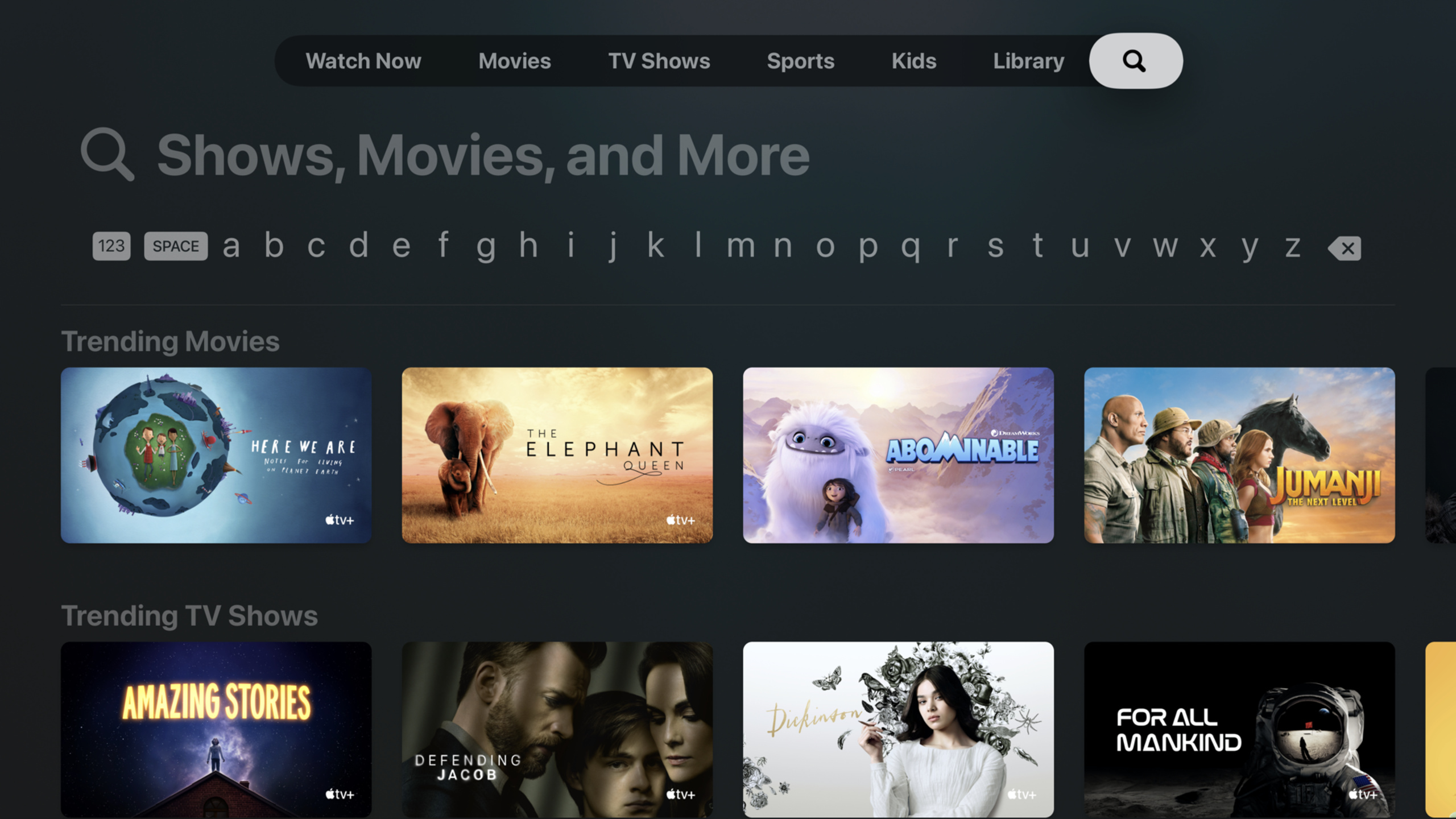
Apple TV 上的搜索成本比手机高。用户拿着遥控器,在屏幕键盘上逐字移动焦点。搜索框文字太小、键盘占据太多空间、结果区域被压缩,都会让找一部影片或一张照片变慢。
tvOS 14 先改了系统搜索界面。搜索框文字变大,多种语言的键盘被优化成单行布局,结果区有了更多空间。只要应用已经使用 UISearchController,这些界面改进会随系统一起获得。
这场 session 的重点是新的搜索建议。用户输入 blue 时,应用不必等用户打完完整关键词。它可以立刻提供“blue video”或“blue photo”这样的候选项。建议本身还能携带图标和无障碍描述,所以用户选中建议后,应用可以知道这是视频建议,随后只展示视频结果。
演示项目是一个照片和视频混合的旅行 app。它先把搜索页放进 tab bar,再用 UISearchController 驱动 collection view 结果,最后接入 UISearchSuggestion,让建议列表跟着输入实时更新。
详细内容
把搜索页接入 tvOS 的 tab bar
(01:40)演示从 SearchViewController 开始。这个控制器持有数据源,后续所有搜索结果和建议都从 appData 查询。
private let appData: AppData

init(appData: AppData) {
    self.appData = appData

    super.init(nibName: nil, bundle: nil)
}

required init?(coder: NSCoder) {
    fatalError("init(coder:) has not been implemented")
}
关键点:
private let appData把搜索数据源固定在控制器内部。init(appData:)让调用方在创建搜索页时传入同一个数据源。super.init(nibName:bundle:)使用纯代码方式创建控制器。init?(coder:)没有实现,说明这个示例不走 storyboard 解码路径。
(01:51)搜索入口应该使用系统标准 tab bar 项。这样用户在 Apple TV 上可以直接识别它的用途。
// use the system standard search tab bar item
tabBarItem = UITabBarItem(tabBarSystemItem: UITabBarItem.SystemItem.search, tag: 0)
关键点:
UITabBarItem.SystemItem.search使用系统搜索图标和文案。tag: 0是 tab bar item 的标识,示例里不承担额外逻辑。- 这段代码解决入口问题,还没有创建搜索输入框。
用 UISearchContainerViewController 承载搜索控制器
(02:05)因为搜索控制器会作为子控制器加入页面,session 使用 UISearchContainerViewController 包住它。
private let searchController: UISearchController
private let searchContainerViewController: UISearchContainerViewController
关键点:
searchController管理搜索栏、输入变化和建议。searchContainerViewController负责把搜索控制器嵌入当前页面。- 两个属性都放在
SearchViewController内,生命周期跟搜索页一致。
(02:11)搜索结果由已有的 searchResultsController 展示,再传给 UISearchController。
self.searchController = UISearchController(searchResultsController: self.searchResultsController)
self.searchContainerViewController = UISearchContainerViewController(searchController: searchController)
关键点:
UISearchController(searchResultsController:)把结果页交给系统搜索控制器管理。UISearchContainerViewController(searchController:)让搜索 UI 可以作为子控制器嵌入。- 后续只要更新结果控制器的
items,collection view 就能刷新。
(02:16)子控制器要按 UIKit 的 containment 流程加入父控制器。
override func viewDidLoad() {
    addChild(searchContainerViewController)

    searchContainerViewController.view.frame = view.bounds
    view.addSubview(searchContainerViewController.view)
    searchContainerViewController.didMove(toParent: self)
}
关键点:
addChild先建立父子控制器关系。searchContainerViewController.view.frame = view.bounds让搜索容器填满当前页面。view.addSubview把搜索容器的 view 放到层级里。didMove(toParent:)完成 UIKit 子控制器添加流程。
(03:17)搜索结果是 collection view,搜索栏需要跟结果滚动联动。
// scroll search controller allong with results collection view
searchController.searchControllerObservedScrollView = searchResultsController.collectionView
关键点:
searchControllerObservedScrollView指向结果列表的collectionView。- 用户滚动结果时,搜索控制器可以跟着系统预期的 tvOS 行为移动。
- 这一步只处理滚动关系,不处理搜索过滤。
用输入文字刷新搜索结果
(03:43)搜索控制器通过 searchResultsUpdater 把输入变化交给当前控制器。
searchController.searchResultsUpdater = self关键点:
self需要遵守UISearchResultsUpdating。- 用户每次输入变化后,系统都会调用更新方法。
- 这个入口后面也会用于处理建议被选中的场景。
(04:00)最基础的搜索逻辑是读取搜索栏文本,然后用数据源过滤照片和视频。
func updateSearchResults(for searchController: UISearchController) {
    if let searchText = searchController.searchBar.text {
        // get search results for 'searchText' from data source
        let (results, _) = appData.searchResults(seachTerm: searchText, includePhotos: true, includeVideos: true)

        searchResultsController.items = results
    } else {
        // no search text, show unfiltered results
        searchResultsController.items = appData.allEntries
    }
}
关键点:
searchController.searchBar.text取出当前输入内容。appData.searchResults同时搜索照片和视频。searchResultsController.items = results是界面刷新的关键赋值。- 没有输入时,示例回到
appData.allEntries,展示未过滤内容。
添加静态搜索建议
(05:30)tvOS 14 新增 UISearchSuggestionItem。它是系统提供的建议模型,可以放文字、描述和图标。
let suggestion1 = UISearchSuggestionItem(localizedSuggestion: "Result1", localizedDescription: "Result1", iconImage: nil)
let suggestion2 = UISearchSuggestionItem(localizedSuggestion: "Result2", localizedDescription: "Result2", iconImage: nil)

searchController.searchSuggestions = [suggestion1, suggestion 2]
关键点:
localizedSuggestion是显示给用户的建议文字。localizedDescription用于描述建议,session 明确提到它服务于 accessibility。iconImage可以为建议增加图标;这里先传nil。searchController.searchSuggestions接收建议数组,系统负责显示。
让业务对象遵守 UISearchSuggestion
(07:05)如果 app 已经有自己的数据模型,可以让模型遵守 UISearchSuggestion。演示中的 SuggestedEntry 直接把名称和内容类型暴露给搜索 UI。
var localizedSuggestion: String? {
    return self.name
}

var iconImage: UIImage? {
    return self.isVideo ? UIImage(systemName: "video") : UIImage(systemName: "photo")
}
关键点:
localizedSuggestion返回模型自己的name,避免再创建一层建议对象。iconImage根据isVideo选择video或photo符号。- 这些 symbol image 用于在有限空间内区分内容类型。
(07:20)建议项还要提供无障碍描述。示例把名称和内容类型一起本地化。
var localizedDescription: String? {
    if (self.isVideo) {
        return String.localizedStringWithFormat(NSLocalizedString("%@ - Video", comment: ""), self.name)
    }
    return String.localizedStringWithFormat(NSLocalizedString("%@ - Photo", comment: ""), self.name)
}
关键点:
localizedDescription返回辅助描述,不只重复标题。self.isVideo决定描述里的内容类型。NSLocalizedString和String.localizedStringWithFormat让描述适配本地化。- 这与 session 开头提到的国际键盘和语言支持相呼应。
选中建议后按内容类型过滤
(09:01)tvOS 14 扩展了 UISearchResultsUpdating。当用户选中搜索建议时,系统会把 UISearchSuggestion 传入新的更新方法。
func updateSearchResults(for searchController: UISearchController, selecting searchSuggestion: UISearchSuggestion) {
    if let searchText = searchController.searchBar.text {
        var includePhotos = true;
        var includeVideos = true;


    }
}
关键点:
- 方法签名多了
selecting searchSuggestion参数。 searchText仍然来自搜索栏,代表用户当前输入。includePhotos和includeVideos先都设为true,表示默认搜索两类内容。- 空白处留给建议解析和结果刷新逻辑。
(09:13)演示把传入建议转回自己的 SuggestedEntry,读取它是否代表视频。
// check if the suggestion is for a photo or video
if let suggestedEntry = searchSuggestion as? SuggestedEntry {
    includeVideos = suggestedEntry.isVideo
    includePhotos = !includeVideos
}
关键点:
as? SuggestedEntry只处理 app 自己创建的建议对象。includeVideos = suggestedEntry.isVideo让视频建议只显示视频。includePhotos = !includeVideos让照片建议只显示照片。- 这利用了建议对象携带的业务信息,不只依赖建议文字。
(09:21)最后用更新后的类型开关重新查询数据源。
// filter the results by to include photos, videos, or both
let (results, _) = appData.searchResults(seachTerm: searchText, includePhotos: includePhotos, includeVideos: includeVideos)

searchResultsController.items = results
关键点:
searchText保持用户输入的关键词。includePhotos和includeVideos决定结果类别。appData.searchResults返回过滤后的结果集合。searchResultsController.items = results立即刷新 collection view。
为不同输入方式预留空间
(09:38)session 最后提醒,tvOS 键盘会随语言和输入设备变化。IR remote 会显示网格键盘;泰语环境会使用三行键盘。结果布局不能假设键盘永远只有一行。
关键点:
- 前面在 03:17 设置的
searchController.searchControllerObservedScrollView负责滚动联动;这里的重点是结果区域还要适配不同键盘布局。 - 避免用自定义 UI 覆盖键盘,即使是 safe area 外的边缘区域也不推荐。
- 如果建议需要区分内容类型,session 建议使用 symbol images。
SF Symbols适合放进搜索建议这种空间有限的界面。
核心启发
-
做什么:为视频 app 增加“关键词 + 类型”的搜索建议,例如“blue video”和“blue clip”。 为什么值得做:
UISearchSuggestion可以携带内容类型,用户点建议后不需要再进入筛选面板。 怎么开始:让内容模型遵守UISearchSuggestion,用isVideo生成iconImage,在updateSearchResults(for:selecting:)里设置includeVideos。 -
做什么:为照片浏览 app 做“地点 + 媒体类型”的建议。 为什么值得做:遥控器输入长地点名很慢,建议能减少键盘操作。 怎么开始:在普通
updateSearchResults(for:)中按输入查询候选地点,把结果赋给searchController.searchSuggestions。 -
做什么:为儿童内容 app 给建议项增加清晰图标和语音可读描述。 为什么值得做:session 明确展示了
iconImage和localizedDescription,它们能在大屏界面和辅助功能场景里解释建议含义。 怎么开始:用UIImage(systemName:)返回内容类型符号,用NSLocalizedString生成“名称 - 类型”的描述。 -
做什么:为国际化 tvOS app 检查不同键盘高度下的搜索结果布局。 为什么值得做:tvOS 会根据语言和遥控器类型显示单行、网格或三行键盘,固定高度结果区容易被压缩。 怎么开始:把结果放在 collection view 中,让
searchControllerObservedScrollView指向它,并避免自定义浮层覆盖键盘。
关联 Session
- Build SwiftUI apps for tvOS — 继续了解 Apple TV 上的焦点、按钮样式和大屏布局。
- Master Picture in Picture on tvOS — 学习 tvOS 视频播放体验中与搜索页相邻的核心能力。
- Advances in UICollectionView — 搜索结果常用 collection view 展示,这场 session 补充现代列表和布局能力。
- SF Symbols 2 — 搜索建议里的
iconImage适合使用 SF Symbols 表达内容类型。 - Support hardware keyboards in your app — 如果 tvOS app 面向键盘输入用户,这场 session 可补充输入和导航细节。
评论
GitHub Issues · utterances