
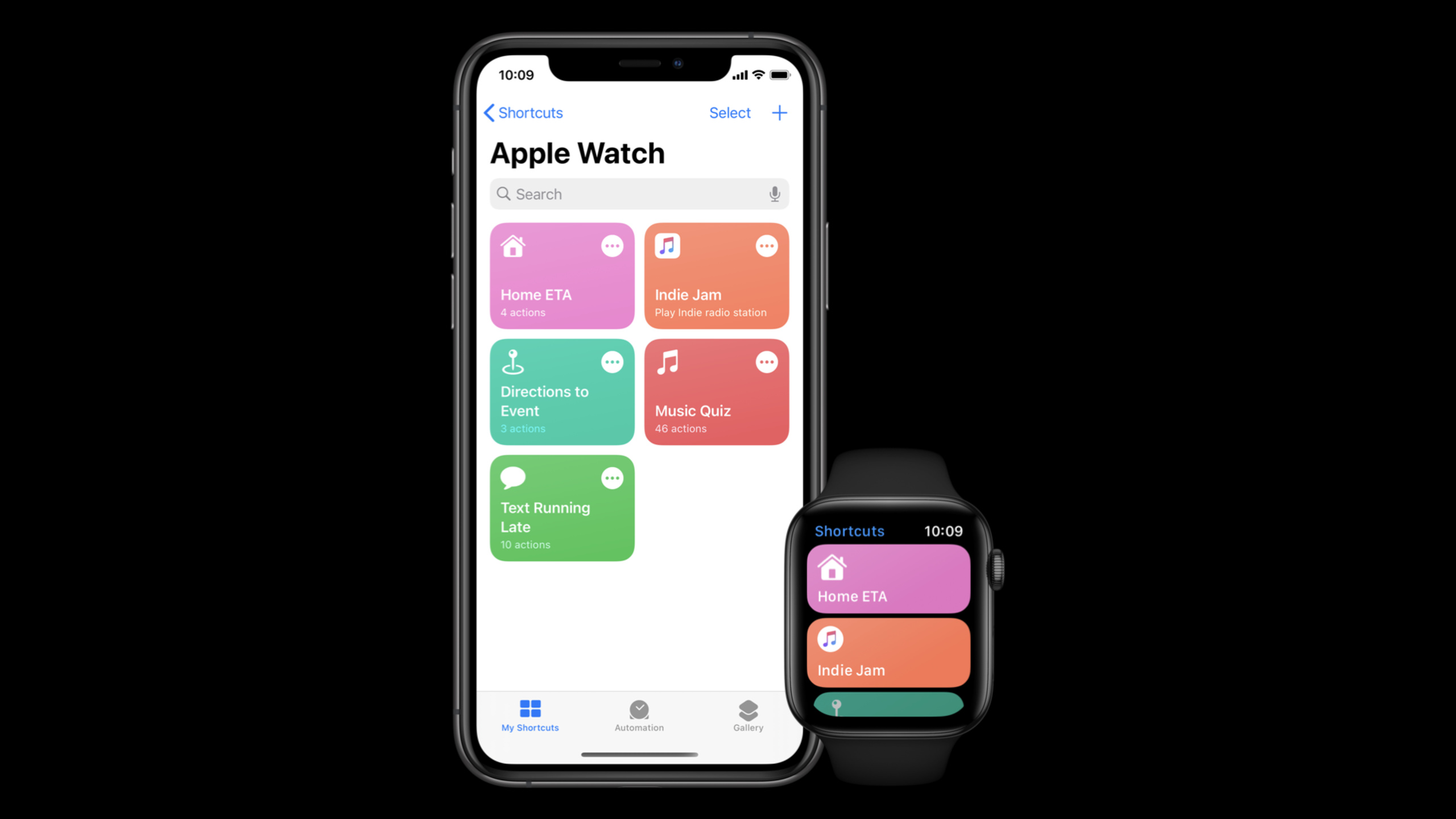
Highlight
Apple 在 watchOS 7 引入 Apple Watch 上的 Shortcuts app 和 complication 入口,并说明 app 的 intents、NSUserActivity 与远程执行如何决定一个 shortcut 是在手表本地运行还是回到配对 iPhone 执行。
核心内容
很多 iPhone shortcut 到了手表上,会遇到一个更严格的问题:用户只是抬腕点一下,预期动作马上完成。这个入口可能来自 Shortcuts app,也可能来自表盘 complication。任何需要打开 iPhone App、等待较久网络跳转、再补一个界面的流程,都会显得笨重。
watchOS 7 先把入口补齐。Shortcuts app 来到 Apple Watch,用户可以通过 iCloud 同步自己的快捷指令,整理 Apple Watch collection,并在手表上回答 shortcut 里的问题。表盘也新增了两个入口:一个 complication 可以打开 Shortcuts app,另一个 complication 可以直接运行某个 shortcut。
开发者要处理的是执行路径。NSUserActivity 型 shortcut 需要打开 watchOS app;如果 app 不在手表上,运行会失败。基于 intents 的 shortcut 更灵活:有 watchOS Intents extension 时在手表本地执行,没有时可以把 intent 送回配对 iPhone 远程执行。
这场 session 把重点落在让 shortcut 在手表上少出错、少等待。最好的体验是让同一个 app 的 intents 或 user activities 也能被 watchOS app 处理;退一步,也要让 intent 能在后台完成,避免把用户带到一个打不开的手机 App。
详细内容
watchOS 7 给 Shortcuts 增加手表入口(00:55)
讲者先展示新的 watchOS 7 Shortcuts app。用户可以在 iPhone 上配置 shortcut,把适合手表的项目放进 Apple Watch collection,再通过 iCloud 同步到手表。shortcut 如果需要提问,用户可以在手表上的 Shortcuts app 内直接回答。
watchOS 7 上的 Shortcuts 入口:
- Shortcuts app 运行已同步的 shortcut
- Apple Watch collection 决定哪些 shortcut 同步到手表
- inline question 让用户在手表内回答参数
- complication 打开 Shortcuts app 或直接运行某个 shortcut
关键点:
- Apple Watch collection 是用户决定同步范围的地方,不是所有 iPhone shortcut 都自动变成手表入口。
- inline question 支持在手表上补参数,适合“选择日历事件”“确认发送 ETA”这类轻量交互。
- specific shortcut complication 让高频动作从表盘开始,用户不需要先进入 Shortcuts app。
NSUserActivity 和 intents 的执行路径不同(03:35)
Shortcuts 在手表上运行时,系统会先看 shortcut 的实现方式。NSUserActivity 型 shortcut 必须打开 app 处理 activity;如果 watchOS app 没装在手表上,就没有可打开的目标,系统会显示错误。intent-based shortcut 由 Intents extension 处理,因此有机会在手表本地运行,也有机会回到配对 iPhone。
Apple Watch 运行 shortcut 的路由:
1. NSUserActivity shortcut
   - 打开 watchOS app 处理 activity
   - watchOS app 未安装 -> error

2. intent-based shortcut
   - watchOS Intents extension 支持该 intent -> 手表本地处理
   - 手表没有可用 extension -> 送到配对 iPhone 远程执行
   - iPhone handler 要求 continueInApp -> error
关键点:
NSUserActivity路径依赖 watchOS app,不能远程打开 iPhone App 来补上这一步。- intent-based shortcut 的处理单元是 Intents extension,系统可以在手表和配对 iPhone 之间做路由。
continueInApp会把流程推向打开 App;手表端无法远程打开手机 App,所以会落到错误节点。
远程执行能兜底,但会变慢(05:23)
如果手表不能本地处理某个 intent,系统会把 intent 发送到配对 iPhone。这个额外 hop 会增加总耗时。讲者明确说,即使还没有 watch app,或者 watchOS Intents extension 没覆盖全部 intents,系统仍然可以运行这些 intent-based shortcuts,只是体验会慢于本地执行。
适合远程执行的 intent checklist:
- shortcut 必须基于 intent
- 任务可以完全在后台完成
- handler 不返回 .continueInApp
- Xcode intent editor 中勾选 supports background execution
关键点:
- remote execution 只支持 intent-based shortcut,不支持
NSUserActivity型 shortcut。 - 任务必须能在后台完成,因为跨设备打开另一个 App 会打断手表上的轻量流程。
supports background execution要按 interaction donations 使用的参数组合配置,不能只检查默认路径。
最好的体验是把 extension 编译到 watchOS(06:10)
Apple 给出的首选方案很直接:构建 watchOS app,并让它支持 iOS app 已经支持的同一组 user activities 或 intents。对刚开始接入 Shortcuts 的 app,讲者建议使用 Intents framework,因为它支持参数,API 更灵活,也能后台运行。
watchOS 本地执行准备:
- 构建 watchOS app
- 支持 iOS app 已有的 user activities 或 intents
- 为 watchOS 创建单独的 Intents extension target
- 将 watchOS Intents extension 随 watchOS app 一起打包
- 尽量支持 iOS 上已有的全部 intents
关键点:
- 本地执行避免了把 intent 发回手机的额外等待。
- watchOS Intents extension 通常是 Xcode 里的独立 target,不能假设 iOS extension 会自动覆盖手表。
- 如果 iOS 上有多个 intents,手表端只覆盖其中一部分时,未覆盖的 intent 仍可能走远程执行。
Siri 呈现要依赖对话文案(08:55)
Shortcuts app 中能运行的 shortcut,也能通过 Siri 语音运行。手表上的限制是:watchOS 不支持 Intents UI extensions。讲者用点汤的例子说明,默认 confirmation prompt 只告诉用户“要点一碗汤”,自定义 confirm response 可以在确认前补上订单总价。
Apple Watch 上的 Siri 呈现:
- Intents UI extensions 不支持 watchOS
- intent dialog 承担主要展示责任
- confirm() 返回 ready 时会得到默认确认提示
- custom confirm response 可以提供价格、状态、摘要等关键信息
关键点:
- 手表屏幕小,语音入口常用,dialog 不能只当作兜底文案。
- 默认 confirmation prompt 信息有限,涉及购买、下单、发送消息时要补上用户确认所需的具体信息。
- 自定义 response 应提供任务决策所需的信息,避免把用户带回 App 里查细节。
Siri 表盘可以继续推荐合适动作(10:08)
除了 Shortcuts app 和 complication,讲者还提醒开发者考虑 Siri watch face。适合在特定场景出现的 shortcut,可以通过 Intents framework 的相关 shortcut APIs 提供给 Siri watch face,让系统在合适时间展示。
Siri watch face 适合的 shortcut:
- 和时间、位置、日程或习惯相关
- 用户能一眼判断是否要执行
- 执行后不需要长时间停留在 App 内
- 结果能用短 dialog 或简短界面确认
关键点:
- Siri watch face 不是固定入口,它适合展示“此刻相关”的动作。
- 如果动作要多次补参数,或者结果需要复杂界面确认,就不适合作为表盘上的一 tap shortcut。
- 先把 intent 的后台执行和 dialog 做好,再考虑让系统推荐它。
核心启发
-
做什么:把一个高频动作做成可以从表盘 complication 直接运行的 shortcut。 为什么值得做:session 展示了 specific shortcut complication,用户可以从表盘一 tap 发送 ETA 这类轻量任务。 怎么开始:先挑一个参数少、结果短、失败后容易解释的动作;接入 Shortcuts 后,在产品内引导用户把它加入 Apple Watch collection 和表盘。
-
做什么:给现有 SiriKit intents 增加 watchOS Intents extension target。 为什么值得做:讲者反复强调,最佳体验来自手表本地处理 intent,远程执行会多一次发回手机的 hop。 怎么开始:列出 iOS Intents extension 已支持的 intents,先把最常用的 2-3 个迁到 watchOS target,并确认它们随 watchOS app 一起打包。
-
做什么:为还没有 watch app 的动作做远程执行审查。 为什么值得做:remote execution 可以让没有本地 extension 的 intent 在配对 iPhone 上完成,但只适用于能后台执行的 intent-based shortcut。 怎么开始:检查每个 handler 是否会返回
.continueInApp,再到 Xcode intent editor 为实际 donation 使用的参数组合勾选 supports background execution。 -
做什么:重写手表上的 Siri 确认文案。 为什么值得做:watchOS 不支持 Intents UI extensions,用户确认任务时主要依赖 dialog;默认
ready提示可能缺少价格、对象或状态。 怎么开始:为每个会产生外部影响的 intent 写 custom confirm response,把金额、目标对象、发送内容或预约时间放进确认提示。 -
做什么:为 Apple Watch shortcut 建一张错误节点清单。 为什么值得做:session 的执行图里,
NSUserActivity缺少 watch app、intent 要求打开 App、未启用后台执行都会走向 error。 怎么开始:按“是否有 watchOS app”“是否有 watchOS Intents extension”“是否可后台完成”“是否需要 continue in app”四列审查每个 shortcut。
关联 Session
- What’s new in SiriKit and Shortcuts — 总览 iOS 14 中 SiriKit、Shortcuts、紧凑 Siri UI 和动作组织方式的更新。
- Feature your actions in the Shortcuts app — 学习如何让 App 动作出现在 Shortcuts app、自动化建议和系统推荐入口中。
- Empower your intents — 深入 intent 处理、in-app intent handling、extension 性能和富对话结果。
- Create complications for Apple Watch — 理解 complication 的 families、templates 和 timelines,为表盘入口补齐基础。
- Keep your complications up to date — 继续处理 complication 的后台刷新、网络更新和推送时机。
评论
GitHub Issues · utterances