
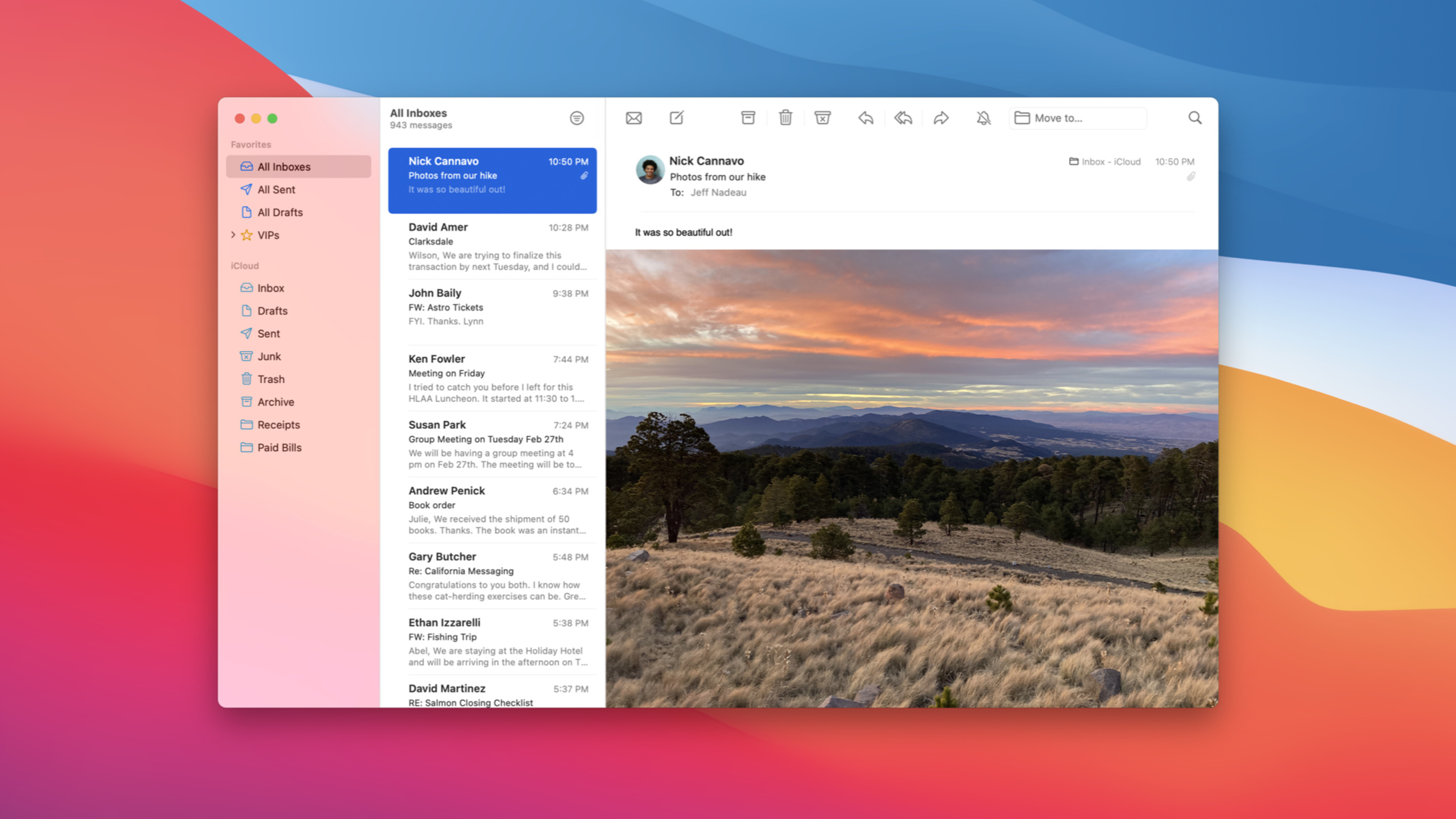
Highlight
macOS Big Sur 的 AppKit 自动更新 Mac app 外观,并提供 full-height sidebar、toolbarStyle、NSSearchToolbarItem、NSTrackingSeparatorToolbarItem、large control 和 SF Symbols API 让开发者主动适配新设计。
核心内容
很多 Mac app 在 Big Sur 之前已经用了 NSSplitViewController、NSToolbar、NSOutlineView 和标准控件。系统外观更新后,这类 app 可以先获得一部分自动变化:工具栏材质消失,控件边框在 hover 时出现,sidebar 图标开始使用 accent color,列表选择样式也会更新。
自动更新解决不了所有问题。窗口结构仍然决定 app 能不能真正贴合 Big Sur:sidebar 要能延伸到 title bar 下方,toolbar 的标题和导航项要找到合适位置,搜索框要在窄窗口中保持可用,split view 的分隔线要和 toolbar 项对齐。这些都需要开发者检查现有结构,并采用 Big Sur 新增或强化的 AppKit API。
这场 session 的路线很清楚:先把窗口搭成系统期望的结构,再处理控件、列表、文字和图标。这条路径不要求开发者重写 Mac app;标准 AppKit 组件承担外观细节,开发者把精力放在少量关键适配点上。
详细内容
1. 让 sidebar 成为窗口结构的一部分
(02:05)
Big Sur 的 full-height sidebar 依赖已有结构:sidebar 使用 NSSplitViewController,对应的 NSSplitViewItem 配置为 sidebar behavior,窗口使用 fullSizeContentView mask,让内容可以布局到 title bar 原本占用的区域。macOS Big Sur 还在 NSView 暴露 safe area,Interface Builder 也能添加 Safe Area Layout Guide。
sidebar 图标默认使用系统 accent color。需要区分主次分组时,可以通过 NSOutlineViewDelegate 返回 NSTintConfiguration。
func outlineView(_ outlineView: NSOutlineView, tintConfigurationForItem item: Any) -> NSTintConfiguration? {
  if case let sectionItem as SectionItem = item {
    /*
       This outline view uses a type called "SectionItem" to populate its top-level sections.
       Here we choose a tint configuration based on a hypothetical `isSecondarySection` property on that type.
     */
    return sectionItem.isSecondarySection ? .monochrome : .default
  }
  // For all other cases, a return value of `nil` indicates that the item should inherit a tint from its parent.
  return nil
}
关键点:
outlineView(_:tintConfigurationForItem:)是 session 提到的新 delegate method,用来控制 sidebar item 的 tint。.default使用 accent color,适合主要分组。.monochrome去掉颜色强调,适合 secondary section。- 返回
nil时,item 继承父级 tint,避免给每个节点重复配置。
2. 用 toolbarStyle、搜索项和 tracking separator 适配新 toolbar
(05:47)
NSWindow.toolbarStyle 控制 Big Sur 新工具栏外观。session 介绍了 unified、unified compact、preference、expanded 和 automatic。unified 是多数窗口的新标准;unified compact 更适合内容优先、toolbar 不拥挤的窗口;preference 会自动用于采用 NSTabViewController toolbar tab style 的偏好设置窗口;expanded 保留标题在 toolbar 上方的旧布局,适合长标题或 toolbar 项很多的窗口。
搜索框有专门的 NSSearchToolbarItem。窗口足够宽时显示完整 search field,窗口变窄时折叠成按钮,点击后再展开。
var searchItem = NSSearchToolbarItem(itemIdentifier: searchIdentifier)
searchItem.searchField = searchField
关键点:
NSSearchToolbarItem替代普通 toolbar item,负责 Big Sur 的搜索折叠行为。- 继续复用已有
searchField,迁移时把它赋给searchField属性。 - session 明确说明 Interface Builder 也提供 search item,并且旧系统会回退到标准 search field。
(13:30)
Mail 这类 app 的 toolbar 项会跟 split view 分隔线对齐。Big Sur 用 NSTrackingSeparatorToolbarItem 做这件事:item 绑定一个 split view 和 divider index,toolbar 会跟随 divider 的位置。
var trackingItem = NSTrackingSeparatorToolbarItem(itemIdentifier: identifier,
                                                  splitView: splitView,
                                                  dividerIndex: 1)
关键点:
splitView指向窗口里的 split view。dividerIndex指定要跟踪的分隔线。- 这个 item 可以把 toolbar 划成和内容区一致的段落,帮助用户理解按钮作用于哪个 pane。
3. 控件、列表和文字也要跟随 Big Sur 度量
(16:03)
标准控件在 Big Sur 会自动取得新外观。session 特别提醒了三类需要检查的变化:custom accent color、large controls、slider 和 table view 的布局度量。
custom accent color 在 asset catalog 中定义,并在 project editor 指定名称。它只在系统偏好设置选择 multicolor 时生效。开发者仍应使用 named system colors 绘制界面,因为这些颜色会跟随用户选择的 accent preference。
(18:39)
large controls 成为标准 controlSize。onboarding 中的大按钮、toolbar 里的大图标按钮、alert 中的突出操作,都可以用系统尺寸,而不用自绘控件。
let button = NSButton(title: "Get Started",
                      target: self,
                      action: #selector(finishOnboarding(_:)))
button.controlSize = .large
关键点:
NSButton(title:target:action:)创建标准 AppKit button。target和action保留 AppKit 的事件派发模型。button.controlSize = .large使用 Big Sur 新增的大控件尺寸,让按钮匹配系统主题。
(20:21)
NSTableView 新增 style,包含 automatic、fullWidth、inset、sourceList。automatic 会根据配置解析:sidebar 里使用 sourceList,bordered scroll view 里使用 fullWidth,其余场景默认 inset。迁移时要检查 cell view 的水平 padding、行高、多列间距,以及旧的 sourceList selection highlight style。
4. SF Symbols 来到 Mac,并要跟文字基线一起处理
(23:10)
Big Sur 把 SF Symbols 带到 macOS。AppKit 可以访问超过 2,500 个内置 symbol image,也可以使用自定义 symbol。toolbar 控件会自动配置 symbol 的大小和样式,sidebar 里的 NSOutlineView 会根据系统偏好的 sidebar size 同时缩放文字和 symbol。
创建系统 symbol 时,session 要求提供 accessibility description。symbol 名称描述的是图形,不等于语义。
/*
  Symbol image names are literal descriptions of the symbol glyph, so we must
  include an accessibility description to provide semantic meaning to the image.
 */
let newFolderImage = NSImage(systemSymbolName: "plus.rectangle.on.folder"
                             accessibilityDescription: "New Folder")
关键点:
NSImage(systemSymbolName:accessibilityDescription:)是 AppKit 访问系统 symbol 的入口。"plus.rectangle.on.folder"描述 glyph 形状。"New Folder"提供语义,让辅助功能可以表达这个图标的动作。- session 建议优先用
NSImageView显示 symbol,因为它能解析 symbol font、scale、display scale 和 baseline alignment。
(25:13)
需要手动调整 symbol 时,NSImageView 提供 symbol font 和 scale。需要把配置写进 image 时,可以使用 withSymbolConfiguration 创建带 size、weight、scale 或 text style 的新 NSImage。session 还提醒不要把 NSImage 直接塞进 layer contents;symbol 会失去上下文,容易变糊,也难以正确对齐。
核心启发
-
把项目型 app 改成全高 sidebar:做什么:把文件管理、笔记、邮件、数据库客户端这类 app 的主导航迁移到 full-height sidebar。为什么值得做:session 明确说 Big Sur 会让 sidebar 和 title bar 形成统一窗口结构。怎么开始:检查是否使用
NSSplitViewController和 sidebar behavior,再启用fullSizeContentView,最后用 safe area 修正内容布局。 -
让搜索框在窄窗口里保持可用:做什么:把 toolbar 中的普通 search field 换成
NSSearchToolbarItem。为什么值得做:用户缩小窗口后,搜索会折叠成按钮,不会从 toolbar 中挤掉。怎么开始:保留已有NSSearchField,创建NSSearchToolbarItem,把 search field 赋给searchField属性。 -
用 split view tracking 做 pane 级工具栏:做什么:让 sidebar、列表、详情区各自拥有视觉上对齐的 toolbar 区段。为什么值得做:
NSTrackingSeparatorToolbarItem会跟随 split view divider,用户能判断按钮作用范围。怎么开始:为每条 divider 创建 tracking item,并把需要放在 sidebar 上方的 toolbar item 放到 separator 之前。 -
把 onboarding 和主操作按钮换成 large controls:做什么:用标准大按钮替换自绘 call-to-action。为什么值得做:large
controlSize会匹配 Big Sur 系统主题,避免自绘按钮在 hover、disabled、dark mode 下失真。怎么开始:保留现有 target/action,把关键按钮的controlSize设置为.large,再检查原来的 min/max size 约束。 -
统一 app 的 symbol 与文字体系:做什么:把 toolbar、sidebar 和空状态图标换成 SF Symbols。为什么值得做:symbol 会跟随 font size、weight、scale 和 sidebar size,和 Big Sur 的文字层级更一致。怎么开始:用
NSImage(systemSymbolName:accessibilityDescription:)创建图标,用NSImageView展示,并为每个 symbol 补上语义化 accessibility description。
关联 Session
- Optimize the interface of your Mac Catalyst app — 使用 Xcode 的 Optimize Interface for Mac,让 Mac Catalyst app 采用 Mac idiom、Mac 控件外观、文本尺寸和系统间距。
- What’s new in Mac Catalyst — 介绍 2020 年 Mac Catalyst 更新,包括生命周期、扩展、optimized for Mac mode 和 macOS 新外观。
- SF Symbols 2 — 深入讲解 SF Symbols 2 在 AppKit、UIKit、SwiftUI 中的使用方式、对齐、色彩和本地化更新。
- The details of UI typography — 讲解 San Francisco 字体、系统文字样式、Dynamic Type 和自定义字体在界面中的使用细节。
评论
GitHub Issues · utterances