
Highlight
iOS 14 为 collection view 和 table view cell 引入 background/content configurations 与 configuration state,开发者用轻量值类型配置描述内容、背景和状态外观,UIKit 负责把新配置一次性应用到视图。
核心内容
在 iOS 13 里,最常见的表格 cell 写法是直接设置 UITableViewCell 自带的 imageView 和 textLabel。这个模型简单,但它把内容、样式和视图层级绑在了 cell 类上。换到 collection view cell、header 或 footer,代码就不能原样复用。
iOS 14 把这件事拆成配置对象。content configuration 描述图片、文字和文本样式,background configuration 描述背景填充、模糊、描边和圆角。配置本身只是轻量的 Swift 值类型,创建成本很低,真正渲染发生在你把它设置回 cell 的那一刻。
这带来一个关键变化:同一段配置代码可以用于 table view cell、collection view cell,也可以用于支持 content configuration 的 header 和 footer。开发者只要拿到一份 fresh configuration,填入内容,再交给 contentConfiguration,UIKit 会负责更新内部 view。
更麻烦的部分是状态。列表 cell 会高亮、选中、禁用、聚焦,还可能进入编辑、swipe、展开或 drag and drop 状态。iOS 14 用 configuration state 把 trait、系统状态和自定义状态放在一起,再让配置根据 state 生成新的外观。
这套 API 的目标不是多一个封装层。它把配置集中到一个入口里,让 cell 每次状态变化都从当前 state 重新生成外观。演讲给出的实践很直接:不要读取旧配置再补丁式修改,始终从 fresh configuration 开始,设置你需要的属性,然后一次性应用。
详细内容
从直接设置 subview 到 content configuration
(01:31)旧写法直接碰 UITableViewCell 的内置 subview。
cell.imageView?.image = UIImage(systemName: "star")
cell.textLabel?.text = "Hello WWDC!"
关键点:
cell.imageView设置 cell 的图片。cell.textLabel设置 cell 的主文本。- 这段代码依赖
UITableViewCell的内置视图。
(01:59)新写法先向 cell 要一份默认 content configuration,设置内容,再把配置交回 cell。
var content = cell.defaultContentConfiguration()

content.image = UIImage(systemName: "star")
content.text = "Hello WWDC!"

cell.contentConfiguration = content
关键点:
defaultContentConfiguration()返回一份 fresh configuration,它还带有当前 cell 和 table view style 的默认样式。content.image和content.text修改的是本地配置值,cell 此时还没有更新。cell.contentConfiguration = content才会让 cell 渲染图片和文字。- 这段配置代码也能用于 collection view cell,以及支持 content configuration 的 header 和 footer。
用 configuration state 更新外观
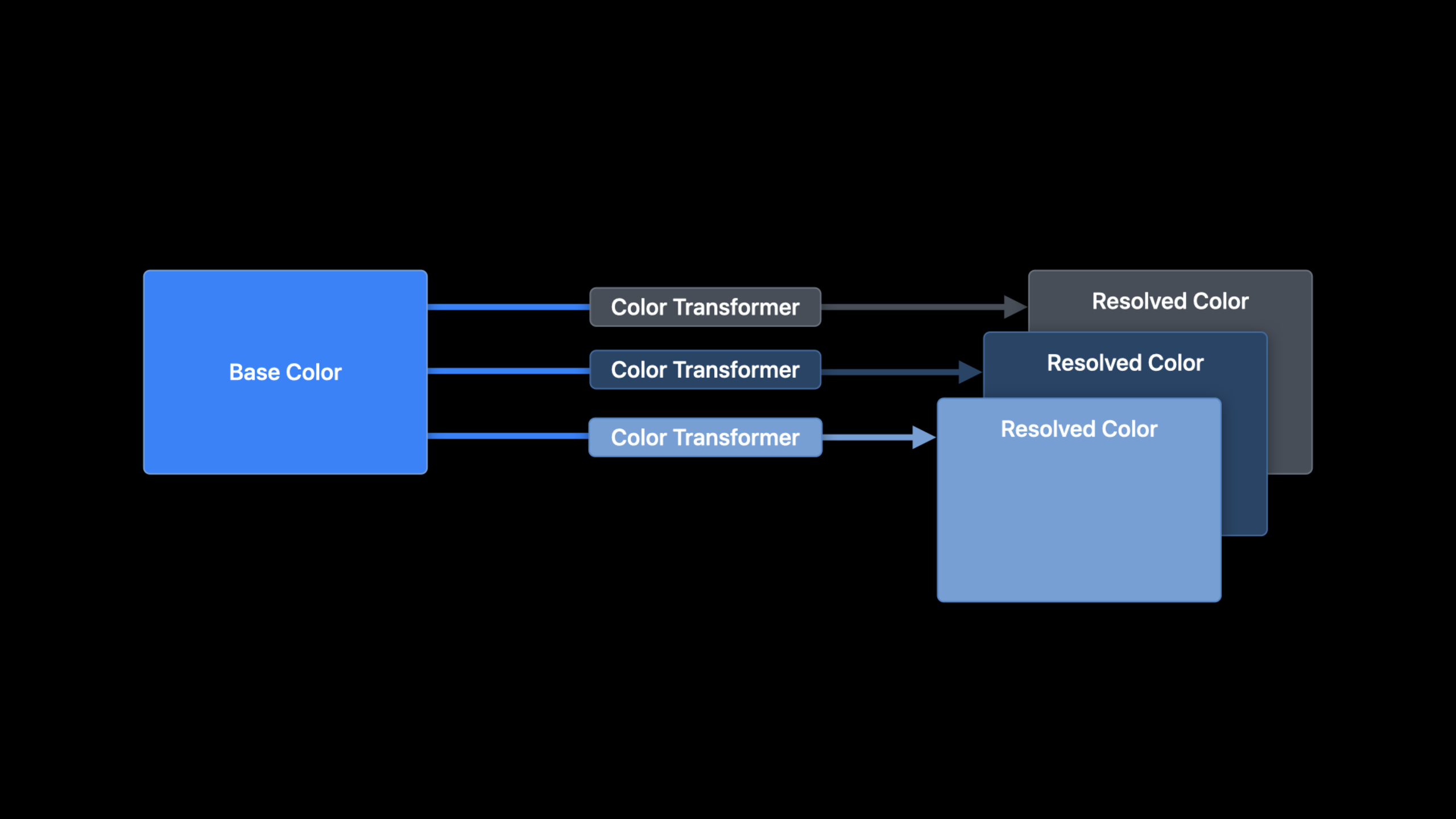
(13:10)background configuration 和 content configuration 都可以根据 state 返回更新后的新副本。
let updatedConfiguration = configuration.updated(for: state)关键点:
updated(for:)接收当前 configuration state。- 返回值是一份新配置,原始配置不会被修改。
- 如果你已经设置过某个属性,这个属性会保留在更新后的配置里。
- 默认情况下,cell 的 configuration state 变化时,系统会自动请求更新后的配置并重新应用。
(16:33)需要自定义状态外观时,把逻辑集中到 updateConfiguration(using:)。
override func updateConfiguration(using state: UICellConfigurationState) {
    var content = self.defaultContentConfiguration().updated(for: state)

    content.image = self.item.icon
    content.text = self.item.title

    if state.isHighlighted || state.isSelected {
        content.imageProperties.tintColor = .white
        content.textProperties.color = .white
    }

    self.contentConfiguration = content
}
关键点:
updateConfiguration(using:)会在 cell 首次显示前调用,也会在 configuration state 可能变化时再次调用。defaultContentConfiguration().updated(for: state)先取得当前状态下的系统默认样式。content.image和content.text填入当前 item 的内容。state.isHighlighted || state.isSelected只处理高亮和选中状态。self.contentConfiguration = content把这一轮状态对应的配置应用到 cell。- 如果需要主动请求重新配置,可以调用
setNeedsUpdateConfiguration。
选择默认背景和内容样式
(19:45)collection view list cell、table view cell、table view header 和 footer 会根据容器样式自动得到默认 background configuration。content configuration 可以从 cell 取,也可以直接从类型上取。
var background = UIBackgroundConfiguration.listSidebarCell()

var content = UIListContentConfiguration.sidebarCell()
关键点:
UIBackgroundConfiguration.listSidebarCell()创建 sidebar cell 的默认背景配置。UIListContentConfiguration.sidebarCell()创建 sidebar cell 的默认内容配置。- grouped、inset grouped、plain、sidebar plain 和 sidebar 这些列表外观的视觉差异,来自默认 background 和 content configurations。
- content configuration 支持动态字体。进入最大的 Accessibility text sizes 后,文本会围绕图片换行,给内容留出更多空间。
(22:32)列表内容配置和 self-sizing cells 一起工作。你通过 layout margins 和 padding 影响 intrinsic height,让 cell 根据设备尺寸、动态字体和内容量自动调整高度。
(23:44)如果多行 cell 的图片宽度不同,文本会失去对齐。演讲给出的做法是给图片指定相同的 reserved layout width,让图片在固定区域内居中,文本再相对同一个区域排版。SF Symbols 会自动得到标准 reserved layout size,非 symbol 图片需要开发者按需请求。
迁移时不要混用旧属性
(24:52)迁移旧 cell 时要避开同一块外观的两套写法。设置 background configuration 会把 backgroundColor 和 backgroundView 重置为 nil,反向设置这些旧属性也会影响 background configuration。
content configuration 也取代了 imageView、textLabel 和 detailTextLabel 这些内置内容 subview。演讲明确建议采用 content configurations,因为这些旧内容属性会在未来 release 中被废弃。
在自定义视图里复用系统内容渲染
(26:23)需要更复杂的 cell 时,可以直接创建 UIListContentView,把它和自己的 custom views 放在一起。
var content = UIListContentConfiguration.cell()

// Set up the content configuration as desired...

let contentView = UIListContentView(configuration: content)
关键点:
UIListContentConfiguration.cell()创建标准 cell 内容配置。- 注释位置是设置图片、文字、样式和布局属性的地方。
UIListContentView(configuration:)用这份配置创建负责渲染的 view。- 这个 view 可以放进自定义 cell,也可以单独放进普通
UIStackView。
如果 cell 完全自定义,系统配置仍然有用。你可以把它当作默认字体、颜色和 margin 的来源。更高级的场景可以创建自定义 content configuration,并配套一个负责渲染的 content view,让它像 list content configuration 一样被 cell 使用。
核心启发
1. 状态自动适配的 iPad sidebar
做什么:做一个项目、标签或文件夹侧边栏,选中项和高亮项自动切换文字和图标颜色。
为什么值得做:演讲展示了 sidebar list cell 在 highlighted、selected 等状态下会得到不同默认外观,也给出了在 updateConfiguration(using:) 中覆盖颜色的写法。
怎么开始:用 collection view list 创建 sidebar 外观;cell 内部从 defaultContentConfiguration().updated(for: state) 开始,设置 item 图标和标题,只在 selected/highlighted 时覆盖 tint 和 text color。
2. 动态字体友好的设置页
做什么:做一个设置或偏好页,每一行包含图标、标题和说明文案,在大字号下自动增高。
为什么值得做:content configuration 支持 self-sizing cells、layout margins、padding 和 Accessibility text sizes 下的特殊布局模式。
怎么开始:用 defaultContentConfiguration() 设置 image、text 和可选 secondary text;不要固定 cell 高度,通过配置上的 margin 和 padding 控制排版,让高度跟随内容变化。
3. 带业务状态的消息列表
做什么:做一个消息或交易列表,让 archived、flagged、processed 这类业务状态直接影响 cell 外观。
为什么值得做:configuration state 支持 custom states。演讲用 messaging app 的 archived/flagged 和 payment app 的 processed 举例,说明这些状态可以参与 cell 配置。
怎么开始:把业务状态作为配置输入,在 updateConfiguration(using:) 中读取 state,先用 updated(for:) 得到系统状态外观,再设置业务图标、标题和颜色。
4. 标准内容加自定义徽章的 cell
做什么:做一个列表 cell,左侧仍用系统 image/text/secondary text 布局,右侧添加你自己的进度、徽章或状态标签。
为什么值得做:UIListContentView 可以和自定义 view 并排使用,保留系统内容配置的动态字体、默认样式和状态更新。
怎么开始:创建 UIListContentConfiguration.cell(),设置内容后生成 UIListContentView(configuration:),再把它和自定义 badge view 一起放进 cell 的 view hierarchy。
关联 Session
- Advances in UICollectionView — 先看这一场,了解 iOS 14 的 collection view 新能力如何覆盖数据、布局和内容展示。
- Lists in UICollectionView — 继续看列表和 sidebar 如何用 compositional layout 取代表格外观。
- Advances in diffable data sources — 补上数据侧能力,用 section snapshots 和 reordering 管理列表与 outline 的变化。
评论
GitHub Issues · utterances